Set Up Inventory for the Player
Updated May 23, 2026
Use this page to select the player inventory type, assign the correct inventory component, configure context menu actions, and optionally define starting items.
Related setup: Set Up Your Own Character, Change Inventory Type on Interact Locations, Customize Your Datatables.
Determine your inventory Type
Hyper supports multiple common inventory types used across different game genres:
- Slot based: used in games like Rust and Ark.
- Jigsaw: used in games like Tarkov and Resident Evil.
- List based: used in many RPGs, such as The Elder Scrolls.
- OpenInventory: used in survival games like Sons of the Forest.
You can combine slot, jigsaw, and list inventories if your design needs it. Most projects use one inventory type.
How to change the inventory type?
Assuming the systems are integrated, the required inventory component is available on your Character.
- Open your Character Blueprint.
- Add the inventory component you want to use.
- Do not add duplicate inventory components. In most cases, AC_Inventory is already assigned by default and represents the slot-based inventory.
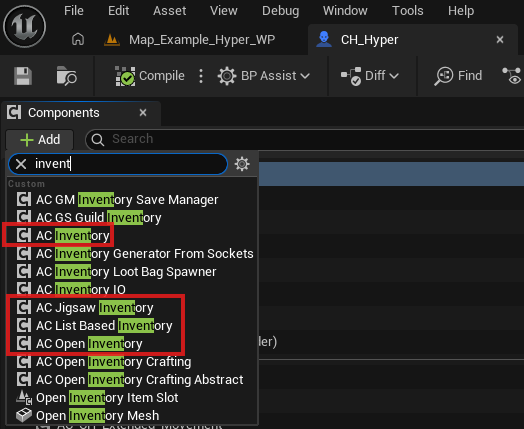
Inventory Type Selection
The inventory component on your Character requires an inventory type.
- Select your inventory component.
- Set the inventory type to InventoryTypes.Player.

Adjust context menu actions on your inventory
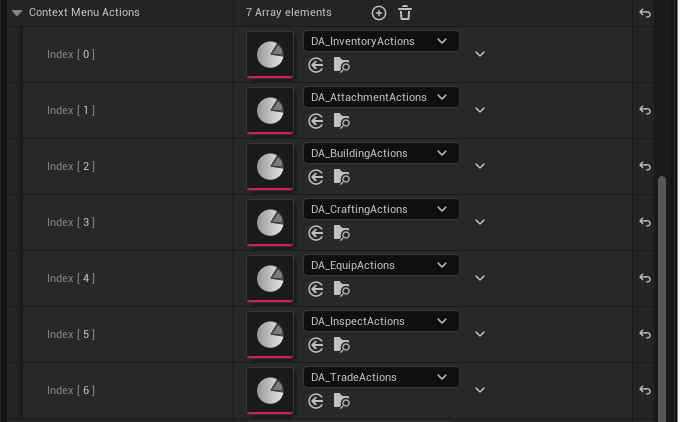
The inventory component determines which actions are available in the inventory. This lets you adjust the available actions based on which systems are active in your project.
- If you have multiple systems, review this list and add the actions you need.
- Open the Context Menu Actions array.
- Add all options that exist in your project.
- This enables or disables context menu options. For example, if you use the inspection system, the inspection context menu can be added here.
Initial inventory
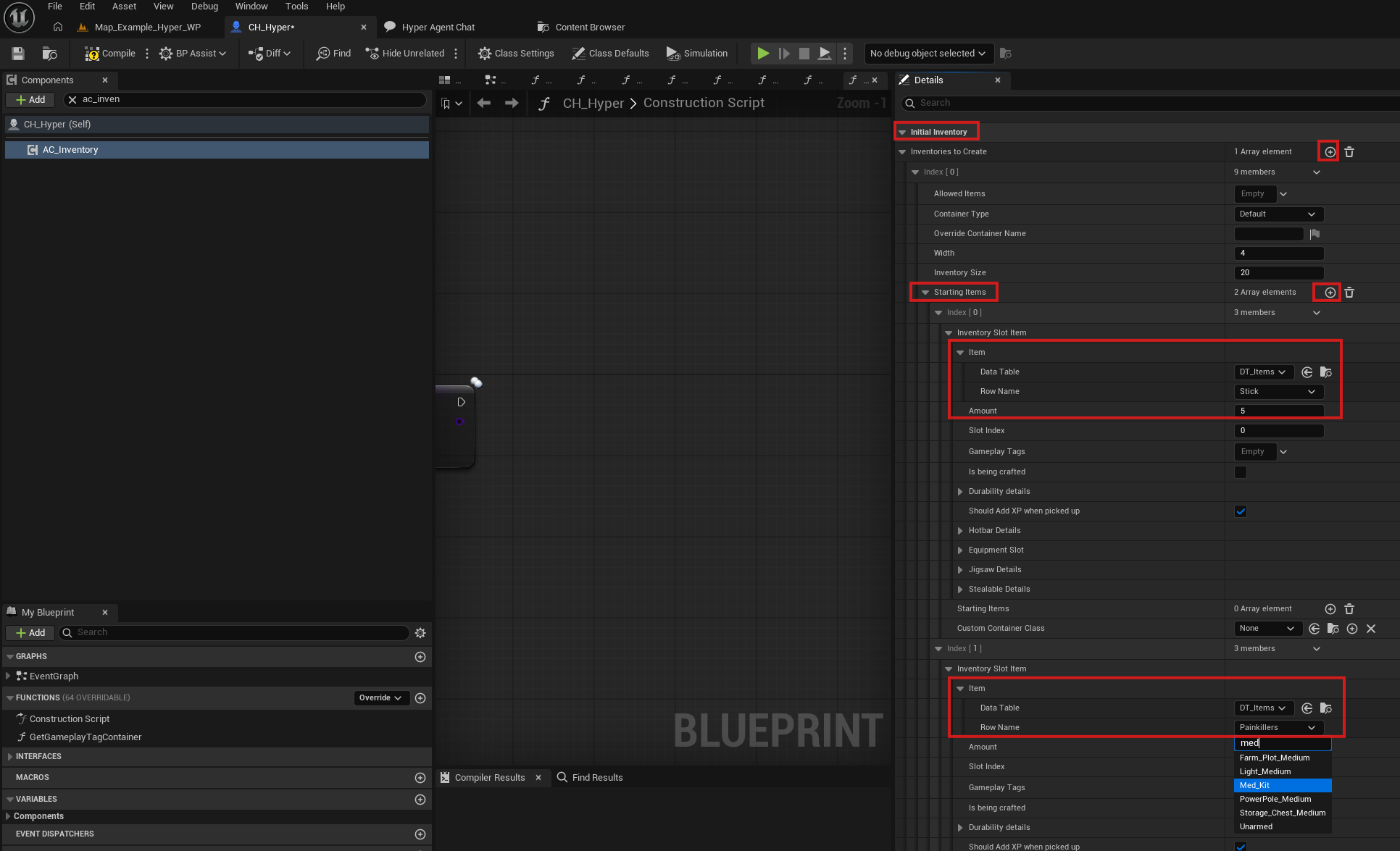
Many games give the player starting items on the first playthrough. Configure those items on the inventory component.
- Select your inventory component.
- Search for the Initial Inventory section.
- Press the + button on the array.
- Add the item.
- Select the amount.