
Customize Your Datatables
Updated May 23, 2026
Use this page when you want to customize data-driven content such as items, equipment, crafting recipes, abilities, buildables, quests, dialogue, NPC definitions, and similar gameplay data.
Related setup: Set Up Inventory for the Player, Make your own Equipment, Configure Attributes.
About Datatables
Data tables let you change gameplay content without hardcoding everything in Blueprints. They can also be exported to JSON or CSV, which makes larger edits easier to do externally.
Where possible, Hyper uses soft references in data tables for better memory management.
Hyper data tables are prefixed with DT_. Search for the data table you want to edit and adjust the rows for your game.
Depending on which systems you use, common data tables include:
- DT_Items
- DT_Equipment
- DT_CraftingRecipes
- Other system-specific DT_ tables.
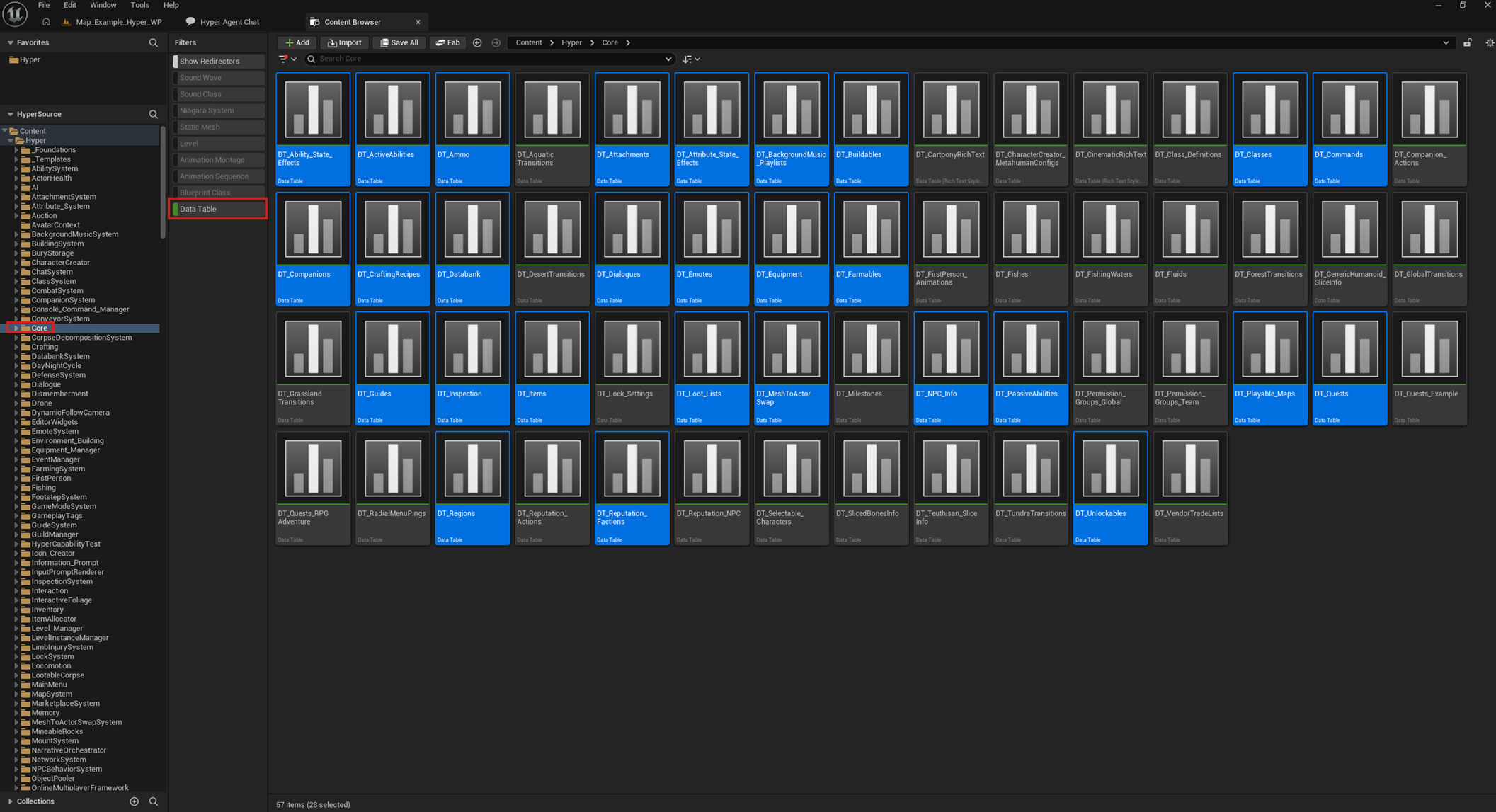
Example on adding an item
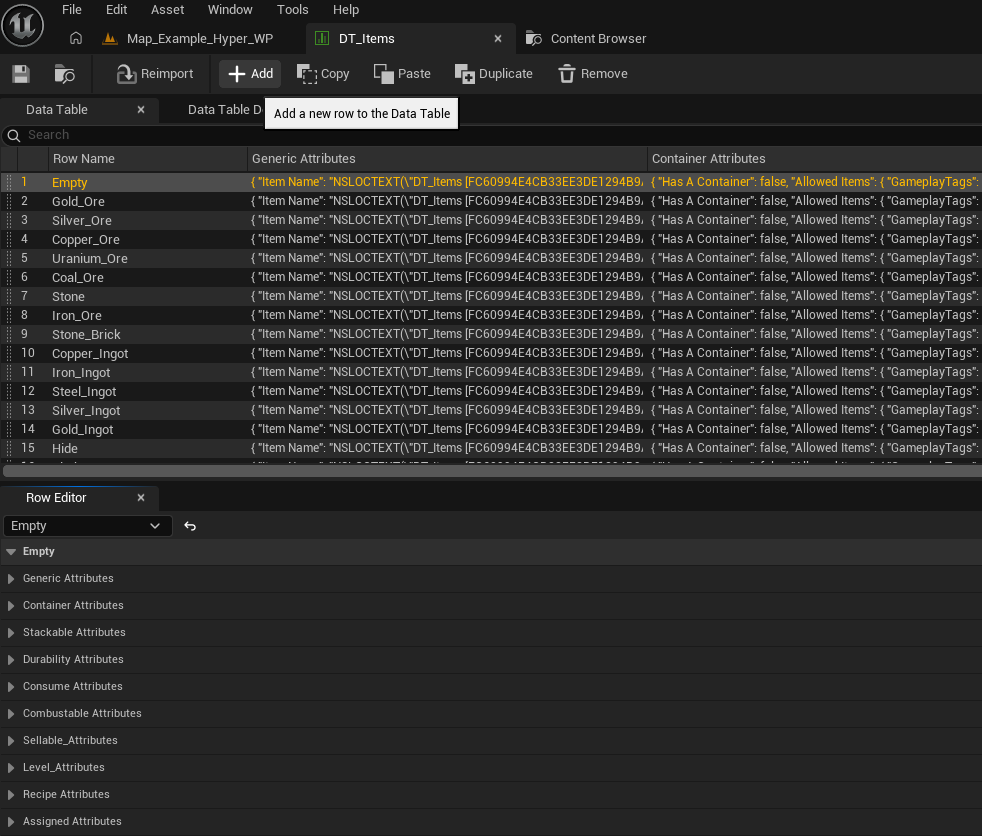
- Open DT_Items at /Game/Hyper/Core/Inventory/Datamodel/Datatables/DT_Items.DT_Items.
- Click Add Row.
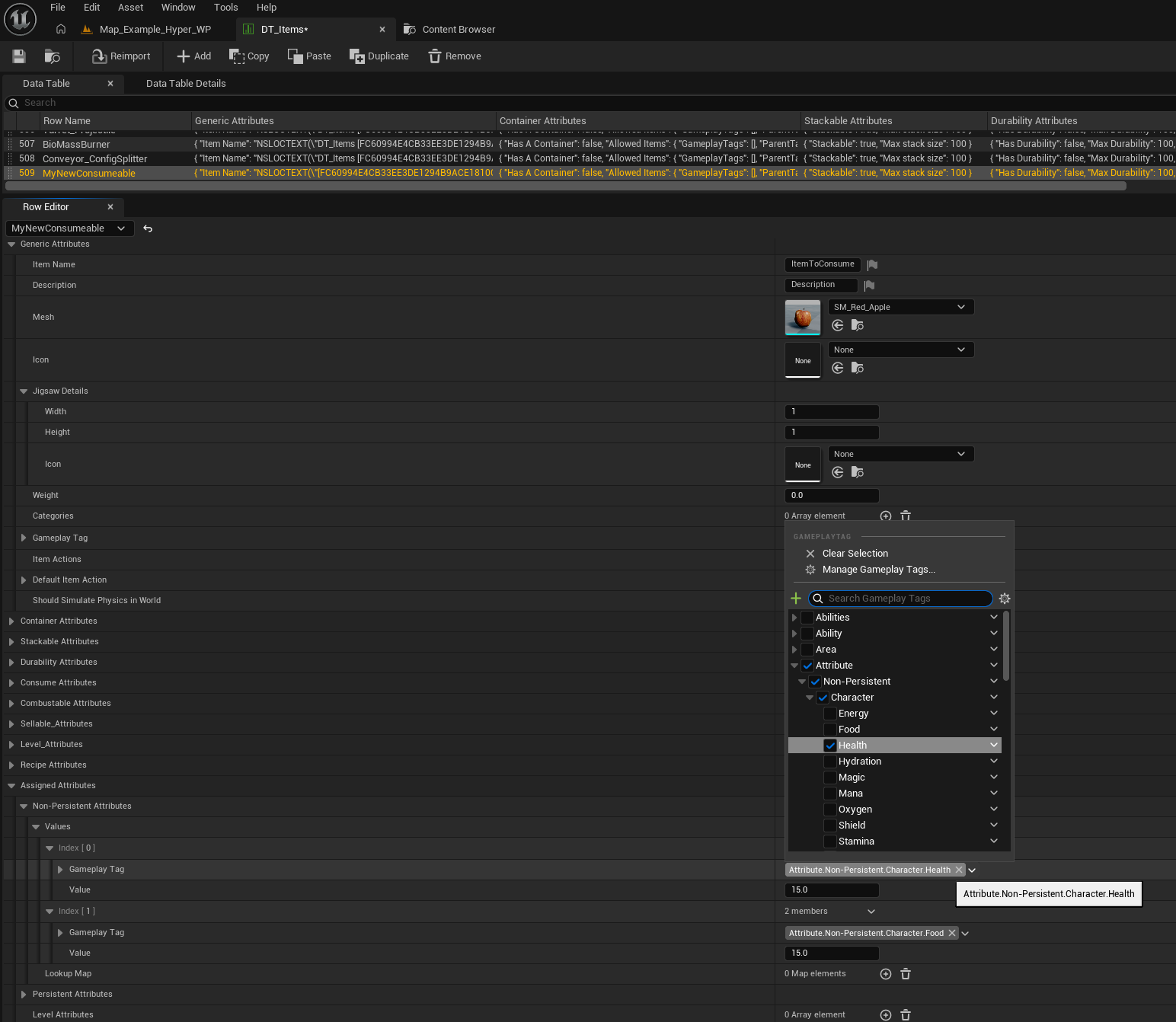
- Set the item information you need, such as icons, mesh, attributes, and other item data.
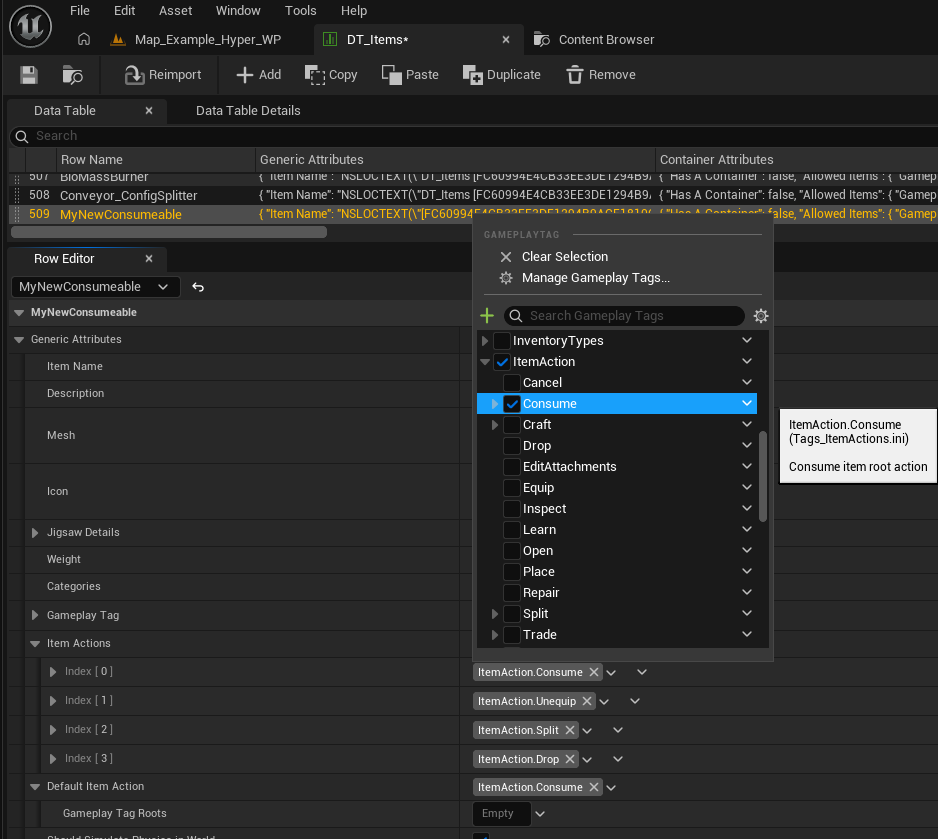
- Assign the item actions that are relevant for this item.
You also need to assign an identifier for the item. This is done with a gameplay tag.
Adding gameplay tags
Hyper uses gameplay tags throughout the systems to categorize and identify data. For this use case, think of a gameplay tag as a structured string identifier.
- When you add a new item, create a new tag for that item.
- For example, create a tag for a new consumable item.
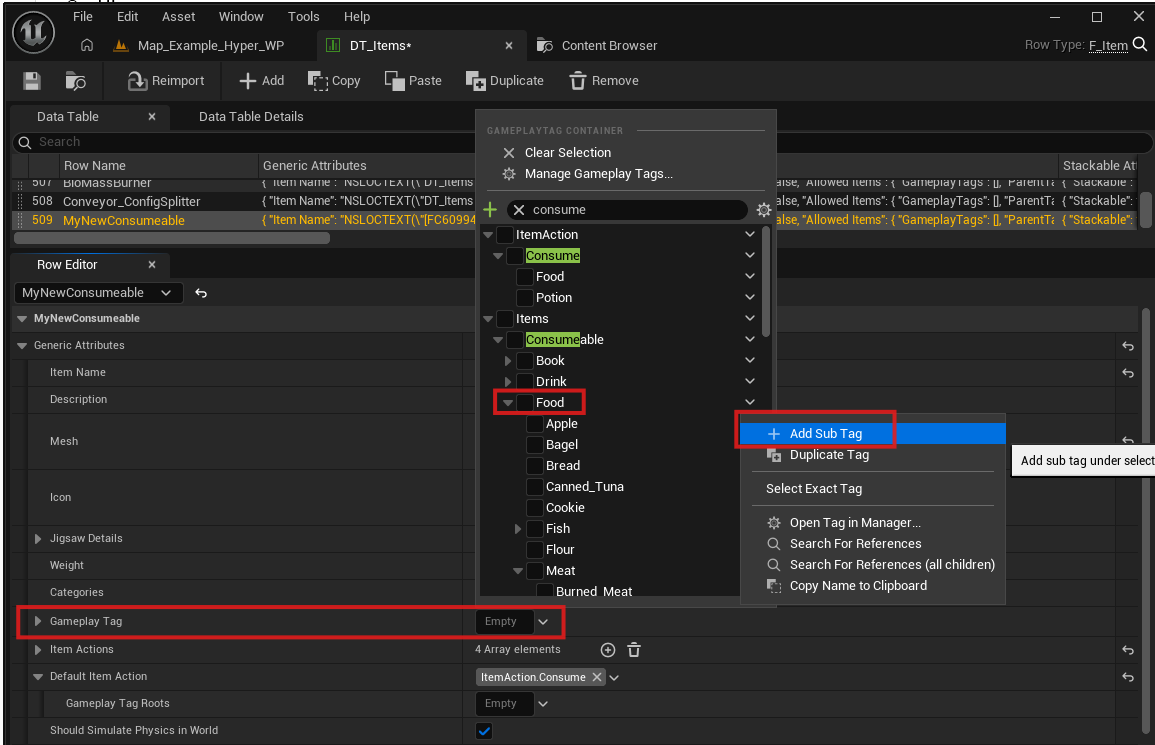
- Gameplay tags are stored in separate .ini files, such as Tags_items.ini.
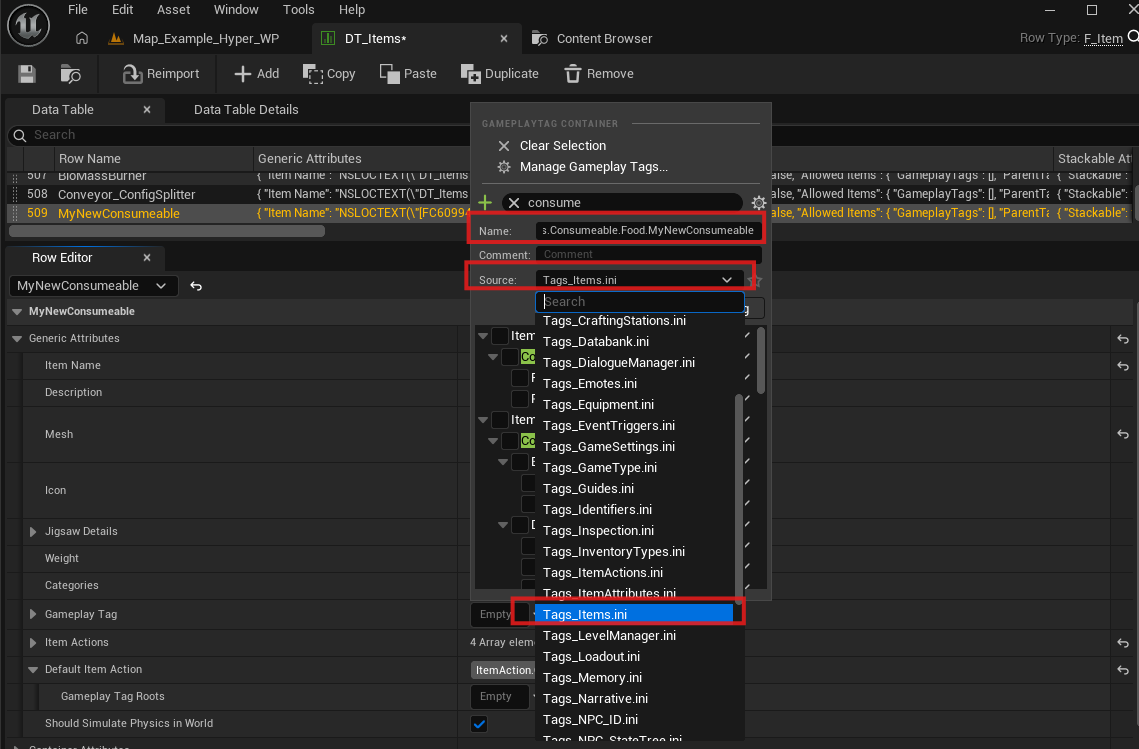
These files are also available in YourProjectConfigTags.