
Set Up Water Volume Swimming
Updated May 23, 2026
This page only covers placing a swimming volume. It assumes the required prerequisites are already working.
- Required plugins are enabled and integrated, including the Water plugin.
- Relevant attributes are configured, such as Oxygen. See Configure Attributes.
Adding the water and physics volume
- Use Unreal’s Water plugin.
-
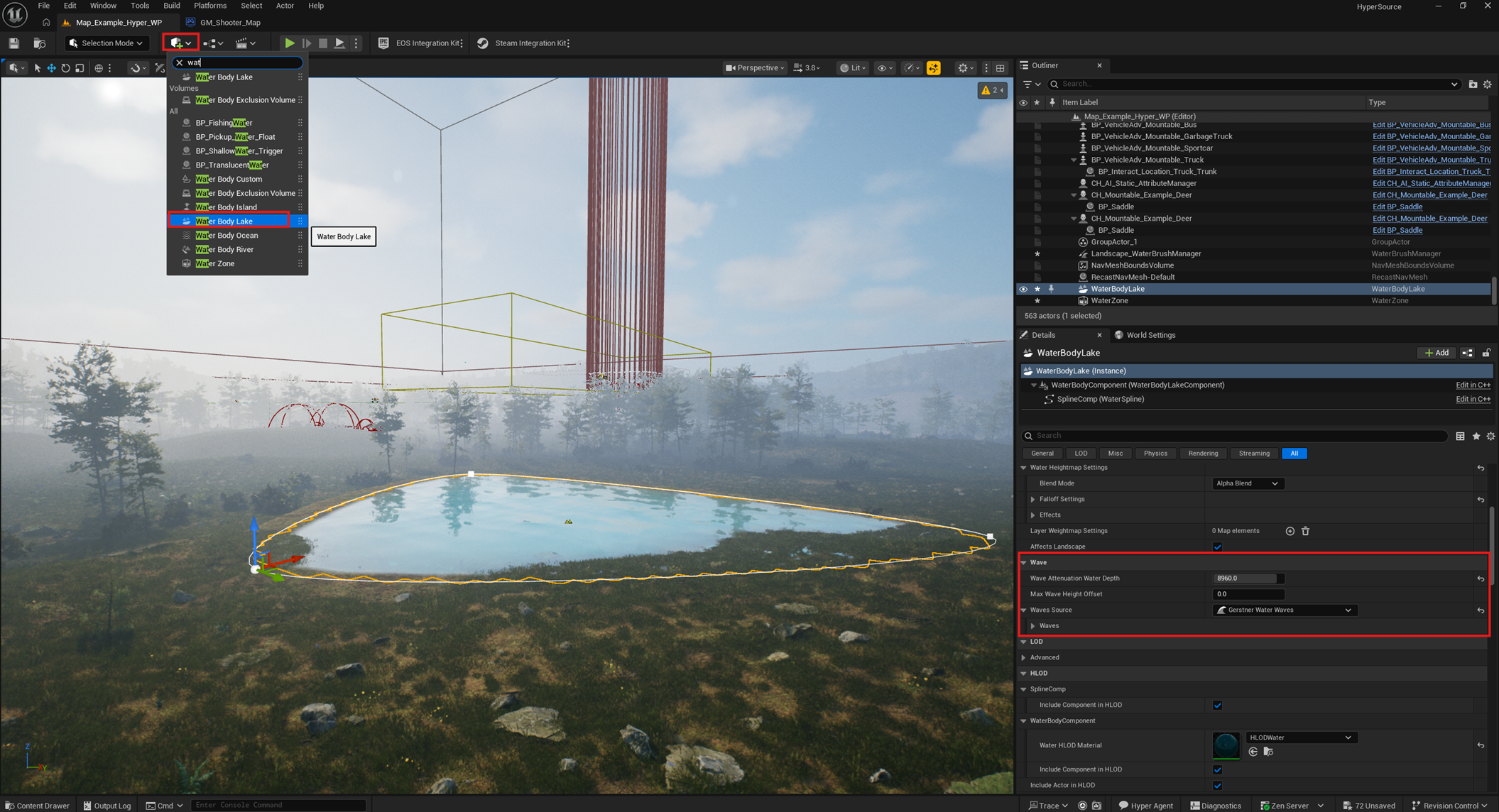
Drag a water volume into the world.
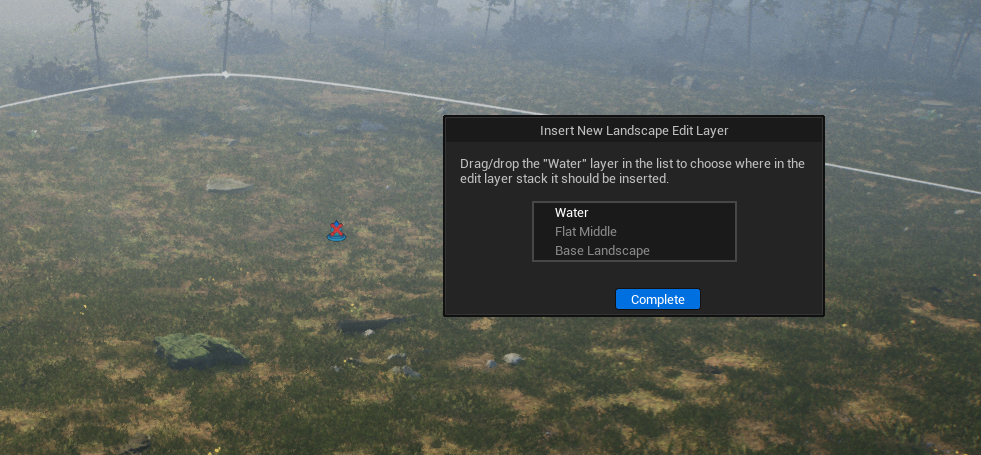
- If Unreal shows the edit layer popup, press Complete.
- Unreal physics volumes are not adaptive yet and are box-shaped, so avoid strong displacement waves or keep them limited.
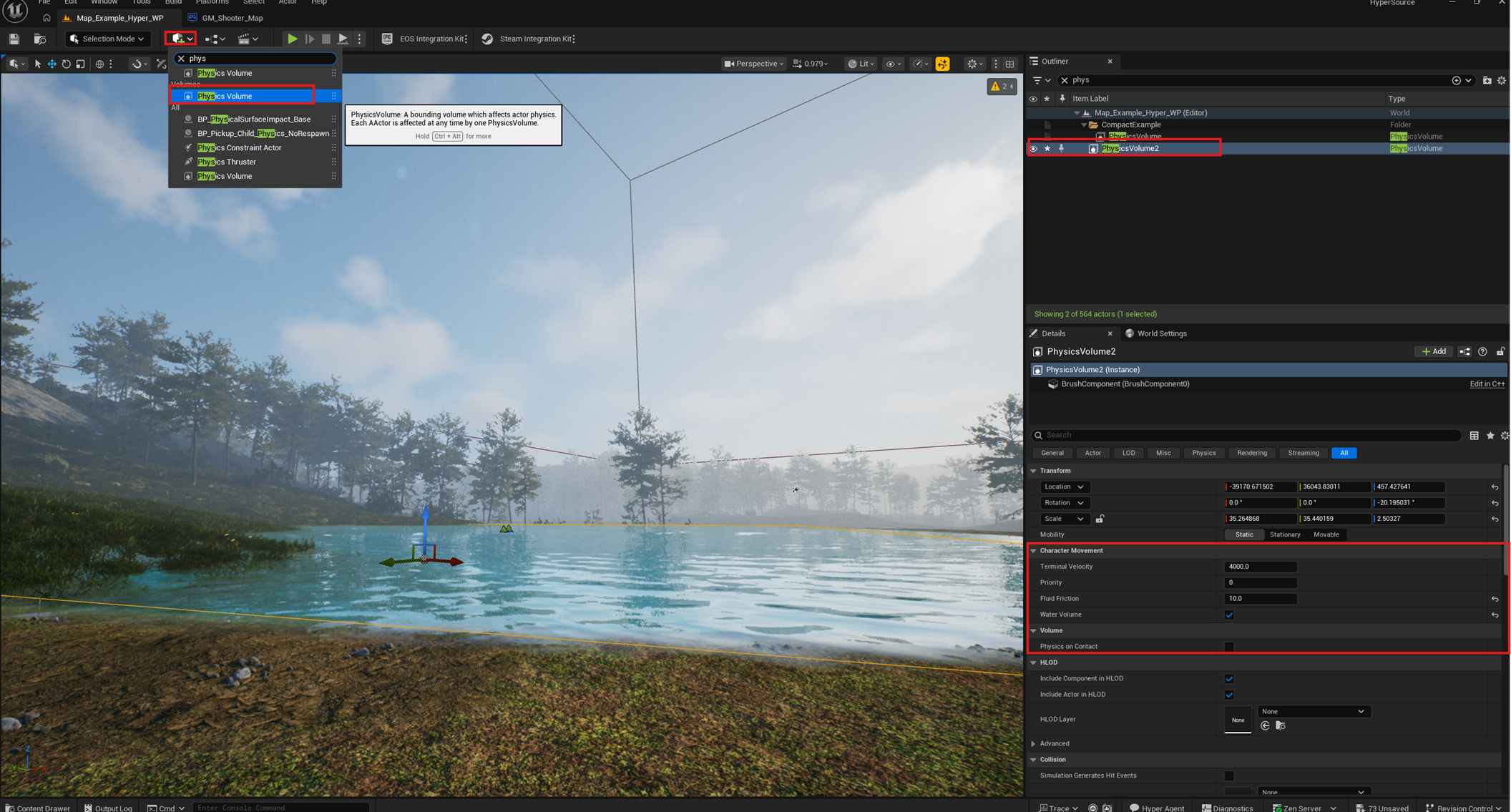
- Add one or more physics volumes and align them to the water.
- Enable the Water Volume checkbox.
- Set Fluid Friction to your liking. A value such as 10 can be a starting point.
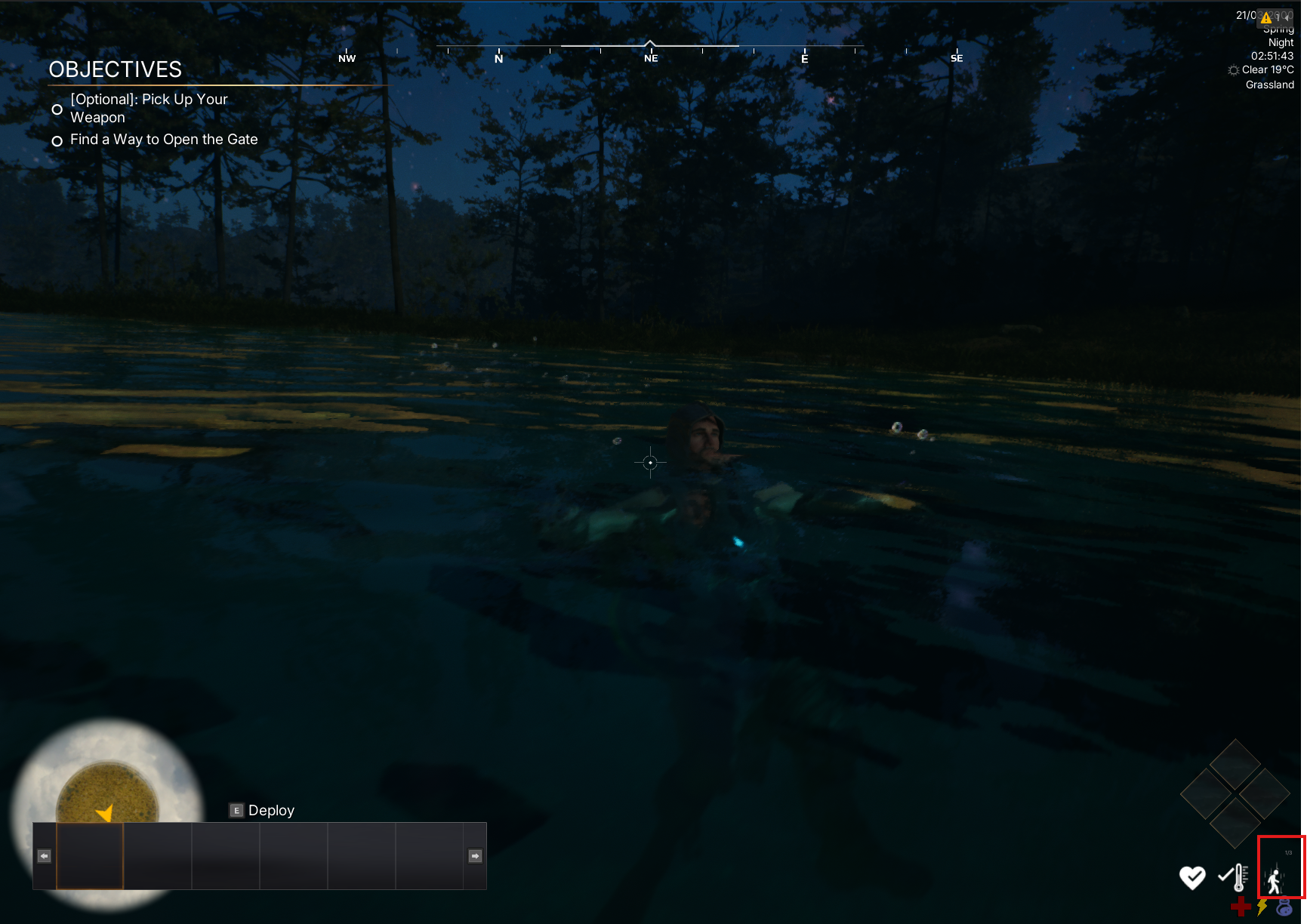
- Test swimming in Play mode.
- Adjust the water and physics volume setup to your liking.
Tip: use custom paint layers under the water when needed. See Set Up Your Game Environment.