
Region system #
Introduction #
The Region System is a border-driven area management framework for Unreal Engine projects. Instead of relying on large trigger volumes, it defines regions implicitly through border actors and allows the player to move cleanly from one region to another as they cross those borders.
In the supplied implementation, a region listener component lives on the Player Controller. That listener determines the initial region on begin play, reacts to border overlap events during gameplay, caches the current and previous region, and exposes a clean region-changed flow that other systems can consume.
|
Core rules Regions are defined by borders rather than by standalone volume actors. Every border always has two sides: Region A and Region B. The player is intended to be in exactly one region at a time. Borders should never overlap ambiguously; each logical crossing should be its own border actor. The same border data can also be reused for world-map capture and region-name rendering. |
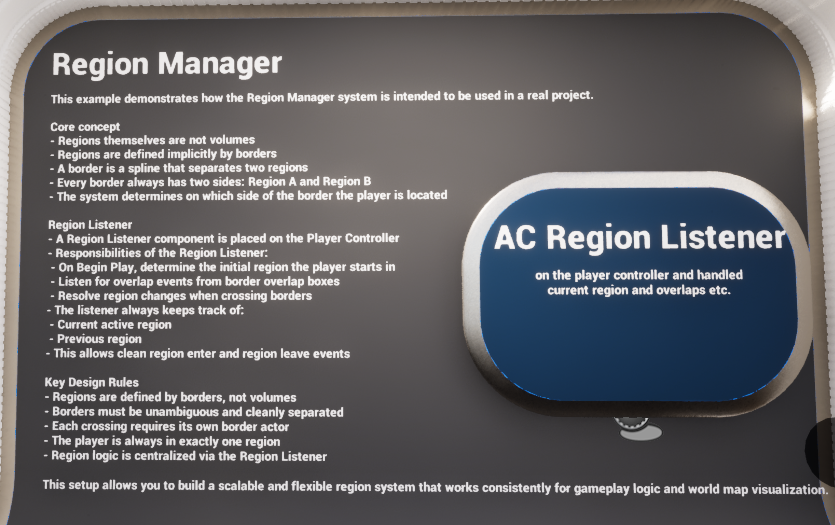
Demo overview board describing the intended runtime use of the Region System.
System Overview #
At runtime, the system works by combining lightweight authored data with spline-driven border actors. Region data lives in a structure and data table, border actors define where transitions happen in the world, and the listener decides which side of the active border the pawn occupies.
The example project also includes optional helpers for region-name rendering and world-map texture preparation. Those helpers are not responsible for the region change logic itself; they exist to make the same authored data useful for map generation and presentation.
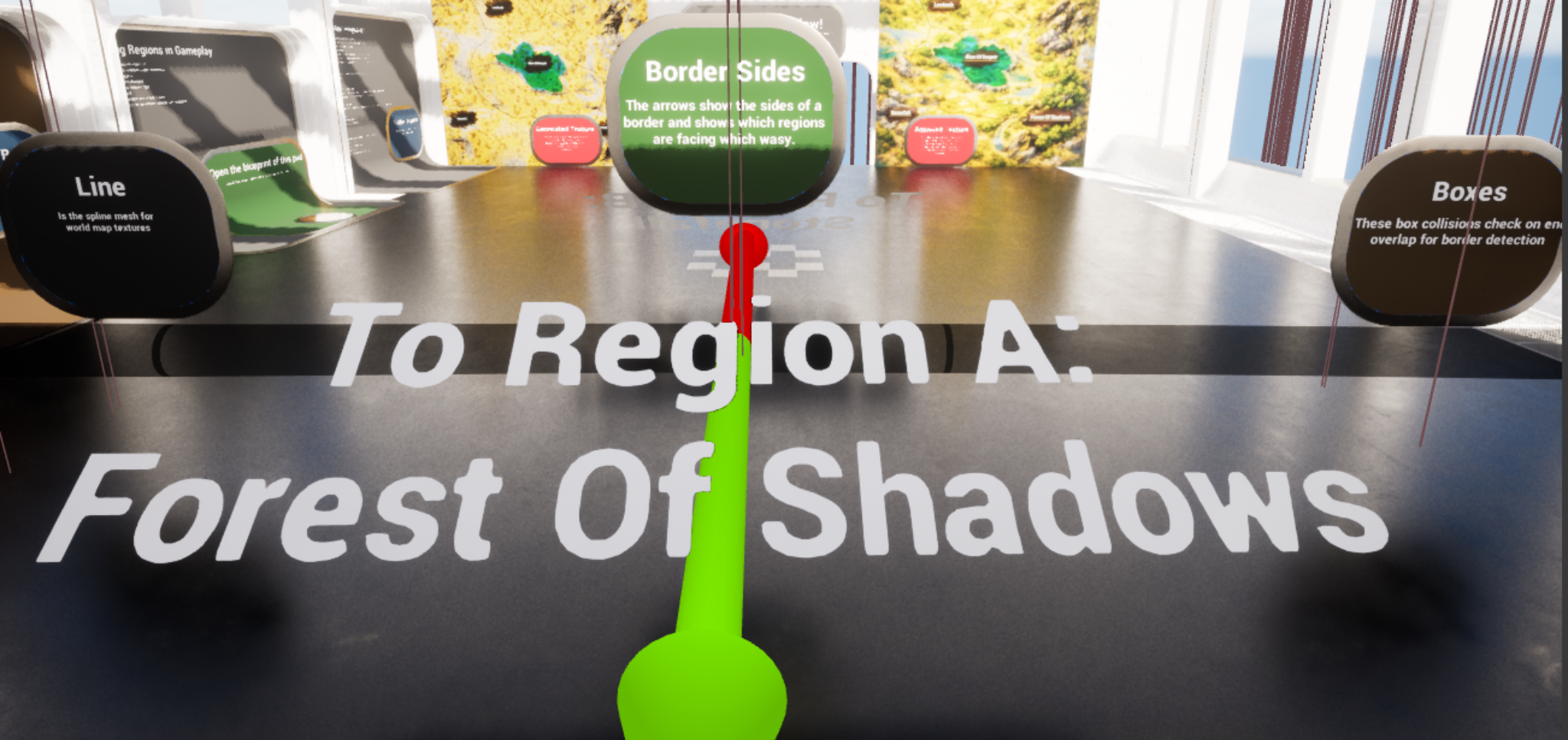
Example border in the demo map. The arrows indicate the two sides of the border and help visualise which direction faces each region.
Core Assets #
The supplied system is built around four practical assets: one listener component, one border actor, one optional region-name actor, and one optional helper for preparing a map-texture capture pass.
Primary assets #
|
Field |
Description |
|
AC_PC_RegionListener |
Runtime listener component placed on the Player Controller. Resolves the initial region, handles border crossings, updates current / previous region, and triggers region-changed behaviour. |
|
BP_Region_Border |
Spline-based border actor. Stores Region A and Region B, generates overlap boxes along the spline, and forwards overlap events back to the listener. |
|
BP_RegionName |
Optional helper actor that displays a region name via a widget component. Used primarily for readable region labels and map-capture workflows. |
|
BP_Regions_Manager_PrepareMapTexture |
Optional utility actor that batch-updates border and region-name presentation settings when preparing a world-map capture texture. |
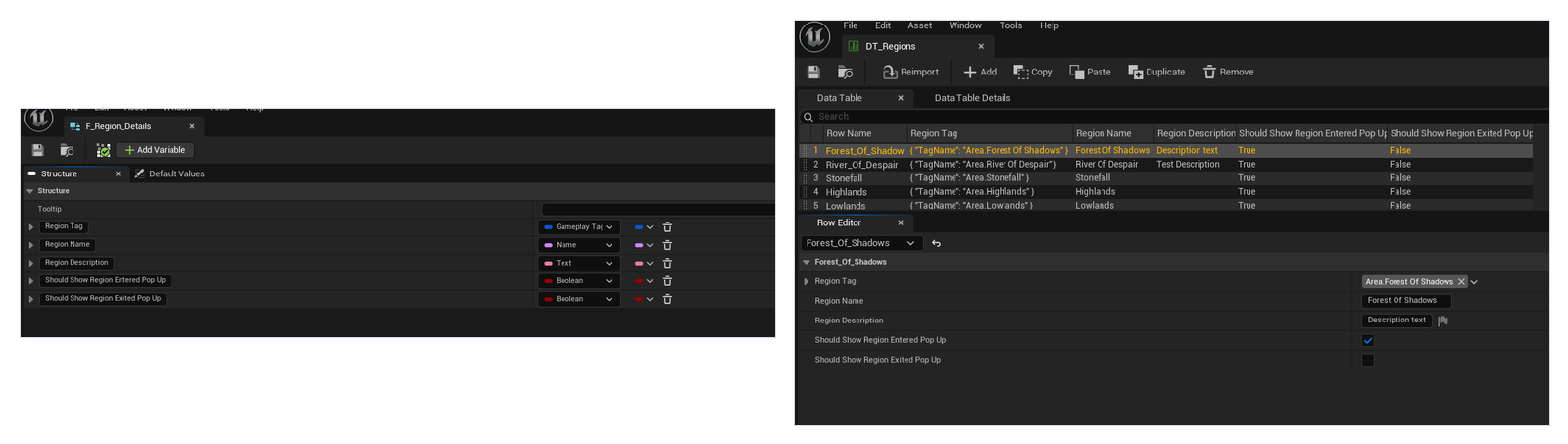
Core data assets used by the system: the region details struct and the region data table.
Ac_pc_regionlistener #
AC_PC_RegionListener is the heart of the Region System. It owns the player's live region state and centralises the rules for initialisation, transition handling, and notification.
Placing the logic on the Player Controller is a strong fit for projects that support respawning or pawn swaps. The controller remains stable while the active pawn changes, so the region state can be re-established cleanly after respawn without moving the region logic around multiple pawn classes.
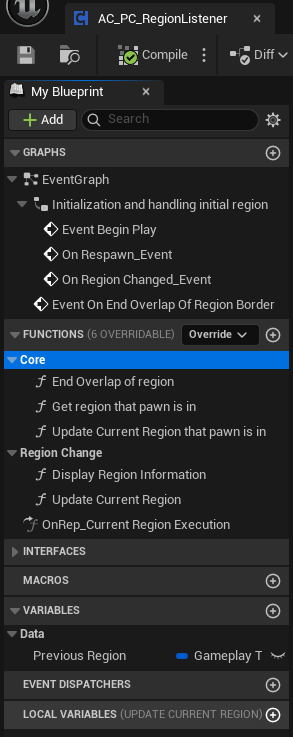
Listener graph and function layout. The implementation is grouped around initialisation, region change handling, and helper functions.
On begin play, the component binds a local region-changed event to the display logic, waits until the pawn is valid, and then resolves the starting region. It also listens for respawn events so the same initial-region resolution can be repeated when the player's pawn is recreated.
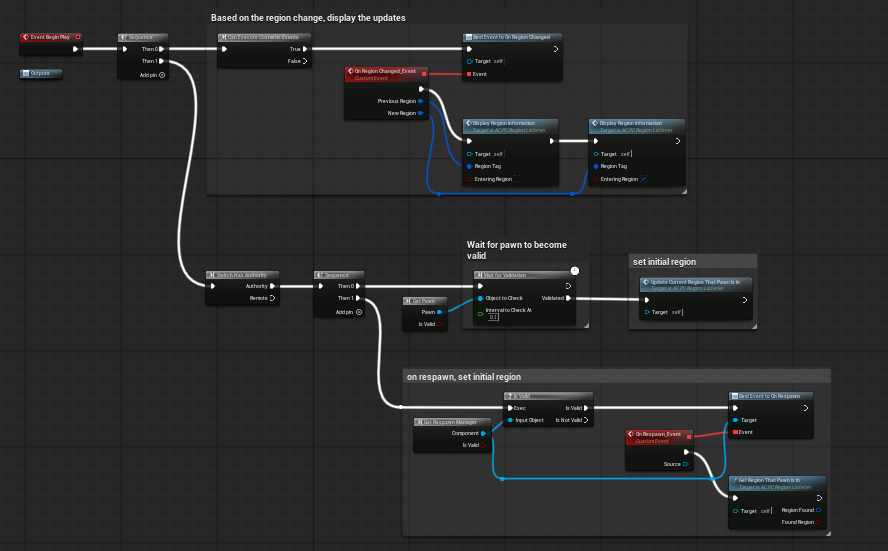
Begin Play and respawn handling in the listener. The component waits for a valid pawn before attempting the first region lookup.
During play, the listener reacts to the border actor's end-overlap callback. The event is deliberately routed through a retriggerable delay so that very specific edge cases do not cause the overlap logic to fire multiple times at the same border seam.
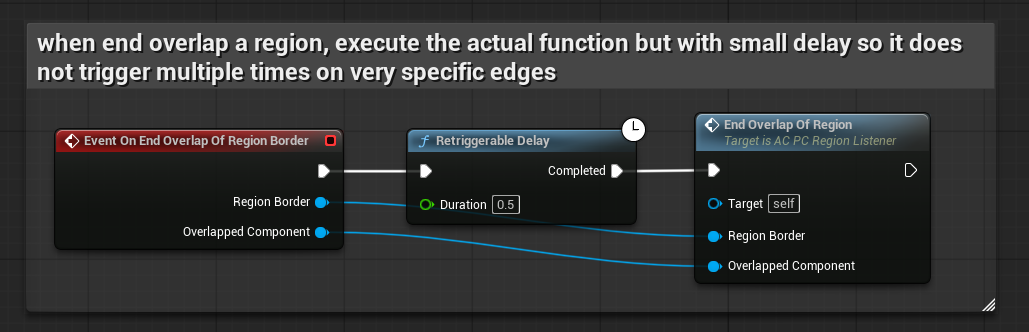
End-overlap entry point on the listener. A short retriggerable delay reduces duplicate firing on tight edge cases.
The initial-region lookup and the fallback lookup both use the same idea: find the nearest border spline, transform the pawn position into that border's local space, and determine whether the player sits on the Region A side or the Region B side.
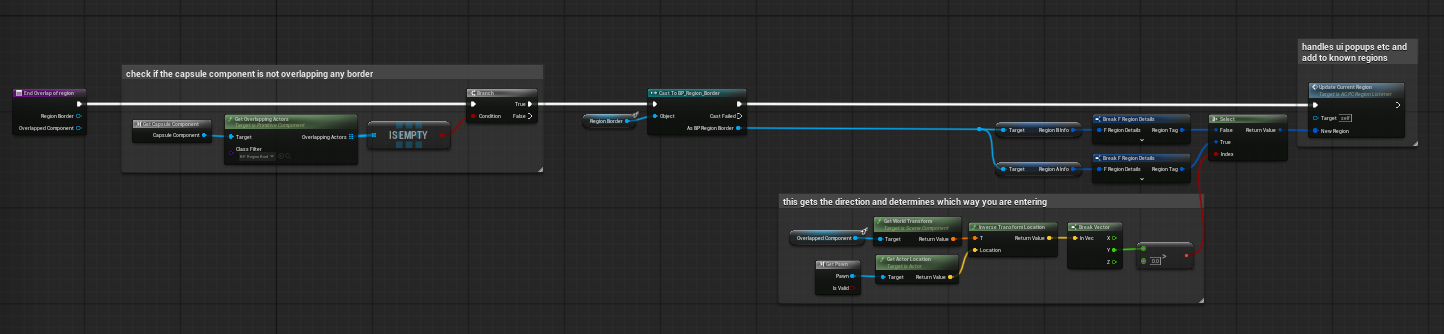
Get Region That Pawn Is In. The listener finds the nearest border and uses border-side logic to infer the active region.
When a border crossing is confirmed, the component first checks whether the pawn's capsule is still overlapping any border. If not, it determines the side that has been entered and passes the resolved region tag into the update function.
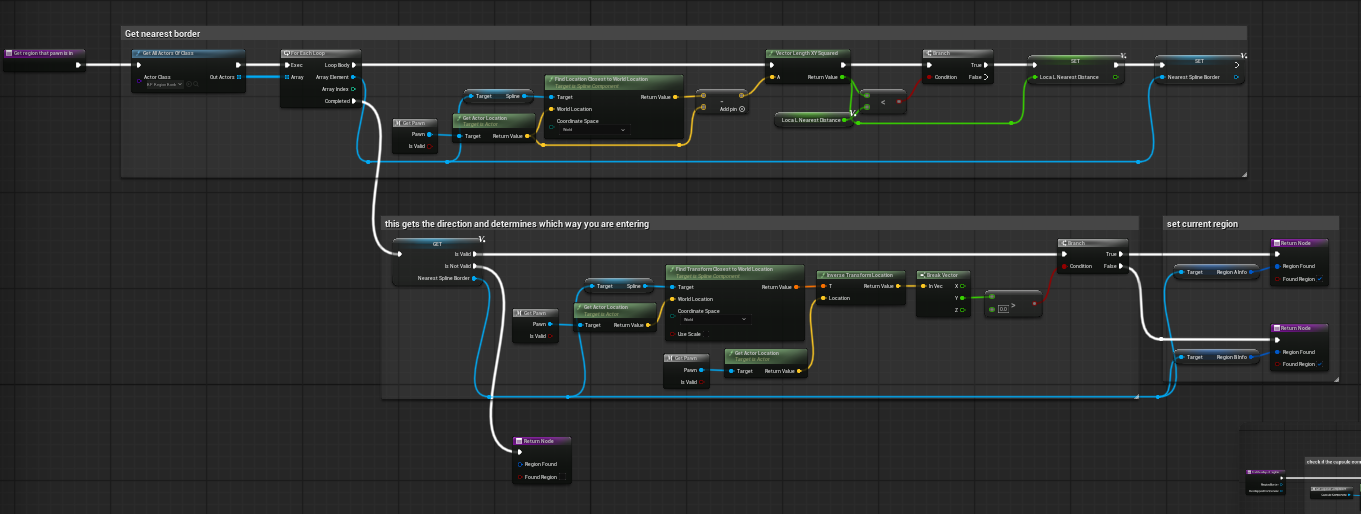
End Overlap Of Region. The listener resolves the border side and chooses the correct region from Region A or Region B.
Updating the active region follows a simple state-change pattern: cache the previous value, write the new current region, and add the new region to the Known Regions container if it has not already been discovered.
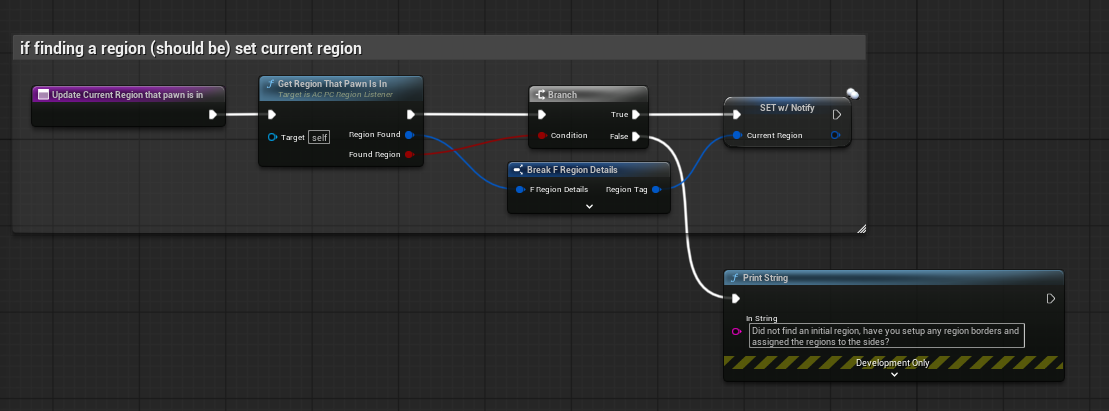
Update Current Region. Previous Region is cached first, then Current Region is set and the new tag is optionally added to Known Regions.
Current Region uses a notify path so that the high-level region-changed event still fires consistently when the replicated state updates. In the supplied implementation, the rep-notify handler forwards Previous Region and Current Region into the region-changed execution flow.

Rep-notify execution forwards the previous and new region tags into the region-changed flow.
Bp_region_border #
BP_Region_Border is the authored world-space boundary actor. Each instance contains a spline and represents a single logical border between exactly two regions.
Rather than placing one large region volume, you draw border splines where region transitions should occur. This makes the boundary visible, editable, and reusable for both gameplay logic and optional world-map rendering.
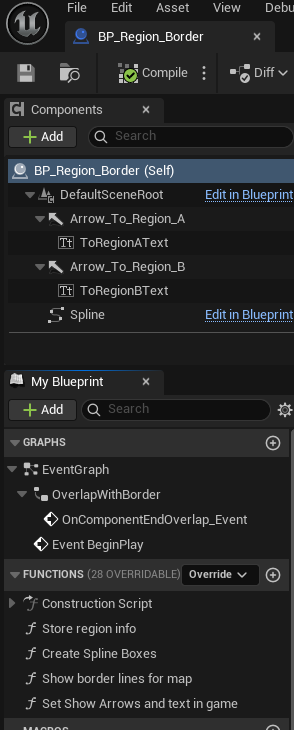
Border actor components and key variables. Each border owns a spline, directional arrows, text labels, region row handles, and visual/debug settings.
Region A and Region B are authored as data-table row handles. At construction time, the actor reads both rows from the region data table and caches the results into Region A Info and Region B Info so that runtime logic does not need to perform that lookup repeatedly.
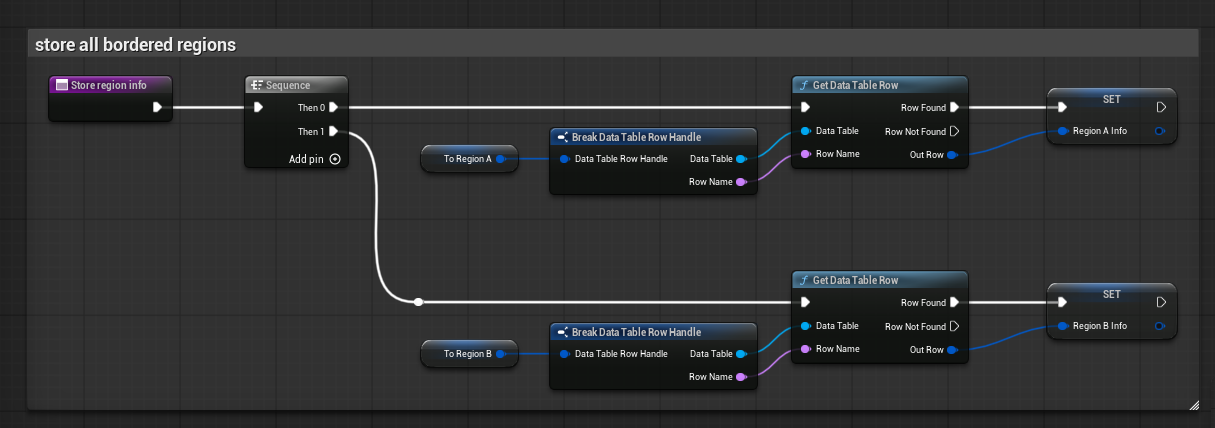
Store Region Info. The border resolves both row handles into cached F_Region_Details values.
The construction script prepares the actor for use by caching the region info, calculating spline-centre data, updating the arrow and text helpers, regenerating the spline boxes, and updating optional map-visibility behaviour.
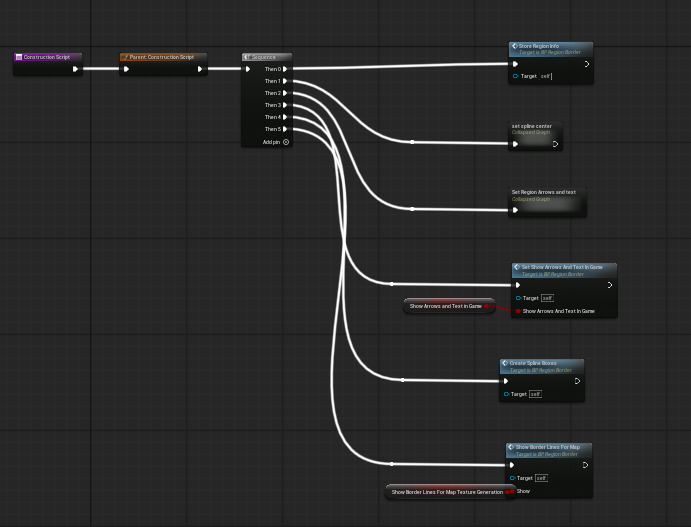
Border construction flow. The actor keeps its helper presentation and overlap boxes in sync with authored settings.
The spline-box generation function is one of the most important pieces of the actor. It clears any previously created box collisions, calculates how many segments are needed based on the authored Sample Precision, and spawns box components along the spline using the spline's location and rotation at each sample point.
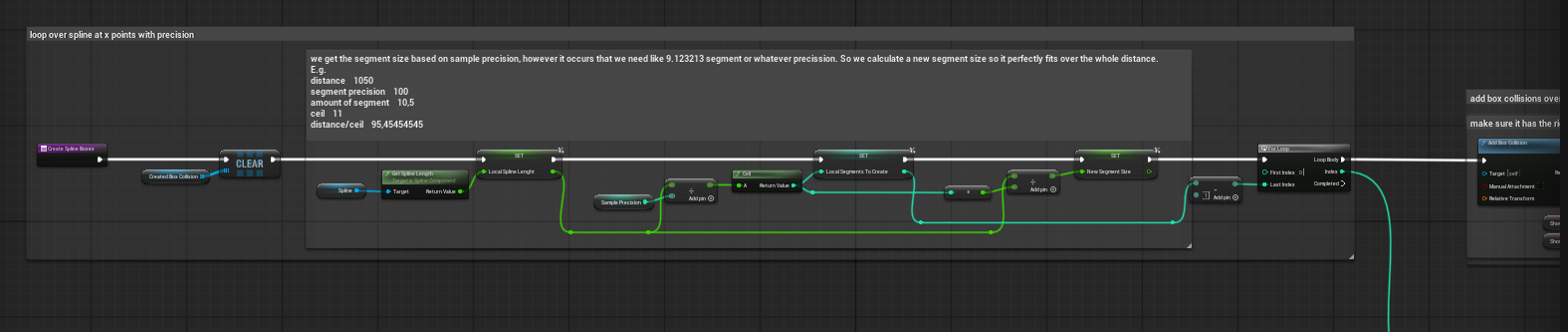
Create Spline Boxes. Segment count and segment size are derived from the spline length and Sample Precision.

Each created box is positioned along the spline, given the correct orientation, added to the cached array, and sized to create a long thin overlap strip.
At runtime, the border forwards overlap information back to the listener on the player's controller. The overlap event first validates that the other actor is a pawn controlled by a player controller, then looks up AC_PC_RegionListener and calls its end-overlap function with the border reference and overlapped component.
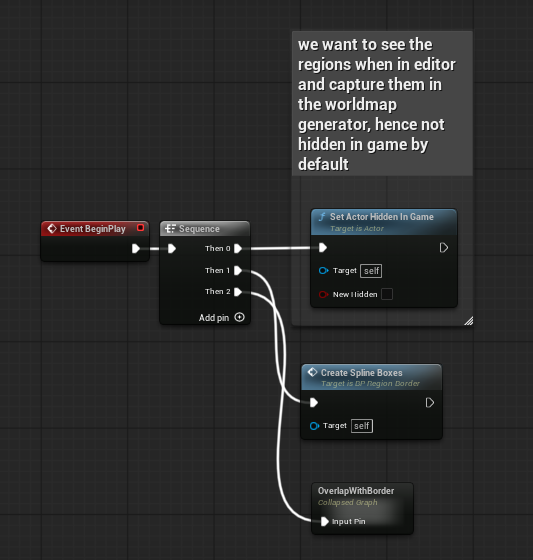
The border actor does not decide the new region on its own. It forwards the overlap event to AC_PC_RegionListener, which owns the actual region-state logic.
The border also contains several helpful authoring settings. Show Border Boxes in Editor and Show Border Boxes in Game let you debug the generated overlap volumes. Show Border Lines for Map and Show Arrows And Text in Game expose the same authored border to presentation workflows.
Important border settings #
|
Field |
Description |
|
To Region A / To Region B |
Data-table row handles that define the two regions separated by this border. |
|
Sample Precision |
Controls how many collision boxes are created along the spline. Higher values mean more samples and more precise detection, but also more components. |
|
Show Border Boxes in Editor |
Visibility toggle used to inspect the generated overlap boxes while authoring. |
|
Show Border Boxes in Game |
Runtime debug visibility for the same generated overlap boxes. |
|
Show Border Lines for Map |
Controls whether any border-line presentation meshes should be visible for a world-map capture pass. |
|
Show Arrows And Text in Game |
Toggles the directional arrows and helper text renderers on the actor. |
|
Should Run Construction Script |
Authoring safeguard for when you want to temporarily stop the actor from rebuilding helper content. |
Details Panel / Important Variables #
Although the Region System is conceptually simple, a few variables matter more than the rest because they control the live state or the authored border behaviour.
Listener state #
|
Field |
Description |
|
Current Region |
The listener's active gameplay tag for the player's current region. This is the value other gameplay systems should generally treat as authoritative. |
|
Previous Region |
Cached gameplay tag for the region the player occupied immediately before the current one. |
|
Known Regions |
Gameplay tag container used to accumulate regions the player has already entered or discovered. |
Region-name actor settings #
|
Field |
Description |
|
Region |
Data-table row handle that identifies which region name this actor should display. |
|
Text World Size |
Scale control for the widget-based region label. |
|
Rotation / Angle |
Presentation controls used to orient the region-name widget in the world or on a map-capture pass. |
|
Location Offset |
Optional authoring offset used when placing the displayed label. |
|
Hide in Game |
Allows labels to remain useful for editor and map-capture workflows while staying hidden during normal play. |
Map-preparation manager settings #
|
Field |
Description |
|
Region_Text_Angle / Rotation / WorldSize |
Batch-applied presentation settings for every BP_RegionName actor in the map. |
|
Sample Precision |
Batch-applied precision value for all BP_Region_Border actors when preparing a capture pass. |
|
Show Border Boxes in Editor / Game |
Batch toggles for border-box visibility. |
|
Show Border Lines |
Batch toggle for border-line presentation. |
|
Ready for Map Generation |
Switch that flips the authored border and name actors into a capture-friendly presentation state. |
|
Show Arrows And Text |
Controls whether border helper arrows and text remain visible during preparation. |
Structures Explained #
The Region System uses one key data structure in the supplied implementation: F_Region_Details. This struct is the single source of truth for the user-facing identity of a region and for the optional popup behaviour that occurs when entering or leaving one.
F_Region_Details #
|
Field |
Description |
|
Region Tag |
Gameplay tag that identifies the region in code and in gameplay integrations, for example Area.ForestOfShadows. |
|
Region Name |
Readable name shown to players and used by helper widgets or prompts. |
|
Region Description |
Optional text description for UI or auxiliary presentation. |
|
Should Show Region Entered Pop Up |
Boolean flag that determines whether the region-entered message should be shown when this region becomes the current region. |
|
Should Show Region Exited Pop Up |
Boolean flag that determines whether the region-exited message should be shown when leaving this region. |
The struct is intentionally lean. The gameplay tag handles the systemic identity, while the readable fields and booleans support presentation. This keeps the runtime logic fast and makes the data table easy to author.
Data Tables Explained #
DT_Regions is the authored list of region rows used throughout the entire system. Border actors reference it through row handles, the listener queries it when creating prompts, and region-name actors use it to resolve their displayed label.
DT_Regions #
|
Field |
Description |
|
Row Name |
Stable authored key used by border actors and region-name actors when selecting a region row. |
|
Region Tag |
Gameplay tag that becomes the runtime identity of the region. |
|
Region Name |
Player-facing region label. |
|
Region Description |
Optional readable description or flavour text. |
|
Should Show Region Entered Pop Up |
Whether the region should display an entered prompt when the player moves into it. |
|
Should Show Region Exited Pop Up |
Whether the region should display an exited prompt when the player leaves it. |
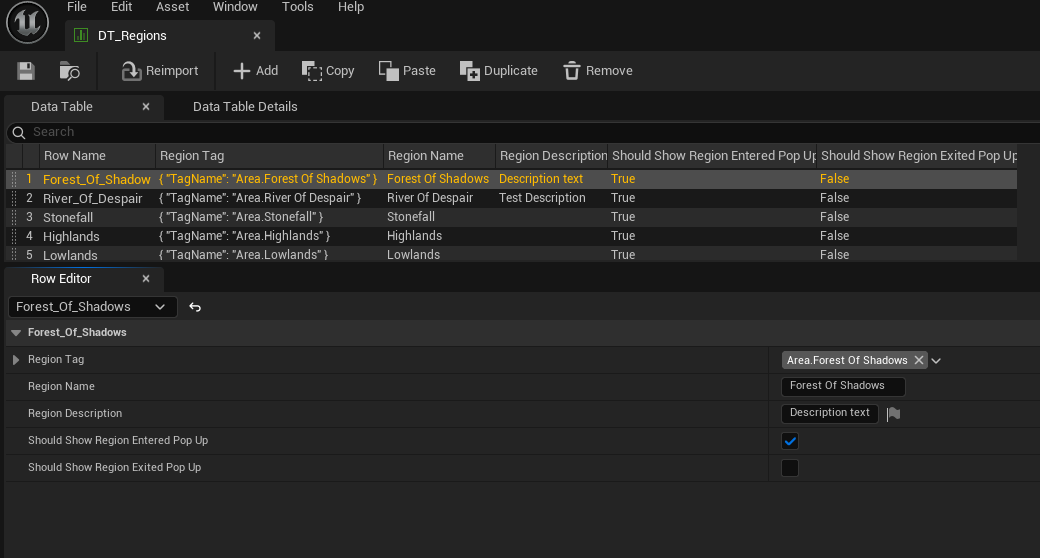
Example rows inside DT_Regions. The row supplies the tag, readable name, description, and popup booleans for each region.
How Region Detection Works #
Initial region resolution #
The initial region is not read from a placed volume. Instead, the listener gets all border actors, finds the nearest spline border, transforms the pawn's world position into that border's local space, and resolves the correct side. This same logic is reused on respawn.
Border crossing #
When the player's capsule crosses a border and ends overlap with a generated spline box, the border actor forwards the event to the listener. The listener delays the final execution slightly, checks that the capsule is no longer overlapping a border volume, and then resolves the new side of the active border.
Region change handling #
Once a new region tag has been resolved, the listener caches Previous Region, writes Current Region, updates Known Regions, and then fires the higher-level region-changed flow. In the supplied implementation, that flow can display entered or exited prompts depending on the booleans stored in DT_Regions.
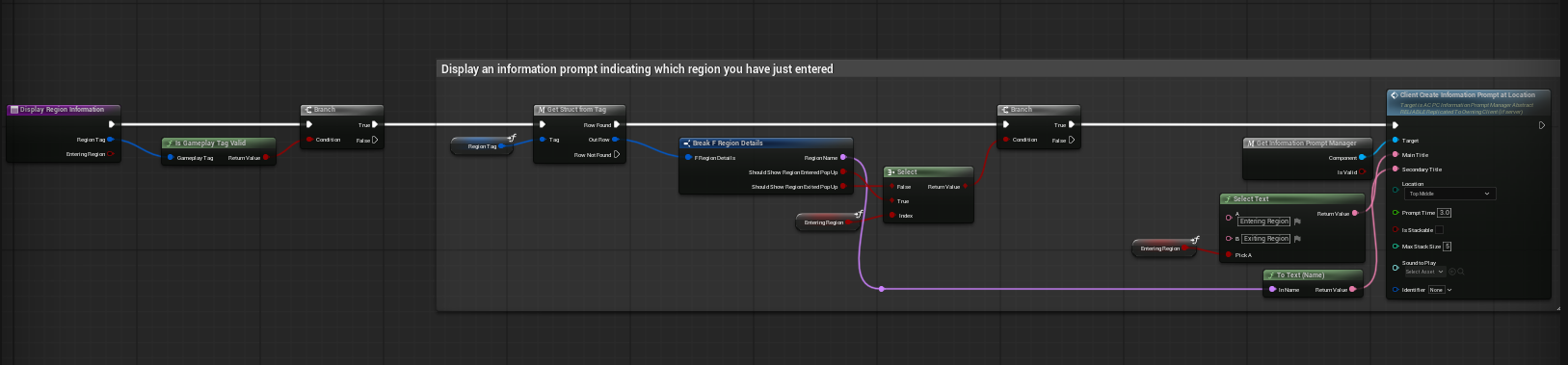
Display Region Information. The listener reads the region row from the gameplay tag and checks whether entered or exited popups should be shown.
World Map Integration #
The supplied example extends the Region System beyond runtime detection by reusing the exact same authored borders and names during a map-capture pass. This is useful when you want the in-world region layout to line up exactly with a rendered texture that is later used as a world map.
BP_Regions_Manager_PrepareMapTexture batch-updates every BP_Region_Border and BP_RegionName actor in the level. It can hide or show region-name widgets, update their angle / rotation / scale, and push border-wide settings such as precision and border-line visibility across all placed borders.
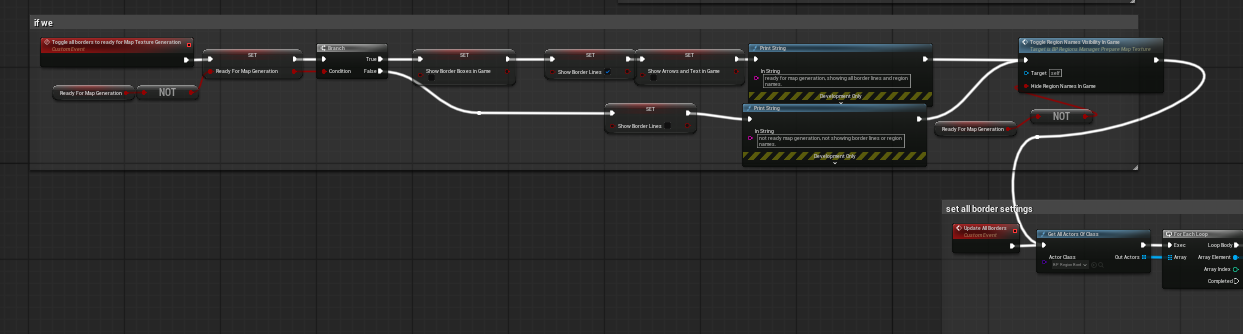
Toggle Border Ready For Map Texture Generation. The helper switches the authored border presentation between gameplay and capture-friendly states.
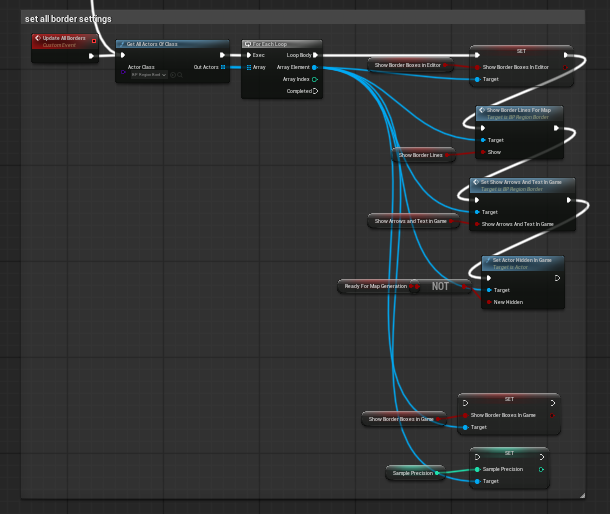
Update All Borders. The manager iterates every BP_Region_Border actor and pushes shared presentation settings into each one.
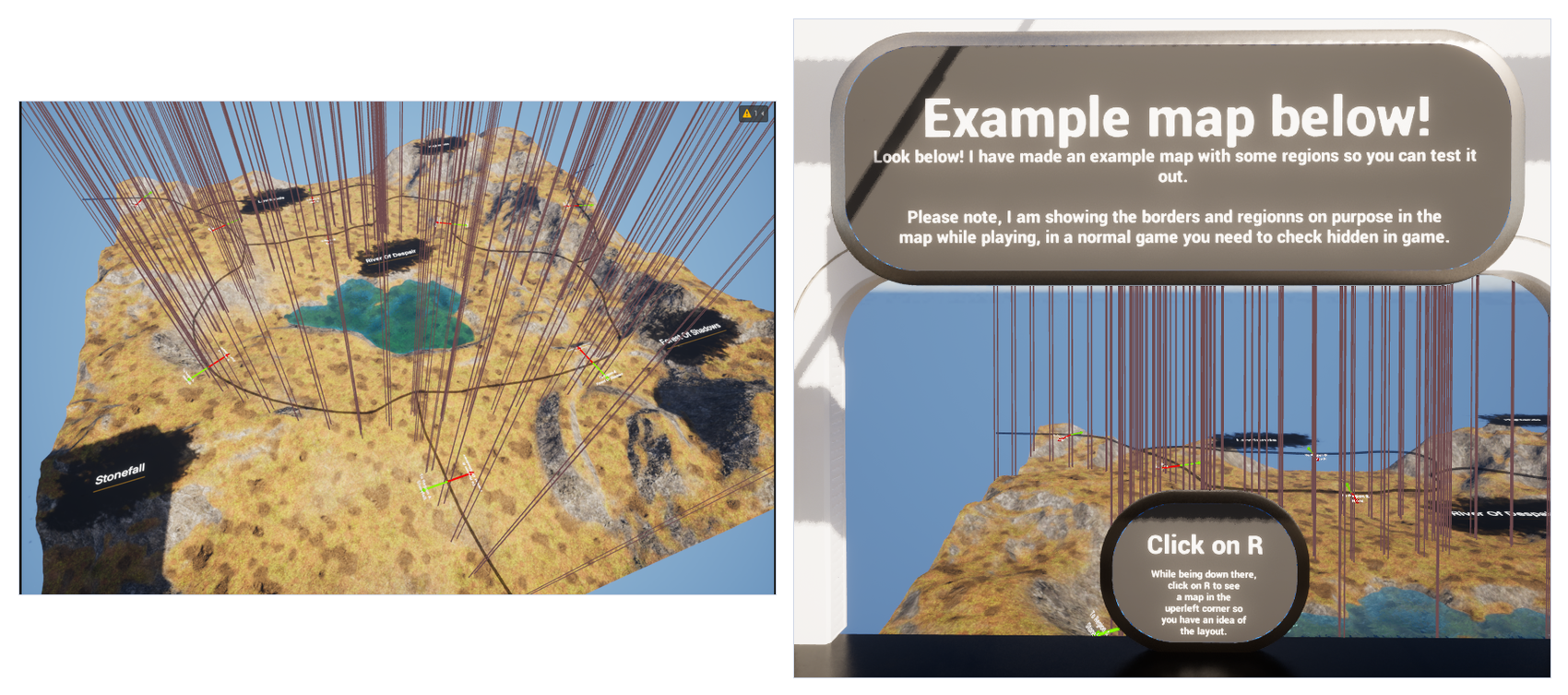
A practical workflow is to enable the map-generation state, capture the border lines and region names into a render target or texture, and then optionally refine that texture externally while keeping the authored border locations unchanged.
Events, Replication, and Ui Hooks #
The highest-value event exposed by the implementation is the region-changed flow. Current Region is written through a notify path, and the rep-notify execution feeds the previous and current tags into the region-changed event chain so local and replicated updates stay aligned.
The system also demonstrates one practical UI hook: Display Region Information. In the supplied project, this function looks up the region row, checks whether an entered or exited prompt should be shown, and then routes the request into an information prompt manager.
That means the region system does not need hard-coded UI widgets for every project. It provides the authoritative region tag and row data, and the surrounding project can decide how to present that information to the player.
Using Regions in Gameplay #
Because the listener exposes a single authoritative current region and a clear region-change flow, the system is easy to integrate into gameplay code.
- Switch ambient music or audio layers when the player enters a new biome.
- Gate quests or quest objectives behind region entry.
- Drive AI behaviour changes when enemies or wildlife should react differently in a specific area.
- Trigger biome, weather, or world-state logic without continuously polling large volumes.
- Unlock map knowledge or discovery systems using the Known Regions container.
How to Add the System to a Project #
- Add AC_PC_RegionListener to the Player Controller that should own the player's region state.
- Make sure that controller can access the active pawn at begin play and after respawn.
- Place BP_Region_Border actors in the world anywhere a transition between regions should occur.
- Assign a valid DT_Regions row to To Region A and To Region B on every border actor.
- Optionally place BP_RegionName actors inside regions if you want visible labels or map-capture helpers.
- If you want a map-capture workflow, place BP_Regions_Manager_PrepareMapTexture in the level and use it to batch-toggle border and name visibility.
This setup keeps all authored region data in one table, all transition geometry in border actors, and all live player state inside the controller-owned listener.
How to Create Your First Region #
- Open DT_Regions and create a new row for the region.
- Assign a unique gameplay tag, readable region name, and any optional description text.
- Decide whether entry and exit prompts should be shown for that region and set the booleans accordingly.
- Place at least one BP_Region_Border actor that defines a boundary between the new region and one neighbouring region.
- Assign the new region to either To Region A or To Region B on that border, depending on which side of the spline should represent the new space.
A region does not become meaningful simply because it exists in the data table. It becomes playable when one or more border actors actually partition world space around it.
How to Draw and Configure a Border #
- Place BP_Region_Border in the level.
- Edit the spline so it follows the intended boundary between two regions.
- Assign the two row handles in To Region A and To Region B.
- Use the arrow and text helpers to confirm which side of the spline faces which region.
- Increase Sample Precision if the border is long or curved and requires denser overlap coverage.
- Use the box-visibility toggles while testing so you can confirm the generated overlap chain matches the spline.
Each border actor should represent one logical crossing or one continuous boundary segment. Avoid ambiguous intersections and avoid allowing multiple unrelated borders to occupy the same space.
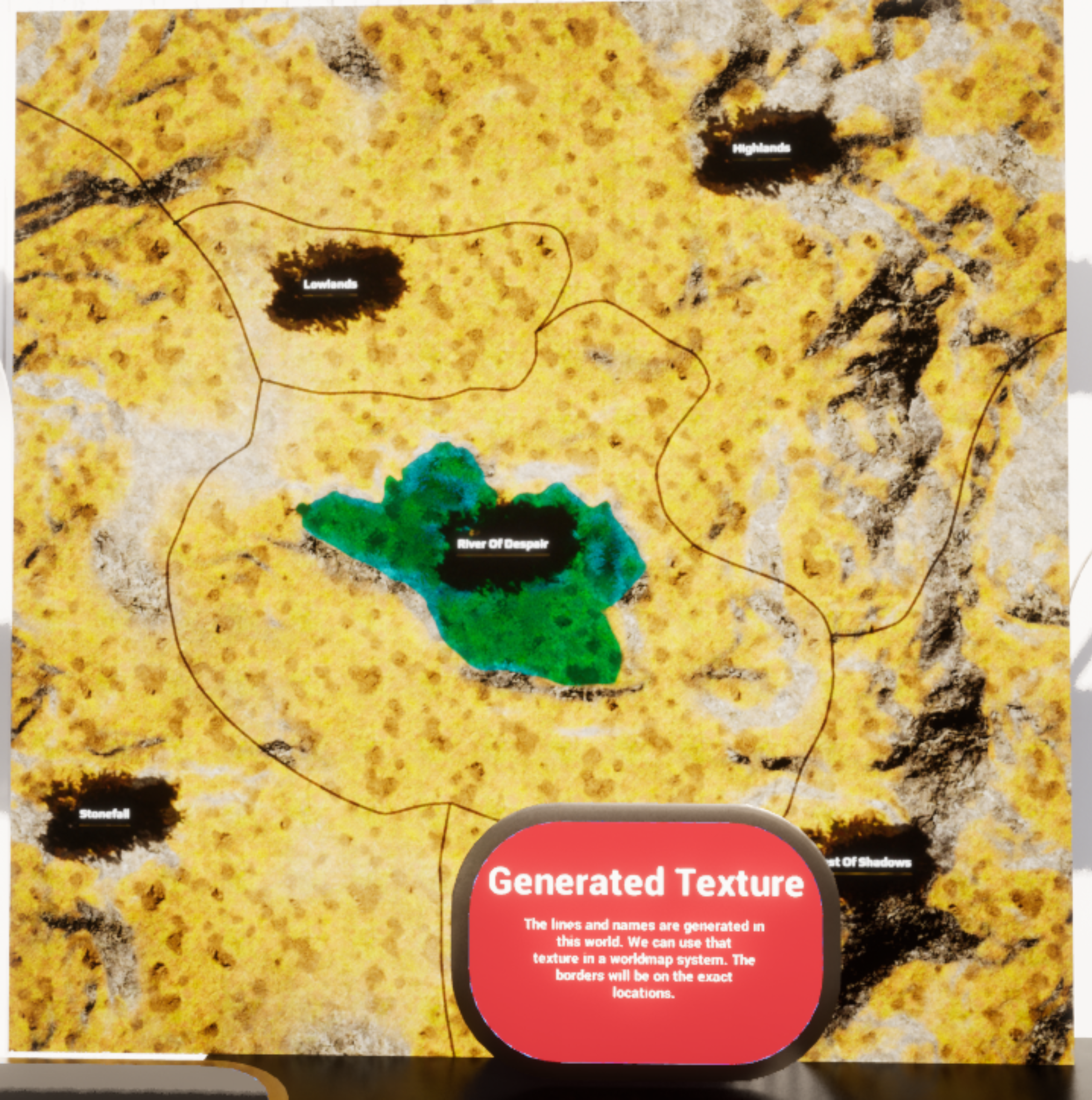
Demo explanation board for border setup. Each border defines a split between two regions and uses overlap boxes along the spline for detection.
How to Add Region Name Markers #
- Place BP_RegionName inside the target region.
- Assign its Region row handle so it can resolve the correct name from DT_Regions.
- Adjust Text World Size, Rotation, Angle, and Location Offset until the label sits correctly in the world or on your captured map.
- Use Hide in Game if the actor should only exist for editor or map-capture workflows.
The region-name actor is deliberately lightweight. It is not required for region detection, but it is extremely useful when you want authored names to line up with a captured or stylised world map.
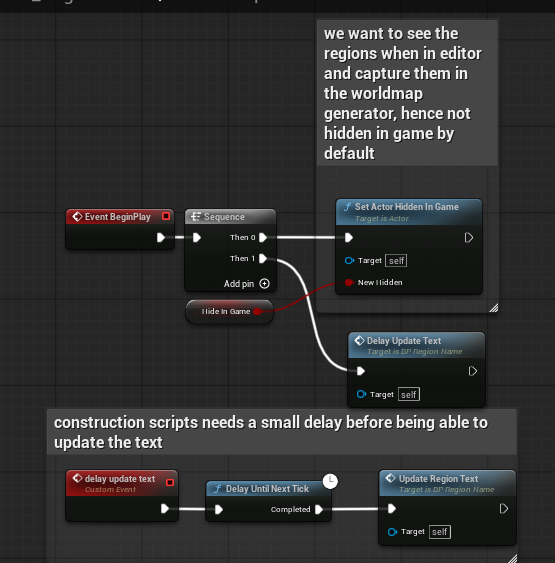
BP_RegionName construction flow. The actor stores its region row, updates the widget transform, and refreshes the displayed text.
How to Show Region Entry / Exit Information #
- Decide on a presentation layer for player-facing prompts.
- Use the booleans in DT_Regions to mark whether a region should show entered or exited messages.
- Hook the listener's region-changed flow into your chosen UI manager or widget system.
- If you are using the supplied example approach, Display Region Information already resolves the row and only asks the prompt layer to show messages when those booleans are enabled.
This approach keeps the authored decision in data while still letting each project decide what the actual UI should look like.
How to Prepare a Map-texture Capture Pass #
- Place BP_Regions_Manager_PrepareMapTexture in the level.
- Set the desired text angle, text rotation, text world size, border sample precision, and visibility preferences.
- Trigger the helper so all BP_RegionName actors are updated to the same presentation settings.
- Toggle Ready For Map Generation so borders and names switch into the correct capture state.
- Capture the scene or render target that contains the borders and names.
- Optionally stylise the resulting texture externally, but keep the underlying border layout unchanged so the map still matches the gameplay space.
Troubleshooting #
- Initial region is not found: confirm that at least one BP_Region_Border exists in the level and that both To Region A and To Region B are assigned to valid DT_Regions rows.
- Wrong region is chosen after crossing: check that Region A and Region B are assigned to the correct sides of the spline. The arrows and helper text are there to make this easier to verify.
- Crossing does not trigger reliably: increase Sample Precision so more spline boxes are generated, and make sure the player's capsule can overlap the generated components.
- Region changes fire too often on a seam: keep the retriggerable delay in place and avoid creating ambiguous border geometry where multiple boundaries touch in the same location.
- Map capture does not show names or lines: confirm that the map-preparation helper has pushed the correct visibility settings to BP_Region_Border and BP_RegionName before capturing.
Example Flow #
- The level begins and AC_PC_RegionListener waits for the active pawn to become valid.
- The listener gathers border actors, finds the nearest spline border, and resolves the starting side. Current Region is set.
- The player moves through the world and crosses a spline-box chain created by a BP_Region_Border actor.
- On end overlap, the border forwards itself and the overlapped component to the listener.
- After the short delay, the listener checks that the capsule is no longer inside a border overlap and resolves which side of that border the pawn now occupies.
- Previous Region is updated, Current Region changes, Known Regions is extended if needed, and the region-changed flow fires.
- Any connected systems such as UI prompts, music, quests, AI, or map-discovery logic can react to the new region tag.