Unlock System
Updated May 25, 2026
The Unlock System provides a data-driven unlock tree for recipes, abilities, tech progression, skill trees, and other player-facing progression paths.
For shared setup guidance, see the Migration Guide and Integration Guide. Use the System Atlas to look up functions, variables, events, components, and ownership references. Use this page for Unlock System-specific setup and data notes.
Related Videos
Some videos may have been recorded before V4. The same principles still apply, but asset names, component names, and folder locations may differ. Treat the current written documentation and V4 names as the source of truth.
Unlock System – Create Tech Trees for Crafting and Abilities PlayHow to add the Ability, Level Manager and Unlock/Techtree System into MST Pro v3 Play
Migration Notes
The shared migration and integration flow applies to this system. The Unlock System also needs specific player-controller components.
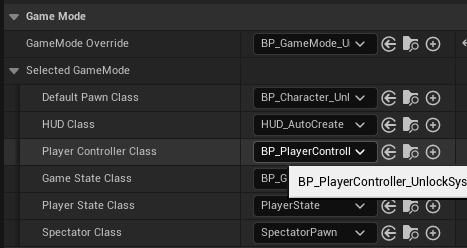
- Navigate to the player controller class assigned to your game mode and migrate that class into your project.
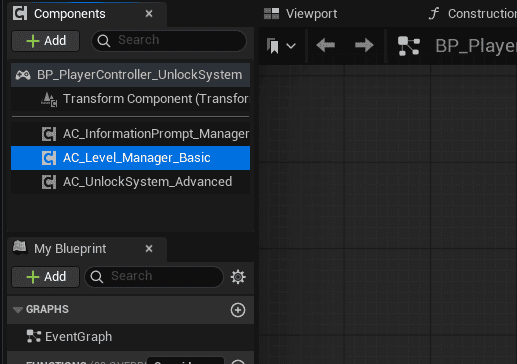
- Add AC_Level_Manager_Basic, or AC_Level_Manager if your setup uses the full Level Manager.
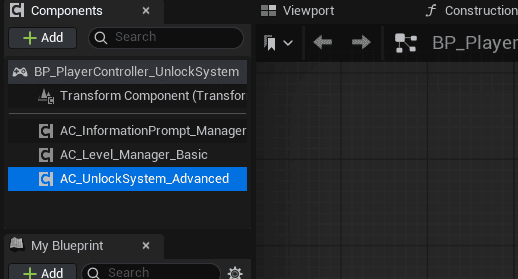
- Add AC_PC_UnlockSystem last.
Note: As with any migrated system, do not overwrite existing files if you need to keep the original data tables.
Important: Add AC_PC_UnlockSystem last when using the Ability System or Level Manager. Adding it earlier can cause initialization issues.
System Overview
The Unlock System behaves like a crafting tree, tech tree, or unlock tree. It can be used for recipe unlocks, ability unlocks, tech unlocks, skill trees, and other progression categories that fit the same data model.
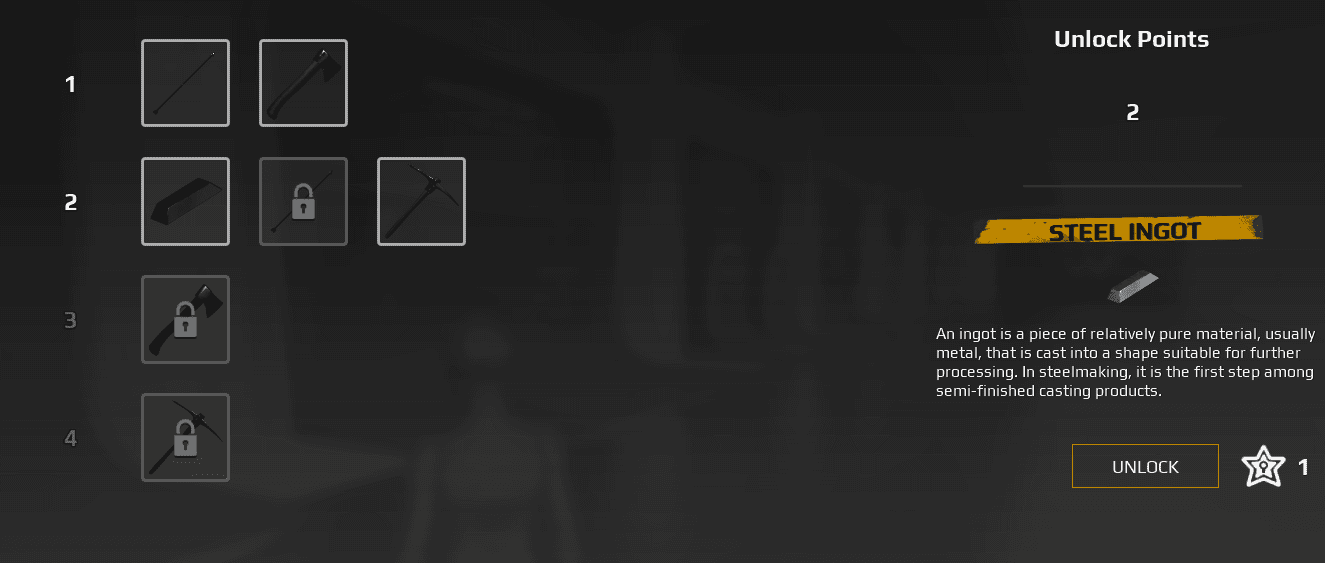
When the Recipes tab opens, the player sees a hierarchy of unlockables. The numbers on the left indicate the character level required for each unlock. The top-right unlock point display shows the player’s available unlock points. The bottom-right value beside the unlock button shows how many points the selected unlock requires.
Core Data
The system is driven by the DT_Unlockables data table. The screenshot below shows the file path used to access it.

DT_Unlockables uses the F_UnlockableInfo struct.
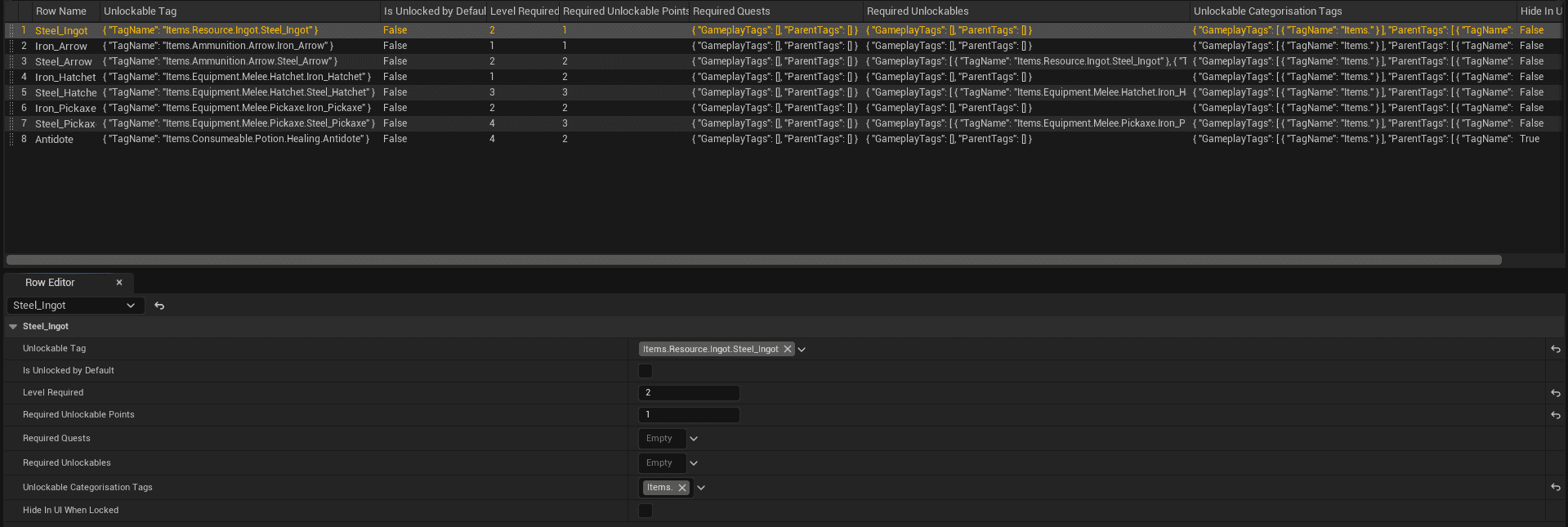
F_UnlockableInfo Fields
| Field | Type | Purpose | Usage Notes |
|---|---|---|---|
| Unlockable Tag | Gameplay Tag | Unique identifier for the unlockable item or feature. | Used as the primary reference key when systems check whether the player has unlocked something. Example: Items.Resource.Ingot.Steel_Ingot. Keep this tag consistent for each specific item, because it can also be used by the crafting system. |
| Is Unlocked by Default | Boolean | Controls whether this item starts unlocked when the game begins or when a new save starts. | Checked means the player already has access. Unchecked means the player must meet requirements such as level or quest progress. |
| Level Required | Integer | Minimum player or character level required to unlock this entry. | Example: Level Required = 2 means the player must reach Level 2. |
| Required Unlockable Points | Integer | Number of unlock points, skill points, progression tokens, or equivalent currency required to unlock the entry. | Example: Required Unlockable Points = 1 means it costs one point. |
| Required Quests | Array or single Quest reference | Quest requirement before the entry can be unlocked. | Example: requiring Quest_SmeltingBasics before unlocking Steel Ingot. If empty, there is no quest requirement. |
| Required Unlockables | Array or single Gameplay Tag reference | Other unlockables that must already be unlocked before this entry becomes available. | Used for dependency chains such as tech trees and progression paths. Example: unlock Iron Ingot before Steel Ingot. |
| Unlockable Categorisation Tags | Gameplay Tag Container | Defines which category the unlockable belongs to for UI filtering, sorting, or grouping. | Examples include Items., Abilities., Buildings., and Crafting.. |
| Hide in UI When Locked | Boolean | Controls whether the entry appears in menus before it is unlocked. | Checked hides it until unlocked. Unchecked keeps it visible but locked or grayed out. This can avoid spoiling unrevealed progression paths. |
Add Categories to the Topbar
Unlockable categories can be added to the menu topbar so different unlock trees appear as separate tabs.
- Return to the controller and select AC_PC_UnlockSystem.
- Find Topbar Menu Widget.
- Add an element under widget categories. The example category used here is Ability.
- Add an array entry and select the key that matches the gameplay tag category you created.
- For the provided UI, set the widget to WBP_AutoGeneratedUnlocksPanel.


Topbar Text changes the displayed tab name. Index controls where the tab appears in the topbar. For example, Index: 3 places the example Ability tab after Recipes and System.

If the new category has no entries, the generated hierarchy is empty. In the example below, the ingot entry is changed to include the Ability category tag.

After the category tag is assigned, the entry appears in the Ability tree generated by the selected widget.

The entry is also removed from the Recipe tab because it no longer belongs to that category.

Unlocking Entries Through Events
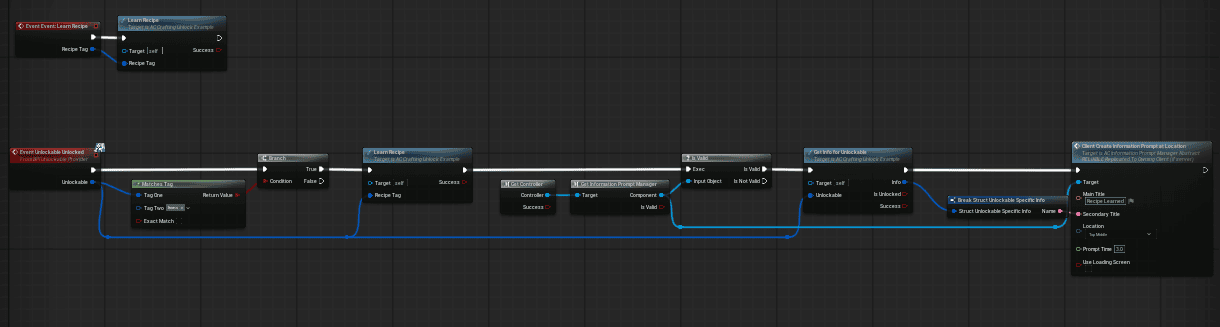
The UI visibility and unlock fields can be used when an unlock should not be purchased directly with unlock points. In that case, the player can only unlock the specific entry through actions you define.
The example below shows how events can unlock specific entries from the data table.