Team Manager #
- Overview
- Prerequisites
- Player Manager Required
- Related Systems
- Core Concepts
- What Is the Team Manager?
- How It Works
- Team-Based vs Free For All
- AC_TeamManager
- Component Location
- Core Functionality
- Configuration Variables
- AC_TeamCommunicator
- Component Location
- Core Functionality
- Team Index Storage
- Team Structure
- Struct_TeamInfo
- Team Data
- Team Identification
- Team Creation
- Initial Team Creation
- On-Demand Team Creation
- Manual Team Creation
- Maximum Teams Limit
- Team Assignment
- Automatic Assignment
- Manual Assignment
- Assignment Logic
- AI Assignment
- Team Balancing
- Balance on Assignment
- Maximum Balance Difference
- Force Rebalance
- Balance Algorithm
- Team Capacity
- Maximum Team Members
- Maximum Teams
- Full Teams Handling
- AI Removal for Players
- Lobby Team Persistence
- How Lobby Teams Work
- Game Instance Storage
- Loading Teams in Gameplay
- Team Persistence Across Games
- Free For All Mode
- Single Team Mode
- FFA Configuration
- Friendly Fire Requirement
- Team Colors
- Own Team Color
- Opposite Team Color
- Color Usage
- Team Switching
- Mid-Game Team Switch
- Interaction Pads
- Server Validation
- Player Join and Leave
- Binding to Player Manager
- Player Join Handling
- Player Leave Handling
- Player Rejoin Handling
- Event Dispatchers
- OnTeamInfoChanged
- OnPlayerJoinedButFullTeams
- Integration with Other Systems
- Player Manager Integration
- Score Manager Integration
- Game Mode System Integration
- Configuration Guide
- Team Manager Settings
- Common Configurations
- How To Guides
- Setting Up Team Manager
- Creating Custom Teams
- Implementing Team Selection UI
- Balancing Teams Manually
- OVERVIEW
This documentation explains the Team Manager System, which provides team-based gameplay functionality including automatic team assignment, team balancing, lobby team persistence, and free-for-all support.
What Is the Team Manager?:
The Team Manager handles all team-related logic in multiplayer sessions. It creates teams, assigns players to teams, balances teams, and integrates with other systems like Player Manager and Score Manager to provide complete team-based gameplay.
Key Features:
- ✅ Team Creation: Automatic or manual team creation
- ✅ Auto-Assignment: Automatically assign players to teams on join
- ✅ Team Balancing: Balance teams based on player count
- ✅ Lobby Persistence: Save teams from lobby, restore in gameplay
- ✅ Free For All: Single-team mode for FFA games
- ✅ Team Capacity: Max teams, max members per team
- ✅ Balance Rules: Maximum balance difference between teams
- ✅ AI Support: Assign AI to teams, remove AI when players join
- ✅ Team Switching: Manual team selection (via Interaction Pads or custom UI)
- ✅ Team Colors: Own team vs opposite team colors
- ✅ Integration: Works with Player Manager, Score Manager, Game Mode System
Use Cases:
- Team-based shooters (Team Deathmatch, Search and Destroy)
- Objective-based games (Domination, Capture the Flag)
- Free for all games (all players on one team)
- Battle royale squads (multiple teams)
- Lobby team selection with persistence to gameplay
Prerequisites #
Player Manager Required #
CRITICAL: Team Manager requires Player Manager.
Setup Order:
- Set up Player Manager (see Player Manager documentation)
- Set up Team Manager (this documentation)
Why Player Manager Required:
- Team Manager binds to Player Manager's join/leave events
- Team Manager needs connected players list
- Team Manager assigns players when they join
Without Player Manager:
- Team Manager cannot detect player joins
- Cannot assign players to teams
- Cannot track team members
Component Order (GameState):
- AC_SessionManager
- AC_ScoreManager (optional)
- AC_TeamManager ← Binds to Player Manager events
- AC_PlayerManager ← MUST be bottom (see Player Manager docs)
Related Systems #
Systems That Integrate with Team Manager:
Player Manager (required, separate documentation):
Provides:
- Player join/leave/rejoin events
- Connected players list
- Player tracking
Team Manager uses:
- Bind to OnPlayerJoined to assign teams
- Bind to OnPlayerDropped to remove from teams
- Bind to OnPlayerRejoined to restore teams
Score Manager (optional, separate documentation):
Provides:
- Team score tracking
- Player score tracking
Team Manager provides:
- Team structure for scoring
- Team member lists
Score Manager handles all score tracking.
Team Manager only provides team data.
Game Mode System (optional, separate documentation):
Uses Team Manager for:
- Team-based game modes (Team Deathmatch, Domination, etc.)
- Win condition checking (which team won)
- Team-based spawning
Team Manager provides:
- Team assignments
- Team member lists
Session Manager (optional, separate documentation):
Integration:
- Lobby system with team selection
- Team persistence from lobby to gameplay
- Via Game Instance storage
Core concepts #
What Is the Team Manager? #
The Team Manager is a centralized system for managing teams in multiplayer games.
Why Teams?:
Without Teams:
- Free for all only
- No team-based objectives
- No team scoring
- Manual player grouping
With Teams:
- Team-based gameplay
- Team scoring
- Automatic assignment and balancing
- Team colors and identification
- Lobby team persistence
How It Works #
Team Lifecycle:
- Team Creation:
- Initial: Create teams on level load (if configured)
- On-Demand: Create team when first player joins (if no teams exist)
- Manual: Create teams via code/interaction
- Player Assignment:
- Player joins session
- Team Manager detects join (via Player Manager event)
- If auto-assign enabled: Assign to team (balanced or first-available)
- If auto-assign disabled: Player unassigned (manual selection needed)
- Team Balancing:
- Automatic: Balance on assignment (if enabled)
- Manual: Call BalanceTeams() to redistribute
- Rules: Respect max balance difference, max team members
- During Gameplay:
- Players remain on teams
- Team switching (manual, via Interaction Pads or UI)
- AI added to teams, removed when players join
- Lobby Persistence:
- Lobby: Players select teams
- Teams saved to Game Instance
- Gameplay Level: Teams restored from Game Instance
- Teams persist across multiple games in playlist
Configuration:
- Amount of Teams to Create Initially: 2
- Max Team Members: 8
- Auto-Assign: True
- Balance Teams: True
- Max Balance Difference: 1
Flow:
- Level loads → Team Manager creates Team A and Team B
- Player 1 joins → Assigned to Team A (first team)
- Player 2 joins → Assigned to Team B (balance)
- Player 3 joins → Assigned to Team A (balance: A=1, B=1, now A=2, B=1)
- Player 4 joins → Assigned to Team B (balance: A=2, B=1, now A=2, B=2)
- Game plays → Teams remain
- Player 1 leaves → Removed from Team A (A=1, B=2)
- New player joins → Assigned to Team A (balance)
Team-Based vs Free For All #
Team-Based Mode:
Configuration:
- Amount of Teams to Create Initially: 2+
- Add All Players to One Team: False
Behavior:
- Multiple teams created
- Players assigned across teams
- Team vs team gameplay
- Team scoring
Use Cases:
- Team Deathmatch
- Domination
- Capture the Flag
- Search and Destroy
Free For All Mode:
Configuration:
- Add All Players to One Team: True
- Allow Friendly Fire: True
Behavior:
- One team created
- All players assigned to same team
- Everyone is an enemy (despite same team)
- Individual scoring (not team scoring)
Use Cases:
- Free For All
- Gun Game
- Solo battle royale
Why Same Team:
- Scoreboard UI requires teams
- Team Manager provides structure
- FFA Game Mode uses different win logic (individual, not team)
- Friendly fire enabled so teammates can damage each other
4 AC_TEAMMANAGER
Component Name: AC_TeamManager
Location: GameState
Component Location #
Where to Add:
Component: AC_TeamManager
Location: GameState blueprint
Why GameState:
- Server-authoritative
- Accessible to all players
- Persists across level transitions
- Manages global team state
Component Order:
- AC_SessionManager
- AC_ScoreManager (if used)
- AC_TeamManager ← Binds to Player Manager events
- AC_PlayerManager ← MUST be bottom (see Player Manager docs)
Team Manager must be ABOVE Player Manager to bind to events.
Core Functionality #

What AC_TeamManager Provides:
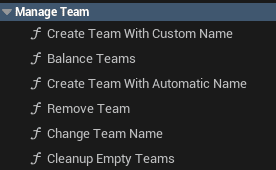
Team Management:
- Create teams (initial, on-demand, manual)
- Delete teams
- Assign players to teams
- Remove players from teams
- Balance teams
Player Tracking:
- Track team members per team
- Detect player joins/leaves (via Player Manager)
- Assign/remove automatically
AI Support:
- Assign AI to teams
- Remove AI when players join (if teams full)
Lobby Persistence:
- Save teams to Game Instance
- Load teams from Game Instance
- Persist teams across games
Configuration:
- Max teams
- Max team members
- Balance rules
- Auto-assignment
- Team colors
Events:
- OnTeamInfoChanged (player assigned/removed)
- OnPlayerJoinedButFullTeams (all teams full)
Configuration Variables #
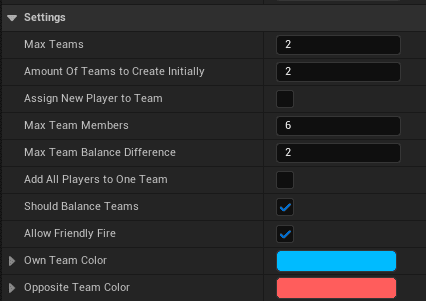
Team Manager Settings:
Maximum Teams (Integer):
- Maximum number of teams allowed
- Configurable
Amount of Teams to Create Initially (Integer):
- How many teams to create on level load
- Range: 0-Maximum Teams
- Configurable
- If 0: Teams created on-demand when players join
Automatically Assign New Players to Team (Boolean):
- Assign players to teams when they join?
- Configurable
- If false: Players must manually select team
Maximum Team Members (Integer):
- Max players per team
- Configurable
- Example: 4 for squads, 8 for team games
Maximum Team Balance Difference (Integer):
- Max player count difference between teams
- Configurable
- Example: If 1, Team A can have max 1 more player than Team B
- Only enforced when auto-assigning
Balance Teams (Boolean):
- Balance players when auto-assigning?
- Configurable
- If false: Fill teams in order (Team A full → Team B full → etc.)
Add All Players to One Team (Boolean):
- Free for all mode (all players on one team)
- Configurable
- Override for FFA games
Allow Friendly Fire (Boolean):
- Can teammates damage each other?
- Configurable
- Set to True for FFA mode
Own Team Color (Linear Color):
- Color for your own team
- Used for UI, player outlines, etc.
- Configurable
Opposite Team Color (Linear Color):
- Color for enemy teams
- Used for UI, player outlines, etc.
- Configurable
5 AC_TEAMCOMMUNICATOR
Component Name: AC_TeamCommunicator
Location: PlayerController
Component Location #
Where to Add:
Component: AC_TeamCommunicator
Location: PlayerController blueprint
Why PlayerController:
- Per-player component
- Stores individual player's team index
- Handles team switching UI/input
- Replicated to client
Core Functionality #
What AC_TeamCommunicator Provides:
Team Index Storage:
- Stores player's current team index
- Replicated from server to client
- Quick access without looping teams
Team Switching:
- Server RPC for team switch requests
- Validation handled by Team Manager
- UI integration (custom implementation)
Quick Access:
- Get your own team instantly
- No need to loop all teams
- No need to query Team Manager
Team Index Storage #
Team Index Variable:
Variable: TeamIndex (Integer, Replicated)
Value:
- Index in Team Manager's teams array
- Example: 0 = Team A, 1 = Team B, 2 = Team C
- -1 = Not assigned to any team
Usage:
// Get your team index quickly
TeamIndex = TeamCommunicator->GetTeamIndex()
// Get your team from Team Manager
MyTeam = TeamManager->GetTeamByIndex(TeamIndex)
- No looping through all teams
- Instant access to own team
- Replicated automatically
Team structure #
Struct_TeamInfo #
Team Data Structure:
Struct Name: Struct_TeamInfo
Fields:
- Team Name (String)
- Team Tag (Gameplay Tag)
- Members (Array of Strings)
Team A:
{
TeamName: "Team A"
TeamTag: Team.0
Members: ["Player1", "Player2", "Player3"]
}
Team B:
{
TeamName: "Team B"
TeamTag: Team.1
Members: ["Player4", "Player5"]
}
Team Data #
Team Name:
Purpose: Human-readable team identifier
Auto-Generated:
- “Team A”, “Team B”, “Team C”, etc.
- Based on team index
Custom:
- Can override with custom names
- “Red Team”, “Blue Team”, “Alpha Squad”, etc.
FFA Override:
- If “Add All Players to One Team” enabled
- Custom name for FFA team
Team Tag:
Purpose: Gameplay tag identifier for team
Predefined Tags:
- Team.0 (Team A)
- Team.1 (Team B)
- Team.2 (Team C)
- Team.3 (Team D)
- Team.4 (Team E)
Maximum Preset:
- 5 teams predefined
- Can add custom tags for more teams
Usage:

- Identify teams in code
- Team-specific logic (spawn points, objectives)
- Filtering actors by team
Members:
Purpose: List of players on this team
Data Type: Array of Strings (player names)
Source:
- Player names from PlayerState->GetPlayerName()
- Same as Player Manager's connected players list
Team A Members: [“Player1”, “Player2”, “Player3”]
Includes:
- Human players
- AI players (if AI assigned to teams)
Team Identification #
How to Identify Teams:
By Index:
- Team 0, Team 1, Team 2, etc.
- Index in teams array
- Fastest access
By Tag:
- Team.0, Team.1, Team.2, etc.
- Gameplay tag matching
- Useful for actor filtering
By Name:
- “Team A”, “Team B”, etc.
- Human-readable
- Useful for UI display
All methods valid, use what fits your needs.
Team creation #
Initial Team Creation #

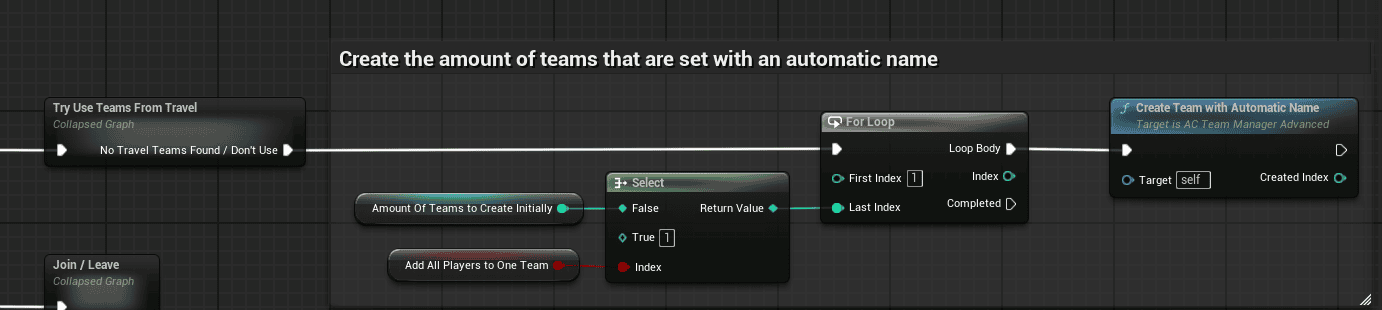
How Initial Creation Works:
Setting: Amount of Teams to Create Initially
On Level Load (BeginPlay):
- Check “Amount of Teams to Create Initially”
- If > 0: Create that many teams
- Teams created with:
- Auto-generated names ("Team A", "Team B", etc.)
- Sequential tags (Team.0, Team.1, etc.)
- Empty members list
Amount of Teams to Create Initially: 2
Result:
- Team A (Team.0, no members)
- Team B (Team.1, no members)
Players assigned later when they join.
When to Use Initial Creation:
Use Initial Creation (e.g., 2):
- Team-based games
- Known team count
- Team Deathmatch, Domination, CTF, etc.
Use No Initial Creation (0):
- Dynamic team count
- On-demand team creation
- Battle royale squads
- Player-created teams
On-Demand Team Creation #
How On-Demand Works:
Setting: Amount of Teams to Create Initially = 0
When Player Joins:
- Check if any teams exist
- If no teams exist:
- Check Maximum Teams > 0
- If yes: Create one team
- Assign player to new team
- If teams exist:
- Assign to existing team
Configuration:
- Amount of Teams to Create Initially: 0
- Maximum Teams: 4
Flow:
- Level loads → No teams created
- Player 1 joins → Create Team A, assign Player 1
- Player 2 joins → Assign to Team A (balancing may create Team B)
- Continue until max teams reached
Result: Teams created as needed.
Manual Team Creation #
Creating Teams Manually:
You can create teams manually via code:
Function: CreateTeam(TeamName, TeamTag)
Usage:
TeamManager->CreateTeam(“Red Team”, Team.Custom.Red)
Limits:
- Cannot exceed Maximum Teams
- Must have valid tag
- Name can be custom
Use Cases:
- Custom team names
- Player-created squads
- Dynamic team systems
Maximum Teams Limit #
How Maximum Teams Works:
Setting: Maximum Teams
Limit:
- Hard cap on number of teams
- Cannot create more teams than this limit
Maximum Teams: 2
- Can have Team A and Team B only
- Cannot create Team C
Maximum Teams: 4
- Can have up to 4 teams (battle royale squads)
Maximum Teams: 0
- No teams allowed
- Team system disabled
When Limit Reached:
If all teams exist and new team creation requested:
- Team creation fails
- Player assigned to existing team (if space available)
- Or “OnPlayerJoinedButFullTeams” event fires (if all teams full)
Team assignment #

Automatic Assignment #
How Auto-Assignment Works:
Setting: Automatically Assign New Players to Team = True
When Player Joins:
- Player Manager fires OnPlayerJoined event
- Team Manager receives event
- Check if teams exist:
- If no teams: Create team (if max teams > 0)
- Assign player to team:
- If "Balance Teams" enabled: Assign to least-filled team
- If "Balance Teams" disabled: Assign to first team with space
- Update team members list
- Set player's team index (in Team Communicator)
- Fire OnTeamInfoChanged event
Player automatically on team, no manual selection needed.
Manual Assignment #
How Manual Assignment Works:
Setting: Automatically Assign New Players to Team = False
When Player Joins:
- Player joins session
- Team Manager detects join
- Player NOT assigned to any team
- Player must manually select team:
- Via Interaction Pads (example level)
- Via custom UI
- Via code
Use Cases:
- Lobby team selection
- Player choice
- Competitive matchmaking (team preference)
Manual Assignment Methods:
Interaction Pads (example level):
Physical objects in level:
- “Join Team A” trigger volume
- “Join Team B” trigger volume
- etc.
Player walks over trigger:
- Request team assignment
- Server validates
- Player assigned to team
Custom UI:
Team selection menu:
- Show available teams
- Show team sizes
- Player clicks team
- Team Communicator sends RPC to server
- Server validates and assigns
Assignment Logic #
Balanced Assignment (Balance Teams = True):
Algorithm:
- Get all teams
- Find team with fewest members
- Check capacity:
- Team not at max members?
- Adding player respects max balance difference?
- If valid: Assign to this team
- If not valid: Try next team
- If no valid team: Check if can remove AI
- If AI removed: Assign player to that team
- If no space: Fire OnPlayerJoinedButFullTeams event
Team A: 3 players
Team B: 5 players
Max Balance Difference: 1
New player joins:
- Team A has fewest (3)
- Adding to Team A: A=4, B=5 (difference = 1, OK)
- Assign to Team A
Result: Team A: 4, Team B: 5
First-Available Assignment (Balance Teams = False):
Algorithm:
- Get all teams in order (Team A, Team B, etc.)
- Find first team with space (not at max members)
- Assign to that team
Team A: 8/8 (full)
Team B: 3/8
New player joins:
- Team A full, skip
- Team B has space
- Assign to Team B
Result: Team A: 8, Team B: 4
Fills teams in order, no balancing.
AI Assignment #
How AI Assignment Works:
Same Logic as Players:
When AI spawns (via Game Mode System):
- Team Manager detects AI join (same as player join)
- Assign AI to team using same logic:
- Balanced or first-available
- Respect max members
- Respect max balance difference
- AI added to team members list
- AI has team index
Team A: 2 players, 3 AI (5 total)
Team B: 3 players, 2 AI (5 total)
AI and players treated equally for team assignment.
Team balancing #
Balance on Assignment #
How Balance Works:
Setting: Balance Teams = True
When Enabled:
- Players assigned to least-filled team
- Maintains even team sizes
- Respects max balance difference
When Disabled:
- Players assigned to first team with space
- Teams fill in order
- No balancing logic
Maximum Balance Difference #
How Balance Difference Works:
Setting: Maximum Team Balance Difference
Purpose:
- Prevent one team from being much larger
- Enforce fairness
How It Works:
When assigning player to team:
- Calculate difference between teams
- If adding player exceeds max difference: Block
- If within difference: Allow
Max Balance Difference: 1
Team A: 4 players
Team B: 3 players
Difference: 1 (OK)
New player joins:
- Can add to Team A? A=5, B=3, diff=2 (NO, exceeds limit)
- Can add to Team B? A=4, B=4, diff=0 (YES)
- Assign to Team B
Result: Team A: 4, Team B: 4
Max Balance Difference: 2
Team A: 4 players
Team B: 3 players
New player joins:
- Can add to Team A? A=5, B=3, diff=2 (YES, equals limit)
- Can add to Team B? A=4, B=4, diff=0 (YES)
- Assign to Team B (balance prefers least-filled)
Result: Team A: 4, Team B: 4
Only Applies to Auto-Assignment:
Balance difference only enforced when:
- Automatically Assign New Players to Team = True
- Player joins and auto-assigned
Balance difference NOT enforced when:
- Manual assignment (Interaction Pads, UI)
- Manual team switching
- You can manually override if needed
Force Rebalance #
What Is Force Rebalance:
Function: BalanceTeams()
Purpose:
- Redistribute all players evenly across teams
- Fix imbalanced teams
When to Use:
- Teams become imbalanced (many leaves/joins)
- After manual assignments
- Before game start
How It Works:
- Get all players across all teams
- Calculate even distribution
- Redistribute players:
- Move players from large teams to small teams
- Achieve even sizes
- Update team members lists
- Update player team indices
- Fire OnTeamInfoChanged events
Before Rebalance:
Team A: 7 players
Team B: 1 player
Total: 8 players
Call BalanceTeams():
After Rebalance:
Team A: 4 players
Team B: 4 players
Total: 8 players (evenly distributed)
Balance Algorithm #
How Balancing Works:
Balanced Assignment:
- Sort teams by member count (least to most)
- Assign player to team with fewest members
- Check max balance difference
- If valid: Assign
- If not: Try next team
Force Rebalance:
- Count total players across all teams
- Calculate even distribution:
- TotalPlayers / NumberOfTeams = PlayersPerTeam
- Move players from large teams to small teams
- Continue until all teams balanced
Goal: All teams have equal or near-equal player counts.
Team capacity #
Maximum Team Members #
How Max Members Works:
Setting: Maximum Team Members
Purpose:
- Limit team size
- Prevent one team from being too large
How It Works:
When assigning player to team:
- Check team's current member count
- If count >= Maximum Team Members: Team full, cannot add
- If count < Maximum Team Members: Can add
Maximum Team Members: 8
Team A: 8 players (full)
Team B: 5 players
New player joins:
- Cannot add to Team A (full)
- Add to Team B (has space)
Result: Team A: 8, Team B: 6
Maximum Teams #
How Max Teams Works:
Setting: Maximum Teams
Purpose:
- Limit number of teams
- Control game structure
How It Works:
When creating team:
- Count existing teams
- If count >= Maximum Teams: Cannot create more teams
- If count < Maximum Teams: Can create
Maximum Teams: 2
Existing: Team A, Team B
Try to create Team C:
- Count: 2 teams
- Max: 2 teams
- Cannot create Team C (limit reached)
Full Teams Handling #
What Happens When All Teams Full:
Scenario:
- All teams at Maximum Team Members
- New player joins
Process:
- Team Manager tries to assign player
- All teams full
- Check if AI on teams:
- If AI exists: Remove AI, add player (see next section)
- If no AI: Cannot assign player
- Fire OnPlayerJoinedButFullTeams event
- Player remains unassigned
Event: OnPlayerJoinedButFullTeams
- Notifies that player joined but couldn't be assigned
- You can handle this:
- Kick player ("Server full")
- Queue player (spectator mode)
- Create new team (if under max teams)
- Custom logic
AI Removal for Players #
How AI Removal Works:
Scenario:
- All teams full (at max members)
- New real player joins
- AI on teams
Process:
- Team Manager checks for AI on teams
- Find first team with AI
- Remove AI from that team:
- AI removed from members list
- AI disconnected from game
- Add real player to that team:
- Player takes AI's spot
- Team size stays same
- Update team indices
- Fire OnTeamInfoChanged event
Before:
Team A: 4 players, 4 AI (8/8 full)
Team B: 5 players, 3 AI (8/8 full)
Real player joins:
- Both teams full
- AI found on Team A
- Remove 1 AI from Team A
- Add player to Team A
After:
Team A: 5 players, 3 AI (8/8)
Team B: 5 players, 3 AI (8/8)
Real player prioritized over AI.
Lobby team persistence #

How Lobby Teams Work #
Lobby to Gameplay Flow:
Use Case:
- Lobby level with team selection
- Players choose teams in lobby
- Play multiple games in playlist
- Teams persist across games
Flow:
- Lobby Level:
- Team Manager creates teams
- Players select teams (Interaction Pads or UI)
- Teams saved to Game Instance
- Travel to Gameplay Level:
- Session Manager loads gameplay level
- Teams restored from Game Instance
- Players remain on same teams
- Game Ends:
- Session Manager loads next game in playlist
- Teams STILL restored from Game Instance
- Players stay on same teams
- Continue:
- Play multiple games
- Teams persist across all games
- Until session ends or manually cleared
Game Instance Storage #
How Game Instance Storage Works:
Data Stored: Full team data (Struct_TeamInfo array)
What's Saved:
- Team names
- Team tags
- Team members (player names)
- All teams
When Saved:
- When leaving lobby level
- When traveling to gameplay level
- Automatically by Session Manager / Team Manager
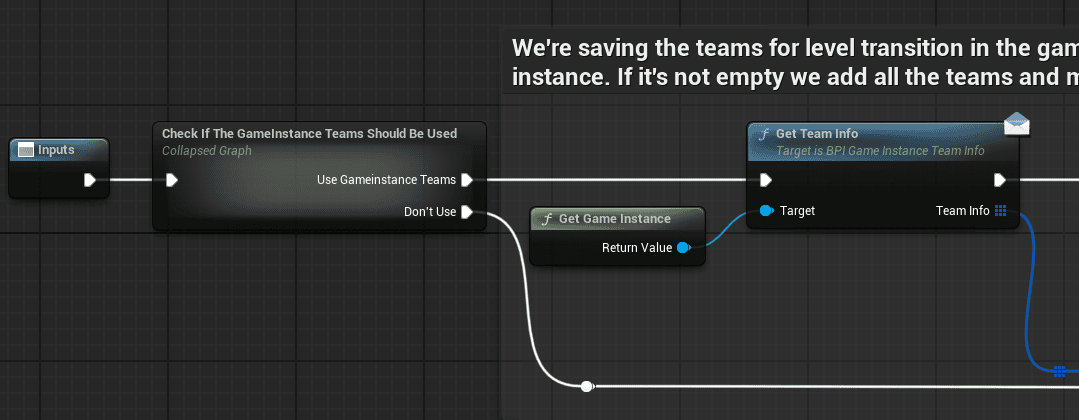
When Loaded:
- When entering gameplay level
- On Team Manager BeginPlay
- Checks Game Instance for team data
- If exists: Load and restore
- If not: Create teams normally
Loading Teams in Gameplay #
How Teams Are Restored:
On Gameplay Level Load (Team Manager BeginPlay):
- Check Game Instance for team data
- If team data exists:
- Load team data from Game Instance
- Create teams with loaded data:
- Same team names
- Same team tags
- Same team members
- Assign players to their previous teams
- Teams restored exactly as they were
- If no team data:
- Create teams normally (initial creation or on-demand)
Lobby:
- Team Red: Player1, Player2, Player3
- Team Blue: Player4, Player5
Gameplay Level 1:
- Teams restored: Red (1,2,3), Blue (4,5)
Gameplay Level 2 (next game):
- Teams STILL restored: Red (1,2,3), Blue (4,5)
Players stay on same teams across all games.
Team Persistence Across Games #
How Persistence Works:
Saved Until:
- Session ends
- Players disconnect
- Manually cleared (custom implementation)
NOT Cleared:
- After each game
- When loading new level
- Automatically
If You Want to Clear Teams:
- Implement custom logic
- Clear Game Instance team data
- Reset teams after each game
Playlist: Map A → Map B → Map C
Map A: Teams created/selected
Map B: Teams restored (same teams)
Map C: Teams STILL restored (same teams)
All maps use same team assignments.
Free for all mode #
Single Team Mode #
What Is Single Team Mode:
Setting: Add All Players to One Team = True
Purpose:
- Free for all gameplay
- All players on same team
- Everyone is an enemy
How It Works:
- One team created (or all players added to Team A)
- All players assigned to same team
- Scoreboard shows all players together
- Friendly fire enabled (teammates can damage each other)
- FFA Game Mode uses individual win logic (not team scoring)
FFA Configuration #
Required Settings for FFA:
Team Manager:
- Add All Players to One Team: True
- Allow Friendly Fire: True
- Automatically Assign New Players to Team: True
Game Mode System:
- Use FFA game mode component
- Individual scoring (not team scoring)
Result:
- All players on one team structurally
- But everyone treats each other as enemies
- Individual winner (most kills, etc.)
Friendly Fire Requirement #
Why Friendly Fire Needed:
In FFA:
- All players on same team
- Without friendly fire: Cannot damage teammates
- With friendly fire: Can damage teammates
FFA Flow:
- All players assigned to Team FFA
- Friendly fire enabled
- Players can damage each other (despite same team)
- Scoreboard shows all players
- Win based on individual score (not team score)
Why Not Separate Teams:
- Scoreboard requires team structure
- Team Manager provides framework
- FFA game mode overrides team logic
- Simpler implementation
Team colors #
Own Team Color #
What Is Own Team Color:
Setting: Own Team Color (Linear Color)
Purpose:
- Color for your own team members
- Visual identification
Default: Blue
Usage:
- Player outlines/highlights
- UI elements
- Nametags
- Team indicators
Opposite Team Color #
What Is Opposite Team Color:
Setting: Opposite Team Color (Linear Color)
Purpose:
- Color for enemy team members
- Visual identification
Default: Red
Usage:
- Enemy player outlines/highlights
- Enemy UI elements
- Enemy nametags
- Enemy indicators
- If 4 teams exist, all non-friendly teams use same enemy color
- Not per-team colors (just friendly vs enemy)
Color Usage #
How Colors Are Used:
Team Manager provides:
- Own Team Color
- Opposite Team Color
Systems can use colors for:
- Player outlines (UI above heads)
- Nametag colors
- Team indicators
- Minimap colors
- Objective colors
GetPlayerColor(PlayerName):
If PlayerName on my team:
Return Own Team Color (Blue)
Else:
Return Opposite Team Color (Red)
Result:
- Your teammates: Blue outline
- Enemies: Red outline
Team switching #
Mid-Game Team Switch #
Can Players Switch Teams:
Yes, team switching is possible:
Methods:
- Interaction Pads (example level)
- Physical objects in level
- Walk over to switch teams
- Custom UI
- Team selection menu
- Click team to switch
- Team Communicator sends RPC to server
Validation:
- Server validates switch request
- Checks team capacity
- Checks balance rules (if enforced)
- Assigns if valid
Use Cases:
- Player choice
- Balance teams manually
- Switch to play with friends
Interaction Pads #
What Are Interaction Pads:
Physical Objects in Example Level:
Team Selection Zones:
- “Join Team A” trigger volume
- “Join Team B” trigger volume
- etc.
How They Work:
- Player walks into trigger volume
- Trigger detects overlap
- Request team assignment to that team
- Server validates and assigns
- Spawn area with team selection zones
- Player walks to “Team Red” zone
- Assigned to Team Red
- Player can later walk to “Team Blue” zone
- Switches to Team Blue
Useful For:
- Testing
- Manual team selection
- Non-UI team switching
Server Validation #
How Server Validation Works:
Team Switch Request:
- Client: Team Communicator sends RPC to server
- Request team switch to Team B
- Server: Team Manager validates request
- Is Team B at max capacity?
- Does switch violate balance rules? (if enforced)
- Is player already on Team B?
- Server: Execute or Reject
- If valid: Remove from old team, add to new team
- If invalid: Reject, player stays on current team
- Server: Update and Replicate
- Update team members lists
- Update player's team index (replicated to client)
- Fire OnTeamInfoChanged event
Server (Team Manager) handles validation.
Player join and leave #
Binding to Player Manager #
How Team Manager Binds to Player Manager:
Team Manager BeginPlay:
- Get Player Manager reference:
PlayerManager = GetOwner()->FindComponentByClass(AC_PlayerManager)
- Bind to events:
PlayerManager->OnPlayerJoined.AddDynamic(this, &ThisClass::HandlePlayerJoin)
PlayerManager->OnPlayerDropped.AddDynamic(this, &ThisClass::HandlePlayerLeave)
PlayerManager->OnPlayerRejoined.AddDynamic(this, &ThisClass::HandlePlayerRejoin)
- Ready to handle player events
This is why Player Manager must be bottom component:
- Team Manager binds on BeginPlay
- Player Manager initializes last
- Team Manager ready to receive events
Player Join Handling #
What Happens When Player Joins:
Player Manager fires OnPlayerJoined:
Team Manager Receives Event:
- Get player name from event
- Check “Automatically Assign New Players to Team”
- If True: Assign to team (balanced or first-available)
- If False: Skip, manual assignment required
- If auto-assign:
- Check if teams exist (create if needed)
- Find valid team (capacity, balance)
- Add player to team members list
- Set player's team index (Team Communicator)
- Fire OnTeamInfoChanged event
- Player now on team
Player “John” joins:
- Player Manager: OnPlayerJoined(“John”)
- Team Manager: Assign John to Team A
- Team A members: [“Player1”, “Player2”, “John”]
- John's team index: 0 (Team A)
- OnTeamInfoChanged fired
Player Leave Handling #
What Happens When Player Leaves:
Player Manager fires OnPlayerDropped:
Team Manager Receives Event:
- Get player name from event
- Find which team player is on
- Remove player from team members list
- Update team member count
- Fire OnTeamInfoChanged event
Player “John” leaves:
- Player Manager: OnPlayerDropped(“John”)
- Team Manager: Find John (Team A)
- Team A members: [“Player1”, “Player2”, “John”] → [“Player1”, “Player2”]
- OnTeamInfoChanged fired
Player automatically removed, no manual cleanup needed.
Player Rejoin Handling #
What Happens When Player Rejoins:
Player Manager fires OnPlayerRejoined:
Team Manager Receives Event:
- Get player name from event
- Check if lobby teams loaded from Game Instance:
- If yes: Restore player to previous team
- If no: Assign as new player (auto-assign logic)
- Add to team members list
- Set team index
- Fire OnTeamInfoChanged event
Player “John” disconnects from Game 1:
- Was on Team Red
Player “John” rejoins Game 2:
- Player Manager: OnPlayerRejoined(“John”)
- Team Manager: Load teams from Game Instance
- Restore John to Team Red (previous team)
- John's team index: Team Red
Player returns to same team.
Event dispatchers #
OnTeamInfoChanged #
When Event Fires:
Event: OnTeamInfoChanged
Fires When:
- Player assigned to team
- Player removed from team
- Team members list changes
Data Provided:
- Team index (which team changed)
- Updated team info (Struct_TeamInfo)
Use Cases:
- Update scoreboard (team member lists changed)
- Update team UI (show team rosters)
- Track team changes
- Custom logic on team updates
TeamManager->OnTeamInfoChanged.AddDynamic(this, &ThisClass::HandleTeamChange)
void HandleTeamChange(int TeamIndex, FStruct_TeamInfo TeamInfo)
{
// Update scoreboard for this team
UpdateScoreboardTeam(TeamIndex, TeamInfo);
}
OnPlayerJoinedButFullTeams #
When Event Fires:
Event: OnPlayerJoinedButFullTeams
Fires When:
- Player joins session
- All teams at maximum capacity
- No AI to remove
- Player cannot be assigned to any team
Data Provided:
- Player name (string)
Use Cases:
- Kick player (“Server full”)
- Queue player (spectator mode)
- Create new team (if under max teams)
- Notify player (“Waiting for slot”)
TeamManager->OnPlayerJoinedButFullTeams.AddDynamic(this, &ThisClass::HandleFullTeams)
void HandleFullTeams(FString PlayerName)
{
// Kick player
PlayerManager->KickPlayer(PlayerName);
// Or add to spectator queue
AddToSpectatorQueue(PlayerName);
}
Integration with other systems #
Player Manager Integration #
How They Work Together:
Player Manager Provides:
- OnPlayerJoined event
- OnPlayerDropped event
- OnPlayerRejoined event
- Connected players list
Team Manager Uses:
- Bind to OnPlayerJoined:
- Assign player to team on join
- Bind to OnPlayerDropped:
- Remove player from team on leave
- Bind to OnPlayerRejoined:
- Restore player to previous team (lobby persistence)
- Use connected players list:
- Verify players still connected
- Validate team members
Critical Dependency:
- Team Manager REQUIRES Player Manager
- Cannot function without it
- Player Manager must be below Team Manager in component list
Score Manager Integration #
How They Work Together:
Team Manager Provides:
- Team structure (teams array)
- Team members lists
- Team identification
Score Manager Uses:
- Query teams for team scoring
- Calculate team scores (sum of player scores)
- Determine team winners
Team Manager Does NOT:
- Track scores
- Calculate scores
- Determine winners
Score Manager Handles All Scoring:
- Player scores
- Team scores
- Win conditions
See Score Manager documentation for scoring details.
Game Mode System Integration #
How They Work Together:
Team Manager Provides:
- Team assignments
- Team member lists
- Team identification
Game Mode System Uses:
- Team-based game modes (Team Deathmatch, Domination, etc.)
- Team-based spawning (spawn on team spawn points)
- Team-based win conditions (which team won)
- Team-based objectives (capture team flags, etc.)
Team Deathmatch:
- Team Manager assigns players to teams
- Game Mode checks team scores (via Score Manager)
- Game Mode determines winning team
Domination:
- Team Manager provides teams
- Game Mode assigns control points to teams
- Game Mode awards points to teams
See Game Mode System documentation for game mode details.
Configuration guide #
Team Manager Settings #
All Configuration Variables:
Maximum Teams:
- Max number of teams
- Configurable
Amount of Teams to Create Initially:
- Teams created on level load
- Configurable
- Range: 0-Maximum Teams
Automatically Assign New Players to Team:
- Auto-assign players on join?
- Configurable
Maximum Team Members:
- Max players per team
- Configurable
Maximum Team Balance Difference:
- Max player count difference
- Configurable
Balance Teams:
- Balance when auto-assigning?
- Configurable
Add All Players to One Team:
- Free for all mode
- Configurable
Allow Friendly Fire:
- Teammates can damage each other?
- Configurable
Own Team Color:
- Color for your team
- Configurable
Opposite Team Color:
- Color for enemy teams
- Configurable
Common Configurations #
Team Deathmatch (2 Teams):
Maximum Teams: 2
Amount of Teams to Create Initially: 2
Automatically Assign New Players to Team: True
Maximum Team Members: 8
Maximum Team Balance Difference: 1
Balance Teams: True
Add All Players to One Team: False
Allow Friendly Fire: False
Free For All:
Maximum Teams: 1
Amount of Teams to Create Initially: 1
Automatically Assign New Players to Team: True
Maximum Team Members: 16
Maximum Team Balance Difference: 0 (ignored in FFA)
Balance Teams: False (only one team)
Add All Players to One Team: True
Allow Friendly Fire: True
Battle Royale Squads (4-player teams):
Maximum Teams: 25 (100 players / 4 per team)
Amount of Teams to Create Initially: 0 (on-demand)
Automatically Assign New Players to Team: True
Maximum Team Members: 4
Maximum Team Balance Difference: 0 (fill teams in order)
Balance Teams: False (fill teams sequentially)
Add All Players to One Team: False
Allow Friendly Fire: False
Lobby with Manual Team Selection:
Maximum Teams: 2
Amount of Teams to Create Initially: 2
Automatically Assign New Players to Team: False
Maximum Team Members: 8
Maximum Team Balance Difference: 1
Balance Teams: False (manual selection, balance not needed)
Add All Players to One Team: False
Allow Friendly Fire: False
How to guides #
Setting Up Team Manager #
Step 1 – Add Components: #
On GameState:
- Open GameState blueprint
- Add components in order:
- AC_SessionManager (if used)
- AC_ScoreManager (if used)
- AC_TeamManager ← Above Player Manager
- AC_PlayerManager ← MUST be bottom
- Verify component order
- Save
On PlayerController:
- Open PlayerController blueprint
- Add component: AC_TeamCommunicator
- Save
Step 2 – Configure Team Manager: #
In GameState, select AC_TeamManager component:
Set values:
- Maximum Teams: 2 (for Team Deathmatch)
- Amount of Teams to Create Initially: 2
- Automatically Assign New Players to Team: True
- Maximum Team Members: 8
- Maximum Team Balance Difference: 1
- Balance Teams: True
- Add All Players to One Team: False
- Allow Friendly Fire: False
- Own Team Color: Blue
- Opposite Team Color: Red
Save GameState.
Step 3 – Test: #
- Host session
- Join with Player 1:
- Verify assigned to Team A
- Join with Player 2:
- Verify assigned to Team B (balance)
- Join with Player 3:
- Verify assigned to Team A (balance)
- Open scoreboard (P key):
- Verify teams shown
- Verify players in correct teams
- Player 1 leaves:
- Verify removed from Team A
- Verify scoreboard updates
Creating Custom Teams #
Step 1 – Define Custom Tags: #
In Project Settings or Gameplay Tags:
Add tags:
- Team.Custom.Red
- Team.Custom.Blue
- Team.Custom.Green
- Team.Custom.Yellow
Save.
Step 2 – Create Teams Manually: #
In Team Manager or custom code:
Function: CreateTeam(TeamName, TeamTag)
TeamManager->CreateTeam(“Red Squadron”, Team.Custom.Red)
TeamManager->CreateTeam(“Blue Squadron”, Team.Custom.Blue)
Result:
- Custom named teams
- Custom tags
- Empty members (assign later)
Step 3 – Assign Players: #
Manual assignment:
Function: AssignPlayerToTeam(PlayerName, TeamIndex)
TeamManager->AssignPlayerToTeam(“Player1”, 0) // Red Squadron
TeamManager->AssignPlayerToTeam(“Player2”, 1) // Blue Squadron
Or use auto-assignment with custom teams already created.
Implementing Team Selection UI #
Step 1 – Create Team Selection Widget: #
- Create widget: WBP_TeamSelection
- Layout:
┌─────────────────────────┐
│ Select Your Team │
├─────────────────────────┤
│ Team A (3/8) [Join] │
│ Team B (5/8) [Join] │
└─────────────────────────┘
- Add team buttons
- Show team sizes
Step 2 – Populate Team List: #
In WBP_TeamSelection:
On Widget Constructed:
- Get Team Manager reference
- Get all teams:
AllTeams = TeamManager->GetAllTeams()
- For each team:
- Create team button widget
- Set team name
- Set team size (members.Num() / MaxMembers)
- Bind join button
- Add to list
Step 3 – Implement Join Button: #
On Join Team Button Clicked:
- Get team index from this button
- Get Team Communicator reference (on PlayerController)
- Send RPC to server:
TeamCommunicator->ServerRequestTeamChange(TeamIndex)
- Close widget (team assignment handled by server)
In Team Communicator:
ServerRequestTeamChange(TeamIndex):
1. Get Team Manager
2. Remove player from current team
3. Assign player to new team (TeamIndex)
4. Validate capacity/balance
5. Update team members
6. Replicate team index to client
Step 4 – Update UI on Team Change: #
Bind to OnTeamInfoChanged:
TeamManager->OnTeamInfoChanged.AddDynamic(this, &ThisClass::RefreshTeamList)
void RefreshTeamList(int TeamIndex, FStruct_TeamInfo TeamInfo)
{
// Update team button for this team
UpdateTeamButton(TeamIndex, TeamInfo.Members.Num());
}
Result: UI updates when teams change.
Balancing Teams Manually #
Step 1 – Create Balance Button: #
In admin menu or lobby UI:
Add button: “Balance Teams”
Bind to function: OnBalanceClicked
Step 2 – Call Balance Function: #
On Balance Button Clicked:
void OnBalanceClicked()
{
// Get Team Manager
TeamManager = GetGameState()->FindComponentByClass(AC_TeamManager);
// Force balance
TeamManager->BalanceTeams();
// Show confirmation
ShowMessage("Teams balanced!");
}
Step 3 – Verify Balance: #
After balancing:
Before:
Team A: 7 players
Team B: 1 player
After BalanceTeams():
Team A: 4 players
Team B: 4 players
Players redistributed evenly.
- —
END OF DOCUMENTATION
Summary:
The Team Manager System provides complete team management for multiplayer games:
Core Components:
- AC_TeamManager (GameState, above PlayerManager): Team creation, assignment, balancing
- AC_TeamCommunicator (PlayerController): Stores team index, team switching RPC
Key Features:
- Team Structure: Struct_TeamInfo (Team Name, Team Tag, Members array of strings)
- Team Creation: Initial (on level load), on-demand (when players join), manual (via code)
- Auto-Assignment: Balanced (least-filled team) or first-available (fill in order)
- Team Balancing: Max balance difference, force rebalance function
- Capacity: Max teams, max members per team
- Lobby Persistence: Save teams to Game Instance, restore in gameplay, persist across games
- Free For All: All players on one team, friendly fire enabled
- Team Colors: Own team vs opposite team colors (for UI)
- Team Switching: Mid-game switching via Interaction Pads or custom UI
- AI Support: Same assignment logic, AI removed when players join if teams full
- Events: OnTeamInfoChanged (player assigned/removed), OnPlayerJoinedButFullTeams
Integration: Binds to Player Manager events (join/leave/rejoin); provides team structure for Score Manager and Game Mode System.
Complete team management for any multiplayer game!