Skip to content
Games by Hyper
Sign Up / Login
Games by Hyper

Generic

  • QuickStart
  • Support
  • Purchase Options
  • Roadmap
  • FAQ
  • Learning
  • For Professional Studios

Templates

  • Template Logic and flexibility

Shared Infrastructure

  • Gameplay Tags
  • Datamanagement
  • Folder Structure

Item Management

  • Inventory
  • Jigsaw Inventory
  • List Inventory
  • Respawn Actor Manager
  • Hotbar
  • Crafting
  • Item Allocator
  • Vendor
  • Icon Creator
  • Interactive Foliage
  • Inspection System

Interaction and Feedback

  • Interaction System
  • Outliner System

UI

  • Main Menu
  • HUD
  • Information Prompt

Locomotion

  • Animation Framework
  • Extended Movement Component
  • Leader Posing
  • Custom-Skeletal-Meshes

Combat

  • Attribute Manager
  • Team Affiliation
  • Equipment Manager
  • Ragdoll System
  • Ability System
  • Target Locking
  • Weapon Attachment System
  • Limb System
  • Combat-framework

Construction and Survival Mechanics

  • Building System
  • Mineable Rocks
  • Tree Cutting
  • Farming System
  • Fishing System
  • Swimming System

Game Management

  • Global Save System
  • Respawn System
  • Session Manager
  • Game Mode System
  • Spectate System
  • Player Manager
  • Team Manager
  • Score Manager
  • Guild Manager
  • Party Manager

Multiplayer

  • Online Multiplayer Framework
  • Replication Subsystem
  • Chat System
  • Console Command Manager

AI

  • Basic AI
  • NPC Behavior System
  • Perception System
  • Companion System

Exploration and Narrative

  • Dialogue System
  • Memory System
  • Quest Manager
  • Map System
  • Teleport System
  • Guide System
  • Event Manager
  • Visual Novel System
  • Dungeon Adventure Kit
  • Region Manager

Progression and Leveling

  • Level Manager
  • Unlock System
  • Reputation System

Security and Control Systems

  • Drone System
  • Lock System
  • Security System
  • Defense System
  • Defense System – Modern
  • Defense System – Primitive

Character and Player Systems

  • Character Creator
  • Class System
  • Mount System
  • First Person

Environmental Control and Immersion

  • Time and Day Night Cycle management
  • Weather System
  • Background Music System
  • Footstep System

Environment Building

  • Mesh to Actor Swap System
  • Auto Landscape
  • Cave
  • Deform
  • Ditch
  • Exclusion
  • Forest
  • Forest-Basic
  • Lake
  • Level Instances
  • Mesh
  • Path
  • Props
  • Spline
  • Village
View Categories
  • Home
  • Docs
  • Tree Cutting

Tree Cutting

5 min read

Tree Cutting #

The most common question is: How to add your own tree? Check the video!

Play

This is our quick walkthrough of the system check this one:

Play

We also added instant breakable trees like this video (but obvisouly peformant):

Play

We also have a full tutorial on our Udemy course within our survival framework on how to setup a basic tree cutting system from scratch.

cORE Principles of the tREECUTTING SYSTEM #

  • I have included two types of tree chopping logic. You choose which one you prefer.
    • Material Offset based on a static mesh. The only thing you must do is select your mesh in the configurable and it will work! It has fewer visual effects but is predictable and stable.
    • Chaos-based trees. Looks amazing! But needs some work to configure. Less predictable and stable.

Material offset based Tree #

The material offset based trees are static mesh only. You do not need to split it yourself,

To make a material offset based tree do the following:

  • Make a child of the master or copy paste a configuration:

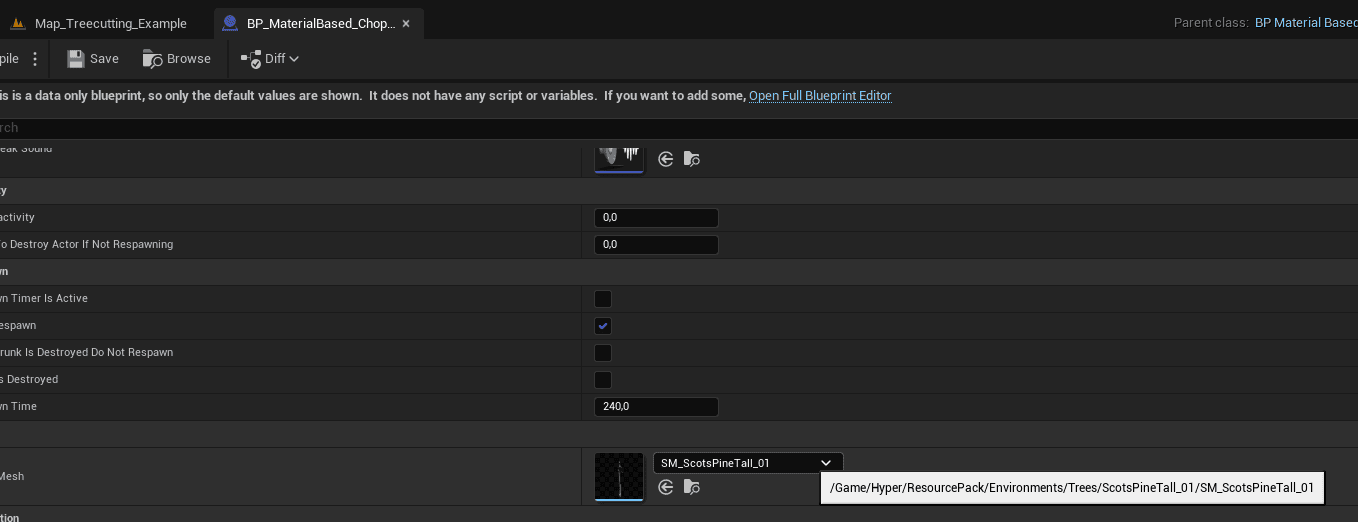
  • Select your static mesh in the class defaults:

  • In that mesh, check which material is the base/trunk of the tree, open that one.

  • Now you already have the static mesh open, set allow CPU access on it.

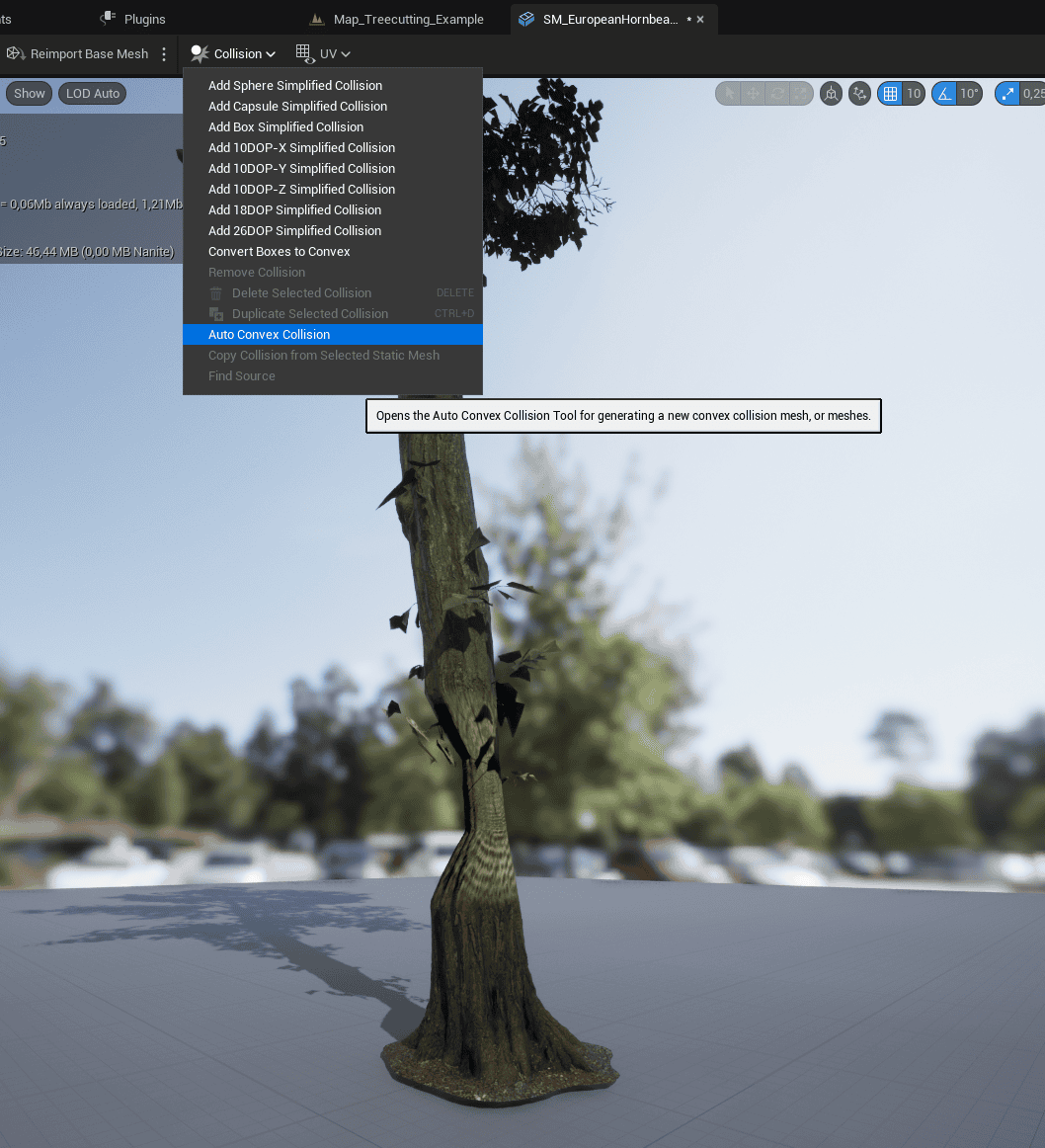
  • Also remove any simple capsule collision and convert it to convex, play around with the settings to make it look nice. This will work for most trees. If it doesn't work for yours, you can just add a capsule collision and scale it.

  • On most trees this step is not needed, but on some mega scans trees it is:
  • Please make sure that your Configuration Blueprint has set the Choppable Material Index properly. To find it,
    • Open the tree Mesh
    • Highlight the part that needs to be chopped
    • Check which index it is on. This one is on Index 2

  • After you know the index, set that in the configuration blueprint.
    • I have made two predefined choppable material indexes. You can leave the second one if only one is applied.

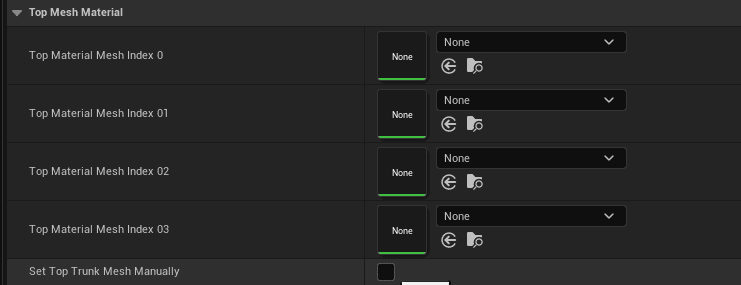
  • Some trees also require setting the material indexes manually of the mesh after it is cut, you can override the materials on the top by checking the Boolean Set Top Mesh Manually:

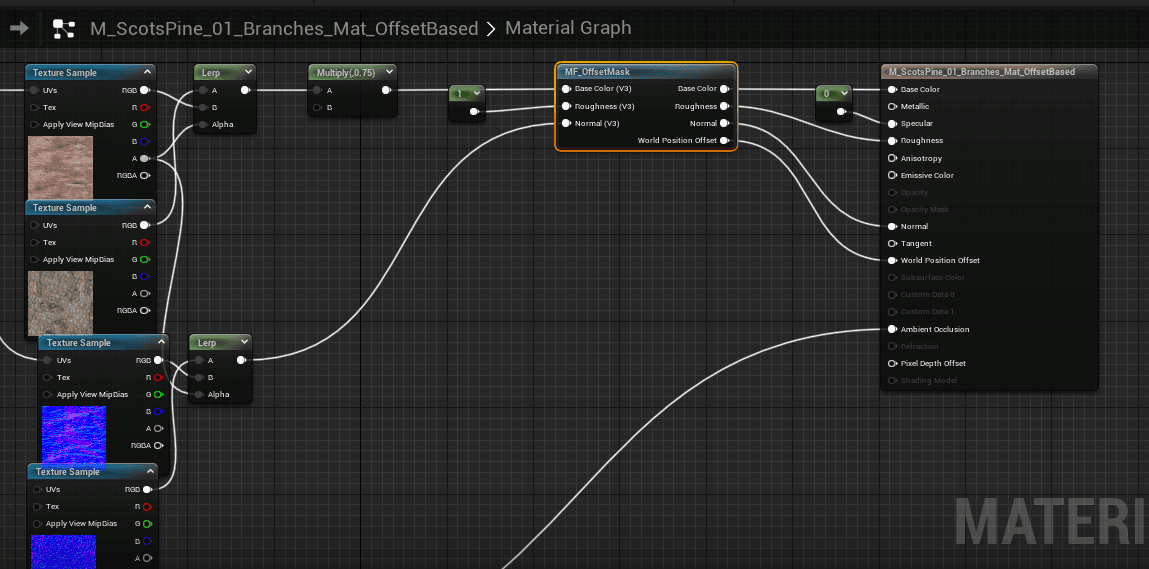
  • In the trunk material that you are hitting with an axe (or master) add the MF_OffsetMask function which can be found in the material folder and connect it.

  • Now you are done, and it will work! Tweak settings in the class defaults to your liking


Chaos based #

Setting up the chaos tree is more advanced. Please only do if you know what you are doing!

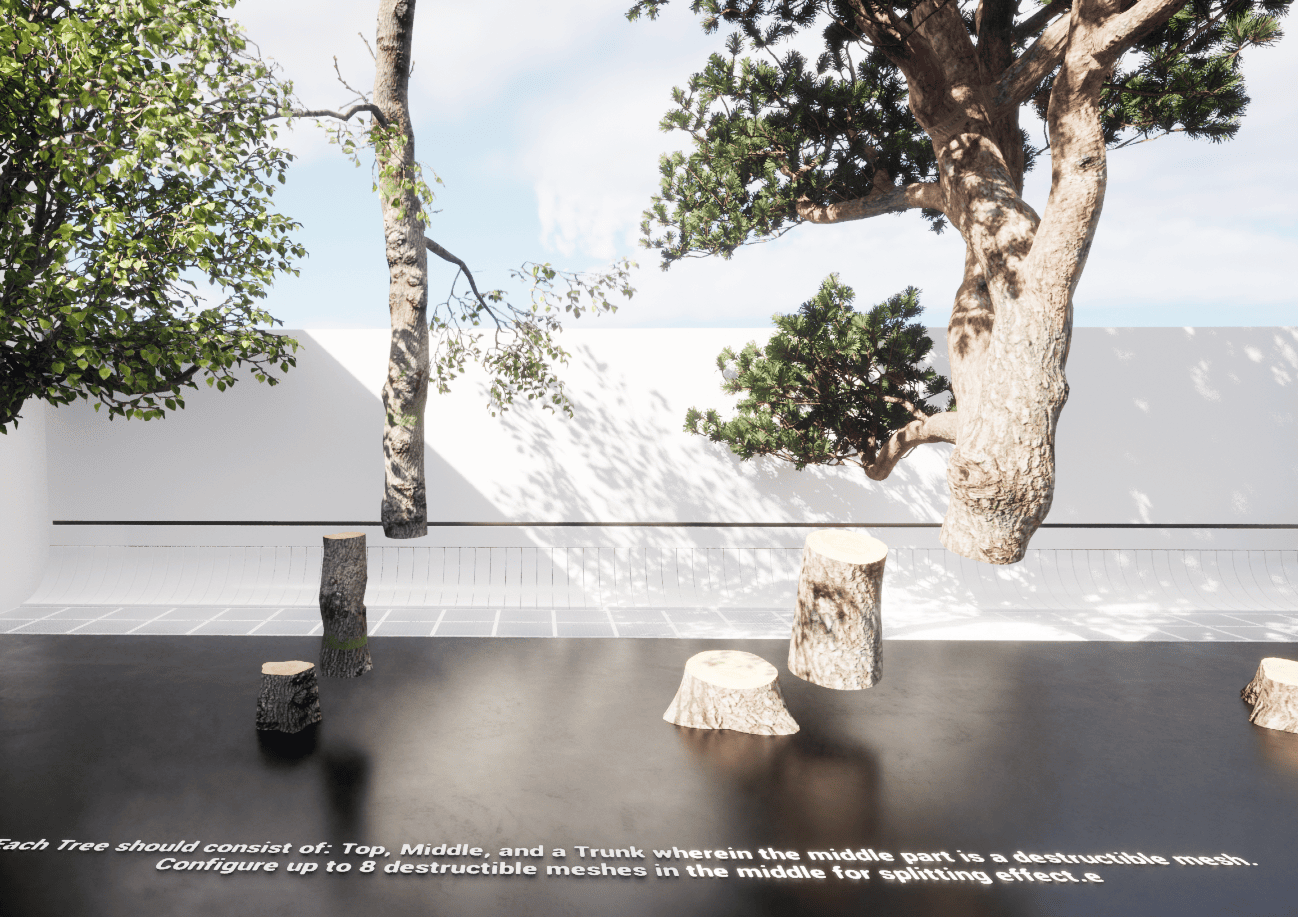
  • Chaos based trees should consist of: Top, Middle, and a Trunk wherein the middle part is a destructible mesh.

  • Make a child of the configuration from the master or duplicate an existing one

  • Setup the class defaults and manually override the geometry collection (of course you need to make the collection first, check for chaos tutorials)

  • After you have setup all the defaults properly, test it out!

Actor Foliage vs PCG #

  • You can use the actor foliage to spawn it in the world via the foliage tool or use a pcg graph

  • However, since PCG is out and stable we strongly advise to use PCG. E.g. Our advanced Biome generator in combination with the mesh to actor swap system! Perfect for large scale worlds.

Use cases #

My tree breaks to fast or to slow, what to do? #

  • Chaos is heavily under development at Epic. On each update I see massive updates which also affects my assets. I’ve seen a couple of times that the mass calculation is changed which can cause issues of breaking down too fast or too slow. Gladly I made an option to easily change this.
  • NOTE: Currently it is made to process damage between ~10/50. Go the damage part later in this section to check it out if you use other values.
  • Open the child config of the tree you are hitting and notice the” mass required to be chopped down”

  • Hit the destructible object and check the mass that is printed. In this example, we see big numbers over the 4000 while we only needed 450 mass for the complete object to be destructed.

  • This means that when all pieces are broken, we have ~4000 massed chopped away. We probably want that somewhere over 50% of the total mass. We are going to experiment by trial and error to see what mass works for us.

  • Change the mass until you are satisfied with the result. Use the printed mass chopped down as an indicator of where to start with the mass.

  • Second part to consider is tweaking the amount of damage. I have the following code:

I only see Material Attributes in my material. How can I add the Material offset function? #

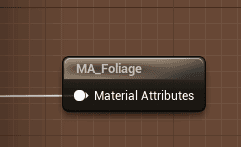
  • Some materials do have collapsed material attribute nodes like this

  • To add my MF_OffsetMask function you can break and make the nodes like this:

I am getting a Allow CPU access is not enabled error, what to do? #

  • If you do use my Material offset tree, and you get this error:

  • Please do open your specific mesh, and allow CPU Access

I have applied the material, but it does not seem to offset when hitting the tree #

Please make sure that your Configuration Blueprint has set the Choppable Material Index properly. To find it,

  • Open the tree Mesh
  • Highlight the part that needs to be chopped
  • Check which index it is on. This one is on Index 2

  • After you know the index, set that in the configuration blueprint.

What are your Feelings
Still stuck? How can we help?

How can we help?

Table of Contents
  • Tree Cutting
    • cORE Principles of the tREECUTTING SYSTEM
    • Material offset based Tree
    • Chaos based
    • Actor Foliage vs PCG
    • Use cases
      • My tree breaks to fast or to slow, what to do?
      • I only see Material Attributes in my material. How can I add the Material offset function?
      • I am getting a Allow CPU access is not enabled error, what to do?
      • I have applied the material, but it does not seem to offset when hitting the tree

© 2025 Games by Hyper

X Reddit Patreon Discord Linkedin YouTube

Review Cart

No products in the cart.

We noticed you're visiting from Netherlands. We've updated our prices to Euro for your shopping convenience. Use United States (US) dollar instead. Dismiss

  • Hyper Bundle Configurator
  • Shop
    • Game Templates
    • Courses
    • Loyalty Store
    • Survival Modules
    • RPG Modules
    • Environment Building
    • Browse All
  • My account
  • Become a Member
  • Cart
  • Get Help
    • FAQ
    • Upgrade your Game Template
    • Documentation
  • About Hyper
  • News & Updates