Skip to content
Games by Hyper
Sign Up / Login
Games by Hyper

Generic

  • QuickStart
  • Support
  • Purchase Options
  • Roadmap
  • FAQ
  • Learning
  • For Professional Studios

Templates

  • Template Logic and flexibility

Shared Infrastructure

  • Gameplay Tags
  • Datamanagement
  • Folder Structure

Item Management

  • Inventory
  • Jigsaw Inventory
  • List Inventory
  • Respawn Actor Manager
  • Hotbar
  • Crafting
  • Item Allocator
  • Vendor
  • Icon Creator
  • Interactive Foliage
  • Inspection System

Interaction and Feedback

  • Interaction System
  • Outliner System

UI

  • Main Menu
  • HUD
  • Information Prompt

Locomotion

  • Animation Framework
  • Extended Movement Component
  • Leader Posing
  • Custom-Skeletal-Meshes

Combat

  • Attribute Manager
  • Team Affiliation
  • Equipment Manager
  • Ragdoll System
  • Ability System
  • Target Locking
  • Weapon Attachment System
  • Limb System
  • Combat-framework

Construction and Survival Mechanics

  • Building System
  • Mineable Rocks
  • Tree Cutting
  • Farming System
  • Fishing System
  • Swimming System

Game Management

  • Global Save System
  • Respawn System
  • Session Manager
  • Game Mode System
  • Spectate System
  • Player Manager
  • Team Manager
  • Score Manager
  • Guild Manager
  • Party Manager

Multiplayer

  • Online Multiplayer Framework
  • Replication Subsystem
  • Chat System
  • Console Command Manager

AI

  • Basic AI
  • NPC Behavior System
  • Perception System
  • Companion System

Exploration and Narrative

  • Dialogue System
  • Memory System
  • Quest Manager
  • Map System
  • Teleport System
  • Guide System
  • Event Manager
  • Visual Novel System
  • Dungeon Adventure Kit
  • Region Manager

Progression and Leveling

  • Level Manager
  • Unlock System
  • Reputation System

Security and Control Systems

  • Drone System
  • Lock System
  • Security System
  • Defense System
  • Defense System – Modern
  • Defense System – Primitive

Character and Player Systems

  • Character Creator
  • Class System
  • Mount System
  • First Person

Environmental Control and Immersion

  • Time and Day Night Cycle management
  • Weather System
  • Background Music System
  • Footstep System

Environment Building

  • Mesh to Actor Swap System
  • Auto Landscape
  • Cave
  • Deform
  • Ditch
  • Exclusion
  • Forest
  • Forest-Basic
  • Lake
  • Level Instances
  • Mesh
  • Path
  • Props
  • Spline
  • Village
View Categories
  • Home
  • Docs
  • Crafting

Crafting

7 min read

Crafting #

We also have a tutorial in our Udemy course within our survival framework on how to setup a basic version of a simular system from scratch.

Core Principles of Crafting #


Workstation Requirements #

Crafting stations can have activation requirements and states that affect whether they can be used.

On/Off State

Crafting stations can be toggled on/off to enable or disable crafting:

  • Some stations require activation to function
  • Stations can be configured with or without fuel requirements
  • The Crafting Component has built-in fuel system settings

Fuel System

The crafting component includes an integrated fuel system:

  • Toggle Fuel Requirement: Enable/disable fuel consumption in the crafting component
  • Select Fuel Items: Specify which items can be used as fuel
  • Turn On/Off Without Fuel: Stations can be activated without requiring fuel (optional)

When fuel is enabled:

  • Station consumes fuel while active
  • Station becomes inactive when fuel runs out
  • Crafting pauses if station becomes inactive


Crafting Process #

Queue Logic #

The crafting queue processes items in a first-in-first-out (FIFO) manner, with intelligent handling for stacks and failures.

Queue Processing Loop:

  • Check if crafting is active (station active if required, fuel available if needed)
  • Get the first non-empty queue slot
  • Start crafting timer for that item
  • While crafting:
    • Update progress bar
    • Check if station remains active
    • Check if requirements still met
  • When timer completes, finalize the craft
  • Move to next item in queue

Crafting Timer:

Each recipe has a crafting time in seconds. The timer:

  • Starts when crafting begins
  • Updates UI progress bar
  • Can be paused if station becomes inactive
  • Completes and produces item when reaching 100%

Multiple Items in Queue:

If the queue has multiple different items:

  • Craft first item completely
  • Move to second item
  • Craft second item completely
  • Continue until queue is empty or stopped

Stacked Items in Queue:

If a queue slot has a stack (same item, quantity > 1):

  • Craft one item from the stack
  • Reduce stack quantity by 1
  • If quantity > 0, craft next in stack
  • If quantity = 0, slot becomes empty

This allows batch crafting of the same item efficiently.

Pausing and Resuming:

Crafting can pause if:

  • Station becomes inactive (fuel runs out, turned off)
  • Player closes the station (optional, configuration dependent)
  • Materials become unavailable (removed from inventory)

When conditions are met again, crafting resumes from where it paused.

Item Completion #

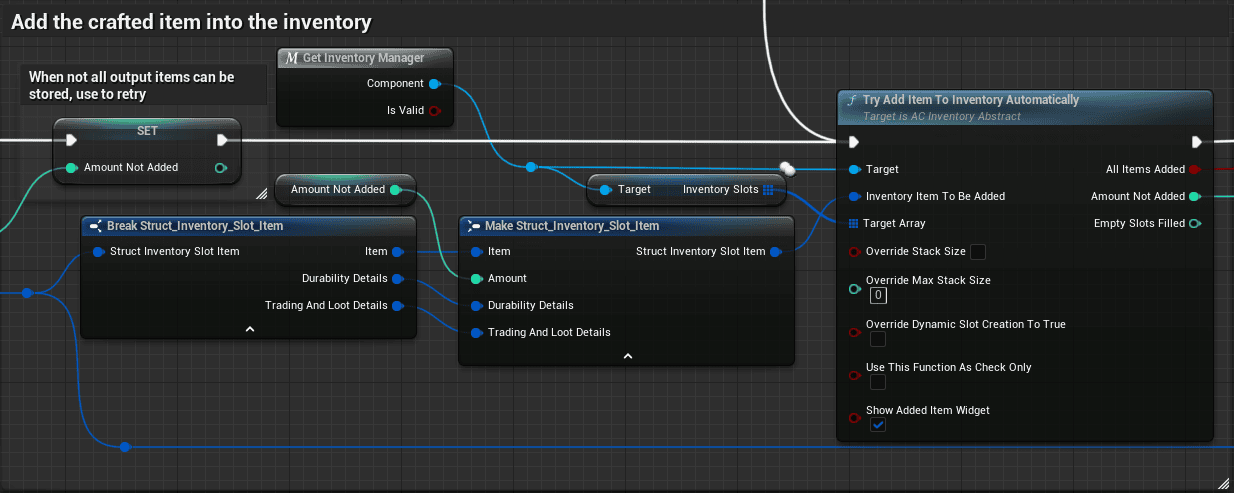
When a craft completes, the resulting item is added to the appropriate inventory based on the crafting location.

Completion Process

  • Crafting timer reaches 100%
  • Create the result item (as defined in recipe)
  • Add to appropriate inventory:
    • World Crafting Stations: Item added to the station’s own AC_Inventory_Advanced component
    • Player Crafting: Item added directly to player inventory
  • Reduce queue stack by 1
  • Play completion sound/effects
  • Continue to next queue item

World Crafting Station Output

Crafting stations in the world have their own AC_Inventory_Advanced component:

  • Completed items are added to the station’s inventory
  • Players can collect items from the station
  • Station inventory persists until collected

Player Crafting Output

When crafting through personal inventory (no station):

  • Completed items are added directly to player’s inventory
  • No intermediate collection step needed

Material Consumption Timing

Materials are consumed when the recipe starts, not at completion:

  • Player queues a craft
  • System checks for required materials
  • Materials are immediately removed from inventory
  • Crafting timer begins
  • When complete, result item is created

This means if crafting is cancelled, materials are already consumed.


Inventory Management #

The crafting system integrates with the inventory system for material checking and item placement.

Material Checking:

Before adding a craft to the queue:

  • Get all required materials from the recipe
  • Use the inventory component’s “Check if Player Has Items” function
  • This searches all allowed containers (Default, Container types)
  • If all materials found, allow craft
  • If any materials missing, prevent craft and show which are needed

Which Containers Are Checked:

By default, the system checks:

  • Default type containers (main inventory)
  • Container type containers (backpacks)

The system does NOT check:

  • Equipment containers (equipped items not used for crafting)
  • Crafting containers (the queue itself)

This prevents crafting materials you can’t access or creating circular dependencies.

Dynamic Slot Creation:

When the output inventory becomes full:

  • If dynamic slot creation is enabled on the output container
  • New slots are automatically created
  • Crafting continues uninterrupted
  • Prevents crafting from stopping due to full inventory

However, be careful with dynamic slots:

  • Can lead to very large inventories
  • May impact performance
  • Consider setting a maximum slot limit

Inventory Full Handling:

If output inventory is full and dynamic slots disabled:

  • Option 1: Pause crafting
  • Option 2: Cancel current craft, return materials
  • Option 3: Drop items on ground

Choose based on your game’s design goals.


How-To Guides #


How to Create a Recipe #

This guide explains how to add a new crafting recipe to your game.

Step 1: Open Recipe Data Table
Open the crafting recipe data table (DT_Crafting_Recipes or similar).

Step 2: Add New Row
Click “Add” to create a new recipe row. Name it descriptively (e.g., Recipe_WoodenSpear).

Step 3: Configure Result
Set what the recipe creates:

  • Result Item: Select the item from dropdown (references DT_Items)
  • Result Quantity: How many are created (usually 1)

Step 4: Add Required Materials
In the Required Materials array, add each material needed:

  • Click “+” to add a material entry
  • Select the material item
  • Set the quantity required
  • Set whether it’s consumed (usually True)
Example for Wooden Spear:
  • Material 1: Wood, Quantity: 2, Consume: True
  • Material 2: Stone, Quantity: 1, Consume: True
  • Material 3: Fiber, Quantity: 3, Consume: True

Step 5: Set Crafting Time
Set how long the craft takes in seconds:

  • Quick crafts: 1-5 seconds
  • Normal crafts: 5-15 seconds
  • Complex crafts: 15-60 seconds
  • Very complex: 60+ seconds

Balance based on item value and player experience.

Step 6: Configure Crafting Location
Set where this can be crafted:

  • Can Craft Without Workstation: True if craftable anywhere
  • Required Crafting Locations: Array of valid location types
Examples:
  • Basic items: Can Craft Without Workstation = True
  • Weapons: Required Location = Workbench
  • Cooked food: Required Location = Campfire OR Cooking Pot
  • Metal items: Required Location = Forge

Step 7: Set Recipe Category
Assign a category for UI filtering:

  • Weapons
  • Armor
  • Consumables
  • Resources
  • Structures

This helps organize recipes in the crafting UI.

Step 8: Configure Recipe Learning
Set whether the recipe is known by default:

  • Known By Default: True (always available)
  • Known By Default: False (must be learned)

If must be learned, you’ll need to implement recipe learning logic (find recipe book, reach level, complete quest, etc.).

Step 9: Save and Test
Save the data table and test:

  • Open the crafting UI
  • Verify the recipe appears
  • Check that materials are correctly displayed
  • Attempt to craft
  • Verify the result is correct


How to Set Up a Crafting Station #

This guide explains how to create an actor that functions as a crafting station.

Step 1: Create or Open Station Actor
Create a new actor blueprint or open an existing one (workbench, campfire, furnace, etc.).

Step 2: Add Inventory Component
Add the AC_Inventory_Advanced component:

  • This will manage the station’s inventories
  • Place it at the top of the component hierarchy

Step 3: Configure Inventory Containers
In the Inventory Component’s Containers to Spawn, add:

Output Container:

  • Container Type: Storage or Custom
  • Number of Slots: 5-20 (how much output can be stored)
  • Name: “Output” or station name

Fuel Container (if needed):

  • Container Type: Custom
  • Number of Slots: 1-5
  • Allowed Items: Only fuel category items
  • Name: “Fuel”

Step 4: Set Inventory Type
In the Inventory Component:

  • Set Inventory Type to match the station (Workbench, Campfire, Furnace, etc.)

This determines which recipes can be crafted at this station.

Step 5: Add Interaction Component
Add an interaction component so players can open the station:

  • Add Interact_Basic component (or your custom interact component)
  • Configure interaction prompt (“Press E to use Workbench”)

Step 6: Configure Station State (If Needed)
If the station has on/off states:

  • Add a boolean variable “Is Active”
  • Implement activation logic (add fuel, light fire, etc.)
  • Create visual feedback (particle effects for fire, light, etc.)

Step 7: Implement Fuel System (If Needed)
If the station requires fuel:

  • Create a timer that consumes fuel
  • While active, reduce fuel durability/quantity
  • When fuel depletes, set Is Active to False
  • Update visual state
Example Fuel Logic:

Every 1 second while active:

  1. Get fuel container
  2. Get first fuel item
  3. Reduce durability by 1 (or remove if depleted)
  4. If no fuel remains, deactivate station
  5. Update UI to show fuel level

Step 8: Create Station UI
Create a UI widget for the station that shows:

  • Available recipes (filtered by this station type)
  • Crafting queue
  • Output inventory
  • Fuel inventory (if applicable)
  • Station state (active/inactive)

Step 9: Test the Station
Test all functionality:

  • Interact with station to open UI
  • View available recipes
  • Craft items
  • Collect completed items from output
  • Activate/deactivate station (if applicable)
  • Fuel system is already implemented in the crafting component with built-in settings
What are your Feelings
Still stuck? How can we help?

How can we help?

Table of Contents
  • Crafting
    • Core Principles of Crafting
    • Workstation Requirements
    • Crafting Process
      • Queue Logic
      • Item Completion
    • Inventory Management
    • How-To Guides
    • How to Create a Recipe
    • How to Set Up a Crafting Station

© 2025 Games by Hyper

X Reddit Patreon Discord Linkedin YouTube

Review Cart

No products in the cart.

We noticed you're visiting from Netherlands. We've updated our prices to Euro for your shopping convenience. Use United States (US) dollar instead. Dismiss

  • Hyper Bundle Configurator
  • Shop
    • Game Templates
    • Courses
    • Loyalty Store
    • Survival Modules
    • RPG Modules
    • Environment Building
    • Browse All
  • My account
  • Become a Member
  • Cart
  • Get Help
    • FAQ
    • Upgrade your Game Template
    • Documentation
  • About Hyper
  • News & Updates