
Chat System
Updated May 25, 2026
The Chat System provides in-game text communication for multiplayer sessions. It supports global, team, party, private, and system messages, with server-side distribution and client-side UI features such as mute, player list, clear chat, and console-command auto-completion.
For shared setup guidance, see the Migration Guide and Integration Guide. Use the System Atlas to look up functions, variables, events, components, and ownership references. Use this page for Chat System-specific components, message routing, validation, and UI behavior.
Related Videos
Some videos may have been recorded before V4. The same principles still apply, but asset names, component names, and folder locations may differ. Treat the current written documentation and V4 names as the source of truth.
Add a Chat System with Team Party and Private Chat to Your Project PlayChat System and Console Management Devlog Play
Core Concepts
| Concept | Description |
|---|---|
| Chat Manager | AC_GS_Chat_Manager, the server-side component that validates messages, filters recipients, and distributes messages. |
| Chat Communicator | AC_PlayerController_Chat_Communicator, the client-side component that sends user input to the server and displays received messages. |
| Message Categories | Global, team, party, private, and system message channels. |
| Recipient Filtering | The server sends each message only to players who should receive it, such as teammates for team chat or one target for whisper. |
| Console Command Integration | Slash commands such as /team, /party, and /whisper route category-specific messages through the Console Command System. |
| System Messages | Server or game-logic messages broadcast to all players. |
Components
| Component | Attached To | Responsibilities |
|---|---|---|
| AC_GS_Chat_Manager | GameState | Receives server RPCs, validates messages, determines recipients by category, sends client RPCs, and broadcasts system messages. |
| AC_PlayerController_Chat_Communicator | PlayerController | Translates chat UI input into server RPC calls, receives messages, displays them in UI, routes slash commands, manages local mute filtering, and provides command auto-completion support. |
Message Categories
| Category | Recipients | Use | Example |
|---|---|---|---|
| Global / All Chat | All players in the session. | General communication visible to everyone. | Good game everyone! |
| Team Chat | Only players on the sender’s team. | Team coordination and strategy. | /team Let’s attack point B |
| Party Chat | Only players in the sender’s party or squad. | Small-group coordination. | /party Follow me |
| Private Message / Whisper | One target player. | Private player-to-player communication. | /whisper PlayerName Hey, want to team up? |
| System Messages | All players. | Server announcements, event notifications, and match updates. | Match starts in 30 seconds |
Team, party, and private messages require Console Command System integration in the current implementation.
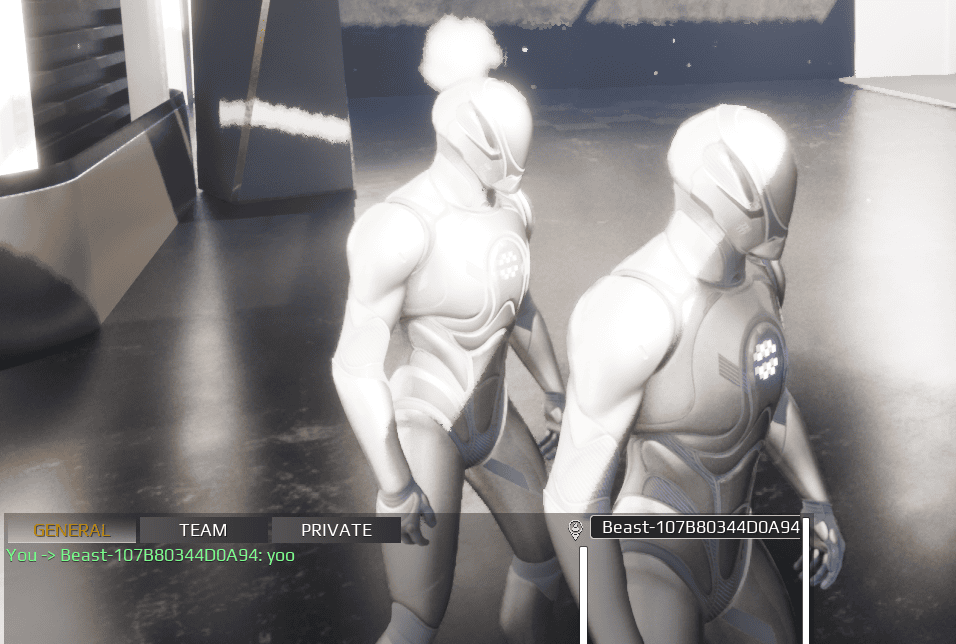
Console Command Integration
The current implementation uses the Console Command System for team, party, and private messages. The chat input detects slash commands and routes them to the command system before the Chat Manager distributes the resulting message.
- The player types a command, such as /team Hello team.
- The Chat Communicator detects the / prefix.
- The Console Command System processes the command.
- The command system calls the Chat System with the correct category and content.
- The Chat Manager sends the message to the correct recipients.
Supported command examples:
- /team
: Send a message to all teammates. - /party
: Send a message to party members. - /whisper
A chat-only implementation is also possible. In that setup, the UI would provide direct category selection, and category routing would be implemented directly in the Chat Communicator and Chat Manager instead of using slash commands.
Message Flow
- Client sender: The player submits text through the chat UI.
- Chat Communicator: Converts the input into a server RPC with message content, category, and target if applicable.
- Server Chat Manager: Validates the message and determines recipients.
- Server distribution: Sends the message to the correct recipients through client RPCs.
- Client recipient: Receives the message, checks the local mute list, and displays the message if the sender is not muted.
Server Validation
AC_GS_Chat_Manager includes a configurable banned word list for content moderation.
- The banned word list is an array of strings on the Chat Manager.
- When a player sends a message, the server checks whether the message contains any banned words.
- If a banned word is detected, the message is blocked and the sender receives a notification.
- If no banned word is detected, recipient filtering and distribution continue.
Additional validation can be added before distribution:
- Advanced profanity filtering: Pattern matching or third-party moderation.
- Rate limiting: Reject messages when a player sends too many in a time window.
- Permission checks: Prevent server-muted players from sending messages.
- Content length limits: Reject messages over the configured character count.
UI Features
| Feature | Behavior |
|---|---|
| Message Input Box | Players type a message and press Enter or click Send. Slash-prefixed messages route to the Console Command System; normal text sends as global/all chat or the configured default category. |
| Clear Chat | Clears displayed messages locally. It does not affect other players. |
| Toggle Player List | Shows or hides the player list panel. |
| Mute / Unmute | Filters messages from selected players locally. Mutes are not persistent and do not affect the server or other players. |
| Player List | Shows connected players and can be used to start whispers or manage mute/unmute actions. |
| Auto-Completion | Suggests console commands such as /team, /party, and /whisper. It applies to commands, not generic message text or player names. |
Auto-Completion Flow
- The player types a partial command such as /te.
- The Console Command System checks available commands that start with the partial input.
- The UI displays a suggestion such as /team.
- The player presses Tab or selects the suggestion.
- The input box completes the command.
Setup
- Add AC_GS_Chat_Manager to the GameState.
- Add AC_PlayerController_Chat_Communicator to the PlayerController.
- Ensure the Console Command System is present if you need team, party, private messaging, or auto-completion.
- Create or configure the chat UI widget.
- Bind the message input box to the Chat Communicator’s send message function.
- Add a player-list toggle button.
- Add a Clear Chat button.
- Optionally add custom server validation to the Chat Manager’s message receive function.
Testing
- Start a multiplayer session with multiple players.
- Send a global message and verify all players receive it.
- Send /team Hello team and verify only teammates receive it.
- Send /whisper PlayerName Hi and verify only the target player receives it.
- Mute a player and verify their messages no longer appear locally.
- Toggle the player list on and off.
- Type a partial command such as /te and press Tab to test auto-completion.
Example Use Cases
- Team coordination: A player sends /team Let’s attack point B; the Chat Manager sends it only to teammates.
- Private messaging: A player selects another player from the player list, which pre-fills /whisper PlayerB, then sends a private message.
- Mute toxic player: A player mutes another player locally; future messages from that sender are filtered only for the muting player.
- System announcement: Server or game mode logic sends a broadcast message such as Match starts in 30 seconds.
- Auto-complete command: A player types /te, selects /team, then completes the message.
See Also
- Console Command System: Handles slash commands and auto-completion.
- Team Manager: Provides team affiliation data for team-chat recipient filtering.
- Player Manager: Provides player list and player state data.
- HUD: Can integrate the chat UI widget for display.