
Main Menu
Updated May 25, 2026
The Main Menu system is built around Epic’s CommonUI workflow so menus, inventory UI, radial menus, and interaction UI can share consistent keyboard, mouse, and gamepad behavior.
For shared setup guidance, see the Migration Guide and Integration Guide. Use the System Atlas to look up functions, variables, events, components, and ownership references. Use this page for Main Menu and CommonUI-specific setup notes.
Related setup: Set Up Your Main Menu and Game Map, Customize the UI.
Related Videos
Some videos were recorded before V4. The principles still apply, but asset names, component names, and folder locations may differ. Treat the current written documentation and V4 names as the source of truth.
Menu and Gamepad System v2 [CommonUI] Walkthrough PlayGamepad Compatibility for Main Menu, Inventory UI, Radial Menu and Interactions PlayVideo settings menu with the Common UI plugin PlayProfessional UI System – Common UI Devlog Play
CommonUI Setup
Enable Epic’s CommonUI plugin before setting up the menu widgets. For the engine-level setup flow, use Epic’s Common UI Quickstart Guide.

Game Viewport Client Class
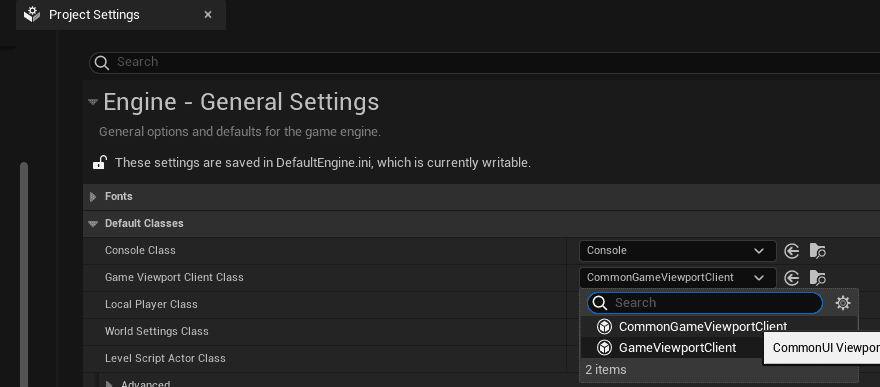
Set the Game Viewport Client class to CommonGameViewportClient. CommonUI depends on this class for its input routing and viewport-level behavior.
Common UI Input Data
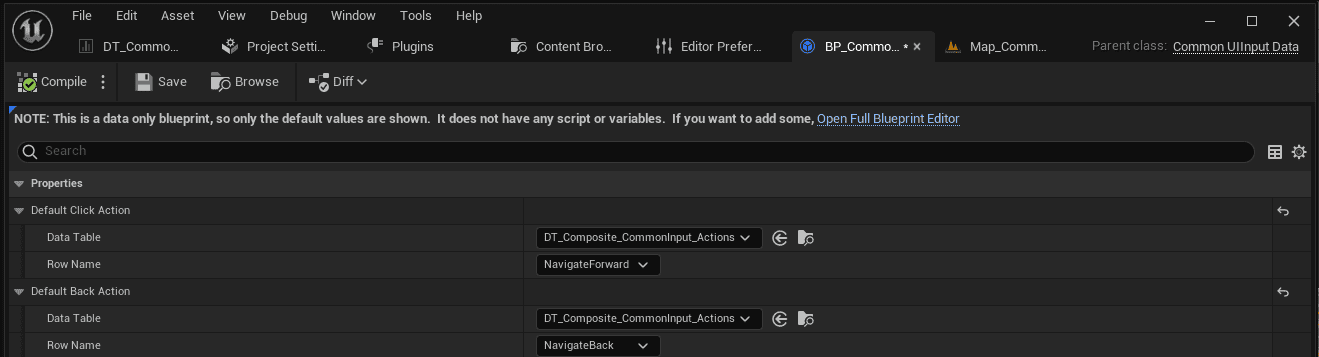
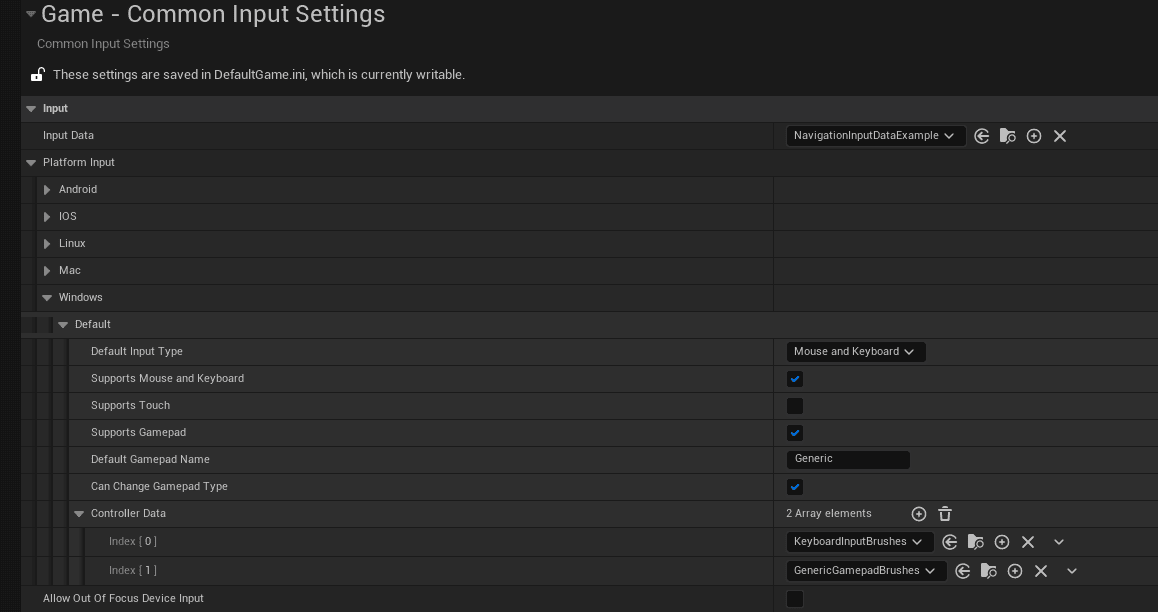
The Common UI Input Data class stores UI input data used by CommonUI input handling. Set this class in the project settings.

Inside that class, assign the linked Forward and Back actions. The data table reference points to a Common UI Input Action Data Table.
Common UI Input Action Data Tables
Common UI Input Action Data Tables define UI actions and map them to platform-specific inputs. They are separate from gameplay input and are only used for UI navigation and UI actions.
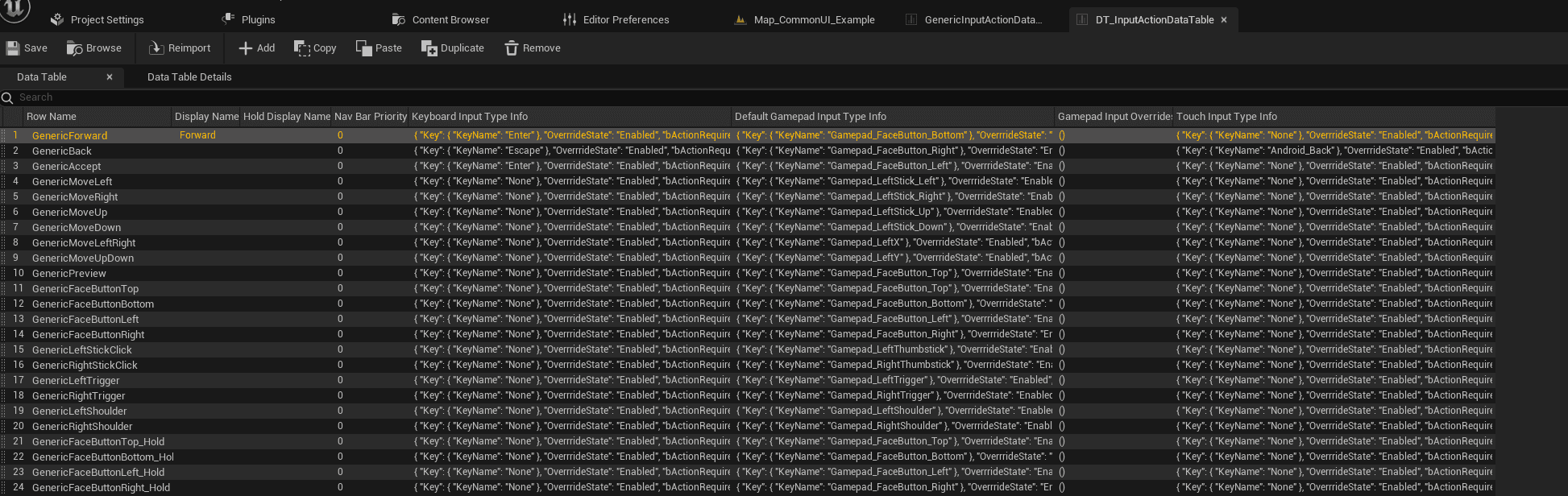
Copy GenericInputActionDataTable and adapt it, or create a composite data table that combines the engine table with your own entries.
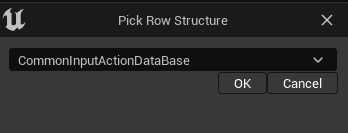
When creating your own table, base it on the CommonUI input action row structure.
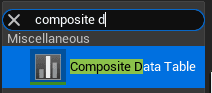
To include the engine data table in your own list, create a composite data table.
In the input data table, define each possible UI action and link it to the relevant input. In the example below, Navigate Forward is linked to Enter and Face Button Down.

Common Input Base Controller
The Common Input Base Controller Blueprint class defines which brush is mapped to which key. For example, the C key can display a C icon.
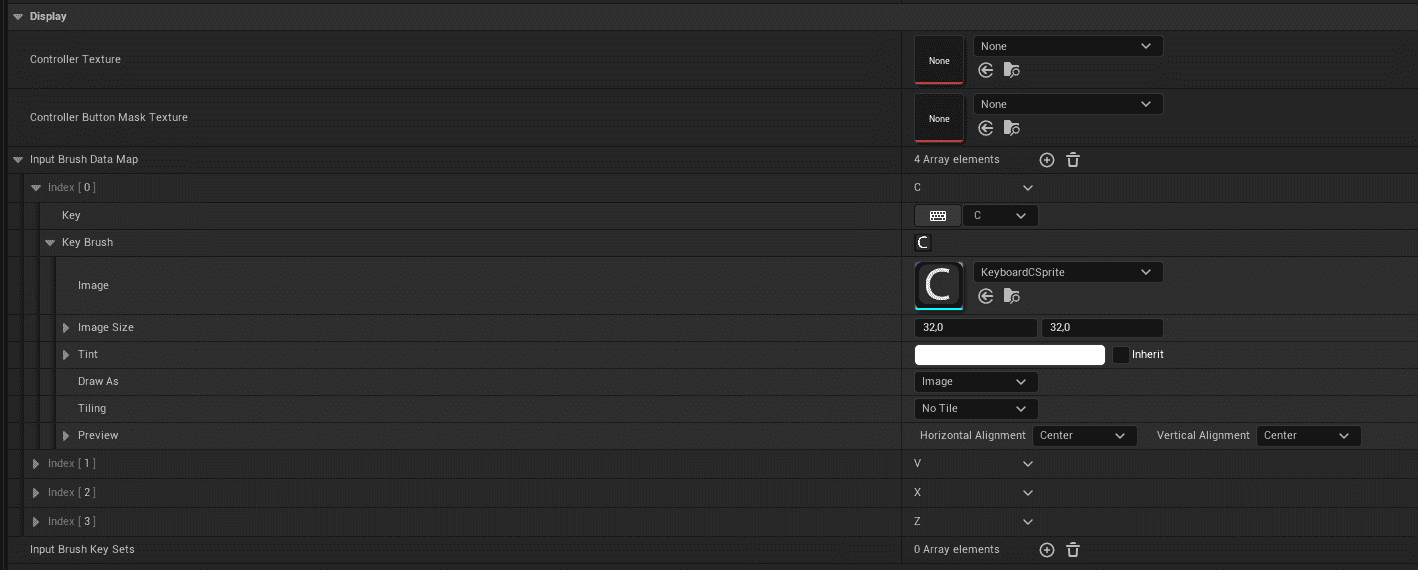
In the project settings, map the controller data to each platform. For Windows, assign both keyboard input brushes and gamepad brushes so the UI can switch icons when the player uses a gamepad on PC.
Important: Set the Default Gamepad Name to Generic, and set the gamepad name to Generic in the Common Input Base Controller.

CommonActivatableWidget
CommonActivatableWidget API reference
CommonActivatableWidget is the base class for widgets that need activation, deactivation, focus handling, pop-up behavior, screen switching, or transitions between high-level UI panels.
An activatable widget is active when it is ready to receive input. Keep a widget active when it should continue receiving input, and deactivate it when it should stop. This is useful for elements such as a top bar that still needs RB/LB tab-switching input while focus is inside another widget.
Activation and deactivation can also drive widget animations through the events on this class.
Use CommonUI.DumpActtivateableTree to debug multiple active widgets. It prints the active tree to the log.
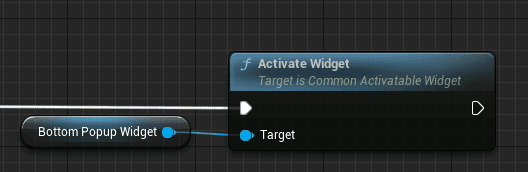
Call the activation function when a widget should become active.
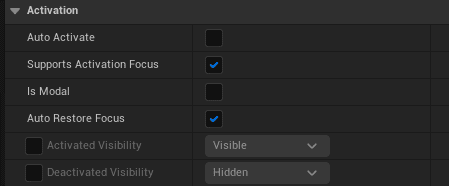
Every child of this class exposes activation-related settings in its class defaults.
Common Button Base
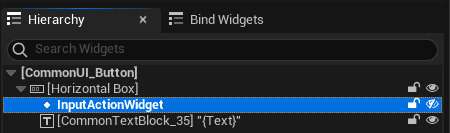
Common Button Base is the base class for CommonUI buttons. A Common Button Base requires a Common Action Widget in its hierarchy. The Common Action Widget must be named InputActionWidget so the input action can bind to the button.
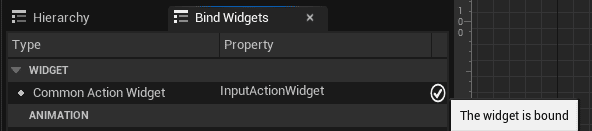
Use the Bind Widgets tab to confirm that the InputActionWidget is bound correctly.
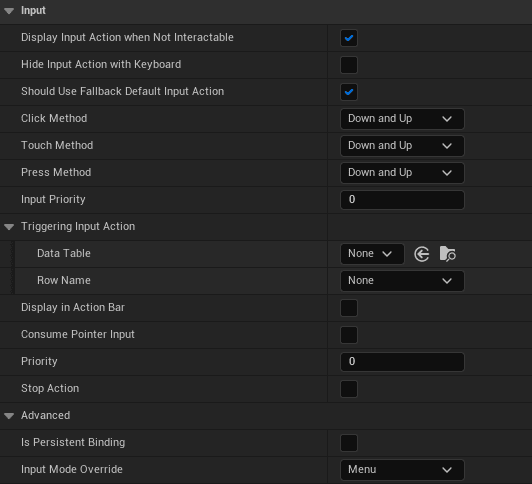
After the input action widget is bound, configure the class defaults for the button behavior.
Common Action Widget
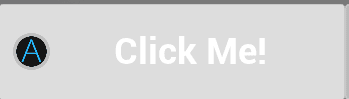
The Common Action Widget, also used as an Input Action Widget, visualizes the input associated with a UI action. In the example below, it displays the A button.
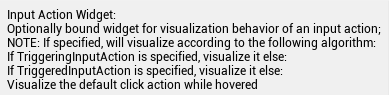
The Input Action Widget only displays when an action is specified.
Custom Common UI Button
Most menu buttons should be child widgets of Common Button Base with a bound input action widget.
- Create a child of Common Button Base.
- Add a Common Action Widget and a Common Textblock.
- Name the Common Action Widget InputActionWidget.
- Set the button text during Pre Construct.
- Use the button in higher-level widgets and set the exposed text variable.

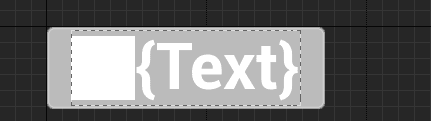



This setup lets the button display both its label and the input action assigned through CommonUI.
Button Events
When selecting a child of the button base class, several event options are available. On Button Base Clicked is the event used most often.

Activating Widgets From Buttons
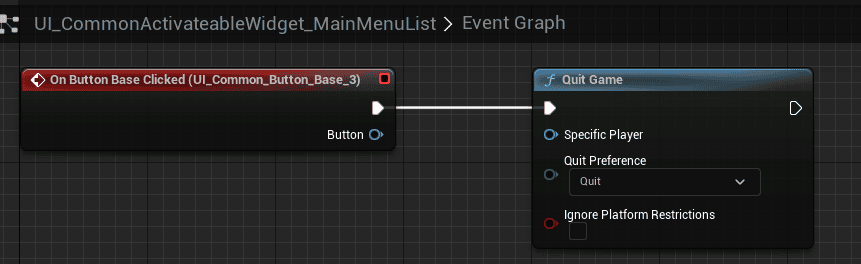
The most common activation pattern is to trigger widget activation or deactivation from the widget that owns the button list. For a main menu, buttons such as Play, Options, and Quit are usually defined in a single widget, such as a Main Menu List.
Assign On Button Base Clicked events there. For Quit, the action can be executed directly from the bind.
Action Bar
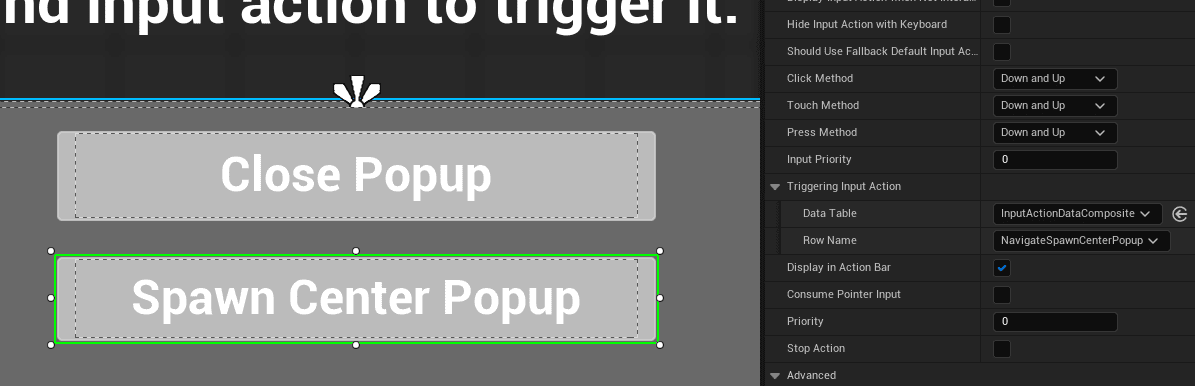
Place a Common Bound Action Bar in the UI when the screen should show which actions are available at that moment. The action bar reads values from Common Button Base widgets.
For each button, define which input it accepts and whether that input should appear in the action bar.
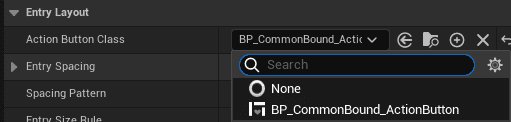
The Common Bound Action Bar requires a Common Bound Action Button. This button acts as the visual template for action bar entries.
Focus Target
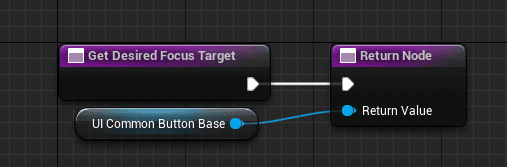
Get Desired Focus Target can be overridden in an Activatable Widget class to set focus on a specific widget when the screen activates.

The function takes a widget as input.
Common Tab List Widget Base
Common Tab List Widget Base is used for top bars and tab switching with trigger buttons. It uses a linked switcher. Set the switcher variable manually at the higher hierarchy where the tab list widget is used.
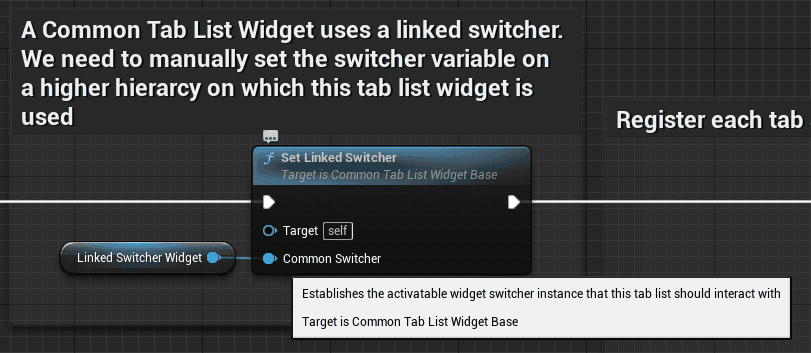
Register tabs through the Tab Entries variable. Each registered tab needs a name and a widget to create. This setup uses the button master. The tab entries map the tab name to the tab, and that same name should be used as the tab ID.

In the tab list widget class defaults, set the next and previous tab input actions.

Set the widget that contains the tab switcher to activated or auto-activate.
Back Handling
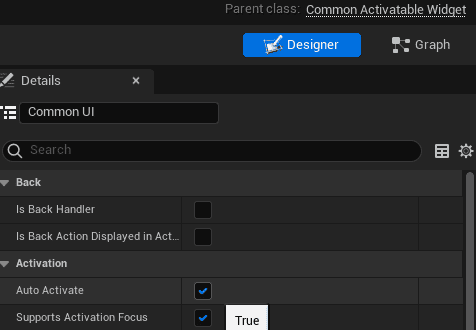
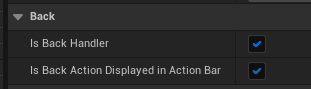
CommonUI uses the default back button configured in the project settings through the Common UI Input Data. To make a focused and activated widget listen to the back handler, enable back handling in the Activatable Widget class defaults.
Bind Visibilities
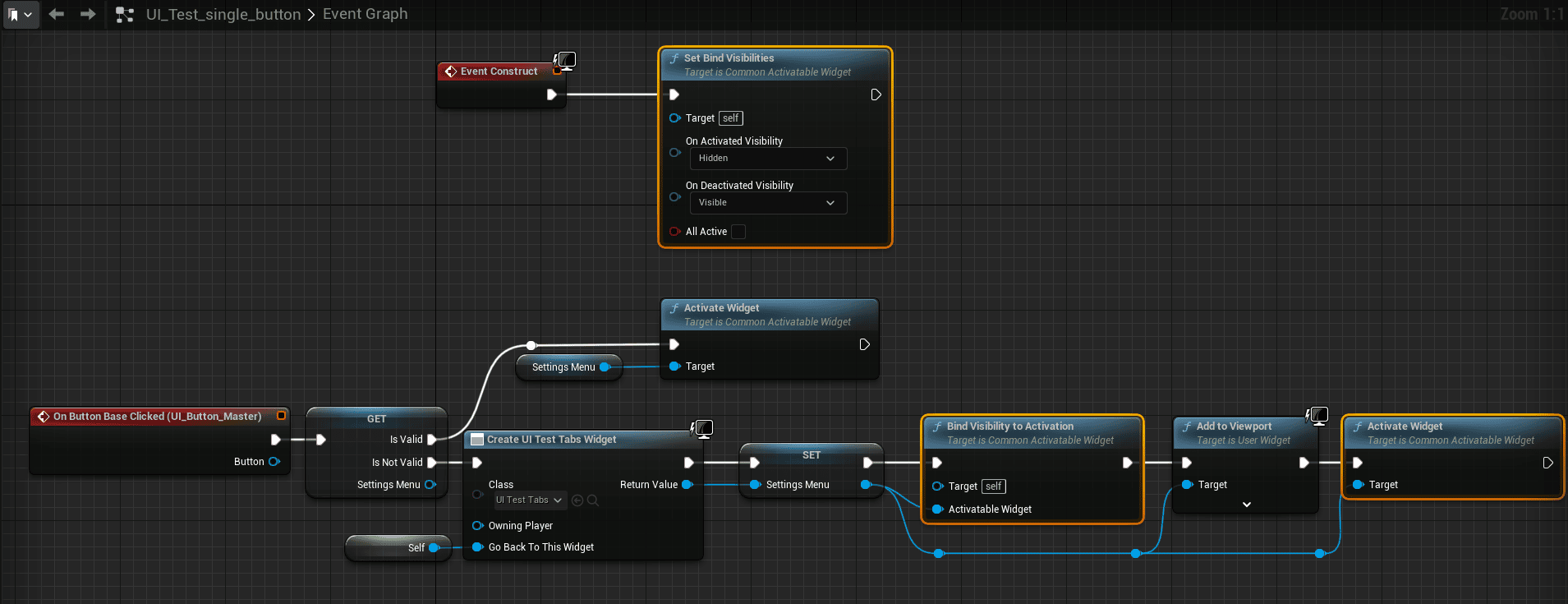
When activating or deactivating another activatable widget, you may also need to change the visibility of the current widget. For example, when a button opens a new widget, the widget that contained the button often needs to hide.
Use Set Bind Visibilities to define how a target widget behaves when any bound widget activates or deactivates.
CommonHardwareVisibilityBorder
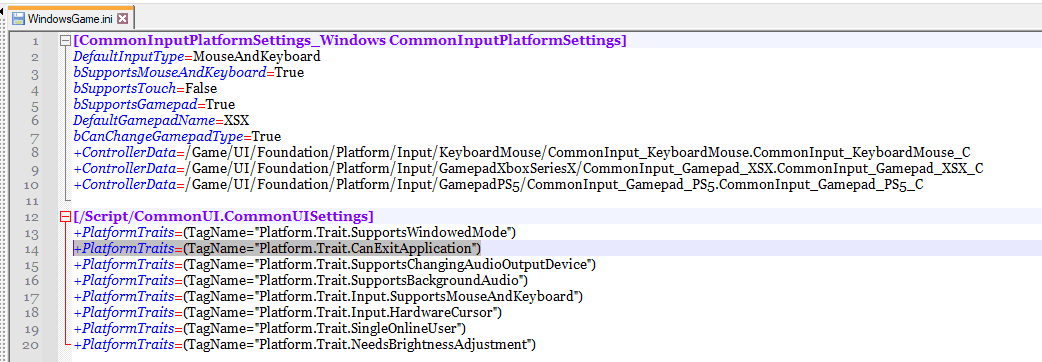
CommonHardwareVisibilityBorder shows or hides widgets based on the platform. In this example, Windows shows the widget and PS5 hides it, because consoles do not need a Quit button.

Visibility is based on the visibility query. If the query is set, the widget shows; otherwise it hides. This query is configured in the platform .ini file.
Rich Text
CommonUI can be used with Rich Text for inline formatting inside a text block. See the UMG Rich Text Block documentation for engine-level behavior.
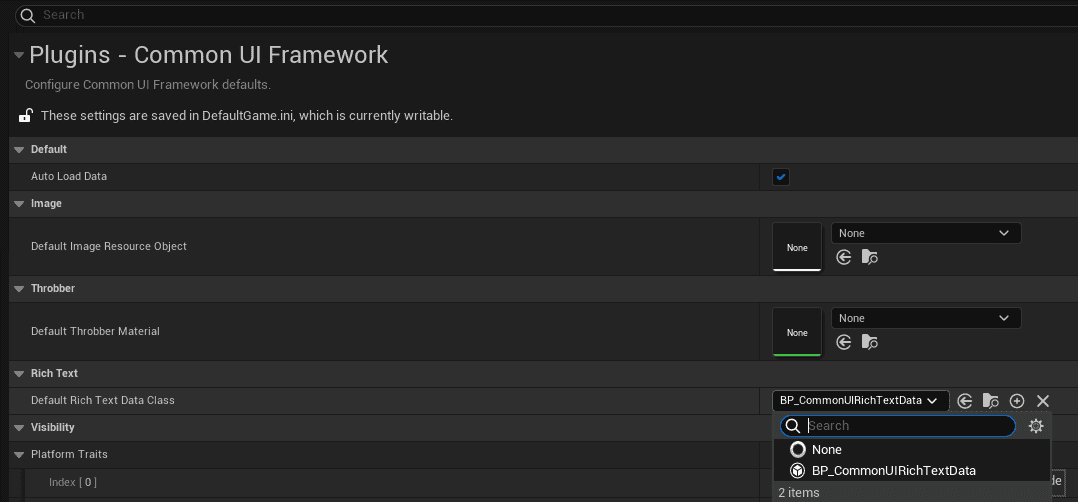
To allow inline icons, select your own Default Rich Text Data Class in the project settings.
In that class, set the inline icon data table.
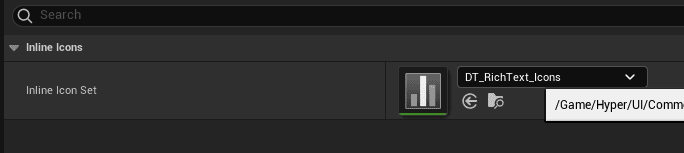
After that, use the name of the inline icon in the text block.

Keybinds
Use Unreal Engine’s InputKeySelector to create keybind UI. The input key selector receives the input the player sets in the widget.

Game Settings
Game settings can exist in several states:
- Default Settings: Defaults defined upfront.
- User Settings: Settings currently applied by the user.
- Changed Settings: Settings changed in the UI but not applied yet.
A changed setting can behave in two ways:
- Executed directly on change: For example, a brightness slider used as a preview.
- Requires apply: For example, resolution settings that should not take effect until Apply is clicked.
Both behavior types should reset to the initial user settings state when canceled, and reset to defaults when Reset to Defaults is used.
The user can move between settings states with three options:
- Reset to Defaults: Resets all game user settings to the default state.
- Cancel Changes: Reloads the last applied user settings when changes have not been applied yet.
- Apply: Saves changed settings into user settings.
If a user leaves the screen after making changes, show a confirmation prompt. Applying executes and saves the changes. Canceling resets the settings to the previously applied game user settings or to the defaults.

Settings state can be stored in multiple locations: Unreal’s game user settings system, and a Save Game for settings that cannot be stored in game user settings.
Confirm Dialogue
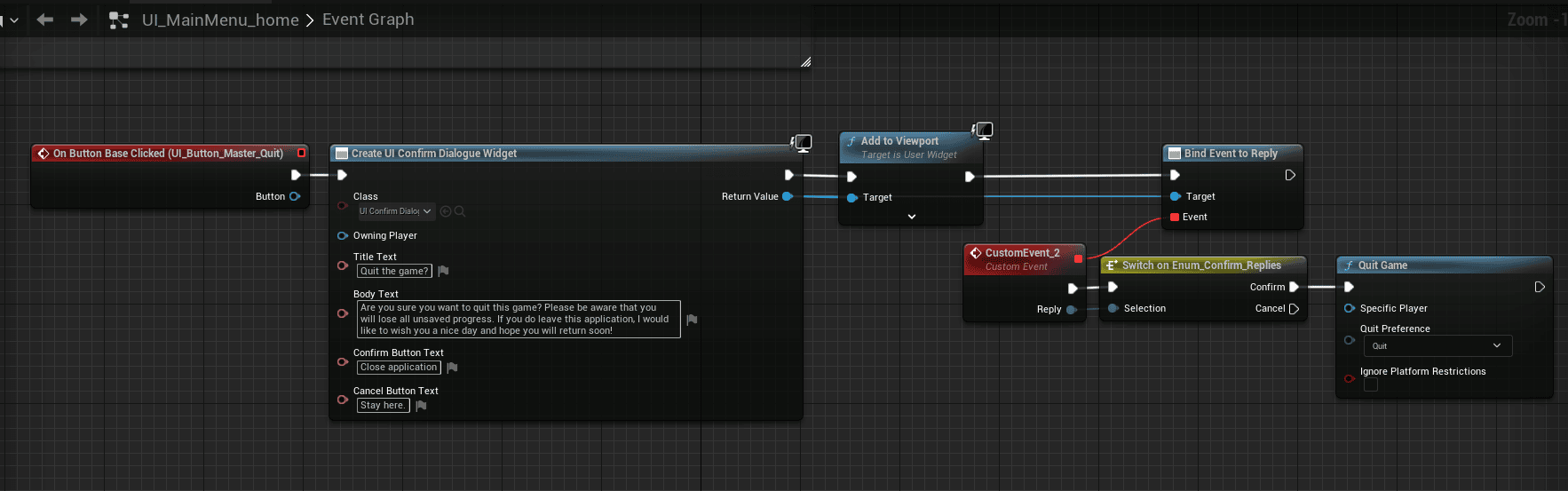
Use the shown setup to create a confirm dialogue.
Quality Presets
Changing the quality preset value also automatically changes the affected setting values.
Localization
Open the Localization Dashboard from the Tools tab.

Only text variable types have localization options.
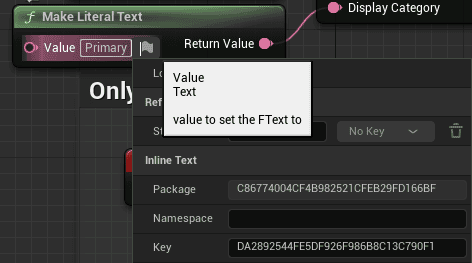
Gather Text controls where Unreal searches for text to localize. To scan all project content, include the Content folder as an include path, then click Gather Text.


When the gather finishes, Unreal shows the total found word count that can be localized. In this example, it is over 47k.

Cultures define the languages you support. The dashboard also shows what percentage of localizable text has been localized.

Use a String Table when repeated words or phrases should share the same translation. Select the string table entry in the localization options of a text variable.

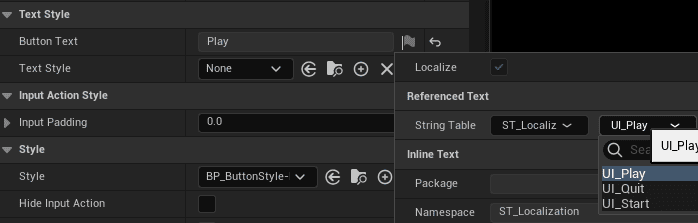
After adding translations, compile them with the compile button.

Edit localization files in Unreal, or export and reimport them.

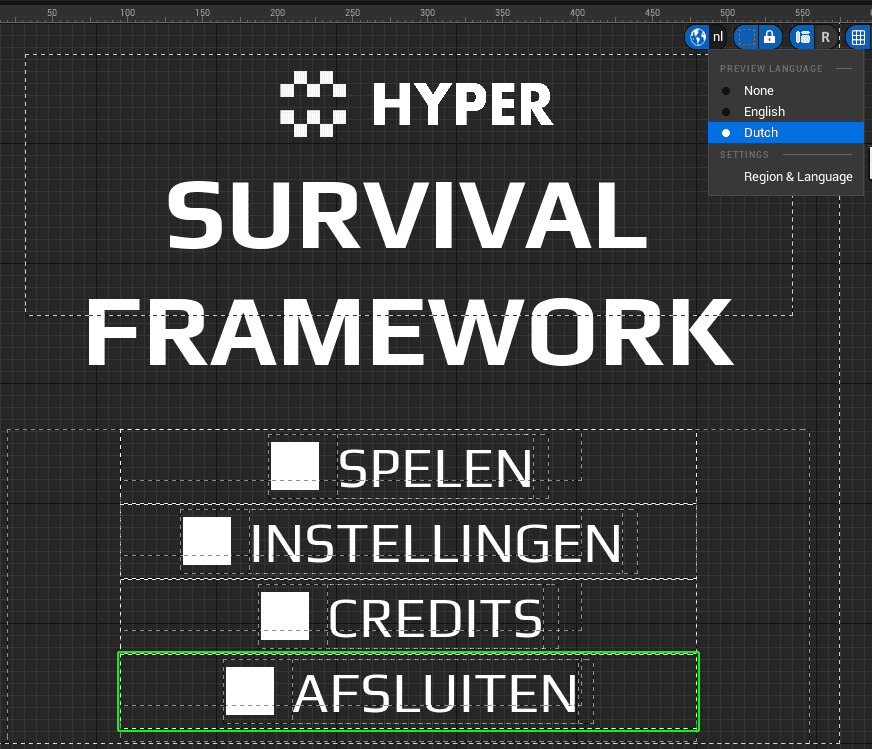
After the text is gathered and compiled, newly opened widgets can be previewed in the selected culture.
Audio
Audio settings use Sound Classes to categorize sounds. All used Sound Classes should be selected in a Sound Class Mix.

To change values in the Sound Class Mix, first set a base sound mix.
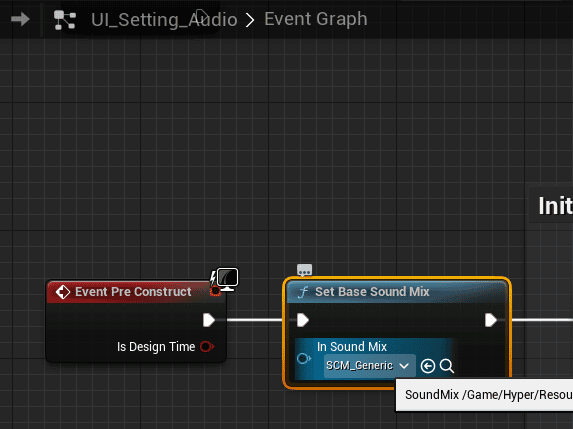
After that, change values in the sound mix and the specific Sound Class.
