
Information Prompt
Updated May 25, 2026
The Information Prompt Manager displays player-facing UI prompts and controls how they move through a shared queue. It supports simple predefined messages, custom widget classes, loading screens, and several queue behaviors for handling duplicate or higher-priority prompts.
For shared setup guidance, see the Migration Guide and Integration Guide. Use the System Atlas to look up functions, variables, events, components, and ownership references. Use this page for Information Prompt-specific setup, runtime behavior, extension points, and integration notes.
Related setup: Customize the UI.
The system is useful when multiple gameplay systems need to show notifications without each one managing its own widget lifecycle.
Display predefined prompts with configurable title, subtitle, and timing. Display custom widget classes. Queue prompts so they display one at a time. Use four Prompt Add Types to control queue behavior: append, override by class, clear all, or conditional add. Support loading screens that clear the queue and override all prompts. Process the queue automatically when the current prompt finishes. Related Videos Version note: Some videos may have been recorded before V4. The same principles still apply, but asset names, component names, and folder locations may differ. Use this written documentation and the current V4 names as the source of truth. Learning note: basics course videos are not specific to this system. Use them to understand the underlying Unreal Engine or Blueprint principle, then follow the current documentation for project-specific names and setup. Related principle: UI – Event Based UI. Core Concepts Prompt: A UI widget displayed to the player. It can be predefined with title/subtitle/timer data or provided as a custom widget class. Play- Queue: A FIFO list of prompts waiting to be shown. When the current prompt finishes, the next prompt is popped from the queue.
- Prompt Add Type: An enum that controls how a new prompt interacts with the current on-screen prompt and queued prompts.
- Widget Class: The widget type used for creation, filtering, and override logic.
- Loading Screen: A special prompt path that clears the full queue and overrides existing prompts.
Components
Information Prompt Manager Component
- Manages the prompt queue and current on-screen prompt.
- Processes add/remove requests based on the selected Prompt Add Type.
- Displays the next prompt in the queue when the current prompt finishes.
- Provides API to add predefined prompts, custom widgets, and loading screens.

Widget Types
The Information Prompt Manager supports two widget creation modes.
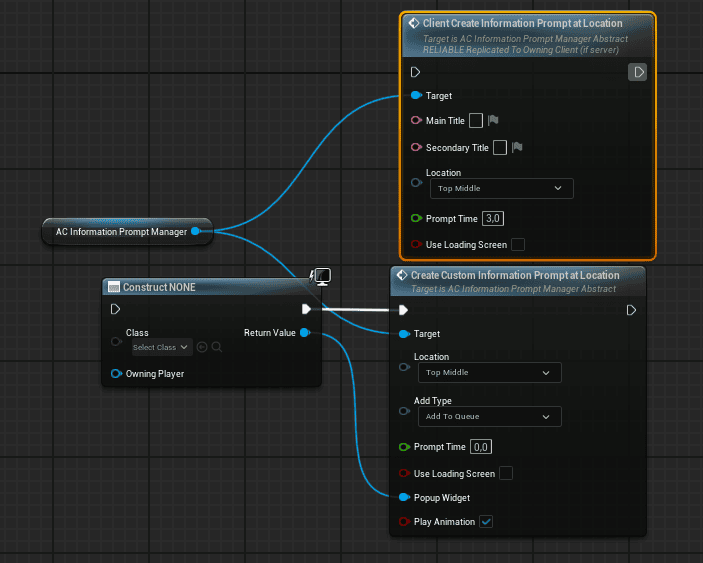
Predefined Widget
- Provide a Main Title, Secondary Title, and Prompt Time.
- The manager creates a standard widget instance using those values.
- Use this path for common notifications, hints, and short messages that should share the same visual style.
Custom Widget
- Provide a Custom Widget Class reference.
- The manager instantiates that widget and displays it through the same queue pipeline.
- Use this path for specialized UI such as tutorial overlays, custom dialogs, or prompts that need unique interaction behavior.
Both widget types are added to the same queue and follow the same Prompt Add Type rules.
Prompt Add Types
The Information Prompt Manager provides four Prompt Add Types (enums) that control how a new prompt interacts with existing prompts (on-screen and in the queue).
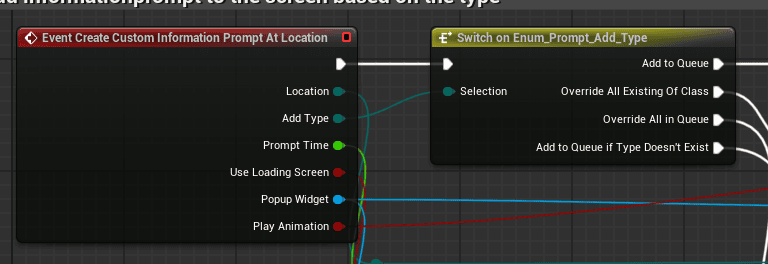
Add to Queue
Behavior: Adds the new prompt to the end of the queue, regardless of what is already on-screen or queued.
Use case: Sequential notifications or messages where order matters and every prompt should eventually display.
Example: Quest objective updates that should all be shown to the player, even if multiple objectives complete at once.
Override All Existing of Class
Behavior:
- Checks the widget class of the new prompt.
- Removes all prompts of the same class currently on-screen and in the queue.
- Adds the new prompt to the queue, or displays it immediately if the queue is empty.
Use case: Context-sensitive prompts where only the latest instance of a particular prompt type should exist.
Examples:
- “Press E to interact” prompts when the player looks at different interactable objects. If the player quickly shifts focus, the old “Press E” prompt is removed and replaced with the new one.
- Health warning prompts where only the most recent warning should display instead of a queue of old warnings.
Override All in Queue
Behavior:
- Removes all queued prompts of the same class as the new prompt.
- Always preserves the current on-screen prompt, regardless of class.
- Adds the new prompt to the queue.
Use case: High-priority messages of a specific type that should bypass queued prompts of the same type without interrupting the active on-screen prompt.
Examples:
- Tutorial step updates where old queued tutorial prompts should be cleared, but the current on-screen message should finish.
- System notifications where a high-priority message should clear older queued messages of the same type without interrupting what is currently on screen.
Add to Queue if Type Does Not Exist
Behavior:
- Checks whether any prompt of the same widget class is already on-screen or in the queue.
- If a matching class is found, the new prompt is not added.
- If no matching class is found, the prompt is added to the queue.
Use case: Avoid duplicate prompts of the same type when the same event may fire multiple times.
Examples:
- Low health warnings where an existing “Low Health” prompt should prevent duplicate warnings.
- Collectible pickup notifications where multiple rapid pickups of the same item type should show one notification instead of queuing duplicates.
Queue Processing
The queue keeps prompt display predictable even when multiple systems request UI feedback in the same frame or during the same gameplay sequence.
- When a prompt is added through any Prompt Add Type, it is placed in the queue based on the add type’s logic.
- If no prompt is currently on-screen, the manager immediately pops the first prompt from the queue and displays it.
- When the on-screen prompt finishes, the manager checks the queue. This can happen after Prompt Time, manual dismissal, or a custom widget close event.
- If the queue has prompts, the next one is popped and displayed.
- If the queue is empty, the manager waits for the next add request.
Queue Edge Cases
- Empty queue: if the queue is empty and a prompt finishes, nothing happens. The manager waits idle.
- Multiple rapid adds: prompts are processed in the order they were added, unless an Override type alters the queue.
- Custom widget dismissal: if a custom widget has a manual close button or event, it should notify the manager so the next prompt can be popped.
Loading Screen
The Information Prompt Manager includes a loading screen path for blocking UI states where normal prompts should not continue to display.
- Creating a loading screen clears the entire queue and overrides all existing prompts, including the current on-screen prompt.
- The loading screen is displayed immediately.
- You can remove the loading screen manually through the relevant dismiss API.
Use case: Full-screen blocking UI during level transitions, asset loading, or server connection where no other prompts should be shown.
How To: Add a Prompt
Adding a Predefined Prompt
- Call the Information Prompt Manager’s add function.
- Provide:
- Main Title.
- Secondary Title.
- Prompt Time.
- Prompt Add Type: Add to Queue, Override All Existing of Class, Override All in Queue, or Add to Queue if Type Does Not Exist.
- The manager processes the request based on the Prompt Add Type and either queues or displays the prompt.
Adding a Custom Widget Prompt
- Call the Information Prompt Manager’s custom prompt add function.
- Provide:
- Custom Widget Class.
- Prompt Add Type.
- The manager instantiates your widget, applies the Prompt Add Type logic, and queues or displays it.
Showing a Loading Screen
- Call ShowLoadingScreen() (or equivalent API).
- The manager clears the queue, removes any on-screen prompt, and displays the loading screen.
- When ready, call HideLoadingScreen() to remove it.
Examples and Use Cases
Example 1: Sequential Tutorial Messages
Scenario: Three tutorial hints need to appear in order.
- Add three predefined prompts with Prompt Add Type: Add to Queue.
- Each prompt auto-dismisses after its Prompt Time.
- The manager displays them one by one: first, second, third.
Example 2: Context-Sensitive Interaction Prompts
Scenario: The player looks at different interactable objects. Each object triggers a “Press E to interact” prompt, but only the most recent one should remain.
- Add a custom widget or predefined prompt with Prompt Add Type: Override All Existing of Class.
- Each time the player looks at a new object, the old “Press E” prompt of the same class is removed from the queue and screen, and the new one is added.
Example 3: High-Priority Alert
Scenario: A server shutdown warning should display next without interrupting the current on-screen message.
- Add the shutdown warning with Prompt Add Type: Override All in Queue.
- The current on-screen prompt finishes normally.
- The queue is cleared, and the shutdown warning is the next and only prompt in the queue.
Example 4: Avoid Duplicate Notifications
Scenario: A low health warning should only show once, even if health drops below the threshold multiple times quickly.
- Add the low health prompt with Prompt Add Type: Add to Queue if Type Does Not Exist.
- If a low health prompt is already on-screen or queued, the new request is ignored.
Example 5: Loading Screen During Level Transition
Scenario: The player triggers a level transition. A loading screen should display while all other prompts are suppressed.
- Call ShowLoadingScreen().
- All prompts, both on-screen and queued, are removed.
- The loading screen displays.
- When the level is loaded, call HideLoadingScreen().
See Also
- HUD documentation for projects that route prompts through the HUD layer.
- Event Manager documentation for prompts triggered by gameplay events.
- UI/widget base class or activatable widget documentation where relevant.