Skip to content
Games by Hyper
Sign Up / Login
Games by Hyper

Generic

  • QuickStart
  • Support
  • Purchase Options
  • Roadmap
  • FAQ
  • Learning
  • For Professional Studios

Templates

  • Template Logic and flexibility

Shared Infrastructure

  • Gameplay Tags
  • Datamanagement
  • Folder Structure

Item Management

  • Inventory
  • Jigsaw Inventory
  • List Inventory
  • Respawn Actor Manager
  • Hotbar
  • Crafting
  • Item Allocator
  • Vendor
  • Icon Creator
  • Interactive Foliage
  • Inspection System

Interaction and Feedback

  • Interaction System
  • Outliner System

UI

  • Main Menu
  • HUD
  • Information Prompt

Locomotion

  • Animation Framework
  • Extended Movement Component
  • Leader Posing
  • Custom-Skeletal-Meshes

Combat

  • Attribute Manager
  • Team Affiliation
  • Equipment Manager
  • Ragdoll System
  • Ability System
  • Target Locking
  • Weapon Attachment System
  • Limb System
  • Combat-framework

Construction and Survival Mechanics

  • Building System
  • Mineable Rocks
  • Tree Cutting
  • Farming System
  • Fishing System
  • Swimming System

Game Management

  • Global Save System
  • Respawn System
  • Session Manager
  • Game Mode System
  • Spectate System
  • Player Manager
  • Team Manager
  • Score Manager
  • Guild Manager
  • Party Manager

Multiplayer

  • Online Multiplayer Framework
  • Replication Subsystem
  • Chat System
  • Console Command Manager

AI

  • Basic AI
  • NPC Behavior System
  • Perception System
  • Companion System

Exploration and Narrative

  • Dialogue System
  • Memory System
  • Quest Manager
  • Map System
  • Teleport System
  • Guide System
  • Event Manager
  • Visual Novel System
  • Dungeon Adventure Kit
  • Region Manager

Progression and Leveling

  • Level Manager
  • Unlock System
  • Reputation System

Security and Control Systems

  • Drone System
  • Lock System
  • Security System
  • Defense System
  • Defense System – Modern
  • Defense System – Primitive

Character and Player Systems

  • Character Creator
  • Class System
  • Mount System
  • First Person

Environmental Control and Immersion

  • Time and Day Night Cycle management
  • Weather System
  • Background Music System
  • Footstep System

Environment Building

  • Mesh to Actor Swap System
  • Auto Landscape
  • Cave
  • Deform
  • Ditch
  • Exclusion
  • Forest
  • Forest-Basic
  • Lake
  • Level Instances
  • Mesh
  • Path
  • Props
  • Spline
  • Village
View Categories
  • Home
  • Docs
  • Session Manager

Session Manager

22 min read

Session Manager #

  • Overview
  • Core Concepts
    • What Is the Session Manager?
    • How It Works
    • Key Components
  • Playlists
    • What Are Playlists?
    • Struct_Playlist
    • Games in Playlists
    • Predefined vs User Playlists
  • Game Settings
    • What Are Game Settings?
    • Struct_GameConfigSetting
    • Setting Types
    • Game Type Specific Settings
  • Session Settings
    • What Are Session Settings?
    • Session Configuration
  • BP_Save_Session_Configuration
    • What Is It?
    • Stored Data
    • Default Playlist
  • Session Manager Component
    • Purpose and Location
    • Hosting Lobbies
    • Hosting Games
    • Game-to-Game Transitions
    • Session Lifecycle
  • Session Communicator Component
    • Purpose and Location
    • Data Replication
    • Transition Widget
    • Online Subsystem Components
    • In-Game HUD Creation
  • Hosting Flow
    • Creating a Playlist
    • Configuring Settings
    • Hosting a Session
    • Lobby vs Skip to Game
  • Server Browser
    • Finding Sessions
    • Joining Sessions
    • Password Protected Sessions
  • Online Subsystem Integration
    • Default vs Custom Subsystems
    • Epic Online Services (EOS)
    • Steam Integration
    • Component Architecture
  • Online Subsystem Manager Components
    • AC_OnlineSubsystemManager (GameState)
    • AC_OnlineSubsystemManager_EOS
    • AC_OnlineSubsystemManager_Steam
  • Online Subsystem Player Components
    • AC_OnlineSubsystemPlayer (PlayerController)
    • AC_OnlineSubsystemPlayer_EOS
    • AC_OnlineSubsystemPlayer_Steam
  • Session Lifecycle
    • Hosting and Joining
    • In-Game
    • Game Completion
    • Returning to Lobby
    • Disbanding Session
    • Host Migration
  • Game Mode Integration
    • Game Mode System
  • How To Guides
    • Creating a Playlist
    • Adding Game Settings
    • Hosting a Session
    • Setting Up EOS Integration
    • Setting Up Steam Integration
  • OVERVIEW

This documentation explains the Session Manager, which manages multiplayer sessions, playlists, game settings, and online subsystem integration for hosting and joining games.

What Is the Session Manager?:

The Session Manager handles all aspects of multiplayer sessions, from creating playlists with multiple games to hosting lobbies, managing game settings, and integrating with Epic Online Services (EOS) or Steam.

Key Features:

  • ✅ Playlists: Create sequences of games with different levels and settings (like GTA races)
  • ✅ Game Settings: Configure game type-specific settings (kills, AI difficulty, etc.)
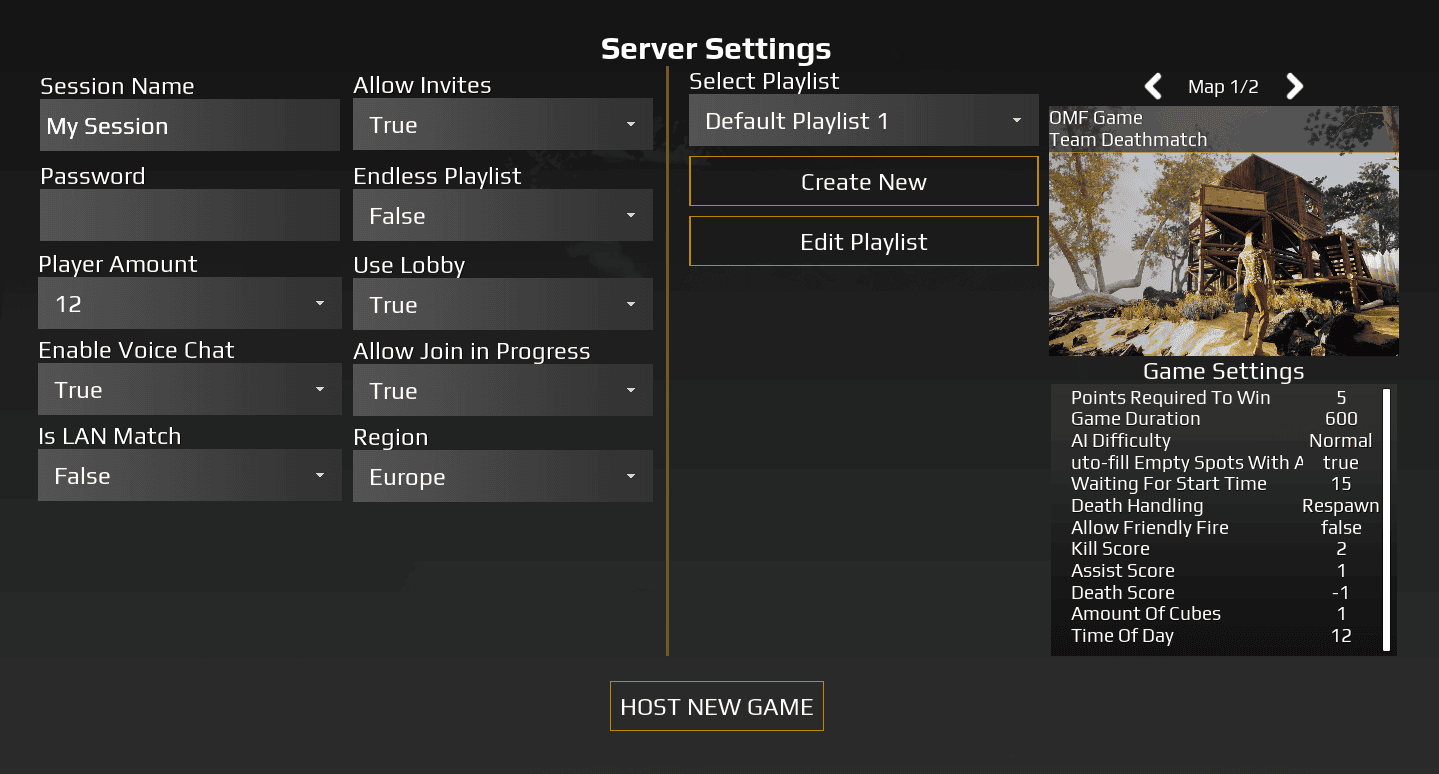
  • ✅ Session Settings: Set session name, password, region, max players, etc.
  • ✅ Lobby System: Optional lobby before game (like Call of Duty)
  • ✅ Server Browser: Find and join sessions
  • ✅ Online Subsystem Integration: Support for EOS, Steam, or default Unreal subsystem
  • ✅ BP_Save_Session_Configuration: Save game for playlists and settings
  • ✅ Session Manager Component: Handles hosting, transitions, lifecycle (on GameState)
  • ✅ Session Communicator Component: Replicates data, manages transitions (on PlayerController)
  • ✅ Host Migration: Optional host migration support

Use Cases:

  • Survival games (Ark-style persistent sessions)
  • Battle royale games (The Forest-style)
  • Round-based shooters (Call of Duty-style with lobbies)
  • Custom game modes with specific settings per match

Required Plugins (for EOS/Steam):

  • EOS Integration Kit: Documentation
  • Steam Integration Kit: Documentation

Core concepts #

What Is the Session Manager? #

The Session Manager is a comprehensive multiplayer session system that allows you to:

  • Create playlists with multiple games/levels
  • Configure game settings and session settings
  • Host sessions (with or without lobby)
  • Browse and join sessions
  • Manage session lifecycle (lobby → game → next game → disband)

System Flow:

  1. Create Playlist (multiple games with levels + settings)
  2. Configure Session Settings (name, password, region, max players)
  3. Configure Game Settings (game type specific: kills, AI difficulty, etc.)
  4. Host Session
 → Option A: Enter Lobby first (players can join, chat, select teams)
 → Option B: Skip Lobby, go directly to game
  1. Players join via Server Browser
  2. Play game (Game Mode System determines completion)
  3. After game:
 → Next game in playlist
 → Return to lobby
 → Restart playlist
 → Disband session

How It Works #

Playlist System:

Example – Call of Duty Style Playlist:

Playlist: “Team Deathmatch Rotation”

  • Game 1: Map_Shipment, Team Deathmatch, 50 kills to win
  • Game 2: Map_Crossfire, Team Deathmatch, 75 kills to win
  • Game 3: Map_Crash, Team Deathmatch, 100 kills to win

Player hosts this playlist:

  1. Sets session settings (name, password, 16 max players)
  2. Sets game settings (AI difficulty: Hard, Fill bots: Yes)
  3. Hosts session → Goes to lobby
  4. Other players join via server browser
  5. Host starts game → Loads Map_Shipment
  6. Game completes (50 kills reached)
  7. Returns to lobby
  8. Host starts next game → Loads Map_Crossfire
  9. Continue through playlist
  10. After last game: Restart playlist or disband

Settings System:

Two types of settings:

Session Settings (applies to entire session):

  • Session Name: “My Cool Server”
  • Password: “1234” (optional)
  • Region: “US-East”
  • Max Players: 16

Game Settings (applies to current game):

  • Game Type: Team Deathmatch
  • Kills to Win: 50
  • AI Difficulty: Hard
  • Fill with Bots: Yes
  • Points per Kill: 100

Key Components #

BP_Save_Session_Configuration (Save Game):

  • Stores user-created playlists
  • Stores predefined playlists (read-only)
  • Stores session settings
  • Stores game settings
  • Contains default playlist example

Session Manager Component (on GameState):

  • Hosts lobbies and games
  • Handles game-to-game transitions
  • Manages session lifecycle
  • Routes to Online Subsystem Manager components

Session Communicator Component (on PlayerController):

  • Replicates playlist data to clients
  • Replicates settings to clients
  • Creates transition widgets (loading screens)
  • Adds Online Subsystem Player components
  • Creates in-game HUD

Online Subsystem Components:

  • AC_OnlineSubsystemManager (GameState) – Lobby/game creation
  • AC_OnlineSubsystemPlayer (PlayerController) – Login, finding sessions, joining
  • Variants for EOS and Steam

Playlists #

What Are Playlists? #

Playlists are sequences of games that play in order, each with their own level, game type, and settings.

Examples:

GTA-Style Racing Playlist:

  • Race 1: Downtown Circuit
  • Race 2: Highway Sprint
  • Race 3: Off-road Challenge

Call of Duty-Style Playlist:

  • Map 1: Shipment – Team Deathmatch
  • Map 2: Crossfire – Domination
  • Map 3: Crash – Search & Destroy

Survival Game Playlist:

  • Single game, single level, persistent session

Playlist Flow:

Host creates playlist with 3 games:

  1. Current index = 0 (Game 1)
  2. Game 1 completes
  3. Session Manager transitions: Index = 1 (Game 2)
  4. Game 2 completes
  5. Session Manager transitions: Index = 2 (Game 3)
  6. Game 3 completes
  7. Playlist complete:
 → Option A: Restart (Index = 0)
 → Option B: Disband session

Struct_Playlist #

Structure:

Struct_Playlist:

  • Playlist Name (String): User-defined name
  • Games (Array of Struct_GameConfig): List of games in playlist
  • Playlist Index (Integer): Current game index (which game playing now)
  • Is Editable (Boolean): Can user edit this playlist?
 - True: User-created playlist
 - False: Predefined playlist (in BP_Save_Session_Configuration)
Example:

Playlist Name: “Deathmatch Rotation”

Games:

 [0]: Map_Shipment, Team Deathmatch, {settings}
 [1]: Map_Crossfire, Team Deathmatch, {settings}
 [2]: Map_Crash, Team Deathmatch, {settings}

Playlist Index: 0 (currently playing first game)

Is Editable: True (user created)

Games in Playlists #

Struct_GameConfig:

Each game in a playlist contains:

  • Level (Map): Which map to load
  • Game Type (Gameplay Tag): Team Deathmatch, Domination, etc.
  • Game Settings (Array of Struct_GameConfigSetting): Type-specific settings
Example Game:

Game 1:

  • Level: Map_Shipment
  • Game Type: Team Deathmatch
  • Game Settings:
 - Kills to Win: 50
 - AI Difficulty: Hard
 - Fill Bots: Yes
 - Time Limit: 10 minutes

Predefined vs User Playlists #

Predefined Playlists:

Created in: BP_Save_Session_Configuration

Is Editable: False

Purpose: Default examples, standard playlists

Users: Cannot modify these

Example:
  • “Default Playlist” (included as example)
  • “Quick Match”
  • “Ranked Rotation”

User Playlists:

Created in: Game menu by player

Is Editable: True

Purpose: Custom playlists

Saved in: BP_Save_Session_Configuration

Users: Can create, edit, delete

Example:
  • Player creates “My Favorite Maps”
  • Adds 5 games
  • Saves to configuration
  • Can edit anytime

Game settings #

What Are Game Settings? #

Game Settings are configuration values specific to a game type that control gameplay.

Examples by Game Type:

Team Deathmatch Settings:

  • Kills to Win: 50
  • Points per Kill: 100
  • AI Difficulty: Medium
  • Fill with Bots: Yes
  • Time Limit: 15 minutes

Domination Settings:

  • Points to Win: 200
  • Capture Speed: Fast
  • Spawn Protection: 5 seconds
  • AI Difficulty: Hard

Survival Settings:

  • Day Length: 20 minutes
  • Difficulty Scaling: On
  • Starting Resources: Low
  • PvP Enabled: Yes

Struct_GameConfigSetting #

Structure:

Struct_GameConfigSetting:

  • Settings Tag (Gameplay Tag): Identifies the setting
  • Is Editable (Boolean): Can user modify this setting?
  • Value Type (Enum): String, Bool, or Number
  • String Value (String): If type is String
  • Bool Value (Boolean): If type is Bool
  • Number Value (Float): If type is Number
  • Number Range Min (Float): Minimum value for slider
  • Number Range Max (Float): Maximum value for slider
  • Number Increment (Float): Step size for slider
  • Prefix (String): Text before value (e.g., “$”, “Level “)
  • Suffix (String): Text after value (e.g., ” kills”, ” minutes”, “%”)
Example – Kills Setting:

Settings Tag: GameSettings.TeamDeathmatch.KillsToWin

Is Editable: True

Value Type: Number

Number Value: 50.0

Number Range Min: 10.0

Number Range Max: 200.0

Number Increment: 5.0

Prefix: “”

Suffix: ” kills”

UI Display: “50 kills”

Slider: 10 to 200, step by 5

Example – AI Difficulty Setting:

Settings Tag: GameSettings.General.AIDifficulty

Is Editable: True

Value Type: String

String Value: “Hard”

Prefix: “Difficulty: “

Suffix: “”

UI Display: “Difficulty: Hard”

Dropdown: Easy, Medium, Hard, Expert

Example – Fill Bots Setting:

Settings Tag: GameSettings.General.FillBots

Is Editable: True

Value Type: Bool

Bool Value: True

Prefix: “Fill with Bots: “

Suffix: “”

UI Display: “Fill with Bots: Yes”

Checkbox: True/False

Setting Types #

String Settings:

Use for: Dropdown selections, text values

Examples:
  • Difficulty: “Easy”, “Medium”, “Hard”
  • Weather: “Sunny”, “Rainy”, “Snowy”
  • Starting Loadout: “Assault”, “Sniper”, “Support”

Bool Settings:

Use for: On/Off toggles

Examples:
  • Fill with Bots: True/False
  • Friendly Fire: Enabled/Disabled
  • Respawn: Allowed/Not Allowed

Number Settings:

Use for: Numeric values with ranges

Examples:
  • Kills to Win: 10-200 (increment 5)
  • Time Limit: 5-60 minutes (increment 5)
  • AI Count: 0-32 (increment 1)
  • Damage Multiplier: 0.5-2.0 (increment 0.1)

Range, Min, Max, Increment used for UI sliders

Prefix/Suffix for display formatting

Game Type Specific Settings #

Per Game Type:

Each game type has its own set of settings.

Team Deathmatch might have:

  • Kills to Win
  • Points per Kill
  • Time Limit

Domination might have:

  • Points to Win
  • Capture Speed
  • Control Point Count

Survival might have:

  • Day Length
  • Difficulty Scaling
  • PvP Enabled

Settings are identified by gameplay tags:

GameSettings.TeamDeathmatch.KillsToWin

GameSettings.Domination.PointsToWin

GameSettings.Survival.DayLength


Session settings #

What Are Session Settings? #

Session Settings apply to the entire session, not individual games.

Session Settings Include:

  • Session Name (String): Display name in server browser
  • Password (String): Optional password protection
  • Region (String): Server region (US-East, EU-West, etc.)
  • Max Players (Integer): Maximum players allowed
  • (Other settings as needed)
Example:

Session Name: “John's Awesome Server”

Password: “secret123”

Region: “US-East”

Max Players: 16

This session hosts multiple games from playlist,

but these settings stay the same for all games.

Session Configuration #

Where Session Settings Are Stored:

Stored in: BP_Save_Session_Configuration (Save Game)

User configures:

  1. Create/select playlist
  2. Set session settings (name, password, region, max players)
  3. Set game settings (per game type)
  4. Save configuration
  5. Host session

On host:

  • Session Manager reads configuration
  • Creates session with session settings
  • Applies game settings to current game

6 BP_Save_Session_Configuration

What Is It? #

BP_Save_Session_Configuration is a Save Game blueprint (note: Save with “v”, not “f”).

Purpose:

  • Store user-created playlists
  • Store predefined playlists (read-only)
  • Store session settings
  • Store game settings
  • Provide default playlist example

Save Game:

When player creates playlist or changes settings:

  1. Data saved to BP_Save_Session_Configuration
  2. Persists between game sessions
  3. Loaded on startup

User can:

  • Create multiple playlists
  • Edit existing playlists (if Is Editable = True)
  • Select which playlist to use for hosting

Stored Data #

What's Stored:

BP_Save_Session_Configuration contains:

Playlists (Array):

  • User-created playlists (Is Editable = True)
  • Predefined playlists (Is Editable = False)

Session Settings:

  • Last used session name
  • Last used password
  • Last used region
  • Last used max players
  • (Other session settings)

Game Settings:

  • Per game type settings
  • Last used values for each setting

Current Playlist:

  • Which playlist is selected for hosting
  • Current playlist index

Default Playlist:

Included in BP_Save_Session_Configuration:

A default playlist that shows how to set up playlists.

Users can view this as an example.

Is Editable: False (predefined)

Default Playlist #

Purpose of Default Playlist:

Provides example of how to structure playlists.

Shows:

  • How to add multiple games
  • How to configure game settings
  • How to set up different game types
  • Best practices for playlist creation

Users can:

  • View default playlist structure
  • Copy settings from it
  • Use as template for custom playlists
  • Cannot modify (read-only)

Session manager component #

Component Name: AC_SessionManager_Base

Component Location: GameState

Purpose and Location #

Purpose:

  • Host lobbies and games
  • Handle game-to-game transitions
  • Manage session lifecycle
  • Route operations to Online Subsystem Manager components

Location:

On: GameState

Why GameState:

  • Server-authoritative
  • Persists across level transitions
  • Accessible to all players
  • Manages global session state

Hosting Lobbies #

Lobby Hosting:

When host chooses “Host with Lobby”:

  1. Session Manager creates session
  2. Loads lobby level (e.g., Map_Lobby)
  3. Players can join
  4. In lobby:
 - Chat
 - Select teams
 - Ready up
 - View settings
  1. Host clicks “Start Game”
  2. Session Manager transitions to first game in playlist

Lobby Level:

Separate map for lobby (Call of Duty-style).

Players wait here before game starts.

Can customize lobby map (team selection, loadout, etc.)

Hosting Games #

Game Hosting:

When host chooses “Skip Lobby”:

  1. Session Manager creates session
  2. Loads first game level directly (e.g., Map_Shipment)
  3. Players can join during game (if allowed)
  4. No lobby phase

Session Creation:

Session created immediately when hosting:

  • Session settings applied (name, password, region, max players)
  • Session visible in server browser
  • Players can join whether in lobby or game

Online Subsystem Manager component (if present):

  • Overrides default session creation
  • Uses EOS or Steam instead of default Unreal subsystem

Game-to-Game Transitions #

Transition Flow:

Current game completes (see Game Mode System documentation):

  1. Session Manager detects game completion
  2. Increment Playlist Index
  3. Check if more games in playlist:
 If more games:
 - Load next game level
 - Apply next game settings
 - Continue session (players stay connected)

 If playlist complete:
 - Option A: Return to lobby
 - Option B: Restart playlist (Index = 0)
 - Option C: Disband session (all to main menu)
Example:

Playlist with 3 games:

  • Index 0: Map_Shipment completes
  • Index 1: Load Map_Crossfire
  • Index 1: Map_Crossfire completes
  • Index 2: Load Map_Crash
  • Index 2: Map_Crash completes
  • Playlist complete:
 → Host chooses: Return to lobby or restart or disband

Session Lifecycle #

Full Lifecycle:

  1. Host creates session (lobby or game)
  2. Session visible in server browser
  3. Players join
  4. Game plays
  5. Game completes
  6. Transition:
 → Next game in playlist
 → Return to lobby
 → Restart playlist
 → Disband session
  1. If disband: All players return to main menu

Returning to Lobby:

Same session, different state:

  • Session ID stays the same
  • Players stay connected
  • Session information updated (now in lobby, not in game)
  • Can change settings, add/remove players
  • Host starts next game when ready

Disbanding Session:

When session disbanded:

  • Session destroyed
  • All players disconnected
  • Return to main menu
  • Session no longer in server browser

Host Migration (Optional):

If host leaves:

  • Option to use host migration
  • Handled by EOS or Steam subsystems
  • New host selected automatically
  • Session continues

If not enabled:

  • Session ends when host leaves
  • All players disconnected

Session communicator component #

Component Name: AC_Session_Communicator

Component Location: PlayerController

Purpose and Location #

Purpose:

  • Replicate playlist data to clients
  • Replicate settings to clients
  • Create transition widgets (loading screens)
  • Add Online Subsystem Player components
  • Create in-game HUD

Location:

On: PlayerController

Why PlayerController:

  • Per-player component
  • Handles client-server communication
  • Manages player-specific UI
  • Replicates data to individual clients

Data Replication #

What Gets Replicated:

From Server to Clients:

Playlist Data:

  • Current playlist
  • All games in playlist
  • Current playlist index (which game now)

Session Settings:

  • Session name
  • Max players
  • Region
  • (Password not replicated to clients)

Game Settings:

  • Current game settings
  • Game type
  • All setting values

How It Works:

Server:

  1. Session Manager reads BP_Save_Session_Configuration
  2. Gets current playlist, settings
  3. Session Communicator replicates to all clients

Client:

  1. Receives replicated data
  2. Updates UI to show current game info
  3. Applies game settings locally
  4. Shows correct game type, settings in UI

Why Replication Needed:

Clients need to know:

  • What game type they're playing
  • What settings are active
  • What's next in playlist
  • Current game index

Used for:

  • UI display
  • Client-side logic
  • Match info displays

Transition Widget #

What Is Transition Widget:

Full-screen loading widget shown during:

  • Lobby to game transition
  • Game to game transition
  • Game to lobby transition

Purpose:

  • Hide level loading
  • Show progress bar
  • Display loading information
  • Smooth transition experience

How It Works:

When transitioning:

  1. Session Manager triggers transition
  2. Session Communicator creates transition widget
  3. Full-screen widget displayed
  4. Shows loading progress bar
  5. Level loads in background
  6. Widget removed when loaded

Online Subsystem Components #

Adding Subsystem Components:

AC_Session_Communicator adds Online Subsystem Player component:

Checks which subsystem to use:

  • If using EOS: Add AC_OnlineSubsystemPlayer_EOS
  • If using Steam: Add AC_OnlineSubsystemPlayer_Steam
  • If not using any online subsystem: Leave empty (no component added)

Component handles:

  • Login
  • Finding sessions (server browser)
  • Joining sessions

In-Game HUD Creation #

HUD Configuration:

In Session Communicator component:

  • Select In-Game HUD widget class
  • Can be different per game type (optional)

When game starts:

  1. Session Communicator creates HUD widget
  2. Adds to viewport
  3. HUD shows game info, score, etc.

Custom HUD per Game Type:

  • Team Deathmatch HUD: Shows kills, deaths, team scores
  • Domination HUD: Shows capture points, control status

Hosting flow #

Creating a Playlist #

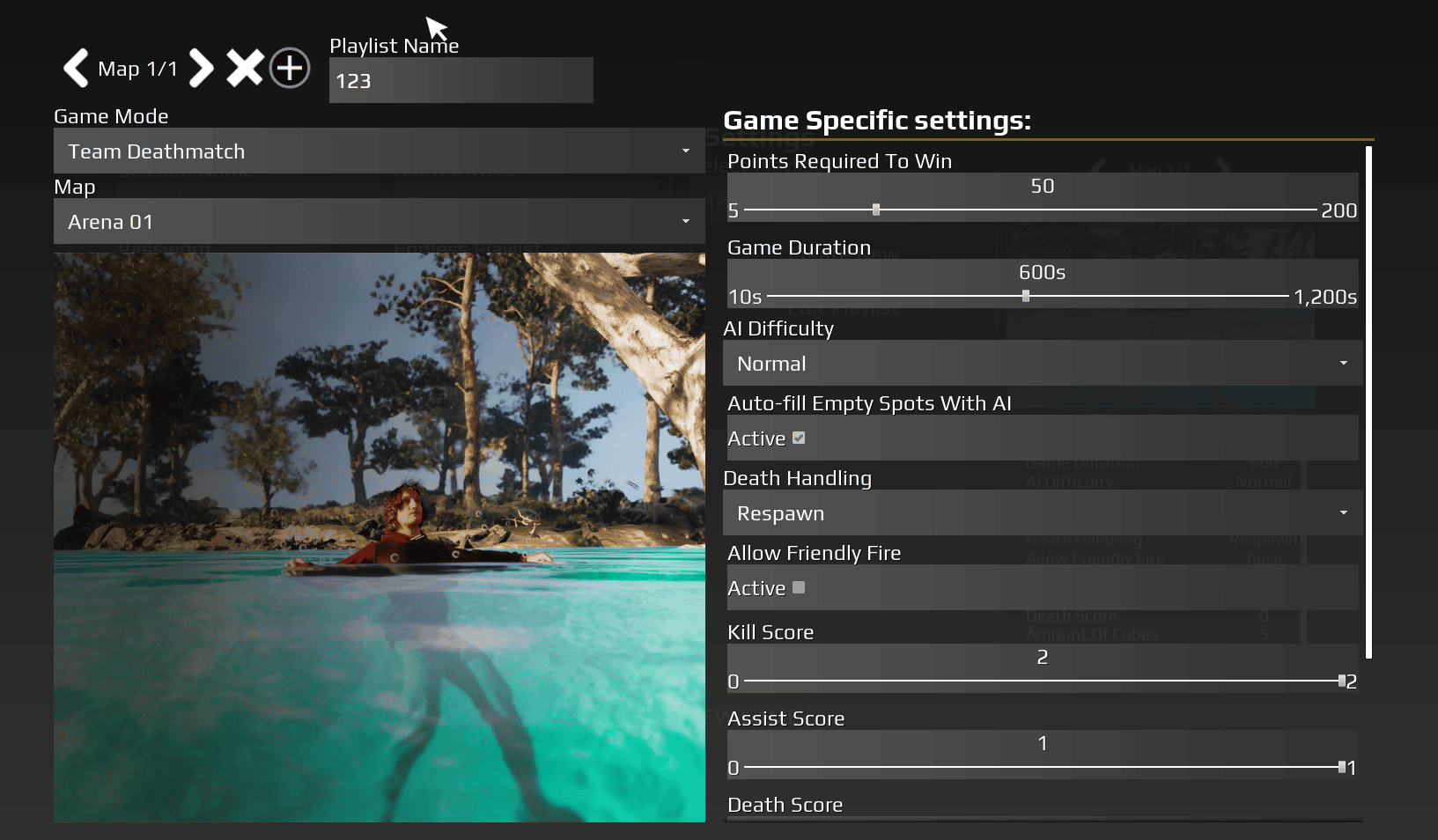
User Creates Playlist:

In game menu:

  1. Open Playlist Creator
  2. Enter Playlist Name
  3. Add games:
 - Select level/map
 - Select game type
 - Configure game settings for that game
  1. Add multiple games (or just one)
  2. Save playlist
 → Saved to BP_Save_Session_Configuration
 → Is Editable: True
Example:

Create “My Rotation”:

  • Add Game 1: Map_Shipment, Team Deathmatch, 50 kills
  • Add Game 2: Map_Crossfire, Domination, 200 points
  • Add Game 3: Map_Crash, Team Deathmatch, 75 kills
  • Save

Now appears in playlist selection list.

Configuring Settings #

Session Settings:

Before hosting:

  1. Select playlist (created or predefined)
  2. Configure session settings:
 - Session Name: "John's Server"
 - Password: (optional) "1234"
 - Region: "US-East"
 - Max Players: 16
  1. Save configuration

Game Settings:

For each game in playlist:

  1. Select game in playlist
  2. Configure game settings:
 - AI Difficulty: Hard
 - Fill with Bots: Yes
 - Time Limit: 15 minutes
 - (Game type specific settings)
  1. Save configuration

All Saved:

Configuration saved to BP_Save_Session_Configuration:

  • Playlist selection
  • Session settings
  • Game settings per game
  • Ready to host

Hosting a Session #

Host Button:

User clicks “Host Session”:

  1. Session Manager reads BP_Save_Session_Configuration
  2. Gets selected playlist
  3. Gets session settings
  4. Gets game settings
  5. Creates session (via Online Subsystem Manager if present)
  6. Prompts: “Go to Lobby” or “Skip to Game” (see sections 7.2 and 7.3)

Lobby vs Skip to Game #

See sections 7.2 Hosting Lobbies and 7.3 Hosting Games for detailed explanation of lobby vs skip to game options.


Server browser #

Finding Sessions #

Server Browser UI:

Player opens Server Browser:

  1. UI calls Session Communicator (on PlayerController)
  2. Session Communicator calls Online Subsystem Player component
  3. Component queries online subsystem for sessions
  4. Returns session data
  5. UI displays sessions in list

Session Data Displayed:

[Screenshot will show server browser UI with session information]

Typical info shown:

  • Session name
  • Map/Level
  • Game type
  • Player count (current/max)
  • Ping
  • Password protected (icon/indicator)
  • Region
  • Custom settings (optional)

Joining Sessions #

Join Flow:

Player selects session from browser:

  1. Click “Join” button
  2. If password protected:
 - Prompt for password
 - User enters password
  1. Session Communicator calls Online Subsystem Player component
  2. Component joins session via online subsystem
  3. Transition widget shown (loading screen)
  4. Load level (lobby or game)
  5. Join complete

Session Communicator replicates:

  • Playlist data
  • Game settings
  • Current game index
  • All settings match host

Password Protected:

If session has password:

  1. Show password input dialog
  2. User enters password
  3. Password validated by server
  4. If correct: Join proceeds
  5. If incorrect: Show error, retry

Password Protected Sessions #

Setting Password:

Host sets password in session settings:

  • Password: “secret123”

When hosting:

  • Session created with password
  • Server browser shows “locked” icon or indicator

Joining with Password:

Player tries to join:

  1. Server browser shows session is password protected
  2. Player clicks join
  3. Password prompt appears
  4. Player enters “secret123”
  5. Server validates
  6. Join proceeds if correct

Online subsystem integration #

Default vs Custom Subsystems #

Default Unreal Online Subsystem:

Out of the box:

  • Unreal Engine includes default online subsystem
  • Basic session hosting/joining
  • LAN and basic online support
  • Limited features

Session Manager works with default subsystem automatically.

Custom Subsystems (EOS/Steam):

For production games:

  • Use Epic Online Services (EOS)
  • Use Steam
  • More features (matchmaking, friends, achievements, etc.)
  • Platform-specific features

Requires plugins:

  • EOS Integration Kit
  • Steam Integration Kit

How Override Works:

Session Manager checks for Online Subsystem Manager component:

If component present:

  • Route session operations through component
  • Component uses EOS or Steam
  • Overrides default subsystem

If component not present:

  • Use default Unreal subsystem
  • Basic functionality

Epic Online Services (EOS) #

EOS Integration Kit:

Plugin: EOS Integration Kit

Documentation: https://eik.betide.studio/

Provides:

  • Matchmaking
  • Friends system
  • Achievements
  • Leaderboards
  • Voice chat
  • And more

Required for:

  • Publishing on Epic Games Store
  • Cross-platform with Epic accounts

Setup:

  1. Install EOS Integration Kit plugin
  2. Configure EOS settings (App ID, keys, etc.)
  3. Add AC_OnlineSubsystemManager_EOS to GameState
  4. Add AC_OnlineSubsystemPlayer_EOS to PlayerController
  5. Session Manager automatically routes to EOS

Steam Integration #

Steam Integration Kit:

Plugin: Steam Integration Kit

Documentation: https://eik.betide.studio/integrations/steamintegrationkit

Provides:

  • Steam matchmaking
  • Steam friends
  • Steam achievements
  • Steam leaderboards
  • Steam Workshop
  • And more

Required for:

  • Publishing on Steam
  • Steam-specific features

Setup:

  1. Install Steam Integration Kit plugin
  2. Configure Steam settings (App ID, etc.)
  3. Add AC_OnlineSubsystemManager_Steam to GameState
  4. Add AC_OnlineSubsystemPlayer_Steam to PlayerController
  5. Session Manager automatically routes to Steam

Component Architecture #

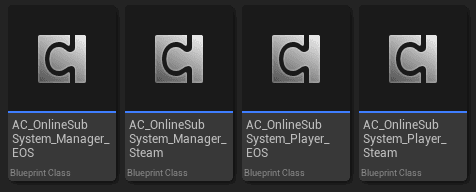
Two-Component System (optional for online subsystems):

Component on GameState (Manager) – OPTIONAL:

  • AC_OnlineSubsystemManager_EOS (for EOS)
  • AC_OnlineSubsystemManager_Steam (for Steam)
  • If not using EOS/Steam: Leave empty
  • Handles: Session creation, lobby hosting, game hosting

Component on PlayerController (Player) – OPTIONAL:

  • AC_OnlineSubsystemPlayer_EOS (for EOS)
  • AC_OnlineSubsystemPlayer_Steam (for Steam)
  • If not using EOS/Steam: Leave empty
  • Handles: Login, finding sessions, joining sessions

Why Two Components:

GameState Component:

  • Server authority
  • Session management
  • Global operations

PlayerController Component:

  • Per-player operations
  • Client-side login
  • Individual player session queries

Online subsystem manager components #

Component Family: AC_OnlineSubsystemManager

Component Location: GameState

AC_OnlineSubsystemManager (GameState) #

Base Component:

Purpose: Base class for online subsystem management

Can use directly for default Unreal subsystem,

or use variants for EOS/Steam.

Functions:

Session Manager checks if this component exists:

If exists:

  • Route session creation through component
  • Route lobby hosting through component
  • Route game hosting through component
  • Use component's online subsystem

If not exists:

  • Use default Unreal subsystem

AC_OnlineSubsystemManager_EOS #

EOS Variant:

Inherits from: AC_OnlineSubsystemManager

Purpose: Override session operations to use EOS

Add this component to GameState when using EOS Integration Kit.

Overrides:

  • Session creation → EOS session
  • Lobby hosting → EOS lobby
  • Game hosting → EOS game session

How It Works:

AC_SessionManager_Base calls host session:

  1. Checks for AC_OnlineSubsystemManager_EOS
  2. Component exists → Use EOS
  3. Component creates EOS session
  4. EOS handles matchmaking, session management
  5. Players can find via EOS server browser

AC_OnlineSubsystemManager_Steam #

Steam Variant:

Inherits from: AC_OnlineSubsystemManager

Purpose: Override session operations to use Steam

Add this component to GameState when using Steam Integration Kit.

Overrides:

  • Session creation → Steam session
  • Lobby hosting → Steam lobby
  • Game hosting → Steam game session

How It Works:

AC_SessionManager_Base calls host session:

  1. Checks for AC_OnlineSubsystemManager_Steam
  2. Component exists → Use Steam
  3. Component creates Steam session
  4. Steam handles matchmaking, session management
  5. Players can find via Steam server browser

Online subsystem player components #

Component Family: AC_OnlineSubsystemPlayer

Component Location: PlayerController

Note: These components are optional. Only add them if using EOS or Steam integration. If not using any online subsystem, leave empty.

AC_OnlineSubsystemPlayer_EOS #

EOS Variant:

Inherits from: AC_OnlineSubsystemPlayer

Purpose: Player operations using EOS

Added when using EOS Integration Kit.

Handles:

  • EOS login screen
  • Finding EOS sessions
  • Joining EOS sessions
  • EOS authentication

Added By:

AC_Session_Communicator component adds this automatically when using EOS.

How It Works:

Server Browser opened:

  1. UI calls AC_Session_Communicator
  2. AC_Session_Communicator calls AC_OnlineSubsystemPlayer_EOS
  3. Component queries EOS for sessions
  4. Returns EOS session list
  5. UI displays sessions

Player joins:

  1. UI calls AC_Session_Communicator
  2. AC_Session_Communicator calls AC_OnlineSubsystemPlayer_EOS
  3. Component joins via EOS
  4. EOS handles connection

AC_OnlineSubsystemPlayer_Steam #

Steam Variant:

Inherits from: AC_OnlineSubsystemPlayer

Purpose: Player operations using Steam

Added when using Steam Integration Kit.

Handles:

  • Steam login (automatic if Steam running)
  • Finding Steam sessions
  • Joining Steam sessions
  • Steam authentication

How It Works:

Server Browser opened:

  1. UI calls AC_Session_Communicator
  2. AC_Session_Communicator calls AC_OnlineSubsystemPlayer_Steam
  3. Component queries Steam for sessions
  4. Returns Steam session list
  5. UI displays sessions

Player joins:

  1. UI calls AC_Session_Communicator
  2. AC_Session_Communicator calls AC_OnlineSubsystemPlayer_Steam
  3. Component joins via Steam
  4. Steam handles connection

Session lifecycle #

Hosting and Joining #

Host Creates Session:

  1. Host configures playlist, settings
  2. Host clicks “Host Session”
  3. Session Manager creates session
  4. Session visible in server browser
  5. Host loads lobby or game

Players Join:

  1. Open server browser
  2. Find session
  3. Click join (enter password if needed)
  4. Load lobby or game
  5. Session Communicator replicates settings

In-Game #

Game Active:

Host and joined players:

  • Playing current game in playlist
  • Game settings active
  • Session still joinable (if allowed)

Game completion determined by Game Mode System:

  • See Game Mode System documentation
  • Triggers game complete event
  • Session Manager handles transition

Game Completion #

When Game Completes:

Game Mode System triggers completion:

Session Manager:

  1. Detects completion
  2. Increments playlist index
  3. Checks if more games in playlist

If more games:

  • Transition to next game
  • Load next level
  • Apply next game settings
  • Players stay connected

If playlist complete:

  • Host chooses what to do next

Returning to Lobby #

Return to Lobby Flow:

After game or between games:

  1. Session Manager transitions to lobby
  2. Load lobby level
  3. Players return to lobby
  4. Session still active (same session)
  5. Session information updated:
 - Now in lobby (not in game)
 - Player count updated
 - Settings can be changed
  1. Host can:
 - Start next game
 - Change settings
 - Restart playlist
 - Disband session

Same Session:

Important: Returning to lobby does NOT create new session.

Same session ID, same players, just different state.

Players stay connected throughout.

Disbanding Session #

When to Disband:

Disband session when:

  • Playlist complete and don't want to restart
  • Host wants to end session
  • All players leaving

Disband Flow:

  1. Host clicks “Disband” or “End Session”
  2. Session Manager destroys session
  3. All players disconnected
  4. All players return to main menu
  5. Session removed from server browser
  6. Session no longer exists

Host Migration #

What Is Host Migration:

When host leaves session:

Without Host Migration:

  • Session ends
  • All players disconnected

With Host Migration:

  • New host selected automatically
  • Session continues
  • Players stay connected

How It Works:

Host Migration (optional feature):

  • Handled by EOS or Steam subsystem
  • Not implemented in base system
  • Must be enabled in online subsystem settings

If enabled:

  1. Host leaves
  2. EOS or Steam selects new host
  3. New host becomes session authority
  4. Session continues
  5. Players stay connected

If not enabled:

  • Session ends when host leaves

Game mode integration #

Game Mode System #

Game Completion:

Session Manager needs to know when game completes.

Game Mode System (separate documentation):

  • Determines win conditions
  • Tracks score, objectives, etc.
  • Triggers game completion event

Session Manager listens for completion:

  1. Game Mode System triggers “Game Complete”
  2. Session Manager receives event
  3. Session Manager handles transition

Reference:

For how games determine completion:

See Game Mode System documentation (will be created later).

Game Mode System handles:

  • Win conditions
  • Score tracking
  • Objective completion
  • Round systems
  • Timer systems
  • Etc.

How to guides #

Creating a Playlist #

Step 1 – Open Playlist Creator: #

In game menu:

  1. Navigate to multiplayer menu
  2. Click “Create Playlist” or “Manage Playlists”
  3. Click “New Playlist”

Step 2 – Name Playlist: #

  1. Enter Playlist Name: “My Custom Rotation”
  2. Playlist created with Is Editable: True

Step 3 – Add Games: #

For each game in playlist:

  1. Click “Add Game”
  2. Select Level: Map_Shipment
  3. Select Game Type: Team Deathmatch
  4. Configure Game Settings:
 - Kills to Win: 50
 - AI Difficulty: Medium
 - Fill Bots: Yes
 - Time Limit: 15 minutes
  1. Click “Add”

Repeat for more games:

  • Add Game 2: Map_Crossfire, Domination, 200 points
  • Add Game 3: Map_Crash, Team Deathmatch, 75 kills

Step 4 – Save Playlist: #

  1. Click “Save Playlist”
  2. Playlist saved to BP_Save_Session_Configuration
  3. Appears in playlist selection list
  4. Can edit anytime (Is Editable: True)

Adding Game Settings #

Step 1 – Define Setting: #

In blueprint or data table:

Create Struct_GameConfigSetting:

  • Settings Tag: GameSettings.TeamDeathmatch.KillsToWin
  • Is Editable: True
  • Value Type: Number
  • Number Value: 50.0
  • Number Range Min: 10.0
  • Number Range Max: 200.0
  • Number Increment: 5.0
  • Prefix: “”
  • Suffix: ” kills”

Step 2 – Add to Game Type: #

For Team Deathmatch game type:

Add this setting to game type's settings array.

When player selects Team Deathmatch, this setting appears.

Step 3 – Use in UI: #

In game settings UI:

  1. Display setting name from tag
  2. Create slider for number:
 - Min: 10
 - Max: 200
 - Increment: 5
 - Current: 50
  1. Show value: “50 kills”
  2. User adjusts slider
  3. Save to configuration

Hosting a Session #

Step 1 – Select Playlist: #

  1. Open multiplayer menu
  2. Click “Host Session”
  3. Select playlist from dropdown:
 - "My Custom Rotation" (user-created)
 - "Default Playlist" (predefined)

Step 2 – Configure Session Settings: #

  1. Session Name: “John's Server”
  2. Password: (optional) “secret123”
  3. Region: “US-East”
  4. Max Players: 16
  5. Save session settings

Step 3 – Configure Game Settings: #

For each game in selected playlist:

  1. Select game from list
  2. Adjust settings:
 - AI Difficulty: Hard
 - Fill Bots: Yes
 - Kills to Win: 75
  1. Save game settings

Step 4 – Host: #

  1. Click “Host Session”
  2. Choose:
 - "Go to Lobby" (players can join, organize teams)
 - "Skip to Game" (start game immediately)
  1. Session created
  2. Load level (lobby or first game)
  3. Session visible in server browser

Setting Up EOS Integration #

Step 1 – Install Plugin: #

  1. Download EOS Integration Kit
 Documentation: https://eik.betide.studio/
  1. Install plugin to project
  2. Enable plugin in Unreal Engine
  3. Restart editor

Step 2 – Configure EOS: #

  1. Create Epic Games Developer account
  2. Create application in Epic Developer Portal
  3. Get App ID and credentials
  4. Configure in Project Settings → EOS Integration Kit
  5. Enter App ID, Client ID, Client Secret, etc.

Step 3 – Add Components: #

In GameState blueprint:

  1. Add component: AC_OnlineSubsystemManager_EOS
  2. Save

In PlayerController blueprint:

  1. AC_Session_Communicator will add AC_OnlineSubsystemPlayer_EOS automatically
  2. Save

Step 4 – Test: #

  1. Package game or use Standalone mode
  2. Host session
  3. Should use EOS subsystem
  4. Check EOS Developer Portal for active sessions
  5. Test joining via EOS

Setting Up Steam Integration #

Step 1 – Install Plugin: #

  1. Download Steam Integration Kit
 Documentation: https://eik.betide.studio/integrations/steamintegrationkit
  1. Install plugin to project
  2. Enable plugin in Unreal Engine
  3. Restart editor

Step 2 – Configure Steam: #

  1. Create Steam Developer account
  2. Create Steam App ID
  3. Configure in Project Settings → Steam Integration Kit
  4. Enter App ID and Steam settings
  5. Place steam_appid.txt in project root (for testing)

Step 3 – Add Components: #

In GameState blueprint:

  1. Add component: AC_OnlineSubsystemManager_Steam
  2. Save

In PlayerController blueprint:

  1. AC_Session_Communicator will add AC_OnlineSubsystemPlayer_Steam automatically
  2. Save

Step 4 – Test: #

  1. Have Steam running
  2. Package game or use Standalone mode
  3. Host session
  4. Should use Steam subsystem
  5. Check Steam overlay for active session
  6. Test joining via Steam friends or server browser
  • —

END OF DOCUMENTATION

Summary:

The Session Manager provides a comprehensive multiplayer session system:

Core Features:

  • Playlists: Sequences of games with levels and settings (Struct_Playlist)
  • Game Settings: Type-specific settings with ranges, prefixes, suffixes (Struct_GameConfigSetting)
  • Session Settings: Name, password, region, max players
  • BP_Save_Session_Configuration: Save game storing playlists and settings
  • Session Manager Component (GameState): Hosts lobbies/games, handles transitions
  • Session Communicator Component (PlayerController): Replicates data, creates transition widgets, adds subsystem components
  • Lobby System: Optional lobby phase before game (Call of Duty-style)
  • Server Browser: Find and join sessions
  • Online Subsystem Integration: Default Unreal, EOS (via EOS Integration Kit), or Steam (via Steam Integration Kit)

Component Architecture:

  • AC_OnlineSubsystemManager (GameState) – EOS/Steam variants override session creation
  • AC_OnlineSubsystemPlayer (PlayerController) – EOS/Steam variants handle login, finding, joining
  • Session Manager routes through these components when present

Session Flow:

Create playlist → Configure settings → Host (lobby or game) → Players join → Play → Complete → Next game or return to lobby or disband

Build complete multiplayer session systems with playlists, settings, lobbies, and online subsystem support!

What are your Feelings
Still stuck? How can we help?

How can we help?

Table of Contents
  • Session Manager
    • Core concepts
      • What Is the Session Manager?
      • How It Works
      • Key Components
    • Playlists
      • What Are Playlists?
      • Struct_Playlist
      • Games in Playlists
      • Predefined vs User Playlists
    • Game settings
      • What Are Game Settings?
      • Struct_GameConfigSetting
      • Setting Types
      • Game Type Specific Settings
    • Session settings
      • What Are Session Settings?
      • Session Configuration
      • What Is It?
      • Stored Data
      • Default Playlist
    • Session manager component
      • Purpose and Location
      • Hosting Lobbies
      • Hosting Games
      • Game-to-Game Transitions
      • Session Lifecycle
    • Session communicator component
      • Purpose and Location
      • Data Replication
      • Transition Widget
      • Online Subsystem Components
      • In-Game HUD Creation
    • Hosting flow
      • Creating a Playlist
      • Configuring Settings
      • Hosting a Session
      • Lobby vs Skip to Game
    • Server browser
      • Finding Sessions
      • Joining Sessions
      • Password Protected Sessions
    • Online subsystem integration
      • Default vs Custom Subsystems
      • Epic Online Services (EOS)
      • Steam Integration
      • Component Architecture
    • Online subsystem manager components
      • AC_OnlineSubsystemManager (GameState)
      • AC_OnlineSubsystemManager_EOS
      • AC_OnlineSubsystemManager_Steam
    • Online subsystem player components
      • AC_OnlineSubsystemPlayer_EOS
      • AC_OnlineSubsystemPlayer_Steam
    • Session lifecycle
      • Hosting and Joining
      • In-Game
      • Game Completion
      • Returning to Lobby
      • Disbanding Session
      • Host Migration
    • Game mode integration
      • Game Mode System
    • How to guides
      • Creating a Playlist
      • Step 1 - Open Playlist Creator:
      • Step 2 - Name Playlist:
      • Step 3 - Add Games:
      • Step 4 - Save Playlist:
      • Adding Game Settings
      • Step 1 - Define Setting:
      • Step 2 - Add to Game Type:
      • Step 3 - Use in UI:
      • Hosting a Session
      • Step 1 - Select Playlist:
      • Step 2 - Configure Session Settings:
      • Step 3 - Configure Game Settings:
      • Step 4 - Host:
      • Setting Up EOS Integration
      • Step 1 - Install Plugin:
      • Step 2 - Configure EOS:
      • Step 3 - Add Components:
      • Step 4 - Test:
      • Setting Up Steam Integration
      • Step 1 - Install Plugin:
      • Step 2 - Configure Steam:
      • Step 3 - Add Components:
      • Step 4 - Test:

© 2025 Games by Hyper

X Reddit Patreon Discord Linkedin YouTube

Review Cart

No products in the cart.

We noticed you're visiting from Netherlands. We've updated our prices to Euro for your shopping convenience. Use United States (US) dollar instead. Dismiss

  • Hyper Bundle Configurator
  • Shop
    • Game Templates
    • Courses
    • Loyalty Store
    • Survival Modules
    • RPG Modules
    • Environment Building
    • Browse All
  • My account
  • Become a Member
  • Cart
  • Get Help
    • FAQ
    • Upgrade your Game Template
    • Documentation
  • About Hyper
  • News & Updates