
Inspection system #
Introduction #
The Inspection System is a modular Blueprint framework for presenting readable, audible, and viewable interactables to the player. It supports traditional item inspection, readable documents, audio logs, video playback, pickup-oriented inspection, and world-space inspection where the actor remains in the level instead of being moved into a model viewer.
At a high level, the system is built around a shared inspection data structure, a central player-owned inspection component, and a set of inspectable actor blueprints that decide how the experience is presented. A single data row can define the inspectable’s type, visual representation, document pages, optional narration, optional reaction dialogue, optional databank injection, and playback configuration.
The system is deliberately data-driven. In the common setup, an inspectable actor references a row in DT_Inspection and resolves its full F_Inspection payload at runtime. For more custom cases, the same actor can bypass the row-handle workflow and use custom inspection data supplied directly via exposed variables.
- Supports multiple inspection experiences through one shared data model.
- Lets actors resolve inspection data from DT_Inspection or from directly supplied custom data.
- Separates presentation logic across specialized child blueprints instead of forcing one actor to handle every case.
- Tracks inspected entries so first-time-only reactions can be gated cleanly.
- Can optionally inject entries into a databank and optionally grant the inspected item to inventory.
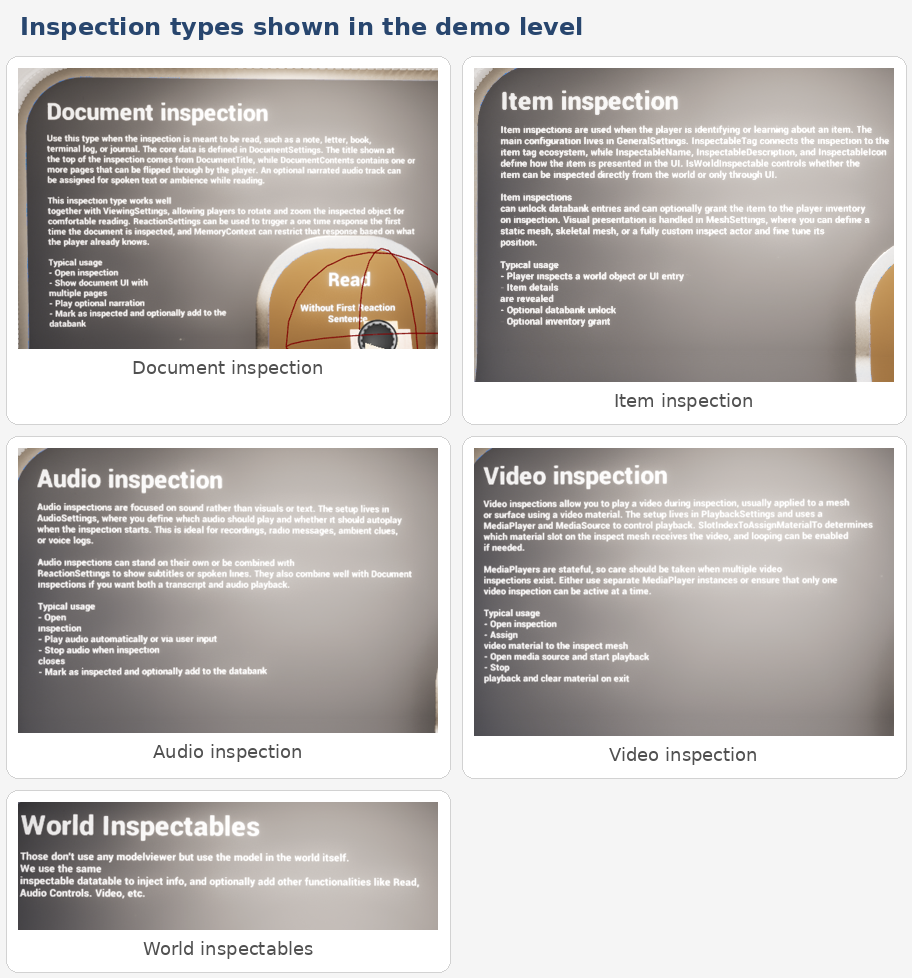
Inspection types and intended use cases shown in the example map.
Inspection Types at a Glance #
The enum and demo content show the following supported inspection modes:
|
Type |
Purpose |
|
Document Read |
Displays readable document content using the document settings block, with optional multiple pages and standard reaction handling. |
|
Document Narrated |
Uses the document workflow but also supports narrated audio to accompany reading. |
|
Audio Recording |
Used for audio-first inspectables such as radio messages, recordings, or voice logs. |
|
Item Examination |
Used for close examination style inspection where the player focuses on the object itself and can trigger examine events on tagged points. |
|
Item Inspection |
General item viewing workflow using mesh settings and the model viewer for rotate-and-zoom presentation. |
|
Level Sequence |
Reserved for sequence-driven playback style inspectables. |
|
Video Playback |
Used for inspectables that must assign a media material and play a media source during inspection. |
Core Assets and Data Model #
The system revolves around one master struct, one data table, a small set of supporting structs, and a component/actor split that separates manager logic from presentation logic.
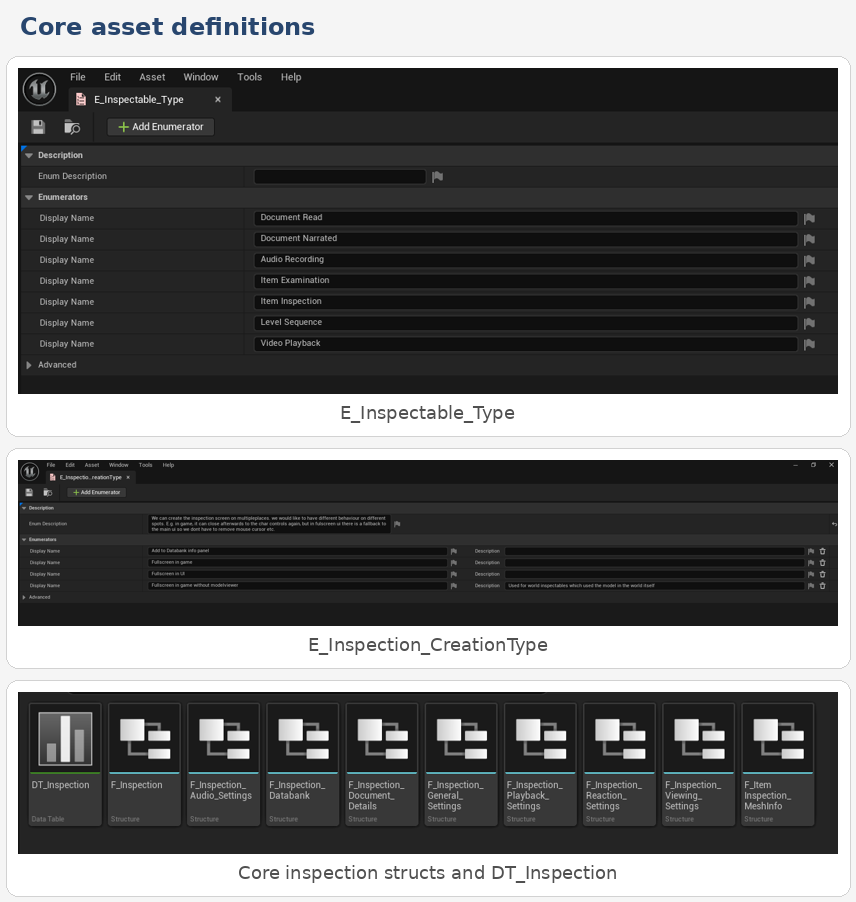
Core enums, the main F_Inspection struct, and the shared data table asset.
F_Inspection is the central payload passed through the system. It contains all data needed to present an inspectable: identity, viewing rules, mesh references, document contents, audio configuration, reaction behaviour, playback settings, and databank options.
Enumerations Explained #
|
Enum |
Role in the system |
|
E_Inspectable_Type |
Defines what kind of inspection experience is being created so downstream logic knows whether to treat the payload like a document, audio log, item inspection, or playback-driven object. |
|
E_Inspection_CreationType |
Defines how the inspection is presented: pushed into a databank info panel, fullscreen in game, fullscreen in UI, or fullscreen in game without the model viewer. |
Creation type is important because multiple flows reuse the same data. The same inspectable can be opened directly from the world, shown in a fullscreen overlay, or surfaced inside an information/databank panel depending on where the interaction originates.
Structures Explained #
The inspection system is intentionally split into focused structs so each part of the payload remains understandable and reusable. DT_Inspection rows are built from these same structures, which means the live runtime data mirrors the authoring workflow in the editor.
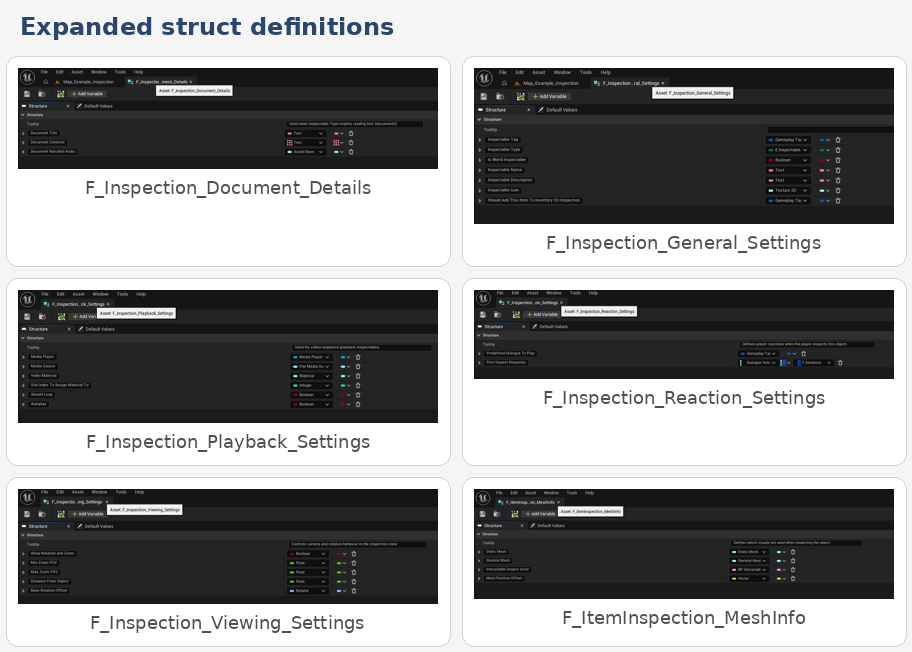
Expanded struct definitions used by the system.
F_Inspection #
|
Field |
Description |
|
General Settings |
High-level identity and behaviour flags such as tag, type, name, description, icon, and inventory grant behaviour. |
|
Viewing Settings |
Camera and interaction presentation rules including rotation/zoom permission, distance, FOV limits, and base rotation offset. |
|
Mesh Settings |
Visual asset references used during inspection, including static mesh, skeletal mesh, optional inspect actor, and mesh position offset. |
|
Document Settings |
Readable document title, body pages, and optional narrated audio. |
|
Reaction Settings |
Optional predefined dialogue and first-inspect-only response map. |
|
Audio Settings |
Audio label, sound asset, and autoplay rules for audio-first inspection. |
|
Playback Settings |
Media player, media source, video material, target slot index, looping, and autoplay configuration. |
|
Databank |
Controls whether inspection should generate databank information and whether it should inject a default or override databank payload. |
F_Inspection_General_Settings #
|
Field |
Description |
|
Inspectable Tag |
Unique gameplay tag used as the inspectable’s identifier and for inspected-state tracking. |
|
Inspectable Type |
The enum value that determines what experience should be built. |
|
Is World Inspectable |
Used to distinguish inspectables that should remain in the world and use the world-inspection flow. |
|
Inspectable Name |
Player-facing title used in UI and databank content. |
|
Inspectable Description |
Player-facing description or summary text. |
|
Inspectable Icon |
Icon used by UI and databank surfaces. |
|
Should Add This Item To Inventory On Inspection |
Optional tag or identifier used when the inspected item should also be granted to inventory. |
F_Inspection_Viewing_Settings #
|
Field |
Description |
|
Allow Rotation and Zoom |
Enables or blocks manual object rotation and FOV-based zoom changes. |
|
Min Zoom FOV |
Lower clamp used by the model viewer zoom logic. |
|
Max Zoom FOV |
Upper clamp used by the model viewer zoom logic. |
|
Distance From Object |
Base viewing distance used by the model viewer camera setup. |
|
Base Rotation Offset |
Starting rotation offset applied before player-controlled rotation is added. |
F_ItemInspection_MeshInfo #
|
Field |
Description |
|
Static Mesh |
Static mesh to present during inspection. |
|
Skeletal Mesh |
Skeletal mesh alternative when the inspectable should use a skeletal presentation. |
|
Interactable Inspect Actor |
Optional dedicated inspect actor for more advanced presentation cases. |
|
Mesh Position Offset |
Vector offset used to position the mesh correctly in the model viewer. |
F_Inspection_Document_Details #
|
Field |
Description |
|
Document Title |
Readable heading shown in the document UI. |
|
Document Contents |
Array of text pages used when the document contains multiple pages or sheets. |
|
Document Narrated Audio |
Optional sound asset used to accompany reading. |
F_Inspection_Audio_Settings #
|
Field |
Description |
|
Audio Name |
Text label for the audio entry. |
|
Audio To Play When Inspecting |
Sound base reference played while the item is being inspected. |
|
Auto Play |
Whether the assigned sound begins automatically on open. |
F_Inspection_Reaction_Settings #
|
Field |
Description |
|
Predefined Dialogue To Play |
Dialogue/voice reference used as the primary response when a dialogue manager is available. |
|
First Inspect Response |
Map used to support a different line the first time the inspectable is seen. |
F_Inspection_Playback_Settings #
|
Field |
Description |
|
Media Player |
Media player instance used for video playback control. |
|
Media Source |
Media source assigned at runtime. |
|
Video Material |
Material instance applied to the inspect mesh slot for playback. |
|
Slot Index To Assign Material To |
Material slot index that receives the video material. |
|
Should Loop |
Whether playback loops. |
|
Autoplay |
Whether playback begins automatically after source assignment. |
F_Inspection_Databank #
|
Field |
Description |
|
Should Add Item To Databank |
Master toggle for databank injection. |
|
Inject This Databank Info |
Optional explicit databank row or payload to use. |
|
Override Databank List Info Class |
Optional widget/class override for databank presentation. |
|
Add To This Databank Category |
Gameplay tag category used for organization inside the databank. |
Dt_inspection #
DT_Inspection is the main authoring surface for the system. Each row stores one complete F_Inspection payload, which means a designer can configure documents, audio logs, item view settings, reactions, databank behaviour, and playback data without changing Blueprint logic.
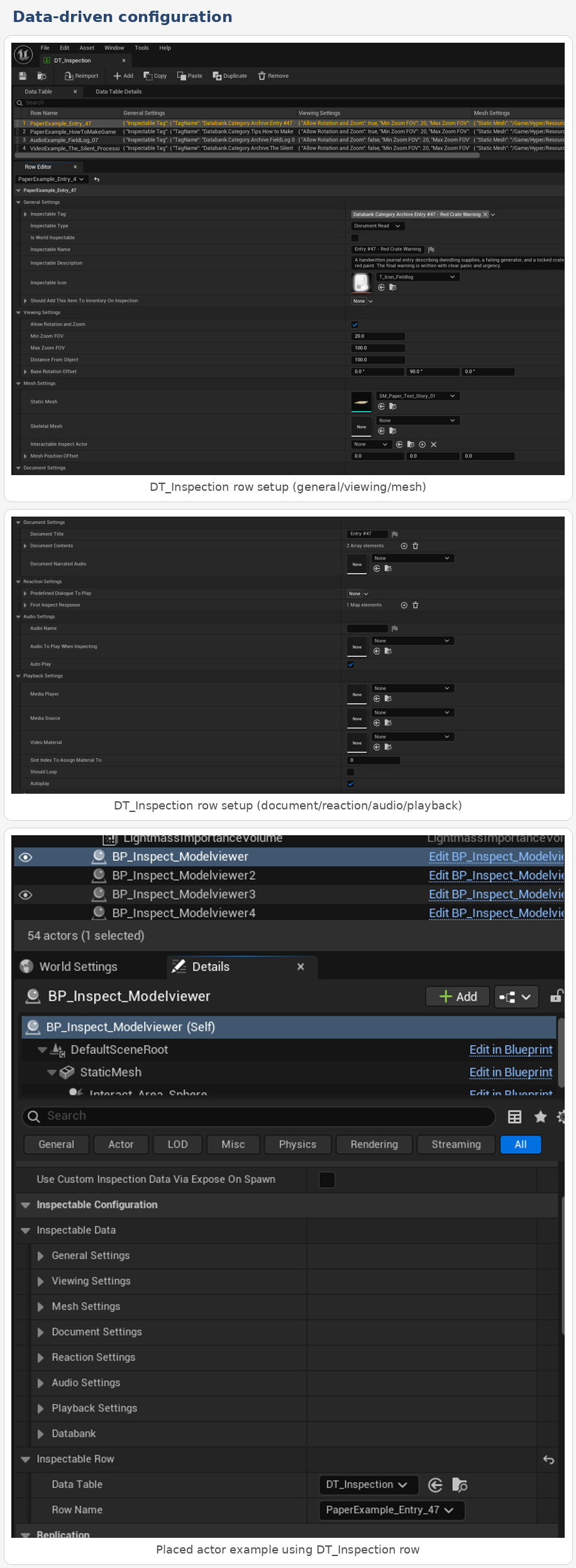
DT_Inspection row editing, with a placed actor example referencing a row directly from the details panel.
- Placed inspectable actors can point to a DT_Inspection row through the Inspectable Row handle.
- If Use Custom Inspection Data Via Expose On Spawn is disabled, the base actor resolves its data from the row handle at runtime.
- The same row format works for multiple inspection types, which keeps authoring consistent across documents, items, audio, and video.
- For bespoke runtime cases, the row-driven workflow can be bypassed and the actor can use directly supplied inspection data instead.
The data table structure is especially useful for teams selling the system to buyers, because it gives them one obvious editor surface for most common use cases. The actor blueprint then acts as the presenter rather than the place where all content must be hardcoded.
Ac_inspection #
AC_Inspection is the live manager that receives create, close, destroy, and inspected-entry events. The provided graphs show that it is responsible for spawning or updating the active model viewer, caching the created inspection widget, removing the widget when inspection ends, and maintaining the list of already inspected IDs.
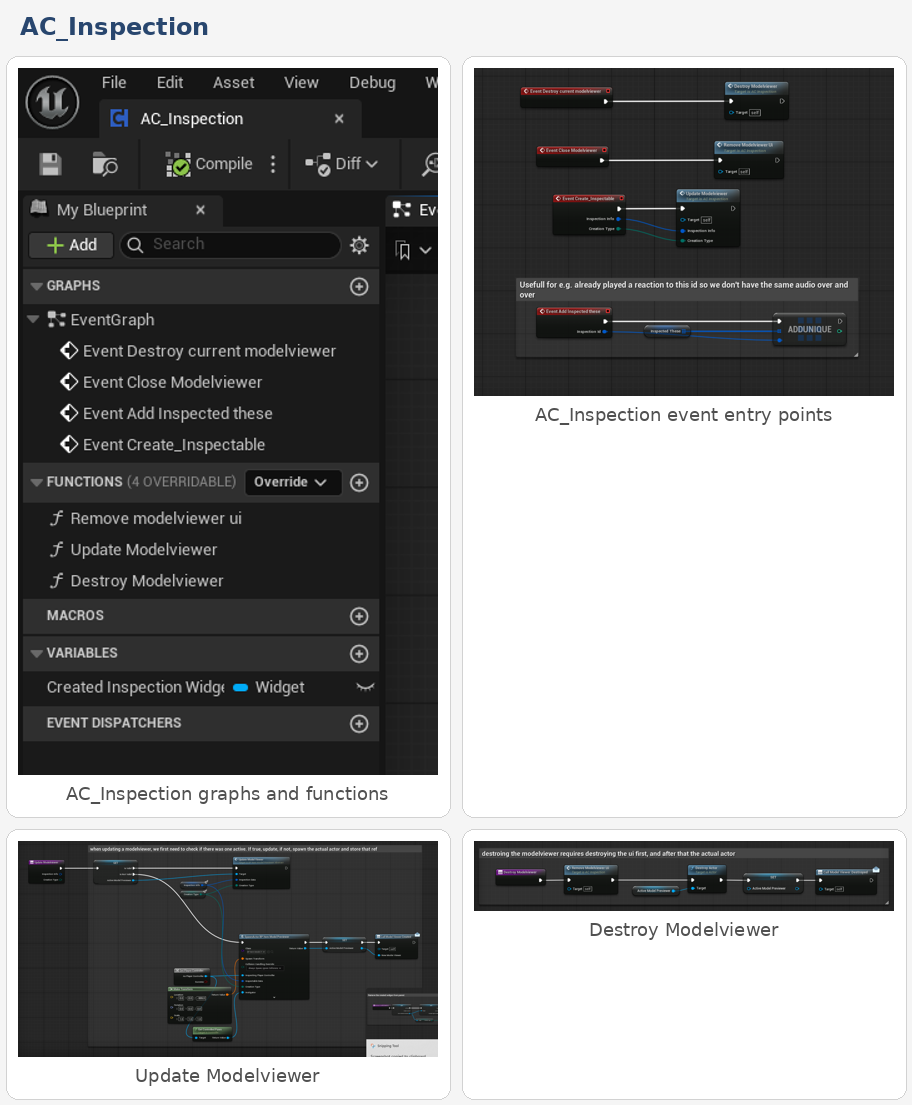
AC_Inspection routes create/close/destroy events and owns the active model viewer lifecycle.
|
Observed function/event |
Responsibility |
|
Event Create_Inspectable |
Receives F_Inspection plus creation type and forwards it into the update/create modelviewer flow. |
|
Event Close Modelviewer |
Removes the modelviewer UI and restores player input state when appropriate. |
|
Event Destroy current modelviewer |
Fully destroys the active modelviewer actor and then clears the reference. |
|
Event Add Inspected these |
Adds an inspection ID into the component cache so first-inspect logic can be gated. |
|
Update Modelviewer |
If a modelviewer already exists it is updated in place; otherwise the BP_Item_Model_Previewer is spawned and cached. |
|
Remove Modelviewer UI |
Removes the created widget from its parent and closes the related UI flow. |
|
Destroy Modelviewer |
Calls the UI removal step first, then destroys the actor and broadcasts a completion event. |
Bp_inspect_base #
BP_Inspect_Base is the common actor used for standard inspectables. It holds the shared components, exposes the inspection data setup in the details panel, resolves DT_Inspection rows when needed, and coordinates the standard interaction pipeline.
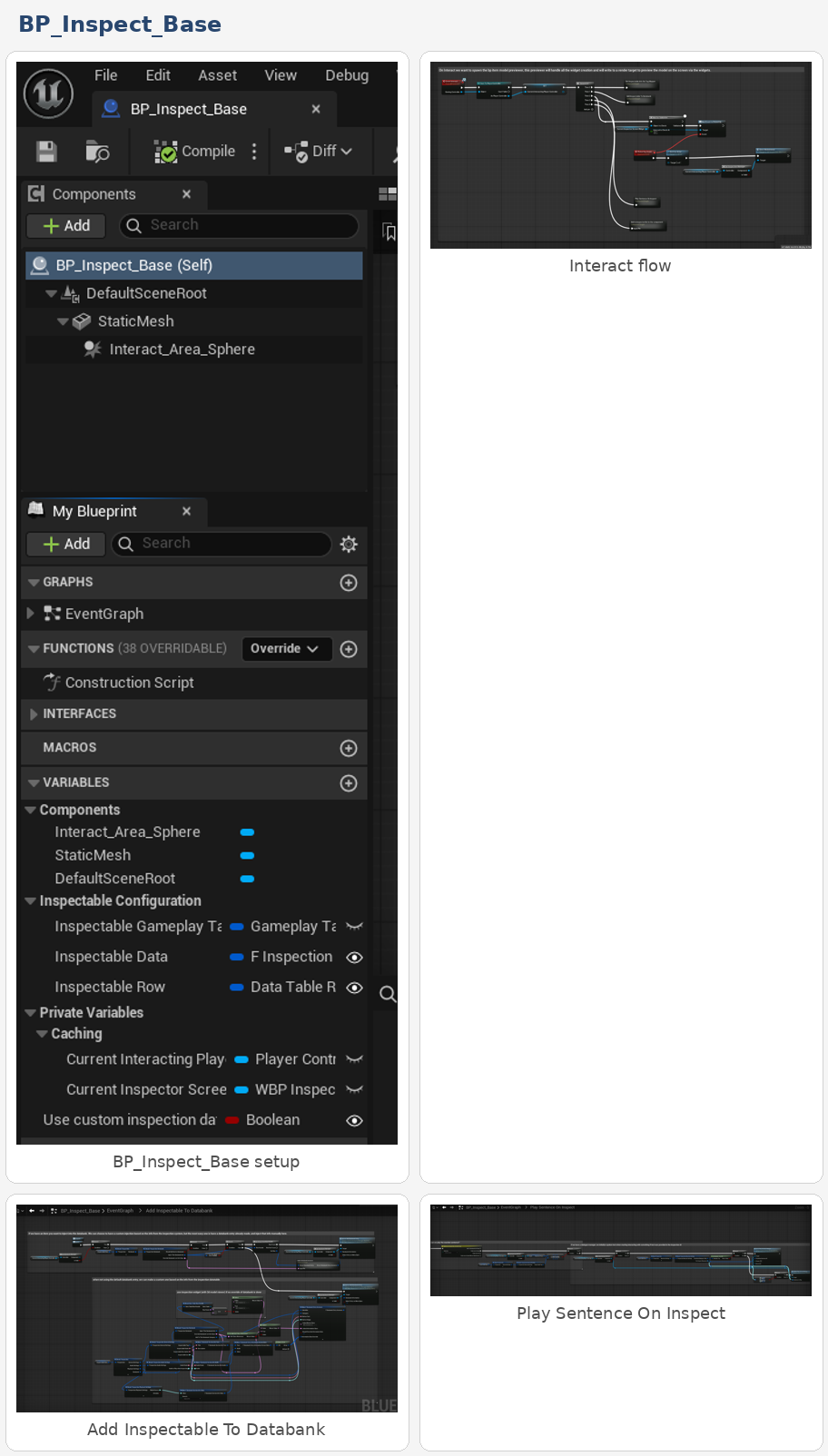
BP_Inspect_Base resolves inspection data, plays reactions, and optionally injects databank content.
|
Observed graph/function |
Purpose |
|
Construction Script |
Reads the selected DT_Inspection row and applies the configured static mesh to the placed world actor. |
|
Event Interact |
Caches the interacting player controller and routes into the shared inspection flow. |
|
Get Inspectable Info Via Tag Mapper |
When custom data is not being used, reads the F_Inspection row from the row handle and stores it locally. |
|
Add Inspectable To Databank |
Builds or selects the databank payload and forwards it into the databank manager. |
|
Play Sentence On Inspect |
Checks whether the inspectable has been seen before and then selects the correct reaction flow, including first-inspect dialogue. |
|
Add to inspected list in the component |
Pushes the inspectable tag into AC_Inspection so duplicate first-time reactions do not repeat. |
|
Picked_Up_Event |
Extension point used by pickup-oriented children to close the loop back into parent pickup behaviour. |
The base blueprint is therefore both the content bridge and the policy layer. It decides where data comes from, when databank content should be created, when a dialogue line should be spoken, and when the inspectable should be considered already seen.
Specialized Inspect Actors #
The specialized child blueprints reuse the base data model but present it differently depending on the intended gameplay result.
|
Child blueprint |
Specialization |
|
BP_Inspect_Modelviewer |
Overrides interact behaviour to spawn a modelviewer-driven inspection and bind back to the resulting widget. |
|
BP_Inspect_Pickup |
Builds an inspection payload from item data, supports pickup flows, and can route back into the parent interaction logic when the player claims the item. |
|
BP_Inspect_World |
Keeps the object in the world, creates the inspection widget directly, blends the player view to an in-world camera, and handles optional media playback on the world actor. |
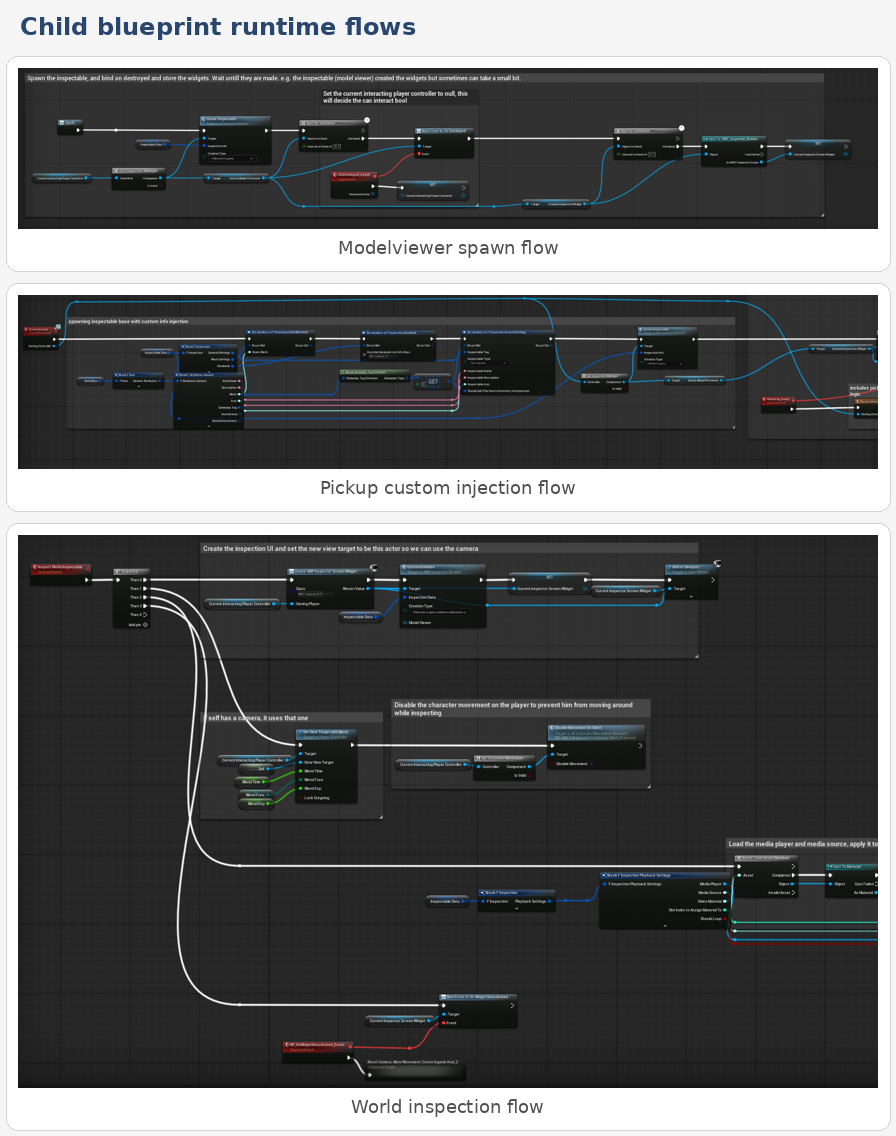
Representative runtime flows for modelviewer, pickup, and world inspection children.
Bp_item_model_previewer #
BP_Item_Model_Previewer is the visual inspection actor spawned by AC_Inspection. It owns the camera, light room, item pivot, render handling, zoom and rotation behaviour, video material setup, and examination traces while an item is actively being viewed.
|
Observed function/event |
Purpose |
|
Create Inspector Widget |
Creates or binds the main inspection widget used during viewing. |
|
Set Inspection Data Defaults |
Applies mesh, distance, rotation, pivot, and camera defaults from F_Inspection. |
|
Add Rotation Of Inspectable |
Adds rotation input to the item pivot, but only when rotation/zoom is allowed. |
|
Add Camera Zoom |
Changes camera FOV and clamps it between the configured min and max values. |
|
Execute Examine Event |
Calls the examine event on a current interactable inspection item if one is under focus. |
|
Get Used Mesh Component |
Returns the active static or skeletal mesh component so downstream functions can modify the correct target. |
|
Event Update Model Viewer |
Updates the existing previewer instance with new F_Inspection data instead of always recreating it. |
|
Initialize Video Playback |
Assigns the video material, opens the media source, applies looping, and optionally begins playback. |
Core Runtime Flows #
The provided graphs reveal a few recurring runtime patterns that buyers should understand, because they explain why the system is flexible even though it is data-driven.
1) Standard modelviewer inspection flow #
A placed inspectable receives interaction, resolves its F_Inspection payload, optionally queues databank and reaction behaviour, then asks AC_Inspection to create or update the modelviewer. AC_Inspection either updates the existing previewer or spawns BP_Item_Model_Previewer and stores the active reference.
- The create request carries both the F_Inspection payload and the creation type.
- The previewer is designed to be reused for fast successive inspections instead of always being recreated.
- The created inspection widget is cached so it can later be removed cleanly.
2) World inspection flow #
BP_Inspect_World skips the standard modelviewer path and instead creates the inspection widget directly, passes in inspection data and reaction type, blends the player view to its own camera, disables movement, and binds a widget-deactivated event for cleanup.
- This is the correct flow for screens, terminals, fixed world displays, or any inspectable that should stay where it is.
- If playback settings are configured, the world actor also applies the video material to the configured mesh slot and opens the media source.
3) Databank injection flow #
The base actor checks the databank block of F_Inspection and either injects an explicit databank payload or builds one from inspection fields such as title, description, icon, audio, and video.
- This allows the inspection system to serve both as a live interaction and as a content authoring bridge into the databank.
- The row does not need a bespoke databank entry unless the buyer wants tighter control over how the databank card is assembled.
4) First-inspect reaction flow #
Before playing a sentence, the base blueprint checks whether the inspectable tag already exists in the component’s inspected list. If it has not been seen before, the first-inspect response can be used; after that, subsequent inspections fall back to the standard predefined dialogue flow.
- This is how the system avoids repeating introductory bark lines every time the same object is opened.
- The inspected-state cache is maintained by AC_Inspection rather than by each actor separately.
5) Pickup inspection flow #
BP_Inspect_Pickup shows how inspection can be fused with item data and pickup behaviour. It constructs a custom F_Inspection payload from item attributes, opens the inspect UI, and when the player confirms pickup it routes back into the parent interaction logic.
- This is useful when an item should be looked at before being claimed.
- The same flow can still add databank data and inventory output if the configuration calls for it.
Details Panel / Important Variables #
The world instance screenshot shows the intended buyer-facing setup: the placed actor exposes a simple toggle for direct custom data and an Inspectable Configuration block that can either store a full F_Inspection payload or point to a DT_Inspection row.
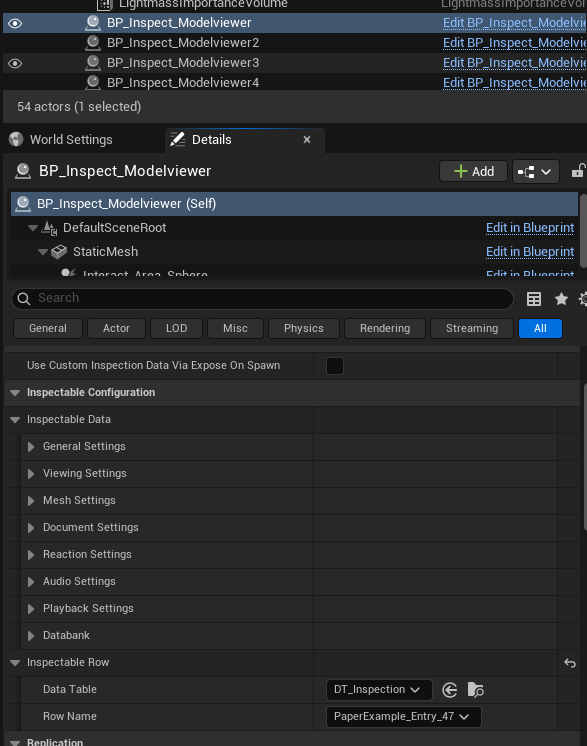
Example placed BP_Inspect_Modelviewer instance using a DT_Inspection row.
|
Field |
Why it matters |
|
Use Custom Inspection Data Via Expose On Spawn |
When enabled, the actor should use directly supplied inspection data instead of resolving a row from DT_Inspection. |
|
Inspectable Data |
Inline F_Inspection payload for more bespoke or runtime-driven setups. |
|
Inspectable Row |
Standard row-handle driven configuration path for most authored content. |
|
Target Arm Length (BP_Inspect_World) |
Determines the world inspection camera distance when using the in-world camera setup. |
|
Current Interacting Player Controller / widget caches |
Runtime-only references used to manage the live experience and cleanup. |
How to Use and Extend the System #
Below are the most likely questions a buyer will have when first integrating the system. These are written deliberately as practical setup guides rather than low-level Blueprint commentary.
How do I create a simple readable document? #
- Create or reuse a placed BP_Inspect_Base or BP_Inspect_Modelviewer actor.
- Leave Use Custom Inspection Data Via Expose On Spawn disabled.
- Assign DT_Inspection as the data table inside Inspectable Row and select or create a row.
- In that row, set Inspectable Type to Document Read or Document Narrated.
- Fill in Document Title and Document Contents, and optionally assign Document Narrated Audio.
- If you want the player to rotate and zoom the physical document mesh, make sure the mesh and viewing settings are also populated.
How do I add a standard inspectable item that the player can rotate and zoom? #
- Create a DT_Inspection row and set Inspectable Type to Item Inspection.
- Populate Mesh Settings with a static mesh or skeletal mesh.
- Adjust Viewing Settings such as Min Zoom FOV, Max Zoom FOV, Distance From Object, and Base Rotation Offset.
- Place a BP_Inspect_Modelviewer in the world and point Inspectable Row at the row you created.
- On interaction, the system will create the model viewer and hand the payload to BP_Item_Model_Previewer.
How do I use custom data instead of a DT_Inspection row? #
- Enable Use Custom Inspection Data Via Expose On Spawn on the placed actor or when spawning it dynamically.
- Populate the Inspectable Data struct directly.
- This is the better option when the object is generated at runtime or when its text, icon, or mesh must be assembled from another system such as item data.
How do I make an inspectable add itself to the databank? #
- Open the row or inline payload and expand the Databank block.
- Enable Should Add Item To Databank.
- Either provide a specific databank payload override or leave the override empty so the system builds databank information from the inspection payload.
- Set the databank category tag so the entry is organized correctly.
How do I make the player hear a line only the first time they inspect something? #
- Populate Reaction Settings.
- Assign the normal predefined dialogue and then populate First Inspect Response for the one-time variant.
- Make sure the inspectable tag is unique, because inspected-state tracking is tag-driven.
- Once the item is inspected, BP_Inspect_Base adds the tag to the component cache and subsequent inspections will not reuse the first-time response.
How do I create an audio log? #
- Set Inspectable Type to Audio Recording.
- Fill Audio Settings with the display name and sound asset.
- Enable Auto Play if you want playback to begin immediately after opening the inspectable.
- You can still combine this with reaction settings or databank injection if desired.
How do I create a video or screen-based inspectable? #
- Use BP_Inspect_World when the video should remain on the actor already placed in the level.
- Set Inspectable Type to Video Playback.
- Populate Playback Settings: Media Player, Media Source, Video Material, target material slot index, and looping/autoplay options.
- Place the actor, verify the correct mesh slot index, and test the cleanup path to ensure the original material is restored when inspection closes.
How do I inspect a pickup before the player collects it? #
- Use BP_Inspect_Pickup.
- Let it construct or receive the inspection payload from item data.
- When the player confirms the pickup, the child blueprint routes back into the parent interaction logic and can still use the inventory/databank rules from the inspection data.
How do I make a world inspectable instead of moving the item into a model viewer? #
- Use BP_Inspect_World.
- Set up its SpringArm, Camera, and optional MediaSound components as needed.
- Tune Target Arm Length and camera blend values so the inspection view feels correct.
- This is the best option for terminals, control panels, wall notes, screens, and environmental props that should not be detached from the world.
How do I tune rotation and zoom? #
- Use Viewing Settings inside F_Inspection.
- Allow Rotation and Zoom must be enabled for both rotation and FOV zoom input to function.
- Use Base Rotation Offset to correct awkward default orientation.
- Use Min/Max Zoom FOV to clamp how close and how far the player can zoom.
- Distance From Object should be used together with mesh offsets so the item is framed correctly from the moment it opens.
Summary #
The Inspection System is a flexible presentation framework rather than a single hardcoded interaction. One shared data model powers documents, items, audio logs, video playback, databank entries, and world-space inspection. AC_Inspection manages lifecycle and inspected-state tracking, BP_Inspect_Base resolves and prepares content, specialized child blueprints decide how the experience is presented, and BP_Item_Model_Previewer handles the live visual viewing experience when a model viewer is needed.
For a buyer, the main strength of the system is that most content creation happens in DT_Inspection and in placed actor details rather than inside Blueprint graphs. Once the author understands how the shared F_Inspection payload is structured, they can build a wide range of inspectable content without changing the core framework.