
Jigsaw Inventory #
- Prerequisites
- Core Principles of Jigsaw Inventory
- Overview
- Multi-Slot Item System
- Variable Item Sizes
- Top-Left Slot as Primary Reference
- Linked Slot Management
- Move Function Override
- Get All Items Override
- UI Implementation
- Visual Feedback for Drag and Drop
- How To Guides
- How to Set Up Jigsaw Items
- How to Create Custom Item Sizes
- PREREQUISITES
Before reading this documentation, please Read the inventory documentation first as the Jigsaw system builds upon the core inventory system. This documentation only covers the Jigsaw-specific features and assumes you understand the base container system, item structs, and inventory component functionality.
Core principles of jigsaw inventory #
Overview #
The Jigsaw Inventory system is a specialized inventory type that allows items to occupy multiple slots based on their size. Unlike traditional grid-based inventory where every item takes exactly one slot, the Jigsaw system enables items to be 2×2, 3×1, 1×3, or any other rectangular configuration.
This system is popular in games like Resident Evil, Escape from Tarkov, and Diablo, where inventory management becomes a spatial puzzle and players must organize items efficiently to maximize their carrying capacity.
Key Features:
- Items can be any rectangular size (2×2, 3×1, 1×4, etc.)
- Items can be rotated to fit in available space
- Efficient packing rewards skilled inventory management
- Each item occupies multiple slots but is treated as a single entity
- Automatically prevents overlapping items
- Integrates seamlessly with the core container system
The Jigsaw Inventory uses a custom container class (BP_Container_Jigsaw) that extends BP_Inventory_Container with specialized logic for handling multi-slot items.
Performance Consideration:
The more slots your Jigsaw inventory has, the more performance overhead will be required for validation checks and slot management. Keep inventory grids to reasonable sizes (typically 8×10 or smaller) to maintain good performance, especially in multiplayer environments.
Multi-Slot Item System #
Variable Item Sizes #
In the Jigsaw system, each item can be defined with a custom size in the item data table.
Item Size Configuration
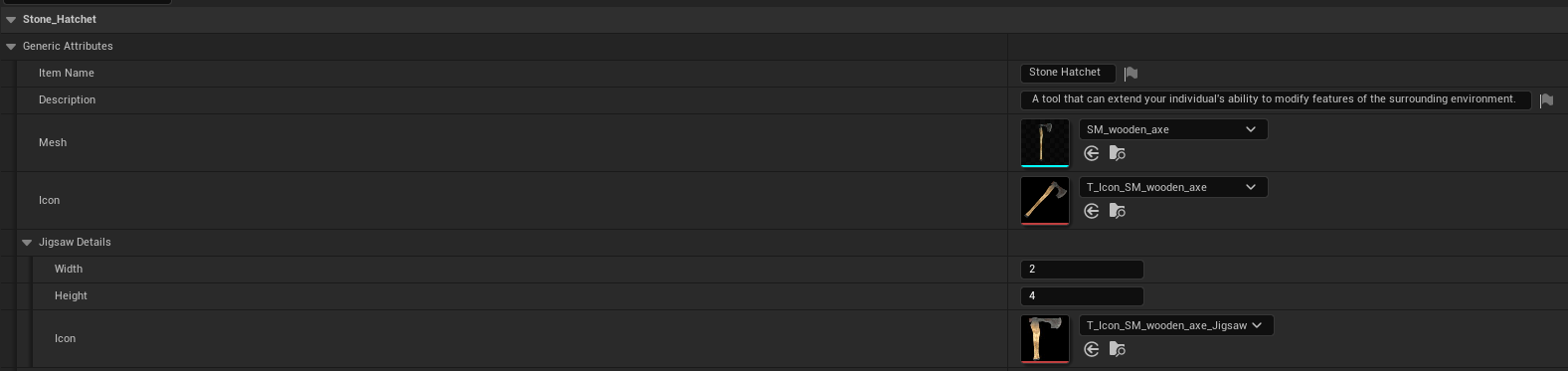
In DT_Items, each item has Jigsaw-specific properties:
- Width: Number of slots horizontally
- Height: Number of slots vertically
- Jigsaw Icon: Special icon for jigsaw display (allows normal-sized icons for vendors while showing proper aspect ratio in jigsaw inventories, prevents stretched icons)
The Jigsaw Icon is particularly useful because it allows you to have a normal square icon for display in vendors or other standard inventory views, while using a properly sized/shaped icon specifically for the jigsaw system. This prevents icons from appearing stretched when items have non-square dimensions.
- Small items (bandage, ammo): 1×1
- Medium items (pistol, grenade): 1×2 or 2×1
- Large items (rifle, armor): 2×3 or 3×2
- Huge items (backpack): 3×4
Rotation
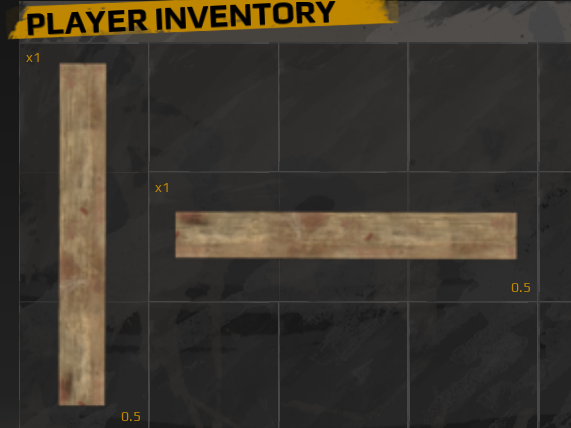
Items can be rotated 90 degrees to fit in tight spaces. For example, a 1×3 rifle can become a 3×1 rifle when rotated, potentially fitting in spaces where it wouldn't otherwise.
Top-Left Slot as Primary Reference #
In the Jigsaw system, each multi-slot item has a primary slot that serves as the reference point for all operations. This is always the top-left slot of the item's occupied area.
Why Top-Left?
The top-left slot is used because:
- It provides a consistent reference point regardless of item size
- Grid calculations (row/column) are simpler
- UI rendering starts from top-left
- Rotation calculations are easier
All Important Data in Top-Left Slot
The top-left slot contains:
- The complete item data struct
- References to all other occupied slots
- Rotation state
- All gameplay data (durability, amount, etc.)
Primary Slot Responsibilities
All operations on the item are performed through the top-left slot:
- Dragging and moving the item
- Dropping the item
- Rotating the item
- Accessing item data
- Removing the item from inventory
The other occupied slots exist only as placeholders to prevent other items from being placed there.
Linked Slot Management #
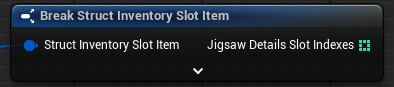
When an item occupies multiple slots, all occupied slots contain the complete item data and know about all other slots the item occupies.
Jigsaw Slot Data Structure
Each slot occupied by a multi-slot item contains:
- The complete item data struct (not just a reference)
- An array of all slot indices occupied by this item (including its own index)
- All gameplay data (durability, amount, etc.)
For example, a 2×2 item occupying slots 5, 6, 13, and 14:
- Slot 5: Has complete item data + array [5, 6, 13, 14]
- Slot 6: Has complete item data + array [5, 6, 13, 14]
- Slot 13: Has complete item data + array [5, 6, 13, 14]
- Slot 14: Has complete item data + array [5, 6, 13, 14]
Why All Slots Have Full Data
This design ensures:
- Any slot can be used to access the complete item information
- Simpler validation when checking slot availability
- More robust handling of edge cases
- Easier debugging (every slot is self-contained)
When Adding Multi-Slot Items
When a multi-slot item is added to the Jigsaw inventory:
- The system calculates which slots the item will occupy based on its size and position
- The complete item data is placed in every occupied slot
- Each slot's linked indices array is populated with all occupied slot indices
- Each slot marks itself as part of this multi-slot item
When Moving Items
When an item is moved, the system:
- Reads the linked indices from any of the occupied slots
- Calculates the new position for all occupied slots
- Validates that all new positions are available
- Clears all old slots
- Populates all new slots with complete item data and updated linked indices
Move Function Override #
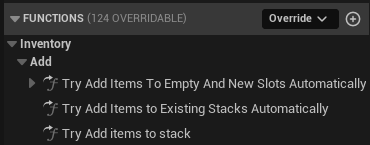
The Jigsaw container overrides the standard move function to handle multi-slot items correctly.
Standard vs Jigsaw Move
In a standard inventory:
- Moving an item updates one slot index
- Simple swap or transfer operation
In the Jigsaw inventory:
- Moving an item updates multiple slot indices
- Must validate all destination slots are available
- Must clear all source slots
- Must update all destination slots
- Must maintain item integrity
Move Validation
Before moving, the system checks:
- Are all destination slots within the inventory bounds?
- Are all destination slots empty or occupied by the same item being moved?
- Would the move cause any overlaps with other items?
- Is the destination valid for the current rotation?
Move Execution
When moving a multi-slot item:
- Store the item data from the top-left source slot
- Calculate all source slot indices based on item size
- Calculate all destination slot indices
- Clear all source slots
- Place item data in top-left destination slot
- Update all other destination slots with references
- Trigger inventory update events
This ensures that even complex items maintain their integrity when moved around the inventory.
Get All Items Override #
The Jigsaw container overrides the GetAllItems function to return only unique items. Since each multi-slot item appears in multiple slots with complete data, a standard GetAllItems would return duplicates.
The Problem
In the Jigsaw system, items can occupy multiple slots (2×2, 3×1, etc.). All occupied slots contain the complete item data. If you call GetAllItems normally, you would get duplicate entries for the same item (one for each occupied slot).
The Solution
The Jigsaw container overrides GetAllItems to return only unique items:
- Iterates through all slots
- Tracks which items have already been added (using the linked indices array to identify duplicates)
- Only adds each unique item once to the return array
- Skips slots that belong to an already-processed item
This ensures:
- Inventory weight calculations are correct
- Item counts are accurate
- Saving/loading doesn't create duplicate items
- Searches for specific items work properly
- UI displays the correct number of items
Using Custom Overrides
This example shows how powerful custom container classes can be. By overriding a single function, you can completely change how the container behaves while still using all the standard inventory functionality.
UI Implementation #
Visual Feedback for Drag and Drop #
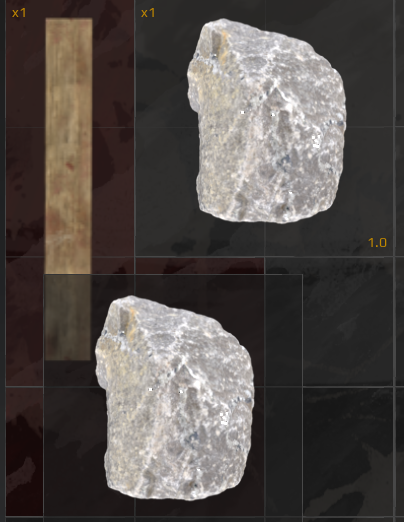
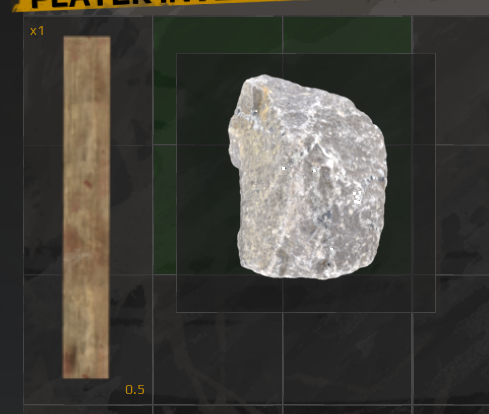
The Jigsaw system provides visual feedback during drag and drop operations to help players understand where items can be placed.
Valid and Invalid Drop Positions
When dragging an item over the inventory grid, the system provides immediate visual feedback:
- Green highlight: The slots where the item will be placed if dropped (valid drop position)
- Red highlight: Indicates the item cannot be dropped at that position (invalid – slots occupied or out of bounds)
Drop Validation
The system continuously validates while dragging:
- Calculates which slot is under the cursor
- Determines all slots the item would occupy at that position
- Checks if all required slots are available
- Updates the highlight color based on validity (green = valid, red = invalid)
Rotation During Drag
Players can rotate items while dragging (typically with R key or right-click):
- Rotation input is detected during the drag operation
- Item's width and height are swapped
- Occupied slots are recalculated based on new orientation
- Drop validation updates with the new size
- Visual highlight updates to reflect the rotated item's footprint
This immediate visual feedback helps players quickly identify valid placement positions without trial and error.
How to guides #
How to Set Up Jigsaw Items #
This guide explains how to configure items to work in the Jigsaw inventory system.
Step 1: Open Item Data Table #
Open DT_Items and find the item you want to configure.
Step 2: Set Item Size #
In the Jigsaw Settings section:
- Jigsaw Width: Number of horizontal slots (1-10)
- Jigsaw Height: Number of vertical slots (1-10)
- Jigsaw Icon: Special icon sized appropriately for the item's dimensions (prevents stretched icons, allows normal square icons for vendors)
Why Jigsaw Icon Matters:
The Jigsaw Icon allows you to have two different icon representations:
- Standard Icon: Normal square icon used in vendors, tooltips, and other UI
- Jigsaw Icon: Properly sized/shaped icon for jigsaw display (prevents stretching a 1×3 item to fit in a square)
This gives you flexibility in how items appear in different inventory systems.
- Small consumables: 1×1
- Ammunition: 1×1 or 1×2
- Pistols: 2×2
- Rifles: 1×3 or 1×4
- Armor vests: 2×3 or 3×2
- Backpacks: 3×4 or 4×4
- Melee weapons: 1×2 or 1×3
Step 3: Test the Item #
Add the item to a Jigsaw inventory and verify:
- Does it occupy the correct number of slots?
- Does the visual representation match the occupied space?
- Can it rotate?
- Does it prevent other items from overlapping correctly?
- Does the jigsaw icon display properly without stretching?
How to Create Custom Item Sizes #
This guide explains the technical aspects of creating items with custom sizes.
Step 1: Define Item Dimensions #
In DT_Items, set the width and height for your item:
- Width x Height determines the total slots occupied
- Example: 2×3 item occupies 6 slots total
- Maximum recommended size: 4×4 (16 slots)
Step 2: Create Appropriately Sized Icon #
Design a Jigsaw Icon that matches your item's aspect ratio:
- 1×2 item: Icon should be portrait orientation
- 2×1 item: Icon should be landscape orientation
- 2×2 item: Icon should be square
- 3×1 item: Icon should be wide and short
The icon dimensions don't have to match exactly (e.g., you don't need a 64×192 pixel icon for a 1×3 item), but the aspect ratio should be similar to avoid obvious distortion.
Step 3: Configure Gameplay Tags (if applicable) #
If using Unreal Engine's Gameplay Tags system (https://docs.unrealengine.com/5.3/en-US/gameplay-tags-in-unreal-engine/) to categorize items, ensure your jigsaw items have appropriate tags:
- Items.Equipment.Weapon.Rifle
- Items.Consumable.Food
- Items.Resource.Metal
These tags are used by the inventory system for filtering which items can go in which containers via the Allowed Items setting.
Step 4: Test Multi-Slot Behavior #
Verify the technical implementation:
- All occupied slots contain complete item data
- Linked indices array is correctly populated
- Moving the item updates all slots properly
- Rotation changes the slot footprint correctly
- Save/load preserves the item state
Step 5: Performance Testing #
Test with multiple large items in the inventory:
- Monitor performance with many 3×3 or 4×4 items
- Check validation speed when dragging items
- Ensure UI updates smoothly
- Test in multiplayer if applicable (replication performance)
- Rectangular shapes only (no L-shapes, T-shapes, etc. without custom code)
- Maximum size should be kept reasonable (4×4 recommended maximum)
- Very large inventories (10×10+) with many multi-slot items can impact performance
- Each additional slot increases validation complexity
The current system supports rectangular items. For non-rectangular shapes (L-shapes, T-shapes, etc.), you would need to:
- Extend the Jigsaw container logic in BP_Container_Jigsaw
- Implement custom occupied slot calculations
- Update the UI rendering to display irregular shapes
- Add more complex validation for placement
Rectangular shapes are recommended for most implementations as they provide good functionality without excessive complexity.