
Security System
Updated May 25, 2026
Related Videos
Version note: Some videos may have been recorded before V4. The same principles still apply, but asset names, component names, and folder locations may differ. Use this written documentation and the current V4 names as the source of truth.
For shared setup guidance, see the Migration Guide and Integration Guide. Use the System Atlas to look up functions, variables, events, components, and ownership references. Use this page for Security System-specific setup, runtime behavior, extension points, and integration notes.
Learning note: basics course videos are not specific to this system. Use them to understand the underlying Unreal Engine or Blueprint principle, then follow the current documentation for project-specific names and setup.
Overview
The Security System is a modular Blueprint framework for creating connected alarms, cameras, doors, lasers, sirens, terminals, and other security-style gameplay objects. It is designed around a small set of shared states and an interface-based connection pattern so that one actor can detect something and cause any number of other actors to respond.
At a high level, the system lets designers place security actors in a level, connect them to each other, and decide how they should react when a valid target is detected. A camera can detect the player, a laser can trigger an alarm, a manager can coordinate multiple modules, a door can open or close from a security state, and a terminal can allow the player to control available cameras.
The live implementation shown in the demo is built entirely in Blueprint. It uses a shared security enum, state-data structures, interface calls, event dispatchers, replicated variables, server/client RPC wrappers, and optional central management through BP_SecurityManager.
- Uses a shared E_Security_State enum for Armed, Searching, Alarm, and Disarmed behavior.
- Lets detectors notify connected listeners through the On Detection interface event.
- Supports direct actor-array connections and manager-driven room or area control.
- Supports cameras with overlap detection, line-of-sight checks, patrol rotation, target locking, and player control from a CCTV terminal.
- Supports visual and audio state feedback through state-data structs, dynamic materials, lights, sounds, particles, and scene capture render targets.
- Includes multiplayer-facing logic for camera ownership, terminal UI creation, input mapping, and client/server camera requests.

Demo level introduction explaining the generic connection system and how actors can trigger listeners.
Demo World Overview
The demo world presents the system as a set of small security examples. The important idea is that the actors do not need to know each other through hard-coded class logic. They can be connected through interface-aware arrays, setup by a security manager, or driven from a terminal/control panel.

Simple camera connection example: detectors can be linked to listeners in the editor.
The simple connection examples show how a camera, laser, button, door, lamp, or terminal can all participate in the same alert chain. A detector sends an On Detection event, and the receiving actor decides what that state means for itself.

Laser and alarm example: the laser triggers the connected alarm light when the beam is crossed.
The demo also shows one-way connection behavior. If Camera A is connected to Camera B, Camera A can forward detections to Camera B. Camera B does not automatically send detections back to Camera A unless a reverse connection is also configured.

One-way camera connection example: only the configured direction propagates the alert.
The security terminal room demonstrates a higher-level setup where a BP_SecurityManager owns a group of connected security modules, and the player uses a terminal or panel to arm, disarm, or trigger the group.

Security control terminal demo: the terminal can arm, disarm, and trigger alarm behavior through the manager.
The camera examples demonstrate line-of-sight accuracy. Cameras do not simply react to anything inside the cone; they also check whether the target is actually visible and unobstructed.

Accurate vision demo: cameras use visibility checks so targets behind walls are not detected.

Camera control demo: one camera is controllable from the terminal while the other is view-only.
System Architecture
The Security System is best understood as four cooperating layers: shared data, security actors, security manager, and player-facing terminal/controller logic.
Shared data defines the states and per-state visual/audio values used by security actors.
Security actors perform local behavior: detect, animate, rotate, play sounds, open doors, show lasers, and forward state changes.
The security manager acts as a central room/area coordinator. It discovers detectors, stores controllable cameras, handles authorization, and relays alerts across the room.
The player controller component handles CCTV UI, input mapping, camera ownership, previous/next camera switching, and client/server requests.
Most security modules inherit from BP_Security_Base or participate through the security alert interface. The base class owns the generic state-change and trigger-forwarding logic. Child actors then add their own behavior on top.
This means a designer can create a new security object without rewriting the entire system. The new object only needs to understand the shared states and implement the detection response it cares about.
Typical ownership model
| Field | Description |
|---|---|
| BP_Security_Base | Parent security actor. Stores Security State, Last State, neutral timer logic, manager reference, connected listener array, and the On Security Alert dispatcher. |
| BP_Security_Camera | Detector and optional controllable camera. Performs overlap checks, visibility traces, target locking, patrol rotation, alarm visuals, scene capture, and camera ownership behavior. |
| BP_Security_Laser | Detector beam. Detects valid targets crossing the laser, changes to Alarm, forwards detection, and changes laser visibility based on state. |
| BP_Security_Flashing_Alarm | Listener/feedback actor. Receives detection and changes lights/materials/rotation from the state-data map. |
| BP_Security_Siren | Listener/audio actor. Receives detection and switches sound output based on state. |
| BP_SecurityDoor | Listener/door actor. Opens or closes using animation montages when security state changes. |
| BP_SecurityManager | Central coordinator. Finds security objects, stores detector/camera arrays, authorizes actors, binds alert events, and updates all registered modules. |
| BP_Security_Terminal_Cameras | Terminal actor for camera viewing/control. Requests camera ownership, switches cameras, manages render textures, and returns control when the player exits. |
| BP_Security_Control_Panel | Interactive panel actor. Creates a control UI and sends arm/disarm/trigger requests to the server/manager. |
| AC_PC_Security_System | Player Controller component. Creates CCTV UI, controls input mapping, forwards server/client camera requests, and coordinates terminal-camera ownership. |
Core Data
The system uses a small set of shared data assets so that every security module can react to the same state language while still presenting different visuals or sounds.
E_Security_State
E_Security_State is the central state enum used across the system. The shown implementation contains four values: Armed, Searching, Alarm, and Disarmed.
| Field | Description |
|---|---|
| Armed | The security object is active and ready. Cameras can patrol, lasers can detect, and listeners can remain in their armed/default presentation. |
| Searching | The security object has noticed or received suspicious activity but is not necessarily in full alarm. Cameras use this while looking for or re-checking a target. |
| Alarm | The active alert state. Detectors have confirmed a target or an alert was propagated. Alarm lights, sirens, doors, and connected listeners usually respond to this state. |
| Disarmed | The security object is disabled or inactive. This is also used by broken cameras and modules that should not currently respond. |

E_Security_State enum containing Armed, Searching, Alarm, and Disarmed.
F_SecurityAlarm_State_Data
F_SecurityAlarm_State_Data stores the visual parameters used by alarm-style actors such as BP_Security_Flashing_Alarm. It lets each state define its own light color, whether the light is active, and how fast the alarm rotates or animates.
| Field | Description |
|---|---|
| Lamp Color | Linear Color used for the alarm light and material color in this state. |
| Light On | Boolean controlling whether the alarm light should be enabled. |
| Light Speed | Float used to drive the rotation or flashing speed of the alarm visual. |
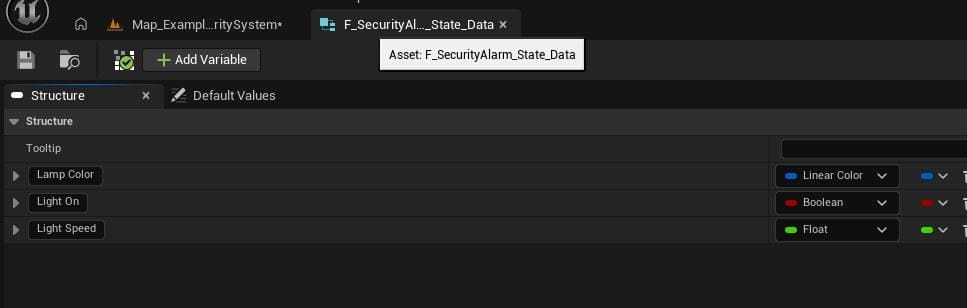
F_SecurityAlarm_State_Data fields used by the flashing alarm state map.
F_SecurityCamera_State_Data
F_SecurityCamera_State_Data stores the per-state camera presentation values. Cameras use it to control alarm/search colors, spotlight brightness, sounds, rotation speed, and whether the search cone material should be visible.
| Field | Description |
|---|---|
| Alarm State Color | Linear Color used by camera materials and lens/search visuals for the selected state. |
| Spotlight Brightness | Float used to set spotlight intensity. |
| Alarm State Enter Sound | Sound Base played when entering this state, if configured. |
| Alarm State Looping Sound | Sound Base used as the looping scanner/alarm sound for this state. |
| Alarm State Rotating Speed | Float used by patrol rotation and target-lock rotation interpolation. |
| Cone Material Visable | Boolean used to show or hide the camera search cone in that state. The project spelling appears as Visable in the source struct. |

F_SecurityCamera_State_Data fields used by cameras and camera-controlled visuals.
Security States
The same four states are used by all modules, but each module interprets them locally. This is what allows the system to stay generic. A camera may use Alarm to lock a target and rotate toward it; a siren may use Alarm to play a loop; a door may use Alarm to open; and a laser may use Alarm to hide or disable its collision after being triggered.
Armed
Armed is the normal ready state. In the camera implementation, Armed can patrol between rotators and continue scanning. In the door example, Armed is routed to the open animation path. In other projects, designers can decide whether Armed means closed, locked, active, or ready.
Searching
Searching is a warning/intermediate state. Cameras use this when a target may have been seen or when another security actor has reported a target. The camera can then test line of sight and either escalate to Alarm or remain in Searching.
Alarm
Alarm is the confirmed alert state. It is the state most commonly forwarded through connections. Alarm can trigger sirens, flashing alarms, doors, gates, lights, camera target locking, and manager-wide updates.
Disarmed
Disarmed disables or neutralizes the module. Broken cameras use Disarmed when Set Broken is set to true. The terminal camera index logic also filters out cameras that are broken or disarmed so that the player is not switched to unusable cameras.
Main Blueprints and Ownership
The shown implementation contains a parent security actor, several child or related security modules, a security manager, and a player controller component. The split lets each actor own the behavior that belongs to it while still sharing a consistent alert interface.
BP_Security_Base
BP_Security_Base is the parent class for generic security modules. It owns the shared state variables, manager reference, connected listener array, neutral timer behavior, and On Security Alert dispatcher. It also implements the detection interface so child security objects can receive propagated alerts.
BP_SecurityManager
BP_SecurityManager is the central place for connected security modules in a room or area. It can find security objects, categorize detectors and cameras, authorize actors, and decide when the whole group should change state. It is useful for control rooms, terminal-driven areas, alarm networks, and examples where a single UI should operate many security actors.
BP_Security_Camera
BP_Security_Camera is both a detector and an optional controllable camera. It can patrol, search, target-lock, perform line traces to confirm visibility, trigger connected listeners, expose a SceneCapture view to terminals, and accept player input while controlled.
AC_PC_Security_System
AC_PC_Security_System is added to the player controller. It owns the player-facing CCTV terminal flow: creating the terminal UI, disabling normal player input, adding the CCTV input mapping context, activating cameras, asking the server for camera ownership, returning cameras, and removing the terminal UI when the player exits.

AC_PC_Security_System client UI creation, input mapping, first-camera activation, material animation, and first camera request flow.
BP_Security_Terminal_Cameras
BP_Security_Terminal_Cameras is the world terminal used to view and control cameras. It requests camera ownership, manages active and last active cameras, switches between cameras, updates render textures, animates its monitor material, and returns the camera to the server when the player exits.

BP_Security_Terminal_Cameras overview showing request, return, UI exit, material animation, interaction, and camera switching events.
BP_Security_Control_Panel
BP_Security_Control_Panel is an interactable world panel for manager-driven control. It creates a widget for the owning controller and sends state update requests to the server. In the demo, the panel can update trigger states and reflect incoming detection updates in the UI.

BP_Security_Control_Panel server interaction and ownership handling.
Feedback and listener actors
The system includes listener actors such as BP_Security_Flashing_Alarm, BP_Security_Siren, and BP_SecurityDoor. These actors do not need to perform detection themselves. They can simply react when another security object sends an On Detection event.
BP_Security_Flashing_Alarm changes light visibility, light color, material color, and rotation speed from F_SecurityAlarm_State_Data.
BP_Security_Siren switches audio based on the incoming state.
BP_SecurityDoor plays open or close animation montages when security state changes.
BP_Security_Laser acts as a detector and changes its laser visibility and overlap behavior based on state.
Details Panel / Important Variables
The exact variables exposed to designers depend on the blueprint, but the following tables cover the important fields visible in the provided screenshots and their intended usage.
BP_Security_Base variables
| Field | Description |
|---|---|
| Security State | Current E_Security_State value. Replicated with notification in the shown graphs so state changes can drive visuals and child behavior. |
| Last State | Cached previous state. Used to avoid running visual update logic when the state has not actually changed. |
| Neutral Timer | Timer handle used to return a security object or group toward a neutral/armed condition after alarm behavior. |
| Disable With Alarm Timer | Boolean that can prevent or allow the neutral alarm timer behavior. |
| Alarm Time | Float used as the timer duration before Neutral executes. |
| Blueprint To Trigger Alarm Array | Array of connected actors/listeners that should receive the propagated On Detection call. |
| Security Manager | Reference to the BP_SecurityManager controlling or coordinating this actor. |
| Signal From Manager | Boolean used to distinguish direct/local security changes from manager-driven updates in some flows. |
BP_Security_Camera variables
| Field | Description |
|---|---|
| State Variables | Map from E_Security_State to F_SecurityCamera_State_Data. Used for normal camera visuals/audio/rotation values. |
| Controlled State Variables | Alternate state-data map used when the camera is being controlled by a player. |
| Is Broken | Replicated Boolean. When true, the camera is forced into Disarmed behavior and should not trigger connected modules. |
| Is Controlled | Replicated Boolean. True while a player has camera ownership through a terminal. |
| Camera Max Yaw | Maximum horizontal scanning angle used by Lerp Between Max Min Angle. |
| Camera Pitch | Pitch used when building scan rotators. |
| Locked On Target | Actor currently being tracked by the camera. |
| Do Patrolling | Controls whether the camera patrols between configured rotators. |
| Camera Yaw | Yaw value used for scan or rotation calculations. |
| Play From Start On Reset | Controls whether rotation timelines/reset behavior should restart from the beginning. |
| Default Rotation | Default rotator used when returning the camera to its base orientation. |
| View Distance | Maximum camera detection or trace distance. |
| Time Until Lost | How long a target can remain out of sight before the camera stops tracking it. |
| Camera Line Trace Offsets | Array of offsets used by Check If Can See Target. Multiple traces make visibility more reliable than a single center trace. |
| Spotlight Brightness | Base/intended spotlight brightness before state overrides are applied. |
| Light Color Alarm Off/On/Searching | State colors used by light/material logic. |
| Scanner Switch To Default / Alarm / Reset Soundcue | Audio used when the camera switches visual/security modes. |
| Scanner Alarm Soundcue | Looping or alarm sound played during alarm/search behavior. |
| Scene Capture View Distance | Max view distance override used for the camera SceneCapture view. |
| Scan Rotation Controlled | Float replicated from client camera input to the server when a player controls the camera. |
| Controllable | Boolean deciding whether this camera can be used from a terminal. |
| Name | Text displayed in the terminal UI as the current camera name. |
| Patrolling Rotators | Array of rotators used by patrol rotation. |
| Patrolling Index | Current patrol point index. |
| Target Rotation | Rotator the camera is currently moving toward. |
| Camera Rotation Local Rep | Replicated local camera rotation used to synchronize client/server view changes. |

Additional BP_Security_Camera light, audio, timer, material, controlling, and camera variables.
BP_SecurityManager variables
| Field | Description |
|---|---|
| SecurityManagerID | Gameplay Tag that identifies this manager for authorization and friendly-affiliation checks. |
| Override Detector Values | When true, Setup Detector can push manager values such as Alarm Time and Disable With Alarm Timer onto child detectors. |
| Default Authorized Affiliations | Gameplay Tag Container used to decide which actor affiliations are allowed to ignore or bypass security triggers. |
| Use Range To find Connections | When true, the manager can use a sphere trace instead of only relying on actors found by interface. |
| Auto Connect Range | Float radius used by the sphere trace to find nearby security actors. |
| Detectors | Array of BP_Security_Base actors registered as detectors. |
| Controllable Camera’s | Array of BP_Security_Camera actors registered as controllable cameras. |
BP_Security_Terminal_Cameras variables
The terminal uses manager references, arrays of controllable cameras, active camera references, last active camera references, render targets, and a monitor material instance. It also stores the camera index used by next/previous switching and uses the player controller component to request and return camera ownership.
BP_Security_Control_Panel variables
The control panel keeps track of whether it is already open, owns the current interacting controller while the UI is open, stores the created control panel widget, and clears ownership when the widget is deactivated.
BP_SECURITY_BASE
BP_Security_Base is the shared parent implementation. It provides the common security state pipeline used by the manager, cameras, lasers, alarms, sirens, doors, and custom security objects.
State changing
Change Security State stores the previous state, compares the incoming state against the current state, and only updates when the value has changed. This prevents unnecessary visual or trigger updates when a detector repeatedly receives the same state.

BP_Security_Base Change Security State and neutral timer setup.
Change State And Call Change is the internal route that changes the security state, updates connected triggers with the new state, and calls On Security Alert for listeners.
Trigger propagation
Update All Triggers With State loops through Blueprint To Trigger Alarm Array and calls On Detection on each connected actor. It passes the sender, detected actor, and new security state. This is the core of the generic connection system.

BP_Security_Base Update All Triggers With State loops connected actors and sends On Detection.
Valid target checks
Is Valid Security Target checks whether the detected actor should be treated as a security target. In the shown graph, it uses the security manager authorization check. If the actor is already authorized, the target is not considered valid for triggering security.

BP_Security_Base valid target check using the security manager authorization route.
Neutral timer
Try Start Neutral Timer starts a delayed Neutral/Armed reset when allowed. The base class checks whether the timer is disabled and asks the manager whether any camera is still in Alarm before returning the system toward neutral behavior. This avoids clearing alarms too early when another camera is still actively tracking a target.
BP_SECURITYMANAGER
BP_SecurityManager is the central manager for rooms, bases, or areas. It connects security actors together, stores detector lists, stores controllable cameras, and handles authorization. It is optional for very simple direct actor connections, but it is the preferred setup for larger rooms and terminals.
Finding security objects
Find Security Objects can gather actors that implement the security alert interface, or it can use a range-based trace to find nearby security actors when Use Range To find Connections is enabled. It then places each found actor into the correct internal list.
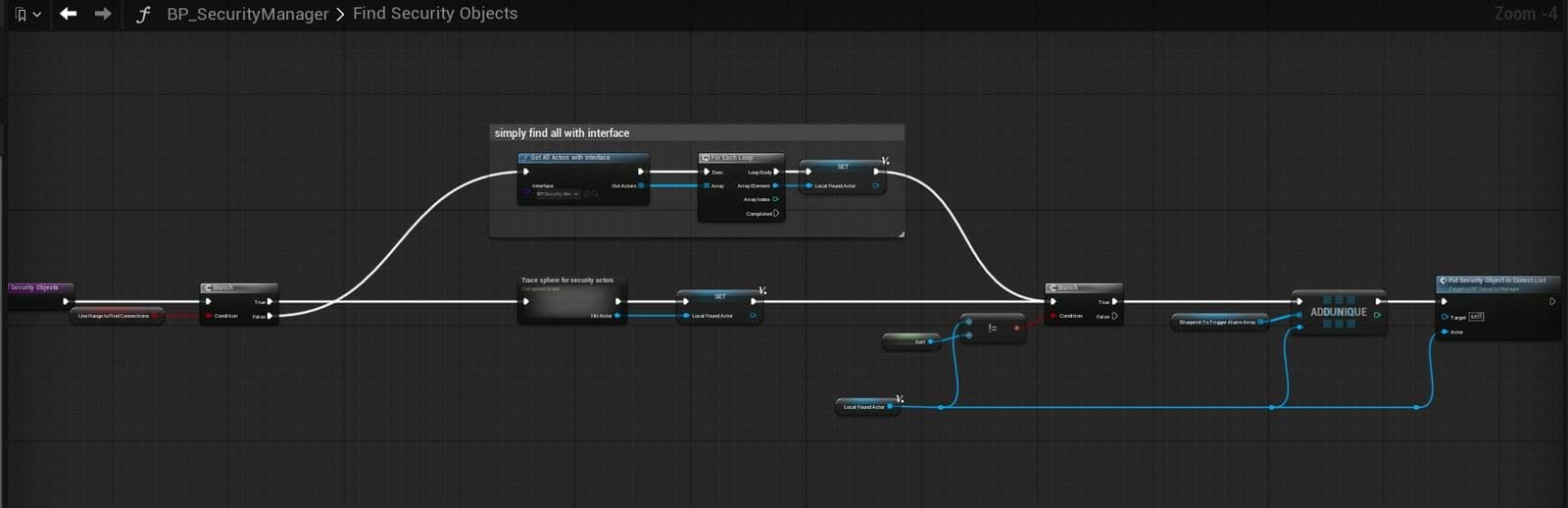
BP_SecurityManager Find Security Objects can find interface actors or trace for nearby security actors.
The manager clears and rebuilds its lists when needed. This prevents stale references when objects are removed or when the manager is refreshing the security setup.
Putting objects in the correct list
Put Security Object In Correct List casts found actors to BP_Security_Base and BP_Security_Camera. Security base actors are added to Detectors, while cameras are also added to Controllable Camera’s when appropriate. This lets the same discovery process collect both alert modules and terminal-ready cameras.

BP_SecurityManager setup flow binds detector alerts and can override detector timer values.
Authorization
Authorization uses actor identifier/affiliation data and the manager Gameplay Tag. If an actor is friendly to this manager or holds an authorized affiliation, the security object should ignore them. This is useful for guards, staff, friendly faction NPCs, or players who have permission to pass through an area.

BP_SecurityManager authorization logic based on actor identifiers and friendly affiliations.
Manager alert response
When the manager receives an On Alert event, it can update all triggers with the incoming state and then change its own state. When a detector is Disarmed or returning from Alarm, the manager checks whether any registered camera still has the Alarm state before allowing the group to reset. This prevents one detector from turning off the alarm while another detector is still actively in alarm.
BP_SECURITY_CAMERA
BP_Security_Camera is the most complex detector in the system. It combines area overlap, line-of-sight checks, state-driven visuals, target locking, patrol rotation, camera control, scene capture, and replicated rotation updates.
Detection through overlap
The camera uses a search cone overlap to detect potential actors. On begin overlap, it checks authority, validates the actor, confirms visibility/authorization, and then changes state and calls events. On end overlap, it only stops tracking when the actor leaving the capsule is the same actor currently locked on.

BP_Security_Camera overlap trigger logic for begin/end overlap and target loss behavior.
Line of sight and visible target checks
The camera does not rely on overlap alone. Check If Can See Target verifies that the target is valid, inside view distance, and visible through line traces. Camera Line Trace Offsets allow multiple trace points so the camera can test visibility more reliably.

Line Trace To Location With Offset uses the camera start location, target location, view distance, and optional debug drawing.

Check If Can See Target uses distance and line traces before returning true.
Target locking and target loss
Once the camera has a valid visible target, it can store that actor as Locked On Target and change state to Alarm. When the target exits the cone or becomes hidden behind a wall, the camera starts a timer. If the target remains hidden long enough, the camera clears the lock and moves back to Searching or another appropriate state.

Target Lock Rotation turns the camera toward the locked actor until aborted or the target is lost.
Patrol rotation and controlled rotation
When not controlled by a player, the camera can patrol between configured rotators. When controlled, the camera aborts patrol rotation and uses player input to update Scan Rotation Controlled, which is sent to the server through the controlled rotation update path.
State visuals
On State Change Visuals reads the correct F_SecurityCamera_State_Data row from State Variables or Controlled State Variables. It then updates spotlight intensity, search cone visibility, overlap event generation, light/material colors, sounds, particles, and camera rotation behavior.
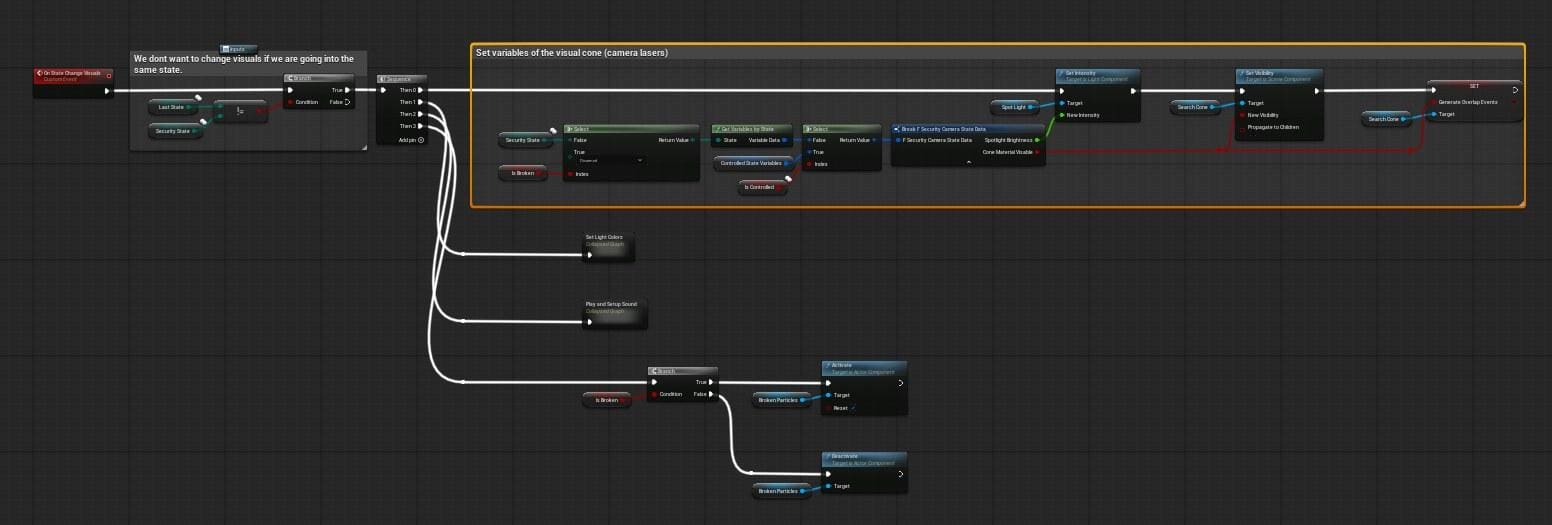
BP_Security_Camera On State Change Visuals updates camera lights, search cone, overlap events, particles, and materials.
Broken and controlled states
Set Broken changes Is Broken and then changes the camera state to Disarmed when broken or Armed when repaired. Set Controlled updates Is Controlled. When the camera is broken or controlled, its trigger forwarding behavior is prevented from calling the parent update path, which stops broken/controlled cameras from acting like normal autonomous detectors.

Set Broken, Set Controlled, and controlled OnRep behavior for BP_Security_Camera.
AC_PC_SECURITY_SYSTEM
AC_PC_Security_System is the player controller component used by the CCTV terminal flow. It exists so the player can enter a terminal, receive a UI, switch input mappings, control a camera, and then return to normal gameplay input when finished.
Opening the terminal
Client_Create UI sets the current CCTV terminal, disables normal player input, links the CCTV input mapping context, creates the WBP Security Terminal widget, adds it to the viewport, activates the first camera, animates the terminal material, and requests the first camera from the server if no camera is already active.
Input mapping
When the terminal opens, the component disables input on the controlled pawn and enables input on the terminal. It then adds the IM_CCTV input mapping context with priority 5. When the terminal closes, it removes the widget, removes the CCTV mapping context, and enables input back on the controlled pawn.
Server/client camera RPCs
The component contains server and client wrappers for requesting cameras, returning cameras, getting/losing camera ownership, and setting terminal camera text. This keeps camera control authoritative while still allowing the owning client to display and control the camera UI.
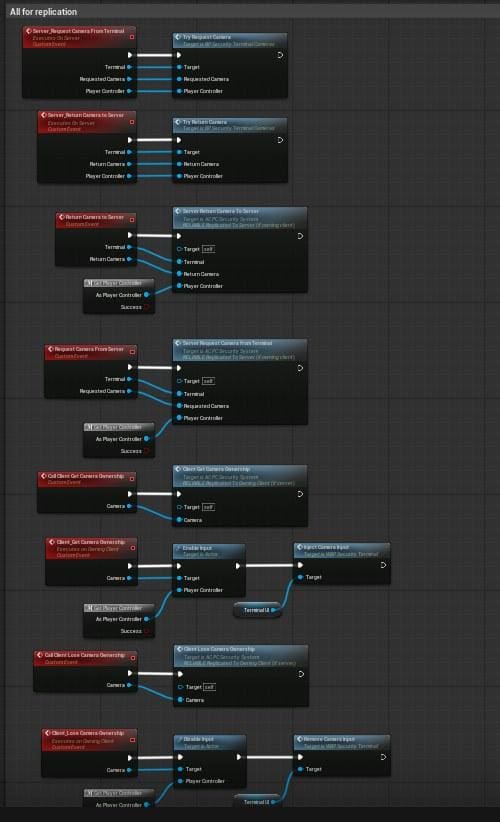
AC_PC_Security_System replication and ownership events for request, return, gain ownership, and lose ownership flows.
BP_SECURITY_TERMINAL_CAMERAS
BP_Security_Terminal_Cameras is the physical terminal actor that the player interacts with. It acts as the bridge between the world terminal, the security manager, the camera list, and the player controller component.
Requesting and returning a camera
Request Camera checks that the requested camera is valid, controllable, and not already in the controlled camera list. If valid, the camera is added to the controlled cameras list. The terminal then sets the camera as controlled, sets its owner to the player controller, and tells the player controller component that the client gained camera ownership.

Terminal request camera flow: request camera, set controlled, set owner, and call client ownership on the player controller component.
Return Camera removes the camera from the controlled camera list, clears ownership, sets controlled false, changes the camera state back to Armed, and tells the player controller component that camera ownership was lost.
Switching cameras
The terminal supports next/previous camera input. Try Switch Camera checks that there are controllable cameras, finds the next operable camera index, deactivates the current camera capture, activates the new camera capture, and tells the server if the active camera changed.

Get Next Operable Camera Index skips broken or disarmed cameras and loops through the manager camera list.
Render targets and monitor material
The terminal creates and assigns render targets so that the camera SceneCapture can be shown on the monitor material. Activate Camera On Index activates the camera SceneCapture, assigns the render texture, updates the monitor material parameter, and updates the current camera name on the terminal UI.
Exiting camera control
When the player exits the CCTV input action, the terminal returns the active camera to the server, records the last active camera, clears the active camera, and asks the player controller component to remove the mapping and return normal controls.

Terminal camera switch flow tells the server when the active camera changes.
BP_SECURITY_CONTROL_PANEL
BP_Security_Control_Panel is used when the player needs a manager-facing UI rather than direct CCTV control. It is useful for an arm/disarm/trigger alarm panel in a security room.
Opening the control panel
On Interact runs on the server. It checks that the controller is valid, refuses to open if the panel is already open, marks the panel as open, sets the panel owner to the interacting controller, and calls a client RPC to create the widget.
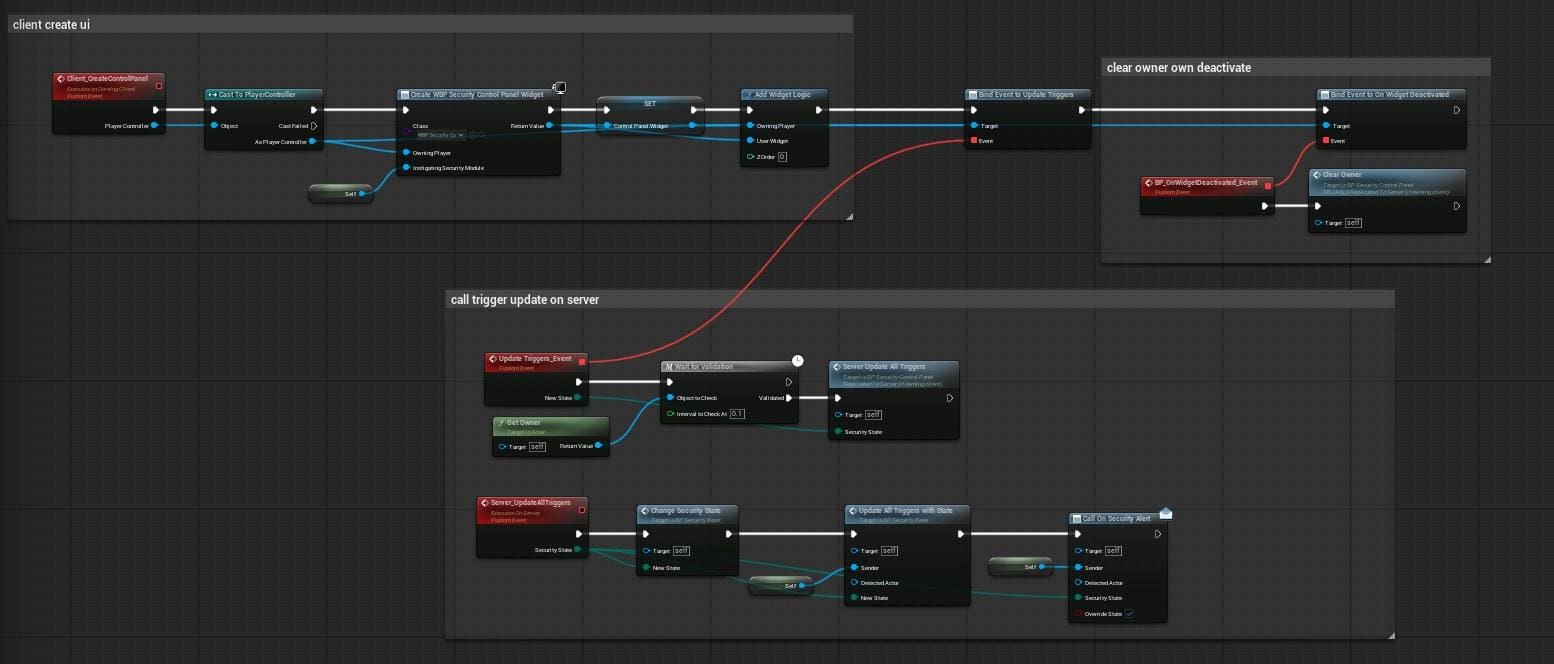
Control panel client widget creation and server update event binding.
Updating triggers
The control panel binds an update event from the widget. When the widget requests a new state, the panel validates ownership, sends the request to the server, changes its own state, updates all triggers with that state, and calls On Security Alert so connected modules and the manager can react.
Closing the control panel
When the widget is deactivated, the panel clears ownership and sets Is Open back to false. This prevents the panel from staying owned by a controller after the UI is closed.
BP_SECURITY_FLASHING_ALARM
BP_Security_Flashing_Alarm is a visual listener module. It has an Alarm Mesh, PointLight, SpotLight, OffLight, Light Rotation Speed, Alarm Material, Security State, and State Variables map. It receives On Detection, stores the incoming security state, and updates visuals from F_SecurityAlarm_State_Data.

BP_Security_Flashing_Alarm components and variables.
Visual updates
On State Change Visuals finds the state data for the current state. It sets the light rotation speed, toggles the spotlight and point light visibility, changes light colors, updates the material LensColor parameter, and then calls Update State.
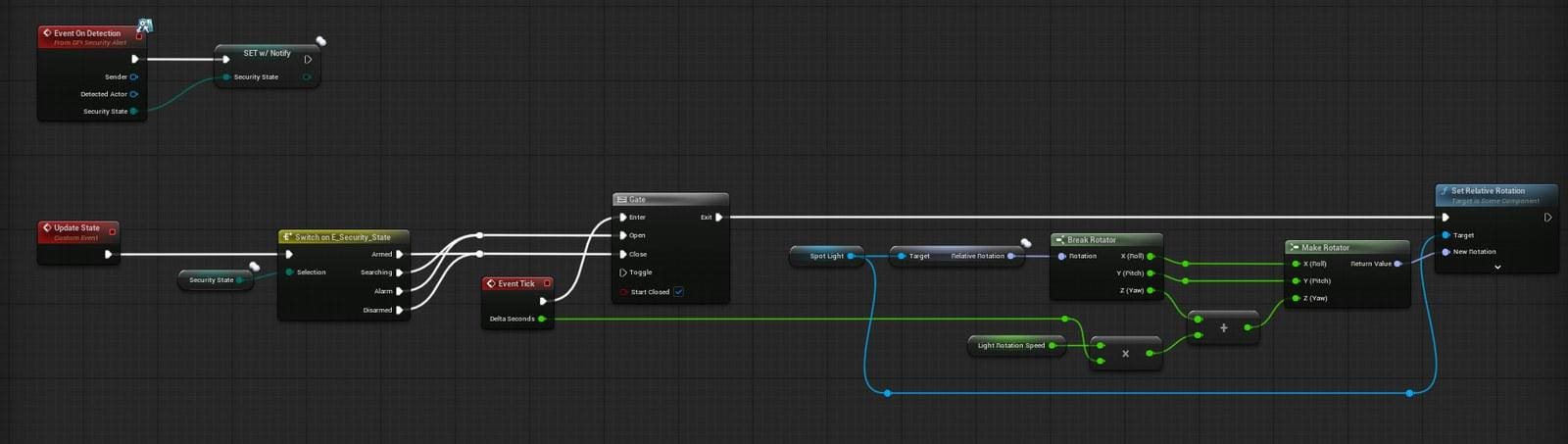
BP_Security_Flashing_Alarm state-driven light and material update flow.
Construction script
The construction script initializes the light colors and creates a dynamic material instance for the alarm mesh. This means the actor is ready to change material color at runtime without editing the base material asset.
BP_SECURITY_LASER
BP_Security_Laser is a detector beam. It detects overlap against the laser collision, validates the target through the same security target rules, changes its own state to Alarm, calls On Security Alert, updates connected triggers, and starts the neutral timer path.

BP_Security_Laser overlap, On Detection, and state visual logic.
Laser construction and length
The construction script traces from the laser origin toward the configured laser direction and scales the laser mesh based on either the hit distance or the configured Laser Length. This allows designers to adjust the beam length in the editor and have the visual scale match the environment.

BP_Security_Laser construction script calculates the laser beam scale from trace distance and Laser Length.
Laser state visuals
On State Change Visuals switches laser visibility and overlap event generation. Armed, Searching, and Alarm can keep the beam active, while Disarmed can hide the beam and stop overlap events depending on the configured switch routes.
BP_SECURITY_SIREN
BP_Security_Siren is an audio listener module. On Detection sets Security State and Last Security State. On State Change Visuals checks whether the state actually changed, finds the sound object for the current state from State Variables, loads or casts it to SoundBase, sets it on the audio component, and plays it. If no valid sound is found, the audio component is stopped.
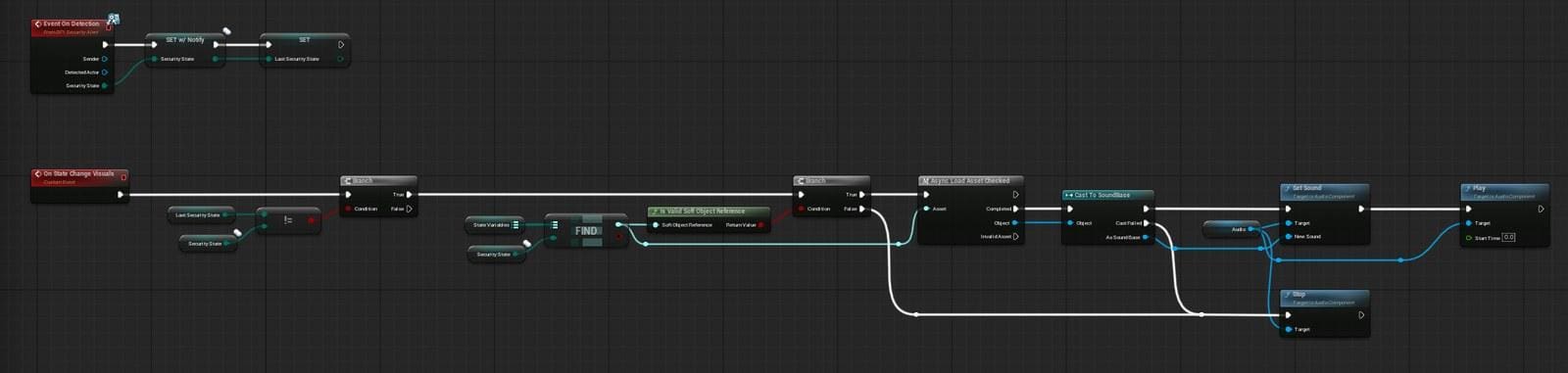
BP_Security_Siren state-driven audio switching.
BP_SECURITYDOOR
BP_SecurityDoor is a security listener that drives door animation from the current security state. It stores the current animation position before switching, then plays either the open or close montage from that position. In the shown implementation, Armed, Searching, and Alarm route to Play Open Animation, while Disarmed routes to Play Close Animation.

BP_SecurityDoor OnRep state logic and open/close montage playback.
This makes the door useful as a connected listener. A camera, laser, manager, terminal, or control panel can send a state update, and the door responds without needing to know which actor caused the alert.
Interfaces, Dispatchers, and Connections
On Detection interface
The On Detection interface is the common message used by security actors. It carries the sender, detected actor, and security state. Any actor that implements the interface can be placed in a trigger array or discovered by the manager and respond to detection events.
| Input | Use |
|---|---|
| Sender | The actor or module that caused or forwarded the detection. |
| Detected Actor | The player, pawn, or actor that caused the detection. Some listener actors may ignore this if they only need the state. |
| Security State | The E_Security_State value being sent to the listener. |
On Security Alert dispatcher
BP_Security_Base exposes On Security Alert. The manager binds to this dispatcher during Setup Detector so it can hear alerts from individual detectors and then update the full manager-connected network.
Blueprint To Trigger Alarm Array
For simple direct connections, designers can set Blueprint To Trigger Alarm Array on a detector. Every actor in this array should implement the security alert interface. When the detector changes state, it loops through the array and calls On Detection on each entry.
One-way and two-way connections
Connections are directional. If Camera A lists Camera B in its trigger array, Camera A can notify Camera B. Camera B will not notify Camera A unless Camera A is also listed in Camera B’s trigger array, or unless a manager updates both actors.
Networking and Replication
The system contains several network-facing routes. State changes are replicated with OnRep callbacks, terminal UI creation runs on the owning client, camera request/return calls are sent to the server, and camera ownership is given to the player controller while the camera is controlled.
Security State uses OnRep behavior so visuals can update on clients when the state changes.
AC_PC_Security_System owns the client-side terminal UI and input mapping changes.
Camera request and return are server-authoritative, with client callbacks for ownership gain/loss.
Terminal cameras are temporarily owned by the player controller while controlled, then returned to server ownership when the player exits.
Controlled camera rotation is sent back to the server so the replicated camera view stays synchronized.
For multiplayer projects, the important rule is to keep detection and state authority on the server, while UI and input remain on the owning client. The provided graphs follow this split through Client_Create UI, Server_Request Camera, Server_Return Camera, and ownership callbacks.
How-to Guides
How to add a security manager to a room
- Place BP_SecurityManager in the room or area that should control the security network.
- Set SecurityManagerID to a unique Gameplay Tag for this room or security group.
- Decide whether the manager should auto-connect by range. If yes, enable Use Range To find Connections and set Auto Connect Range.
- Add any default friendly or authorized tags to Default Authorized Affiliations.
- If the manager should control detector timer values, enable Override Detector Values and set the values you want to push into detectors.
- On BeginPlay, the manager finds or loops detectors and calls Setup Detector. Confirm the Detectors and Controllable Camera’s arrays are populated during play.
- Use a terminal or control panel to drive the manager state, or allow detectors to report alerts to the manager through On Security Alert.
How to add a camera
- Place BP_Security_Camera in the level.
- Set Security Manager if it should belong to a room manager, or let the manager discover it automatically.
- Configure State Variables for Armed, Searching, Alarm, and Disarmed. Set colors, brightness, sounds, rotation speeds, and cone visibility per state.
- Set Camera Max Yaw, Camera Pitch, View Distance, and Camera Line Trace Offsets to control detection coverage.
- Add Patrolling Rotators if the camera should scan between points.
- Set Controllable to true if the camera should be usable by BP_Security_Terminal_Cameras.
- Give the camera a Name so the terminal UI can display a readable camera label.
- Test with Show Debug Line Trace enabled if targets are not being detected correctly.
How to add a laser
- Place BP_Security_Laser in the level.
- Rotate the laser so its direction points down the intended beam path.
- Set Laser Length to the desired maximum length. The construction script will scale the beam based on the trace result and this value.
- Make sure the laser overlap/collision detects the pawn or target class you want to trigger it.
- Connect listener actors through Blueprint To Trigger Alarm Array, or assign it to a BP_SecurityManager.
- Test by walking a valid, unauthorized pawn through the beam. The laser should enter Alarm and forward On Detection to listeners.
How to connect a detector to an alarm light
- Place a detector such as BP_Security_Camera or BP_Security_Laser.
- Place BP_Security_Flashing_Alarm in the level.
- Select the detector actor.
- In the Details panel, find Blueprint To Trigger Alarm Array.
- Add a new array element and assign the BP_Security_Flashing_Alarm actor.
- Trigger the detector during play. The detector should call On Detection on the alarm actor and the alarm should update its light/material state.
How to build a one-way camera connection
- Place two BP_Security_Camera actors: Camera A and Camera B.
- Select Camera A.
- Add Camera B to Camera A’s Blueprint To Trigger Alarm Array.
- Do not add Camera A to Camera B’s array.
- During play, trigger Camera A. Camera B should respond because Camera A sends an On Detection event to it.
- Trigger Camera B directly. Camera A should not respond unless you also created the reverse connection.
How to make a two-way connection
- Follow the one-way setup from Camera A to Camera B.
- Select Camera B.
- Add Camera A to Camera B’s Blueprint To Trigger Alarm Array.
- Now either camera can trigger the other.
- For larger groups, use BP_SecurityManager instead of manually creating many two-way links.
How to add a control terminal for cameras
- Place BP_Security_Terminal_Cameras in the level.
- Assign the Security Manager reference so the terminal can read Controllable Camera’s.
- Make sure each camera that should be viewable has Controllable set to true.
- Make sure the player controller can receive or create AC_PC_Security_System. The terminal interaction flow adds it if missing in the shown graph.
- Confirm the terminal has a monitor material instance and render target setup.
- Interact with the terminal. The player should receive the CCTV UI, normal movement input should be disabled, and the first operable camera should activate.
- Use previous/next camera input to switch cameras. Broken and disarmed cameras should be skipped.
- Use the exit input to return camera ownership and restore player controls.
How to add an arm/disarm control panel
- Place BP_Security_Control_Panel in the level.
- Assign the manager or connected security modules it should affect.
- Ensure the widget used by the panel can send the requested security state back to the panel.
- Interact with the panel during play. The panel should set ownership to the interacting controller and create the widget on the owning client.
- Press Arm, Disarm, or Trigger Alarm in the widget.
- The panel should send the update to the server, call Change Security State, update connected triggers, and call On Security Alert.
- When the widget closes, confirm Clear Owner is called so the panel is no longer locked as open.
How to add a switch that breaks cameras
A common extension is a wall switch, breaker box, or sabotage button that disables one or more cameras. The provided camera already has Set Broken, so the switch does not need to rewrite camera logic.
- Create a new Blueprint actor, for example BP_Security_Camera_BreakSwitch.
- Add an interact component or implement the same interaction interface used by your project.
- Add an editable array variable named Target Cameras of type BP_Security_Camera Object Reference.
- Add a Boolean variable named Break Cameras. Set it to true for a one-way sabotage switch, or toggle it if you want a repair switch.
- On Interact, loop Target Cameras.
- For each valid camera, call Set Broken and pass true to break the camera. If this switch should repair cameras, pass false instead.
- The camera Set Broken function will set Is Broken and then change the security state to Disarmed when broken or Armed when repaired.
- If using a terminal, test camera switching after the break. The terminal should skip cameras that are broken or disarmed when finding the next operable camera.
- If the broken camera should also notify alarms or managers, add a custom call after Set Broken to send On Detection or update the manager. If it should silently fail, do not forward an alert.
How to make a switch that breaks only the left or right camera
- Place two cameras and name them clearly, such as Cam_Left and Cam_Right.
- Place one break switch near each button or panel.
- On the left switch, set Target Cameras to only Cam_Left.
- On the right switch, set Target Cameras to only Cam_Right.
- On each switch interaction, call Set Broken(true) on the assigned array.
- Optionally add a text prompt or widget message so the player knows which camera was sabotaged.
- Test through the terminal. The broken camera should no longer be selected as an operable active camera.
How to authorize a player or NPC
- Make sure the actor has or can receive the Actor Identifier component used by the manager authorization flow.
- Select the BP_SecurityManager for the area.
- Set SecurityManagerID to the tag that represents this security group.
- Add the actor’s allowed affiliation tag to Default Authorized Affiliations, or call Authorize Actor at runtime.
- When the actor enters a camera cone or laser, Is Authorized Player should return true and Is Valid Security Target should return false.
- Use Deauthorize Actor when the actor should lose permission again.
How to adjust camera detection accuracy
- Select the BP_Security_Camera.
- Increase View Distance if the camera should see farther.
- Adjust Camera Max Yaw and Camera Pitch if the scan angle is too wide or too narrow.
- Add or edit Camera Line Trace Offsets if the camera misses targets too often or sees through edges incorrectly.
- Enable Show Debug Line Trace during testing. The demo world shows this as a way to see how visibility traces are being performed.
- Test a target behind a wall. A correct setup should keep the target undetected when line of sight is blocked.

Debug Line Traces demo sign: enabling debug traces helps visualize camera visibility checks.
How to change alarm light colors
- Select BP_Security_Flashing_Alarm or BP_Security_Camera depending on which visual you want to change.
- Open the relevant State Variables map.
- Expand the state you want to edit, such as Armed, Searching, Alarm, or Disarmed.
- For alarms, edit Lamp Color, Light On, and Light Speed.
- For cameras, edit Alarm State Color, Spotlight Brightness, and Cone Material Visable.
- Play the level and trigger the state. The dynamic material and light components should update from the new values.
How to change siren sounds
- Open or select BP_Security_Siren.
- Find the State Variables map or sound fields used by the siren setup.
- Assign a SoundBase or SoundCue for the state you want to customize.
- Trigger that state during play.
- If the sound does not play, check that the asset is valid, the audio component exists, and the state actually changed from Last Security State.
How to add a door or gate that responds to alarms
- Place BP_SecurityDoor in the level or create a child blueprint from it.
- Assign the open and close animation montages used by the door skeletal mesh.
- Add the door to a detector’s Blueprint To Trigger Alarm Array, or register it with the security manager.
- Decide which state should open or close the door. In the shown setup, Armed, Searching, and Alarm use the open animation, while Disarmed uses the close animation.
- Trigger the detector and confirm that OnRep Security State plays the correct montage.
- If the door should behave differently, edit the Switch on E_Security_State routes in BP_SecurityDoor.
How to change laser length
- Select BP_Security_Laser in the level.
- Adjust Laser Length in the Details panel.
- Move or rotate the laser direction component if the beam points the wrong way.
- Compile or move the actor so the construction script re-runs.
- The laser mesh scale should update based on the trace hit distance or configured Laser Length.
- Test collision by walking through the beam in play mode.
How to stop alarms resetting too early
- Check BP_Security_Base and BP_SecurityManager timer settings.
- Increase Alarm Time if the alarm resets too quickly.
- Ensure Disable With Alarm Timer is not forcing the timer off when you expect it to run.
- If a manager is used, verify Does Any Camera Have This State is correctly checking for Alarm before allowing the reset.
- Confirm that cameras still in Alarm remain registered in the manager Detectors array.
How to make a new custom security module
- Decide whether the module is a detector, listener, or both.
- If it needs the shared base state/timer/connection behavior, create it as a child of BP_Security_Base.
- If it only needs to listen for events, implement the security On Detection interface.
- Add a Security State variable if it needs to remember the current state.
- In On Detection, read the incoming Security State and run the local behavior for that actor.
- If the actor should forward alerts, call Update All Triggers With State or use the parent base logic.
- Add it to a detector’s Blueprint To Trigger Alarm Array or let BP_SecurityManager discover it by interface/range.
Example Flows
Camera detects an unauthorized player
The player enters the camera SearchCone overlap.
The camera checks authority and validates the actor.
Check If Can See Target verifies line of sight using distance and trace offsets.
Is Valid Security Target asks the security manager whether the actor is authorized.
If the actor is visible and unauthorized, the camera stores Locked On Target, changes state to Alarm, calls On Security Alert, and updates all connected triggers.
Connected alarms, sirens, doors, or cameras receive On Detection and update their own state.
Laser triggers an alarm
The player overlaps the laser collision.
The laser checks authority, casts/validates the pawn, and confirms the target is not authorized.
The laser changes its security state to Alarm.
The laser calls On Security Alert and Update All Triggers With State.
Connected alarms, sirens, doors, and manager listeners respond to the Alarm state.
Manager-controlled security room
BP_SecurityManager finds actors that implement the security alert interface or traces for nearby security actors.
Setup Detector binds each detector’s On Security Alert dispatcher to the manager.
A camera or laser detects the player and broadcasts an alert.
The manager receives the alert, updates all registered triggers, and changes its own state.
The control panel or terminal can also send arm/disarm/alarm requests through the manager.
Player uses the CCTV terminal
The player interacts with BP_Security_Terminal_Cameras.
The terminal checks authorization and calls the player controller component.
AC_PC_Security_System creates the terminal UI, disables player input, and adds the CCTV input mapping context.
The terminal activates the first operable camera, assigns the render target, updates the monitor material, and requests ownership from the server.
The player can switch cameras until they exit, then the terminal returns camera ownership and restores normal controls.
Camera is broken by a switch
The player interacts with a custom break switch.
The switch loops its Target Cameras array and calls Set Broken(true).
Each camera sets Is Broken and changes state to Disarmed.
The broken camera stops acting as a normal autonomous detector and the terminal skip logic avoids selecting it as an operable camera.
A repair switch can call Set Broken(false) to return the camera to Armed.
Summary
The Security System is a flexible Blueprint framework for building connected alarm and CCTV gameplay. Its main strength is the generic connection model: detectors and listeners communicate through a shared interface and security state enum, while each actor decides how to visually or mechanically respond to the state.
BP_Security_Base provides the reusable foundation, BP_SecurityManager coordinates larger networks, BP_Security_Camera provides advanced detection and terminal control, and AC_PC_Security_System owns the player-facing CCTV flow. Designers can use direct actor arrays for simple one-way links, or a manager for larger rooms with many connected modules.
Because the system is state-data driven, most practical changes can be made without rewriting core logic: adjust camera range, edit line trace offsets, change alarm colors, replace siren sounds, add connected doors, authorize actors, create one-way links, or add switches that break and repair cameras. This makes the system suitable both as a technical framework for developers and as a user-facing toolkit for level designers building security encounters.