Skip to content
Games by Hyper
Sign Up / Login
Games by Hyper

Generic

  • QuickStart
  • Support
  • Purchase Options
  • Roadmap
  • FAQ
  • Learning
  • For Professional Studios

Templates

  • Template Logic and flexibility

Shared Infrastructure

  • Gameplay Tags
  • Datamanagement
  • Folder Structure

Item Management

  • Inventory
  • Jigsaw Inventory
  • List Inventory
  • Respawn Actor Manager
  • Hotbar
  • Crafting
  • Item Allocator
  • Vendor
  • Icon Creator
  • Interactive Foliage
  • Inspection System

Interaction and Feedback

  • Interaction System
  • Outliner System

UI

  • Main Menu
  • HUD
  • Information Prompt

Locomotion

  • Animation Framework
  • Extended Movement Component
  • Leader Posing
  • Custom-Skeletal-Meshes

Combat

  • Attribute Manager
  • Team Affiliation
  • Equipment Manager
  • Ragdoll System
  • Ability System
  • Target Locking
  • Weapon Attachment System
  • Limb System
  • Combat-framework

Construction and Survival Mechanics

  • Building System
  • Mineable Rocks
  • Tree Cutting
  • Farming System
  • Fishing System
  • Swimming System

Game Management

  • Global Save System
  • Respawn System
  • Session Manager
  • Game Mode System
  • Spectate System
  • Player Manager
  • Team Manager
  • Score Manager
  • Guild Manager
  • Party Manager

Multiplayer

  • Online Multiplayer Framework
  • Replication Subsystem
  • Chat System
  • Console Command Manager

AI

  • Basic AI
  • NPC Behavior System
  • Perception System
  • Companion System

Exploration and Narrative

  • Dialogue System
  • Memory System
  • Quest Manager
  • Map System
  • Teleport System
  • Guide System
  • Event Manager
  • Visual Novel System
  • Dungeon Adventure Kit
  • Region Manager

Progression and Leveling

  • Level Manager
  • Unlock System
  • Reputation System

Security and Control Systems

  • Drone System
  • Lock System
  • Security System
  • Defense System
  • Defense System – Modern
  • Defense System – Primitive

Character and Player Systems

  • Character Creator
  • Class System
  • Mount System
  • First Person

Environmental Control and Immersion

  • Time and Day Night Cycle management
  • Weather System
  • Background Music System
  • Footstep System

Environment Building

  • Mesh to Actor Swap System
  • Auto Landscape
  • Cave
  • Deform
  • Ditch
  • Exclusion
  • Forest
  • Forest-Basic
  • Lake
  • Level Instances
  • Mesh
  • Path
  • Props
  • Spline
  • Village
View Categories
  • Home
  • Docs
  • Vendor

Vendor

1 min read

Vendor #

Read the inventory documentation first to understand the container system. Also read the item allocator since vendors use the AC_ItemAllocator component for inventory management.

2. Vendor Component #

2.1 AC_Vendor_Advanced #

The AC_Vendor_Advanced component handles all trading functionality. Add this component to any actor to make it a vendor.

Key Settings:

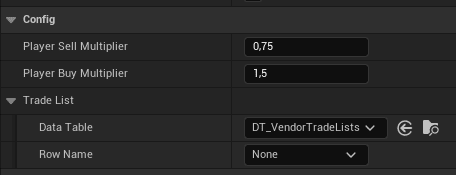
  • Trade List: Data table containing items for sale (uses same structure as Item Allocator loot tables)
  • Buy Multiplier: Percentage of item value the vendor pays when buying from player
  • Sell Multiplier: Percentage of item value the vendor charges when selling to player
  • Not Interested Categories: Array of category enum values the vendor won’t purchase
  • Currency Item: Reference to the currency item in DT_Items

Currency Counting

When counting player currency:

  • Get all items with currency type
  • For each currency item stack, multiply amount by base value
  • Return total currency value

5.2 Price Calculation #

Prices are calculated using base values and multipliers.

Base Price Calculation

Price = Base Value * Multiplier * Quantity

Where:

  • Base Value: From DT_Items
  • Multiplier: Buy or sell multiplier from AC_Vendor_Advanced
  • Quantity: Number of items

6. How-To Guides #

6.1 How to Create a Basic Vendor #

Step 1: Create Vendor Actor #

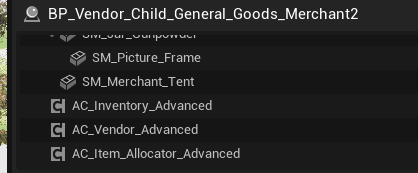
  • Create a new Blueprint actor (e.g., BP_Vendor_General)
  • Add a static mesh for the vendor (NPC, shop stall, etc.)

Step 2: Add Components #

  • Add AC_Inventory_Advanced component
  • Add AC_ItemAllocator component
  • Add AC_Vendor_Advanced component

Step 3: Create Trade List #

  • In Content Browser, right-click → Create Data Table
  • Choose the loot/trade table struct
  • Name it DT_TradeList_General
  • Add items you want the vendor to sell

Step 4: Configure Trade List Items #

For each item in the trade list:

  • Add a row with the item name
  • Set Item Row reference (select from DT_Items)
  • Configure Loot Table Info:
    • Chance of spawning in vendor inventory: 0.0 to 1.0 (1.0 = always in stock)
    • Minimal Amount to restock / Maximum Amount to restock: Initial stock quantity
    • Maximum Stock: Upper limit

Step 5: Assign Trade List to Vendor #

  • Select the vendor actor
  • Find AC_Vendor_Advanced component
  • Set Trade List to your created data table

Step 6: Configure Buy/Sell Multipliers #

In the AC_Vendor_Advanced component:

  • Set Buy Multiplier (e.g., 0.5)
  • Set Sell Multiplier (e.g., 1.0)

Step 7: Configure Not Interested Categories (Optional) #

In the AC_Vendor_Advanced component:

  • Add category enum values for item types vendor won’t buy
  • Example: General store leaves this empty (buys everything)
  • Example: Weapon vendor adds Consumables category

Step 8: Configure Restocking (Optional) #

In the AC_ItemAllocator component:

  • Enable Has Reallocation if desired
  • Set Reallocation Time

6.2 How to Configure Pricing #

Step 1: Set Base Item Values – In DT_Items, set appropriate base values for each item considering item power and progression. #

Step 2: Set Vendor Multipliers – Determine buy/sell multipliers: #

Typical Setup:

  • Buy Multiplier: 0.5 (vendors pay half value)
  • Sell Multiplier: 1.0 (vendors charge full value)

Player-Friendly Setup:

  • Buy Multiplier: 0.7
  • Sell Multiplier: 1.0

Challenging Setup:

  • Buy Multiplier: 0.3
  • Sell Multiplier: 1.5
What are your Feelings
Still stuck? How can we help?

How can we help?

Table of Contents
  • Vendor
    • 2. Vendor Component
      • 2.1 AC_Vendor_Advanced
      • 5.2 Price Calculation
    • 6. How-To Guides
      • 6.1 How to Create a Basic Vendor
      • Step 1: Create Vendor Actor
      • Step 2: Add Components
      • Step 3: Create Trade List
      • Step 4: Configure Trade List Items
      • Step 5: Assign Trade List to Vendor
      • Step 6: Configure Buy/Sell Multipliers
      • Step 7: Configure Not Interested Categories (Optional)
      • Step 8: Configure Restocking (Optional)
      • 6.2 How to Configure Pricing
      • Step 1: Set Base Item Values - In DT_Items, set appropriate base values for each item considering item power and progression.
      • Step 2: Set Vendor Multipliers - Determine buy/sell multipliers:

© 2025 Games by Hyper

X Reddit Patreon Discord Linkedin YouTube

Review Cart

No products in the cart.

  • Hyper Bundle Configurator
  • Shop
    • Game Templates
    • Courses
    • Loyalty Store
    • Survival Modules
    • RPG Modules
    • Environment Building
    • Browse All
  • My account
  • Become a Member
  • Cart
  • Get Help
    • FAQ
    • Upgrade your Game Template
    • Documentation
  • About Hyper
  • News & Updates