
Set Up Your Main Menu and Game Map
Updated May 25, 2026
Use this page to configure which map your main menu opens and which main menu settings are shown for singleplayer or multiplayer. The main menu should live in its own dedicated map, not in the gameplay map.
Related setup: Set Up Your Map to Play In, Customize the UI.
Main Menu Setup: Adjusting widgets and levels to open
You can use any map as a main menu, but it should be a dedicated main menu map. It should not be one of your game maps.
Assign one of the Hyper main menu GameModes to the main menu map. If you use the Hyper main menu level, or one of the foundation main menus, this is already set up. You can find the assigned GameMode in World Settings.
In the example below, GM_Startup_Hyper is assigned as the main menu GameMode. Check which GameMode is available in your systems, such as MST Pro or the Main Menu System. Those systems usually already include a main menu map that you only need to configure, such as choosing which map opens when the player starts a new game.

Choose between Multiplayer vs Singleplayer
Before configuring the main menu, decide whether this game or mode is multiplayer or singleplayer.
Multiplayer
- Requires session management, such as online subsystem configuration.
- Uses host screens, lobby browsing, and related multiplayer menu flow.
- Requires you to decide whether the game is a single-map session-based game or playlist-based.
- Single-map session: open world co-op, MMO-style worlds, and similar setups.
- Playlist: arena shooters and other match-based modes.
Singleplayer
- Usually uses buttons such as New Game and Load Game.
- Requires configuring which map opens when the player presses New Game.
Setup your game name, main menu map and game map
- Open the main menu GameMode.
- Open the main menu Player Controller used by that GameMode.
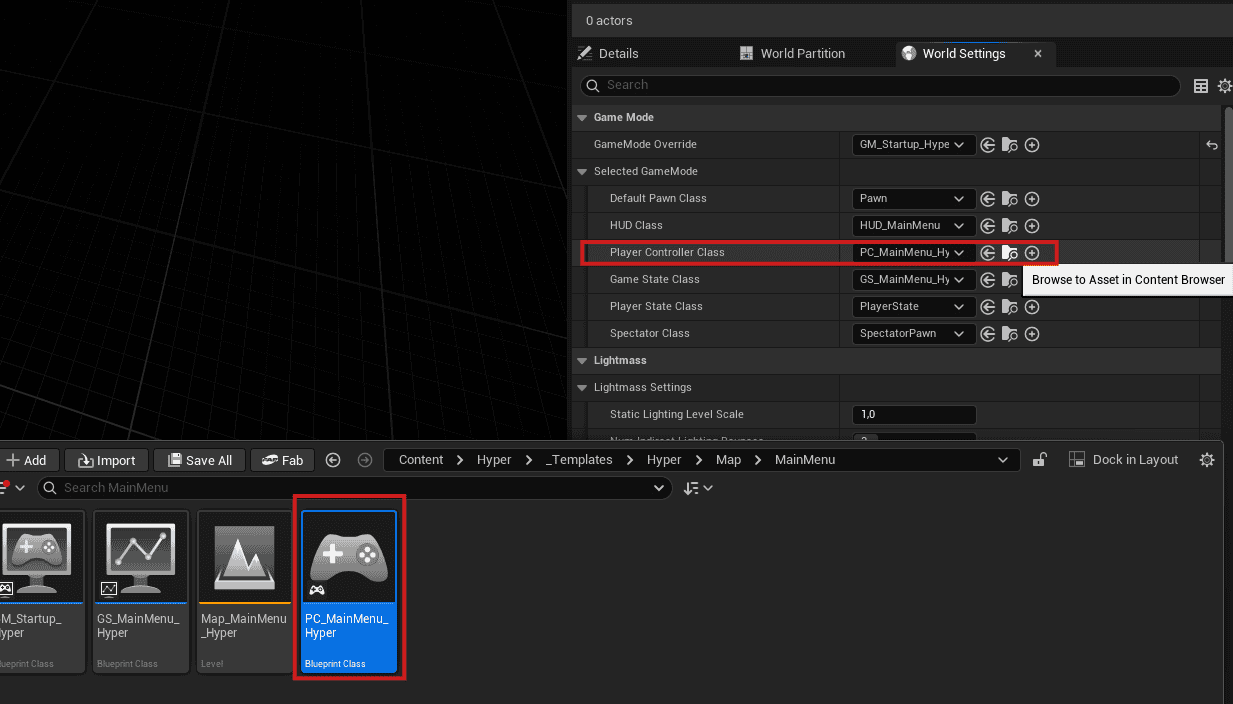
-
Find the main menu component.
- If you use a foundation with Save System, this may be AC_PC_MainMenu_SaveSystem.
- Set the Main Menu Text Override. This is shown as the game name in the menu.
- Set which map is the Main Menu Map. This should be the same map that has the main menu GameMode assigned.
- The Main Menu Map variable is used when returning to the main menu from inside the game.

If you have a singleplayer game or mode
-
Navigate to the main menu component.
- Select the map to open for singleplayer.
- This should be your game map.
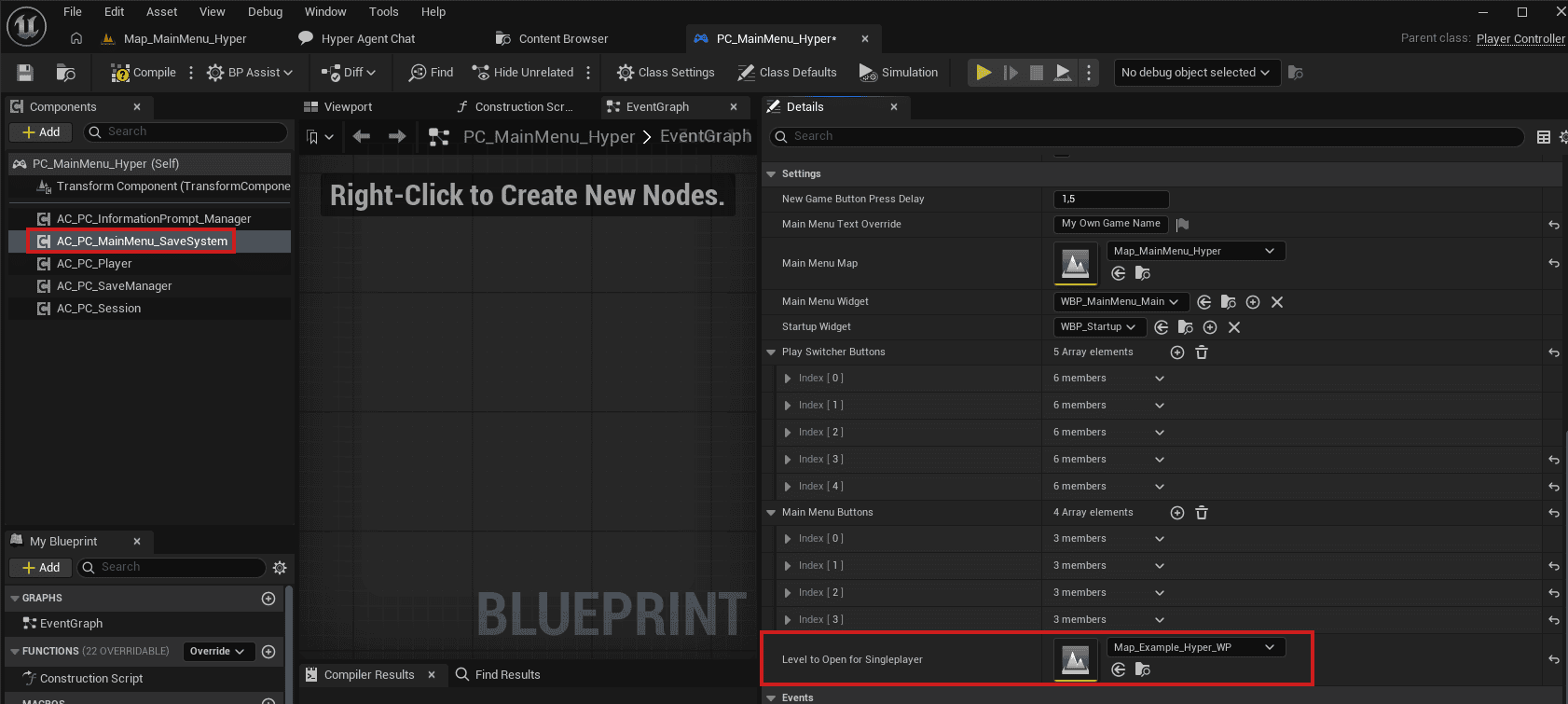
-
If you do not offer multiplayer options, navigate to the settings and find the play switcher buttons.
- Adjust the Play Switcher Buttons array because you do not need multiplayer buttons in a singleplayer game.
- Remove Browse.
- Remove Host.
- Your foundation may already be configured for a singleplayer experience.

If you offer a multiplayer experience
-
Set up your Online Playable Maps.
- The maps that are playable and selectable in the host screen are determined by DT_Playable_Maps.
- Select your map.
- Give the map a display name.
- Optionally assign a cover image so it is shown nicely in the host settings.

-
Determine your type of game:
- SingleGame: open world co-op, MMO-style worlds, and games like Ark Survival or Sons of the Forest.
- Playlist: arena-based shooters and match-based games like Call of Duty, Fortnite, or Rainbow Six Siege.
-
Open the GameState component on the main menu GameMode.
- Select the required Host Type.
- Make sure the main menu map is selected correctly.
- Do not start testing with Steam or EOS too early. It is usually better to integrate and fully validate those systems closer to release or publishing.
- Proper external online testing usually requires multiple physical PCs or devices and a more complete deployment setup.
- Steam server browser visibility requires a verified Steam App ID.
- See the OMF guide for the recommended setup and integration workflow.
- For early and mid-stage multiplayer development, use the configured Online Subsystem in the session manager to test multiplayer with multiple players on the same local network, without requiring full Steam or EOS integration.
