
Icon Creator
Updated May 25, 2026
The Icon Creator is a mesh-to-icon workflow for generating inventory-style icons from item meshes. It is designed around DT_Items, because most users want icons for the same items used by the inventory system.
For shared setup guidance, see the Migration Guide and Integration Guide. Use the System Atlas to look up functions, variables, events, components, and ownership references. Use this page for Icon Creator-specific setup and usage.
Related setup: Customize the UI.
Related Videos
Some videos may have been recorded before V4. The same principles still apply, but asset names, component names, and folder locations may differ. Treat the current written documentation and V4 names as the source of truth.
Mesh to Icon Creator – Overview and Walkthrough Play
Setup
- Open Map_Icon_Creator.
- Read the startup message and follow its instructions.
- Press Play and verify that the icon creator works.
- Open the included readme if you need more details.

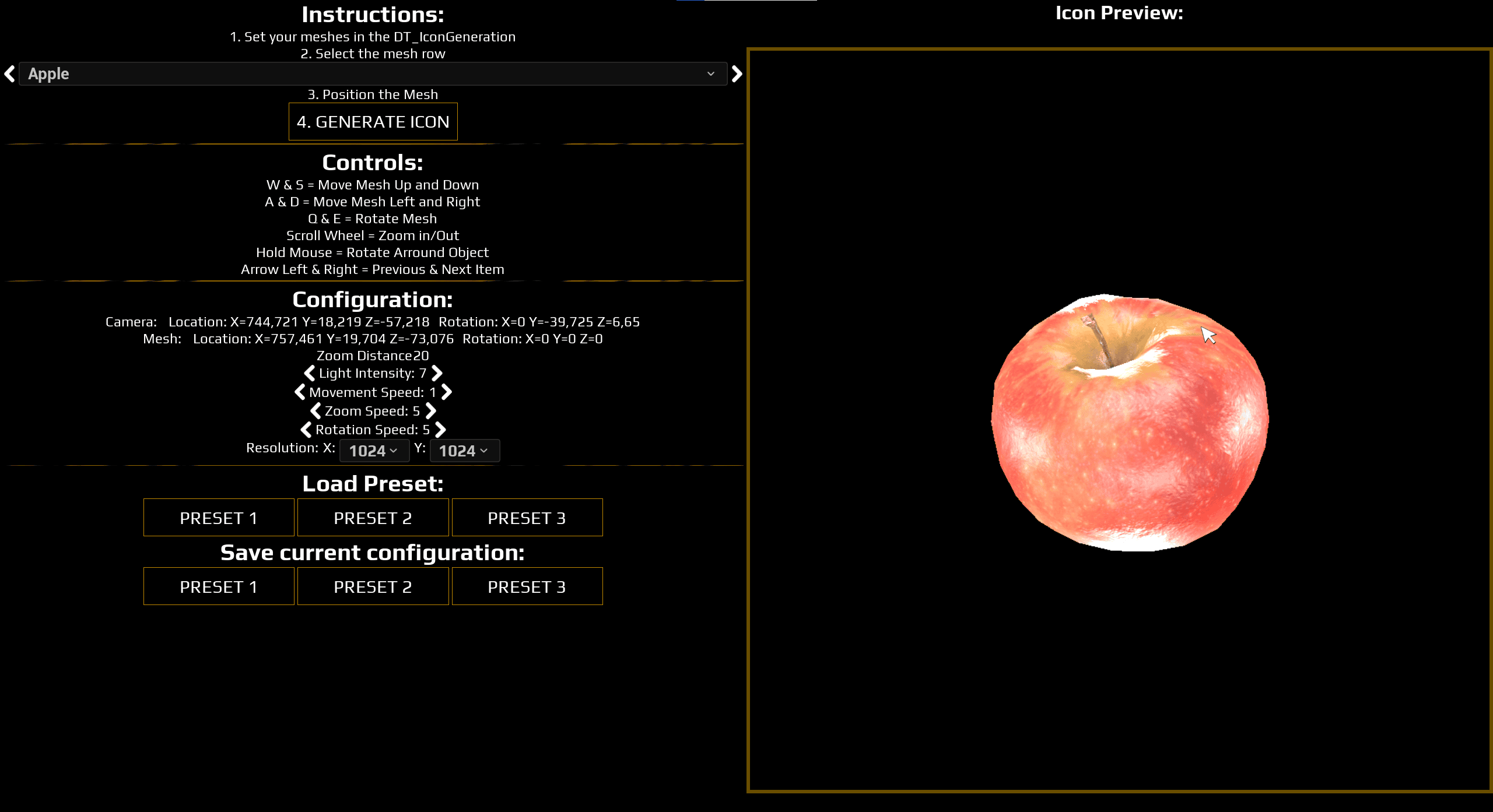

Adding Your Own Meshes
The Icon Creator reads DT_Items by default. Add a new row to that data table and assign either a static mesh or a skeletal mesh.
Do not assign both mesh types on the same row. If both are set, the static mesh takes priority over the skeletal mesh. After the mesh is added to the data table, it appears in the Icon Creator.

Controls
The tool lets you position, zoom, rotate, and switch between meshes while creating icons.

This project uses the Enhanced Input plugin for character movement and input. If Enhanced Input is enabled and the provided setup is used, the controls work automatically.
Inverted Opacity
Run the readme for details about icons, inverted opacity, and compressed alpha with black backgrounds. In the newest version, the system manually sets the minimum and maximum alpha of an icon, so inverted opacity usually does not need manual correction. The underlying logic is still useful to understand when troubleshooting icon transparency.

Backgrounds, Borders, and Glows
If the icon uses opacity, you can control the presentation around it: borders, glows, background colors, and similar UI treatments. The example widget demonstrates these options.
