Tree Cutting
Updated May 25, 2026
The Tree Cutting system includes two choppable tree workflows: a predictable material-offset workflow for static meshes and a more advanced Chaos-based workflow for destructible trees.
For shared setup guidance, see the Migration Guide and Integration Guide. Use the System Atlas to look up functions, variables, events, components, and ownership references. Use this page for Tree Cutting-specific setup, tuning, and troubleshooting.
Related Videos
Some videos may have been recorded before V4. The same principles still apply, but asset names, component names, and folder locations may differ. Treat the current written documentation and V4 names as the source of truth.
How to add your own choppable tree Tutorial PlayChoppable Trees Walkthrough For Tree Destruction PlayAdd Instant Breakable Trees – Small Tree to Twigs Devlog Play
Tree Cutting Workflows
| Workflow | Best For | Notes |
|---|---|---|
| Material Offset Tree | Stable, predictable static mesh chopping. | Requires selecting the mesh and setting up the material offset function. It has fewer visual effects but is easier to configure. |
| Chaos-Based Tree | More dramatic physical destruction. | Looks stronger visually, but requires more setup and is less predictable because it depends on Chaos behavior. |
Material Offset-Based Tree
Material-offset trees are static mesh based. You do not need to split the tree mesh manually.
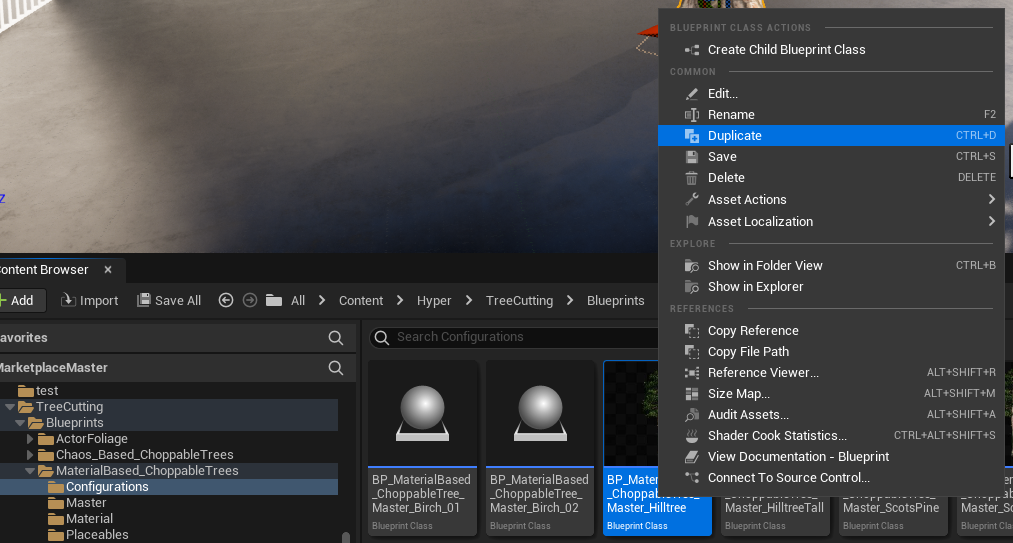
- Create a child of the master configuration or duplicate an existing configuration.
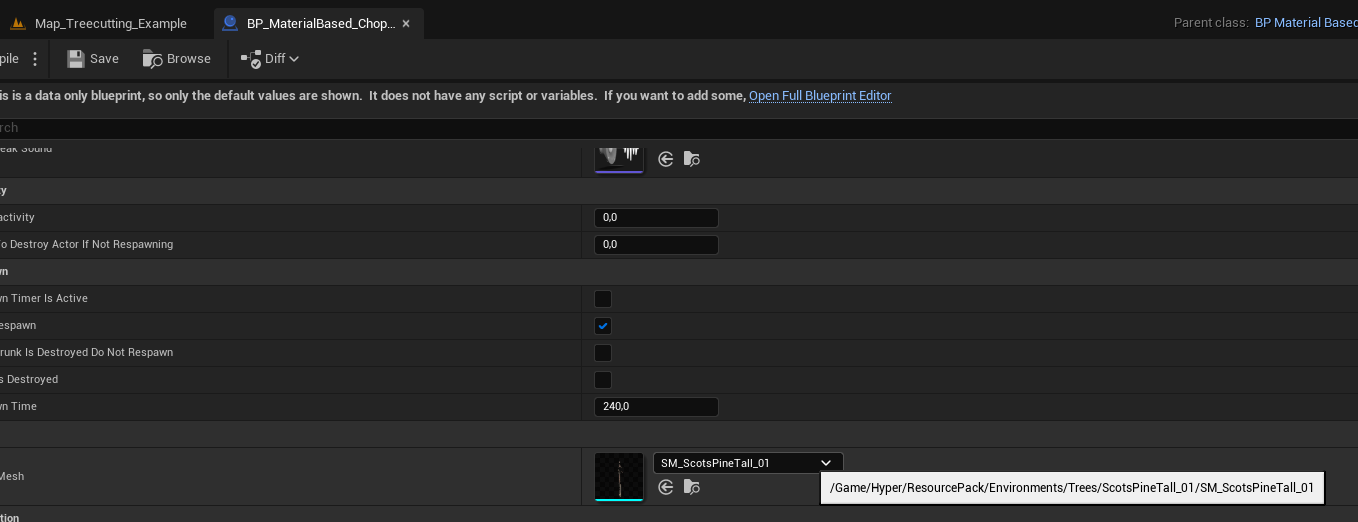
- Select the target static mesh in the class defaults.
- Open the tree mesh and identify the trunk/base material.
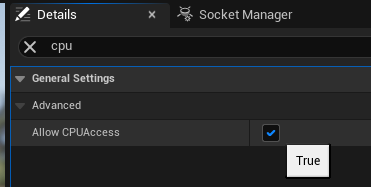
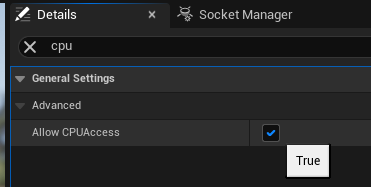
- Enable Allow CPU Access on the static mesh.
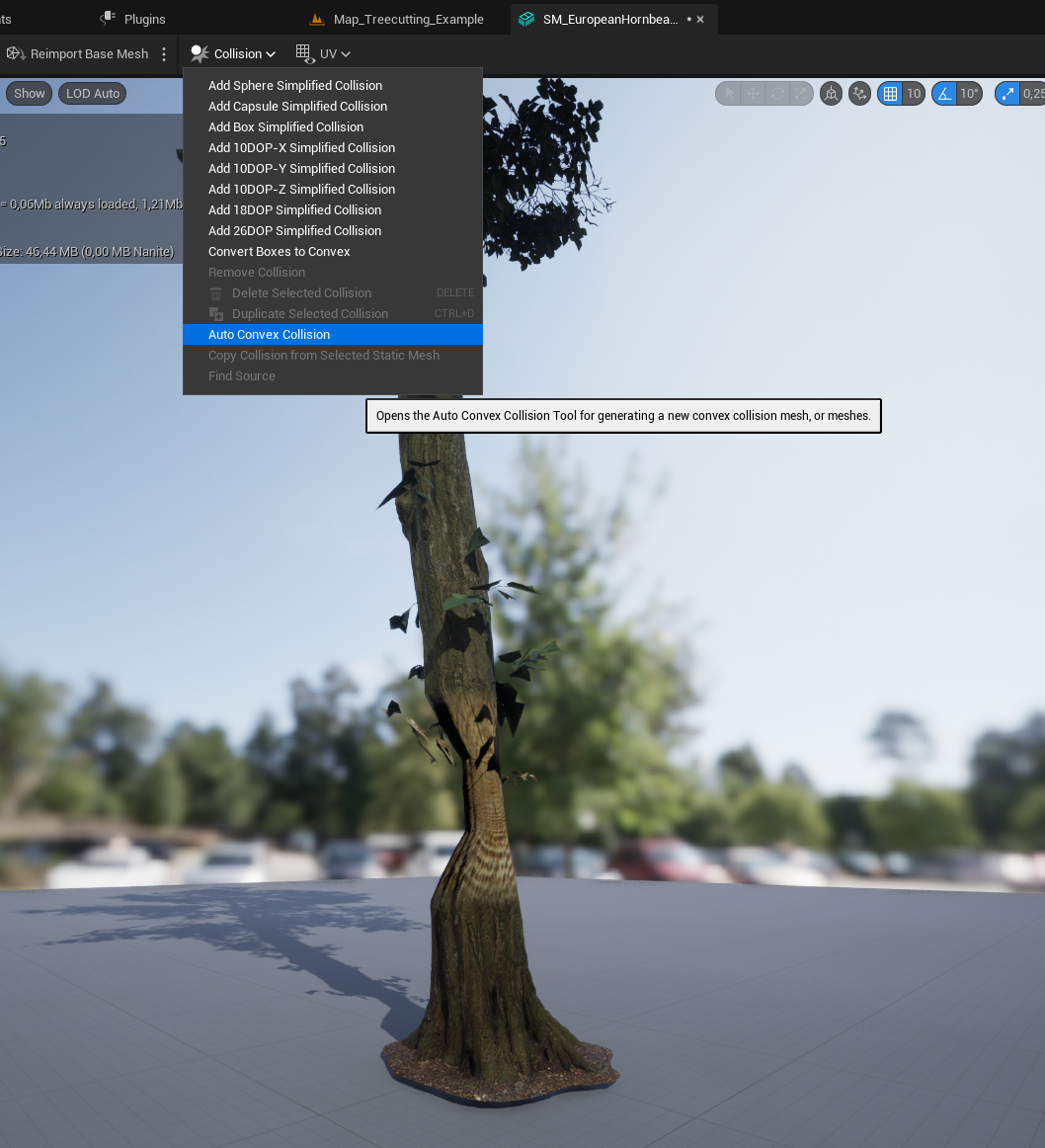
- Remove simple capsule collision and convert the collision to convex, or add and scale a capsule collision if convex collision does not work well for the mesh.
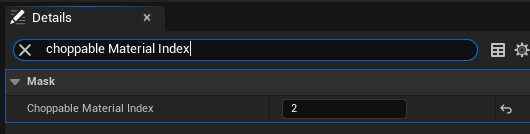
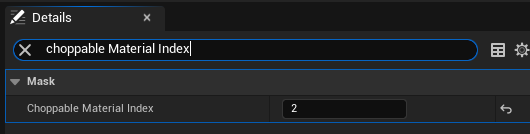
- If needed, set the Choppable Material Index in the configuration Blueprint.
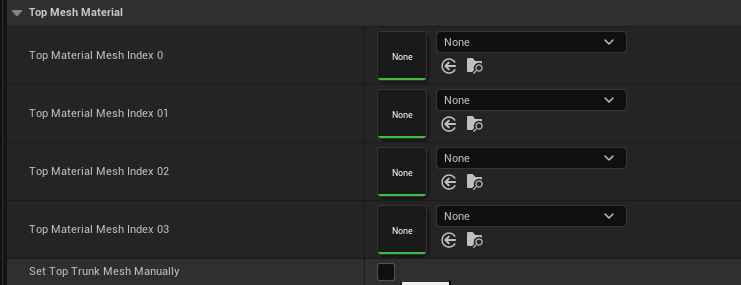
- If the cut top mesh requires manual material assignment, enable Set Top Mesh Manually and override the materials.
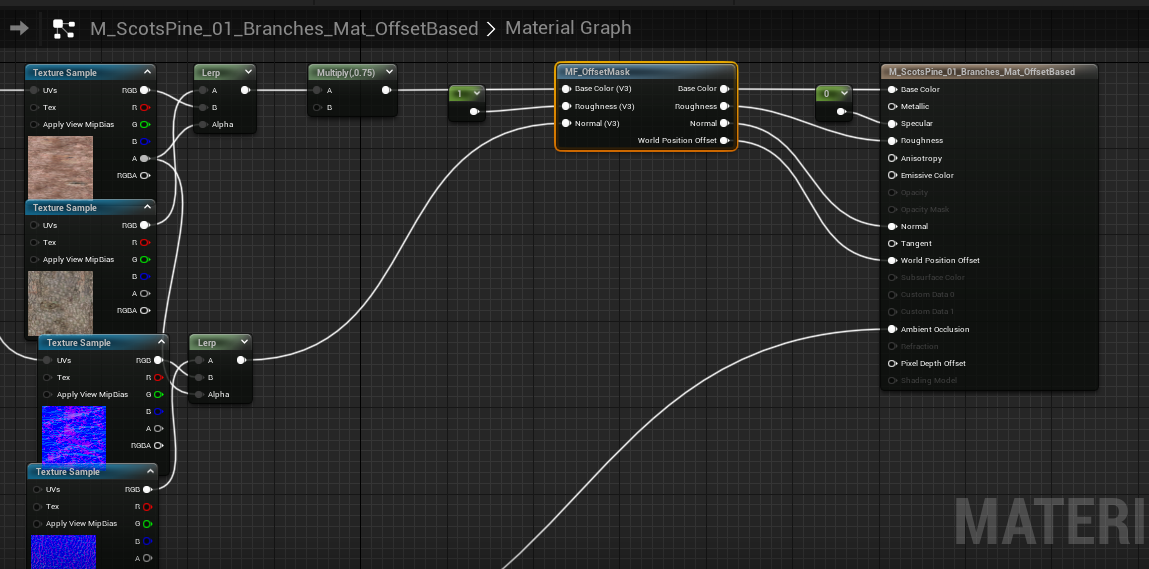
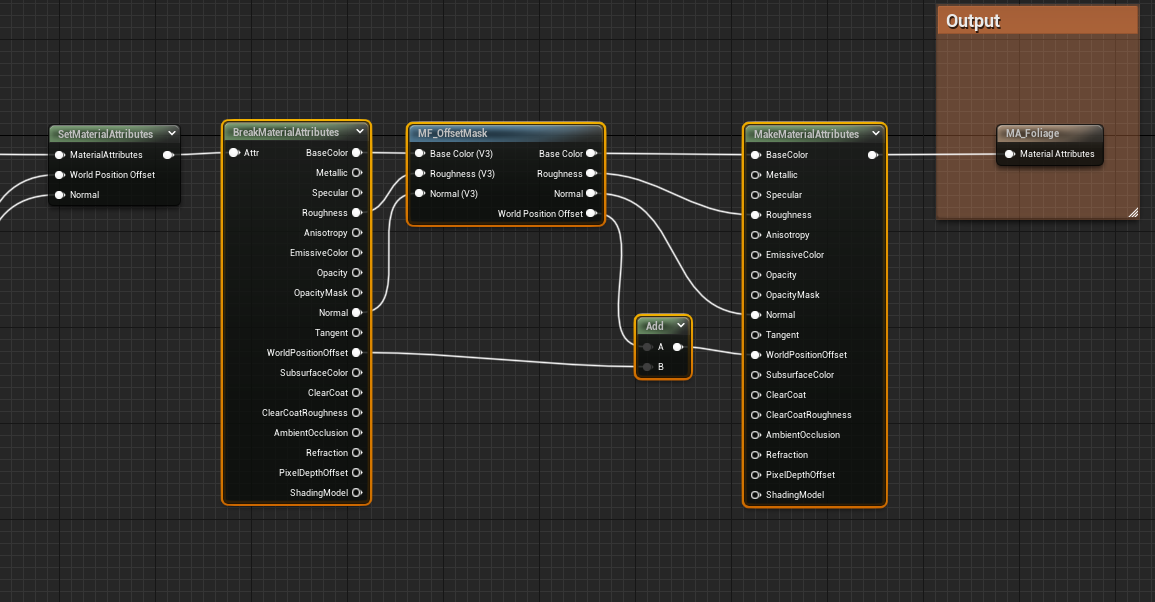
- Add MF_OffsetMask to the trunk material or master material and connect it.
- Tune the class defaults until the tree behaves correctly.
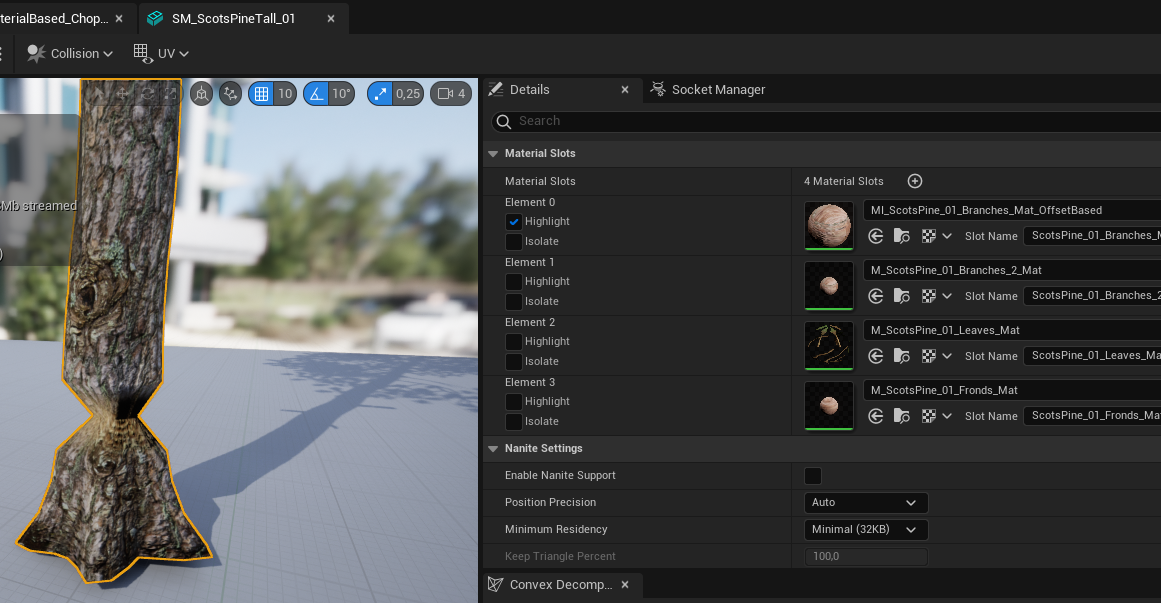
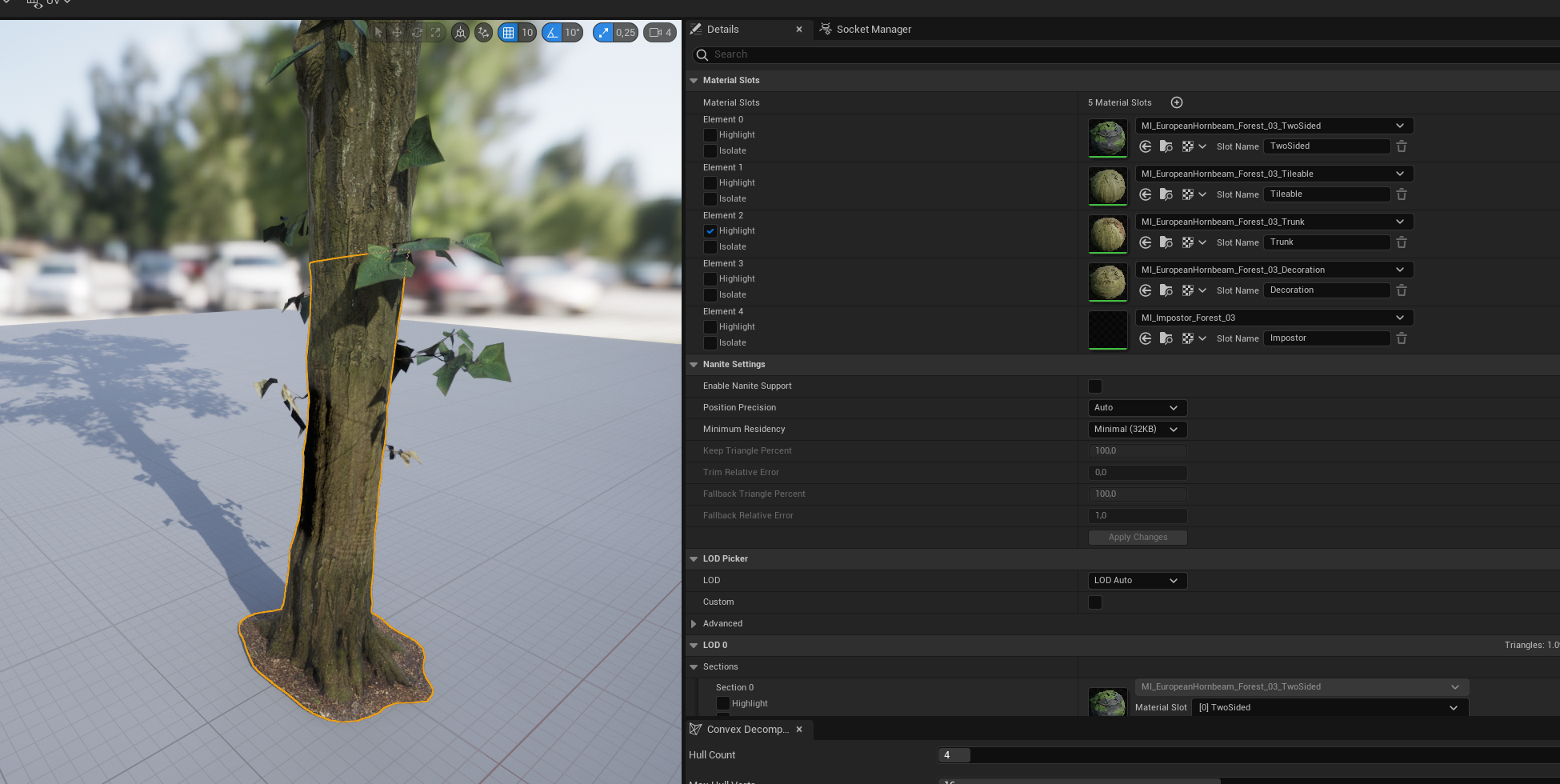
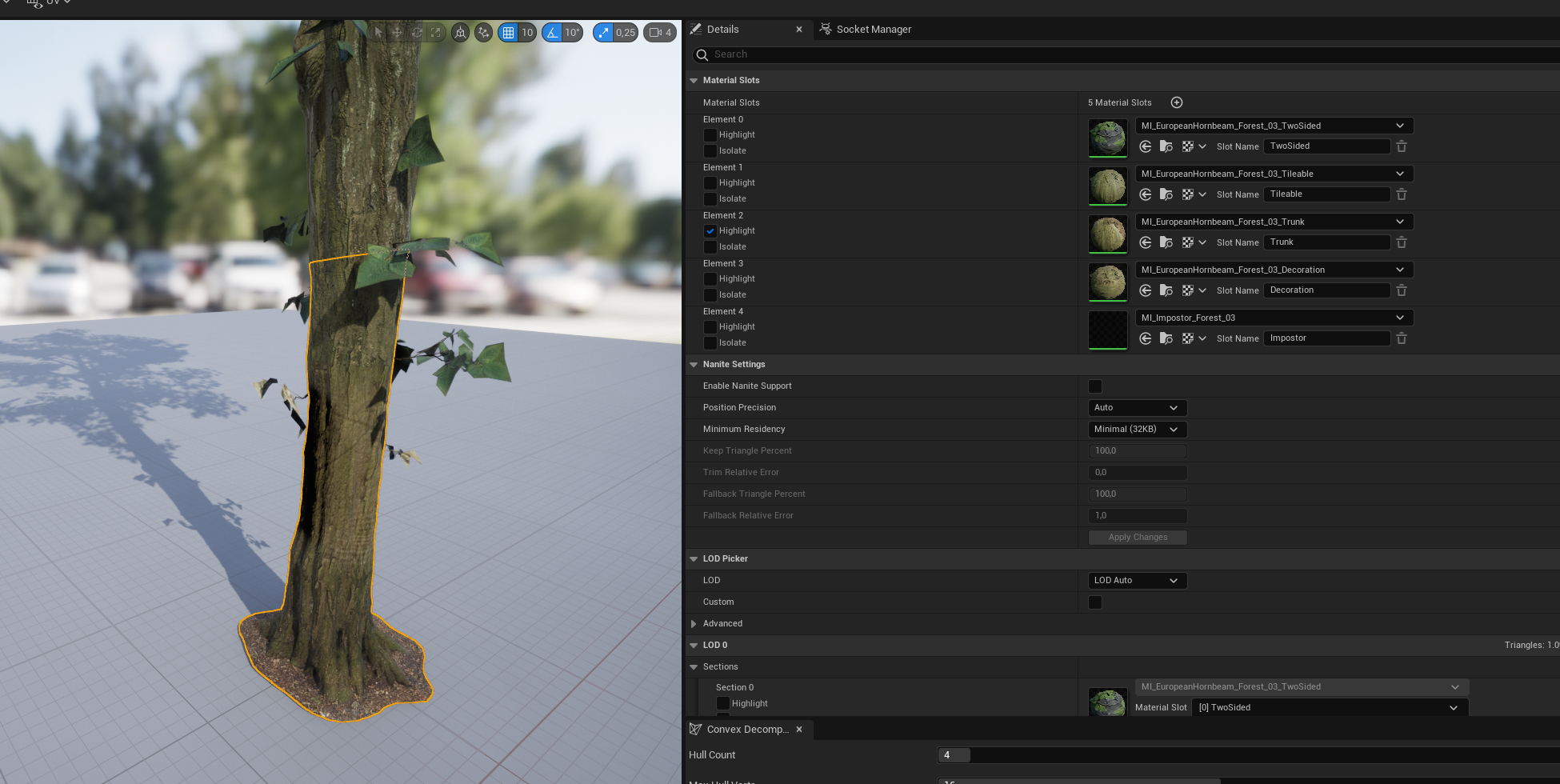
Some Megascans trees require the choppable material index to be set manually. Open the mesh, highlight the part that should be chopped, and check its material index. In the example, the relevant index is 2.
Chaos-Based Trees
Chaos-based trees are more advanced. Use this workflow only when you are comfortable configuring Chaos destruction.
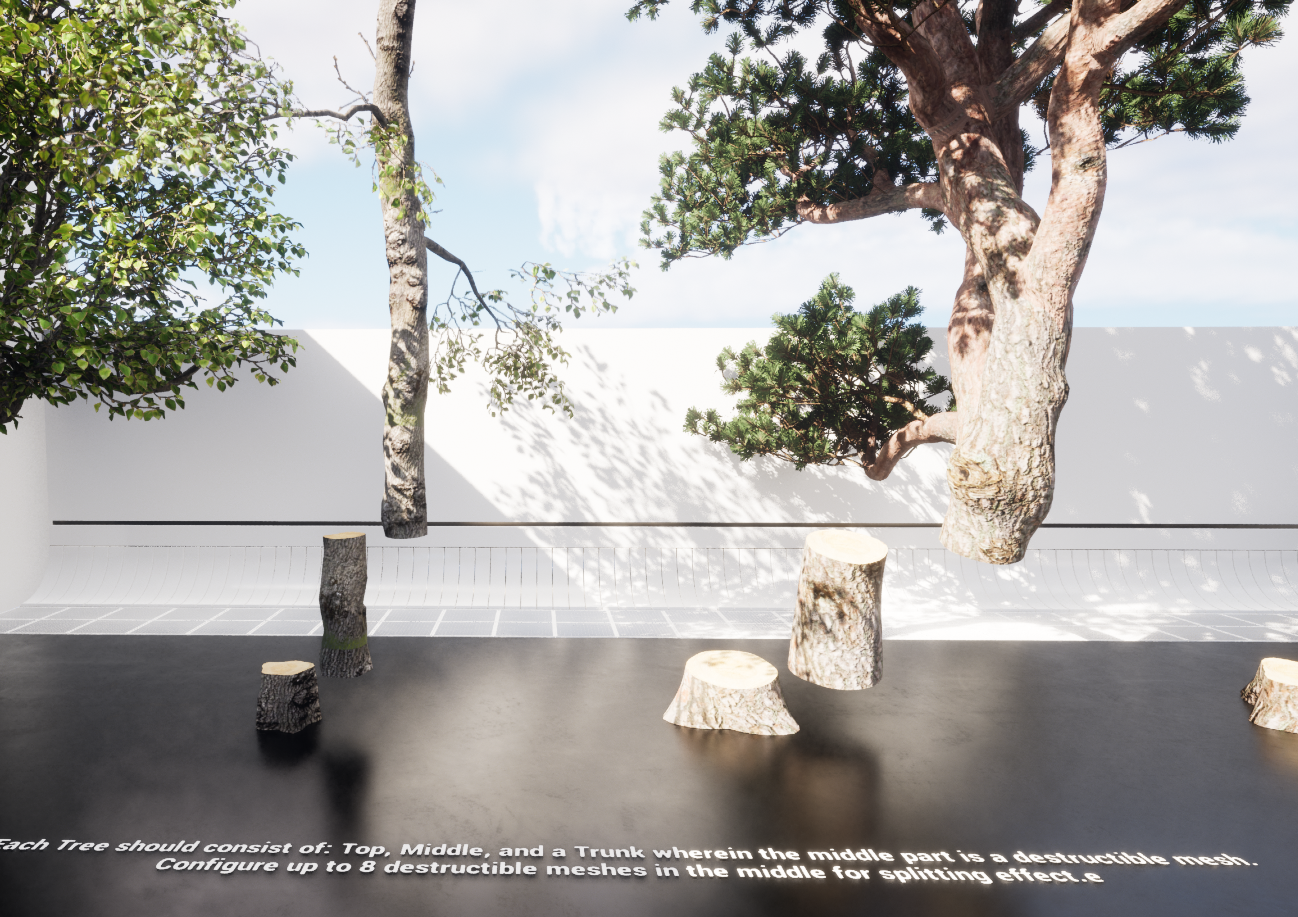
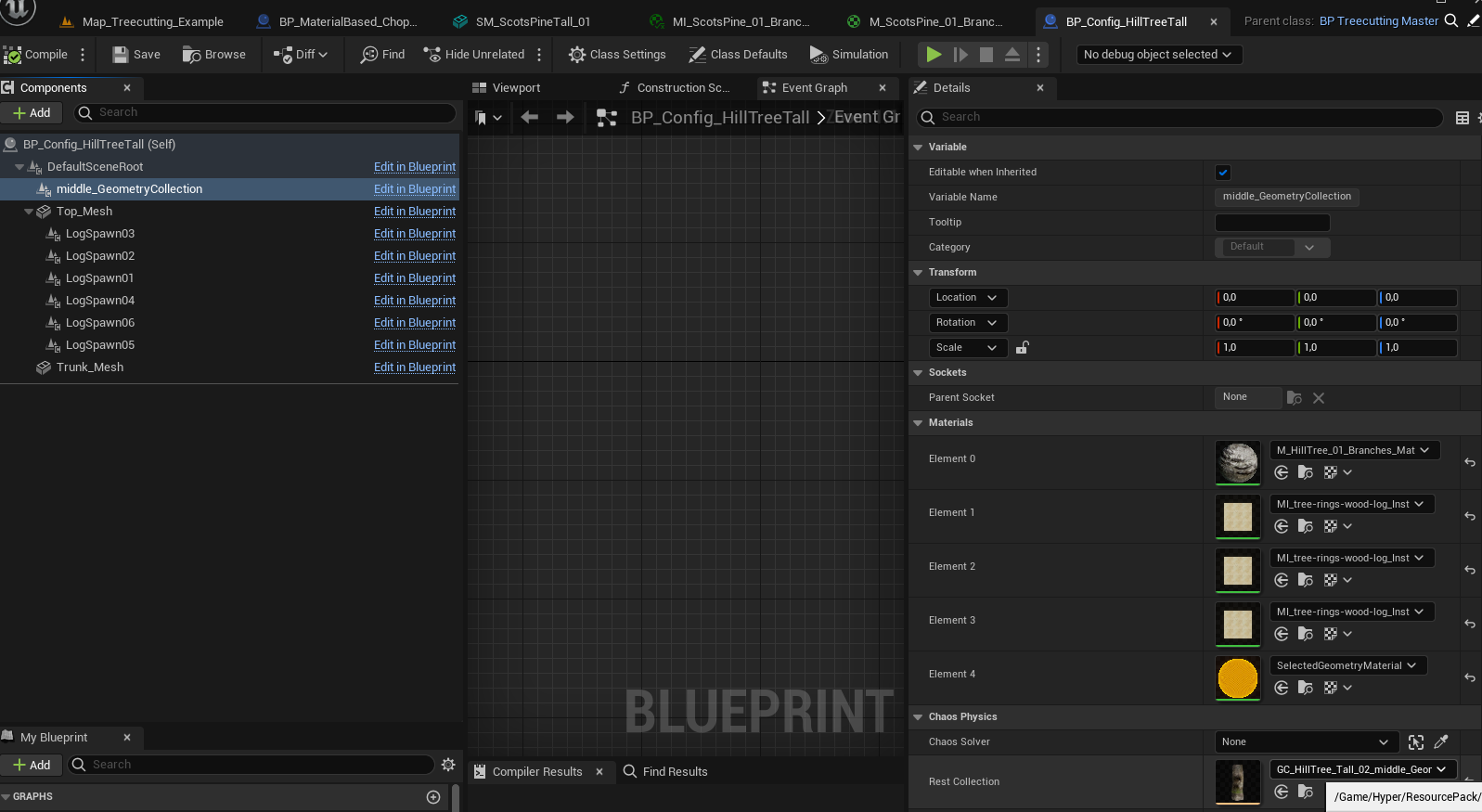
- Create a tree made from a Top, Middle, and Trunk section, where the middle part is a destructible mesh.
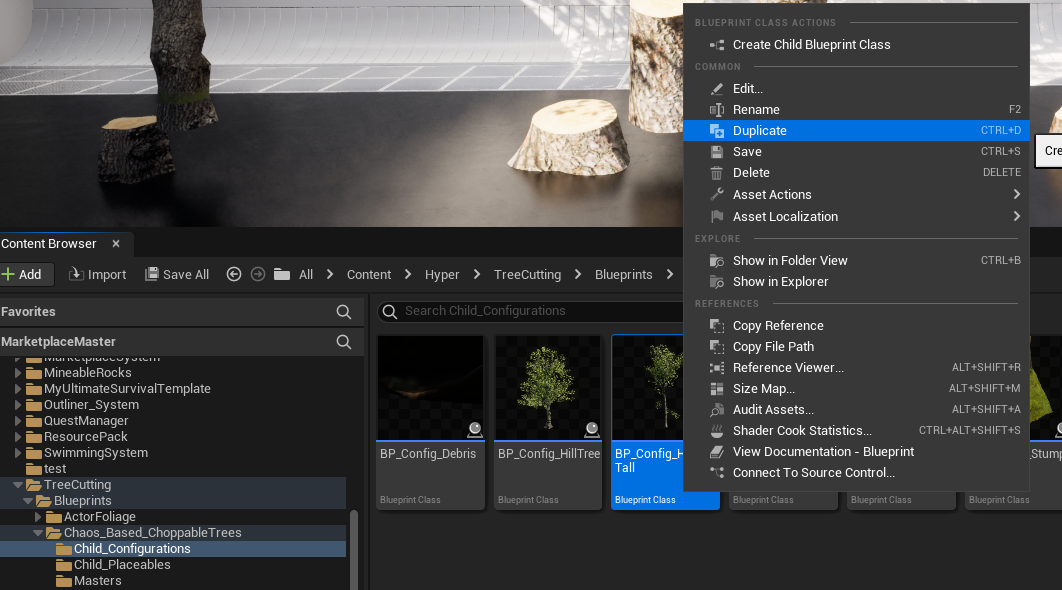
- Create a child of the master configuration or duplicate an existing one.
- Configure class defaults.
- Manually override the geometry collection after creating it.
- Test the tree and tune the result.
Actor Foliage and PCG
Choppable trees can be spawned with actor foliage through the foliage tool or through a PCG graph.
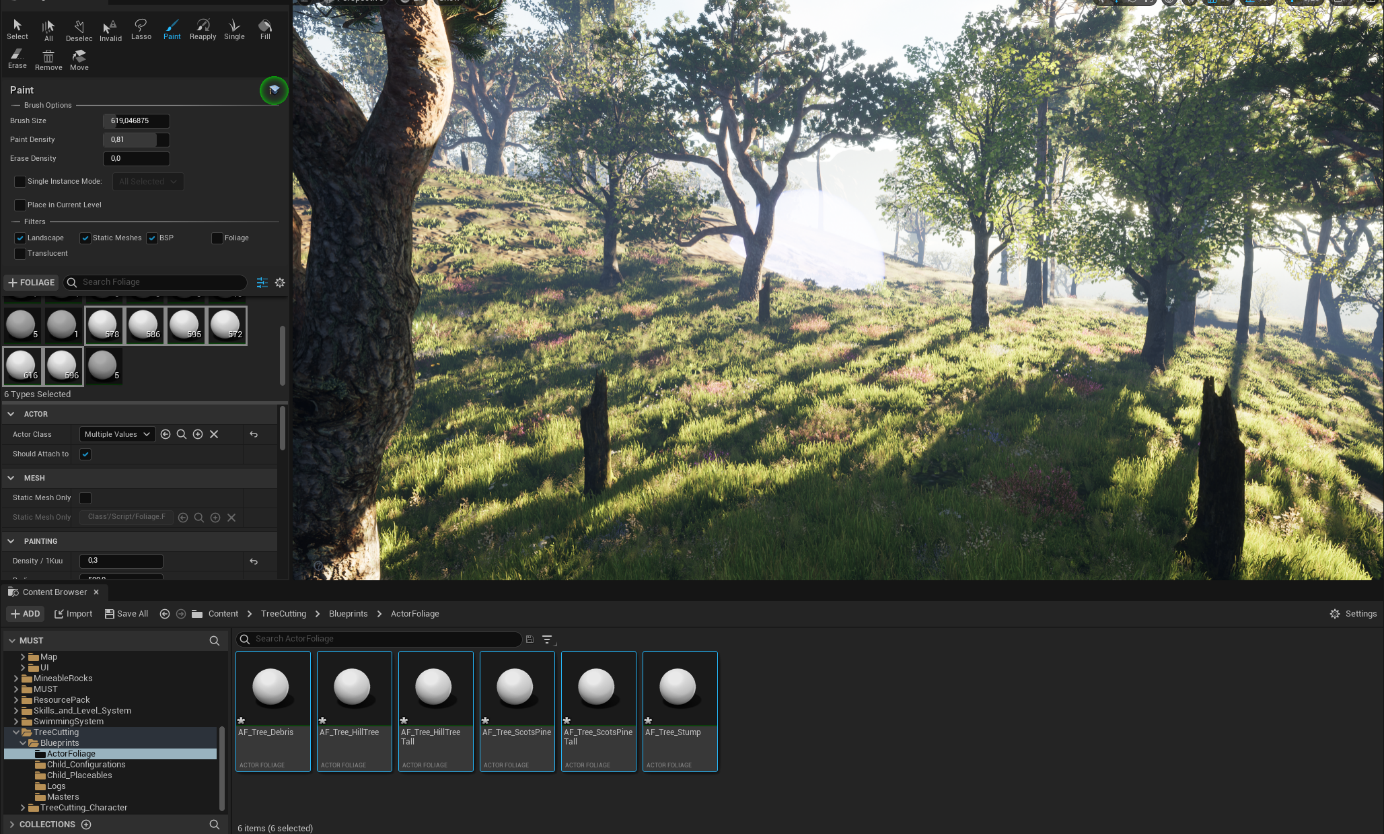
For large worlds, PCG is recommended, especially with the advanced Biome generator and Mesh To Actor Swap system.
Troubleshooting
Tree Breaks Too Fast or Too Slow
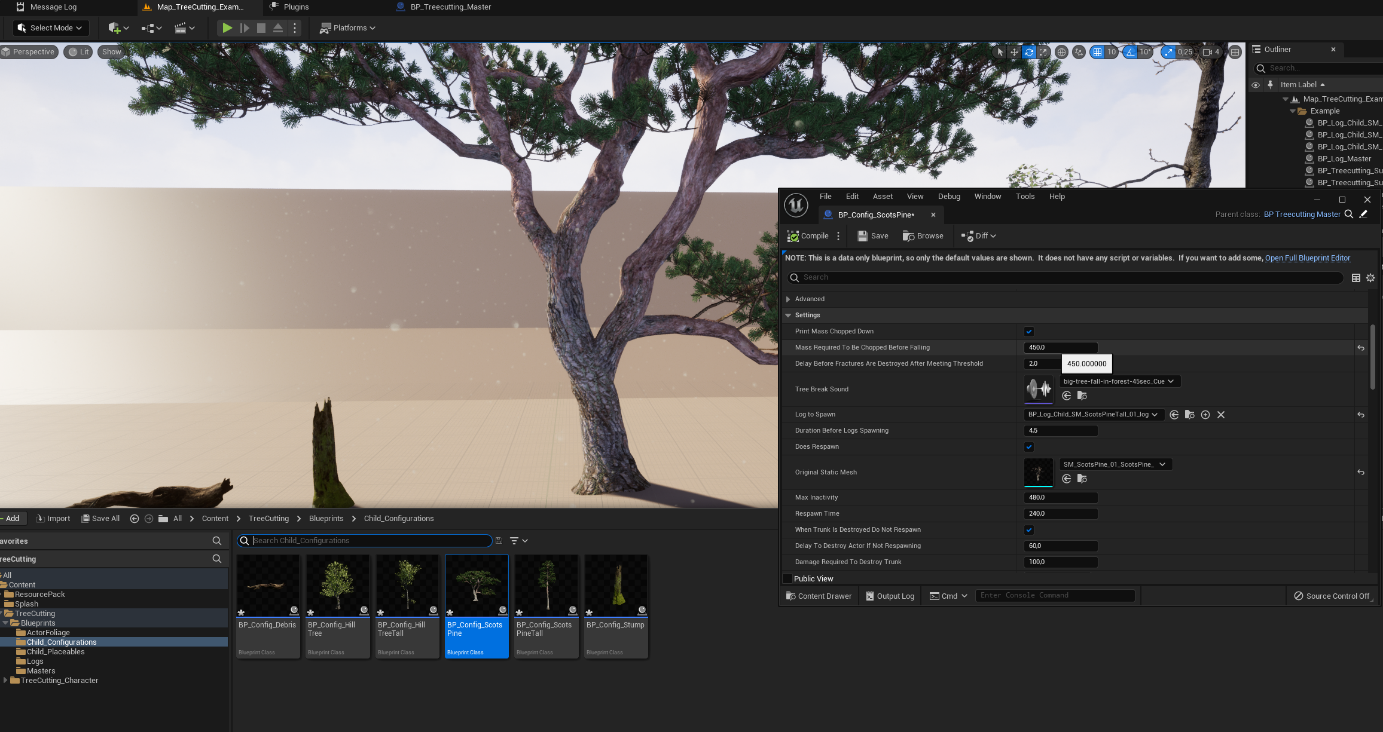
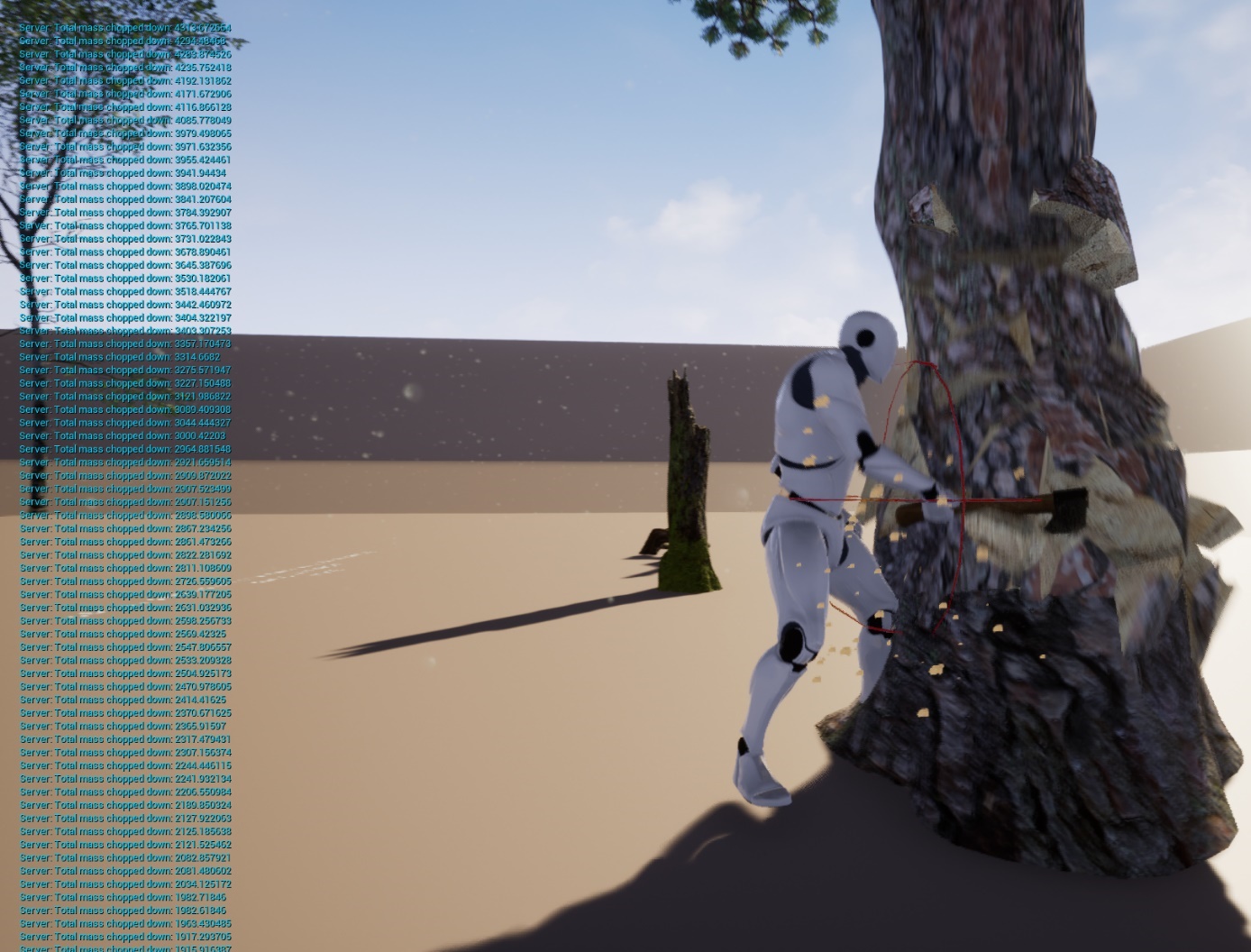
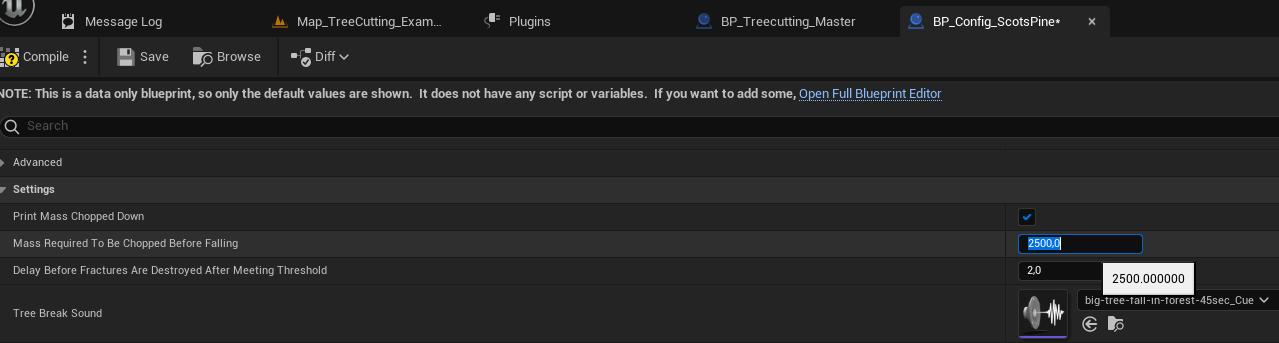
Chaos behavior can change between engine versions, including mass calculation. If a tree breaks too fast or too slowly, tune the mass threshold in the child tree configuration.
- Open the child config for the tree being hit.
- Find Mass Required To Be Chopped Down.
- Hit the destructible object and check the printed mass value.
- Use the printed mass as a starting point and adjust the threshold until the result feels correct.
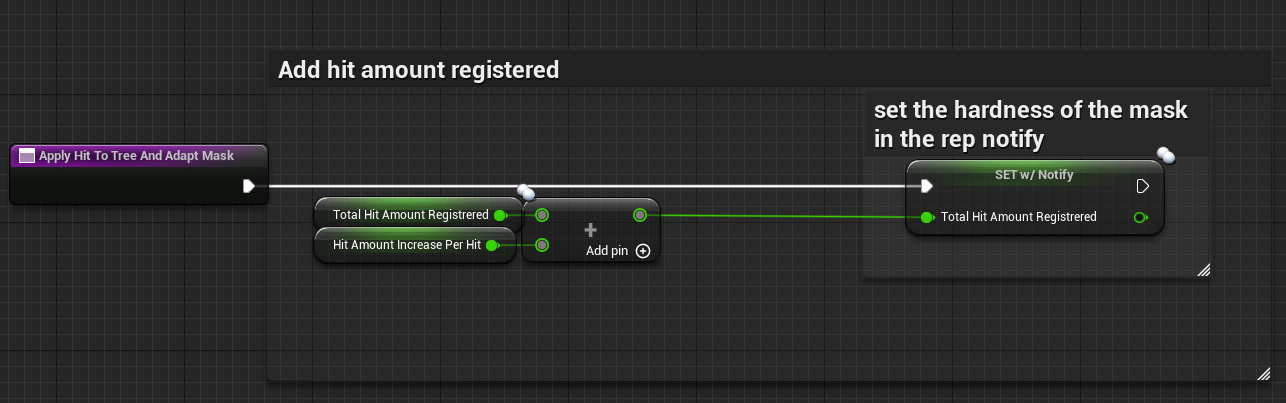
- Also review the damage values if your project uses values outside the expected range.
Note: The current setup expects damage values around roughly 10 to 50.
Material Only Shows Material Attributes
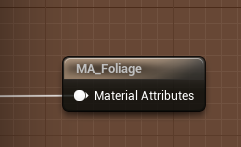
Some materials use collapsed material attribute nodes. To add MF_OffsetMask, break the material attributes, insert the offset-mask function, and make the material attributes again as shown.
Allow CPU Access Error
If the material-offset tree reports that Allow CPU Access is not enabled, open the specific static mesh and enable Allow CPU Access.

Material Does Not Offset When Hit
If the material is applied but does not offset, verify the Choppable Material Index.
- Open the tree mesh.
- Highlight the part that should be chopped.
- Check the material index.
- Set that index in the configuration Blueprint.