
Weather System
Updated May 23, 2026
The Weather System builds on the Time Manager and Day/Night Cycle systems. It manages global and section-based biome weather, local control areas, weather attributes, lens effects, material parameter collections, and temperature calculation.
For shared setup guidance, see the Migration Guide and Integration Guide. Use the System Atlas to look up functions, variables, events, components, and ownership references. Use this page for weather-specific actors, components, setup, and extension points.
Related Videos
Version note: Some videos may have been recorded before V4. Concepts still apply, but asset names, component names, and folder locations may differ. Treat this written documentation as the source of truth.
Dynamic Weather and Sky System for Multiplayer Biomes walkthrough PlayAdd Dynamic Weather, Sky, and Time Management in MST Pro Play
Core System
| Type | Assets | Role |
|---|---|---|
| Actors | BP_SectionBiome, BP_GlobalBiome, BP_ControlArea | Define biome areas, global fallback weather, and local weather/lens/sound control zones. |
| Components | AC_Biome_WeatherManager, AC_PlayerController_WeatherManager | Run biome-side weather logic and owning-client player weather logic. |
| Interfaces | BPI_Biome, BPI_ControlArea_NotifyPlayer, BPI_Weather_NotifyPlayer | Provide biome lookup and player notification events for entering or leaving biomes/control areas. |
| Material Parameter Collections | MPC_Player_WeatherAttributes, MPC_WeatherEffects, MPC_WeatherLensEffects | Drive player weather attributes, world weather effects, and post-process lens effects. |
System Setup
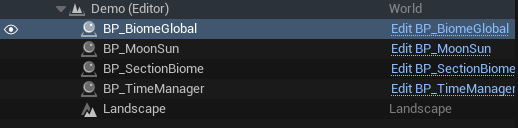
- Place BP_BiomeGlobal and BP_SectionBiome in the level.
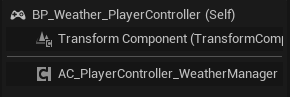
- Add AC_PlayerController_WeatherManager to the player controller. Without it, biomes do not register the character as a listener for weather events.
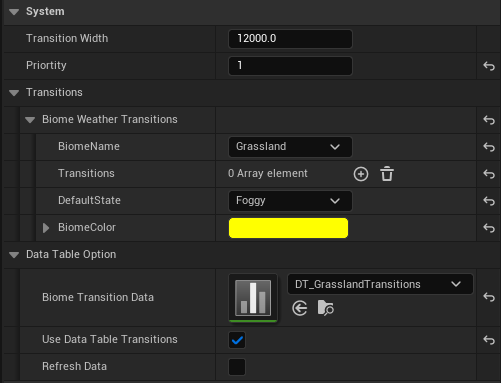
- Configure the System category on the global biome and section biome.
- For section biomes, configure transition width and priority. Transition width fades effects by distance through the transition area. Priority resolves overlapping biomes.
- Configure the biome transition structure. This is a Markov chain of user-defined probabilities for weather condition transitions.
- Optionally use data table transitions. Enable Use DataTable Transitions, import a correctly formatted data table, then refresh the data.
- Place BP_ControlArea when a local area should override lens effects, sounds, or temperature behavior.
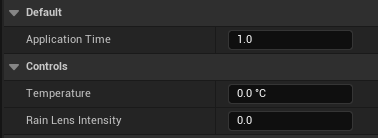
BP_ControlArea is a Box Overlap wrapper. It applies configured controls while the player overlaps the area. Application time controls how long effects take to apply when entering or leaving.
Weather Conditions
Weather condition assets live in the DataAttributes folder.
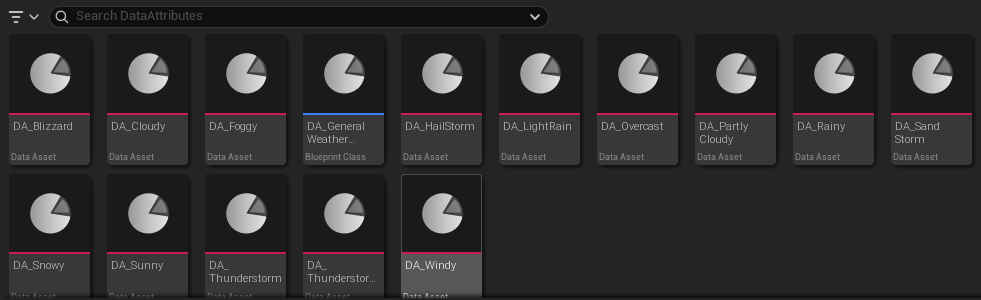
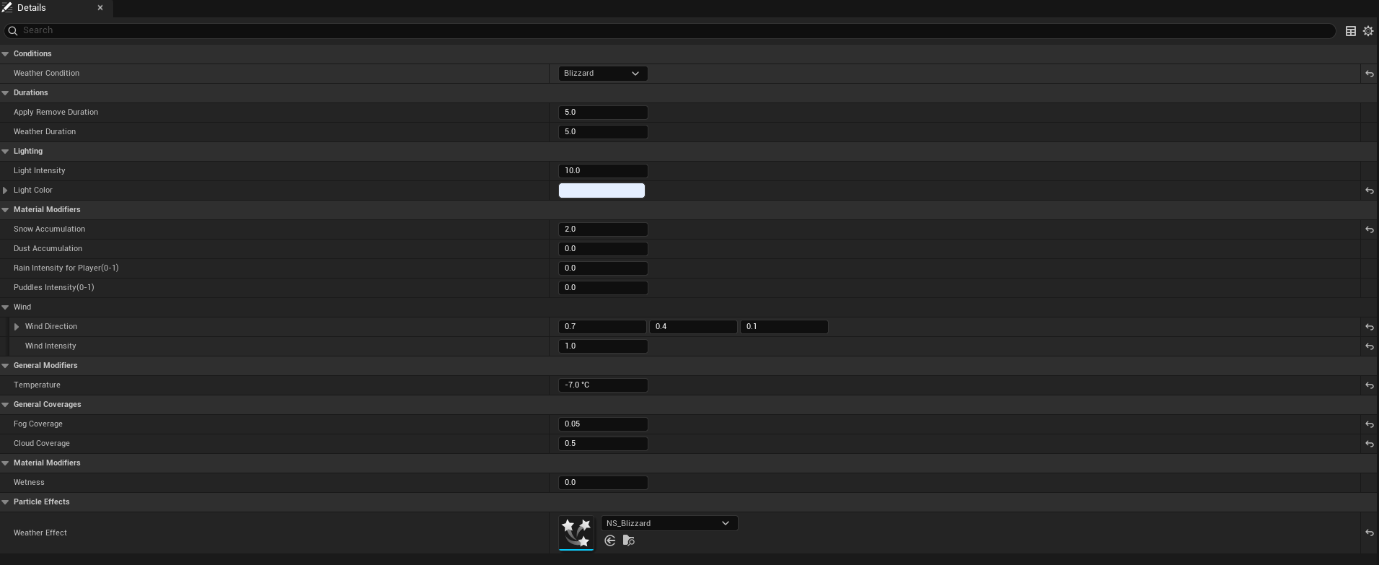
A weather condition defines the condition enum, application timing, active duration, sunlight intensity and color, material modifiers such as snow or dust accumulation, rain intensity, temperature, and coverage values.
Add a Weather Condition
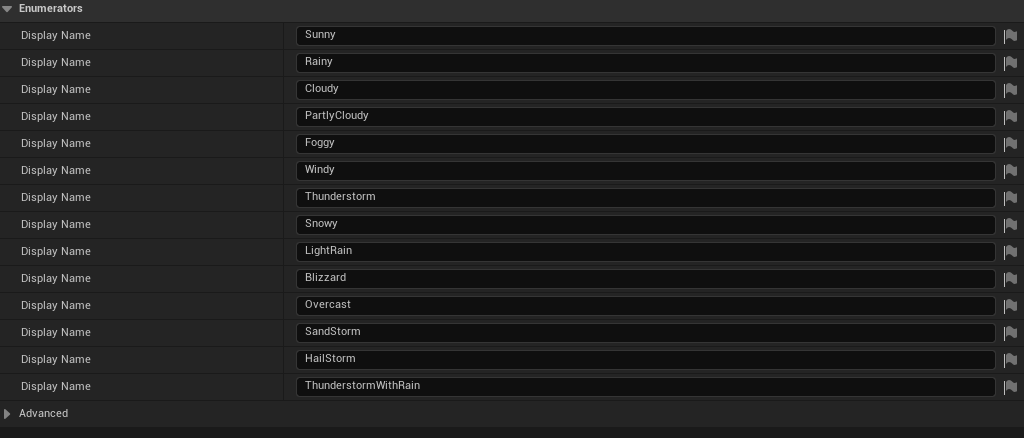
- Open E_WeatherStates and add the new condition.
- Create a new asset inheriting from DA_GeneralWeatherAttributes.
- Open the asset and set the condition name to the new enum entry.
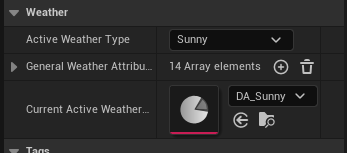
- Open AC_Biome_WeatherManager and add the condition to the condition array.
- Open AC_PlayerController_WeatherManager.
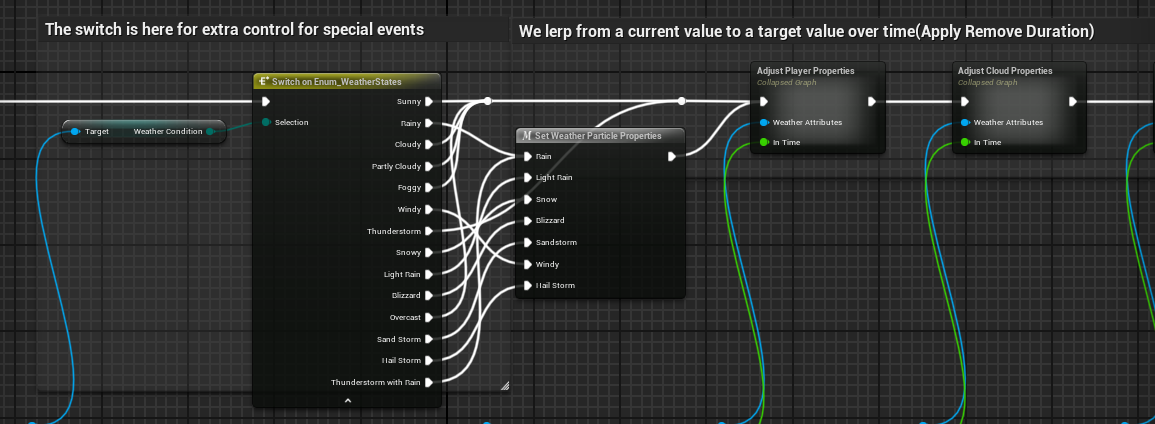
- Update Apply Weather Attributes and Apply Weather Attributes Continually so the new condition affects player-side behavior.
Actor and Component Roles
- BP_SectionBiome: Fixed-area biome. Used when a location should have local weather behavior.
- BP_GlobalBiome: Infinite fallback biome. If the player is not inside a section biome, the global biome is expected to apply.
- BP_ControlArea: Local override area for specific biome properties, such as indoor temperature handling during a blizzard.
- AC_Biome_WeatherManager: Attached to biome actors. Handles server-side weather logic, biome timers, and event dispatchers.
- AC_PlayerController_WeatherManager: Attached to the player controller. Binds to biome event dispatchers and handles owning-client weather logic.
BPI_Biome returns the owning biome for a weather manager. BPI_ControlArea_NotifyPlayer sends OnPlayerEnteredControlArea and OnPlayerExitedControlArea. BPI_Weather_NotifyPlayer sends OnPlayerEnteredBiome and OnPlayerExitedBiome.
Temperature Management
Temperature is built from global time, biome weather, and local player context.
| Source | Scope | Notes |
|---|---|---|
| Time Manager | Global | Provides base temperature through the global temperature logic. |
| Biome weather | All actors in the biome | Weather condition temperature offsets come from the active biome condition. |
| Local player context | Player-specific | Control areas, indoor checks, water, fire proximity, and similar local modifiers affect player-facing temperature. |
Outside Temperature
Outside temperature combines season, time of day, and active weather type.
- Season: Base temperature range. Examples in the source include Winter -15 to 7, Spring 10 to 20, Summer 20 to 45, and Fall 2 to 17.
- Time of day: Offset on top of season. Examples include Morning -7 to -3, Afternoon -2 to 2, Evening -6 to -2, and Night -12 to -6.
- Weather type: Extra offset from weather assets such as DA_Blizzard, DA_Cloudy, DA_Foggy, DA_HailStorm, DA_LightRain, DA_Overcast, DA_PartlyCloudy, DA_Rainy, DA_SandStorm, DA_Snowy, DA_Clear, DA_Thunderstorm, DA_ThunderstormWithRain, and DA_Windy.
Update Logic
Temperature should update when the time of day changes, the active weather type changes, or the season changes.
On the player controller, the local temperature calculation caches season, time-of-day, and weather temperature values separately. When one source changes, the function receives what changed, recalculates only that source, combines the cached values, sets the result, and calls the temperature-changed event dispatcher.
The source notes also call for a temperature component that can query the Time Manager, the active biome, control areas, indoor checks, and nearby fire influences to calculate the final player-facing temperature.
Temperature Screen Effects
Temperature can drive screen and state effects through the Attribute Manager.
- Attribute Manager listens for temperature changes and switches state effects such as wet, hot, or cold.
- Control area enter/exit events can decide whether a state effect should be removed.
- Lens effects are driven through MPC_WeatherLensEffects.
Control Areas and Indoor Temperature
Control areas and local checks are used to handle indoor temperature, fire influence, and shelter behavior.
- A control area can hold temperature data for predefined interiors.
- A line trace upward can detect buildables or roof-like cover above the player.
- Predefined buildings can use manually placed control area boxes.
- Fires outside should have a control area component assigned when they need to affect temperature.
A control area data asset can define minimum and maximum temperature, base temperature, and offset. The source example uses min 5, max 35, base 20, and offset 10.
Example: if outside is -50, applying +10 gives -40, which clamps to the minimum value 5. If outside is 25 and the offset would cross the base temperature of 20, clamp the result to the base instead of overshooting past it.
The source formula for directional offset is:
Actual offset = max(abs(current temp - base temp), offset) * (current temp > base ? -1 : 1)